

Add variables
In addition to the built-in global variables that come with Grafana, you can create your own variables. The following table lists the types of variables you can create:
Note
In Grafana 13.1, Ad hoc filters have been renamed Filter and Group by and extended by adding grouping for Prometheus and Loki data sources. However, in the dashboard schema, they’re still referred to as
"kind": "AdhocVariable".For information on the Filter and Group by feature, refer to the documentation.
Enter general options for any variable
To create a variable, follow these steps:
- Navigate to the dashboard you want to update.
- Click Edit.
- Click the Add new element icon (blue plus sign) and select Variable.
Choose a variable type from the list.
You can update the variable type by clicking Change type in the sidebar.
Enter a Name for the variable.
(Optional) In the Label field, enter the display name for the variable drop-down list.
If you don’t enter a display name, then the drop-down list label is the variable name.
(Optional) In the Description field, enter a description of the variable. The description appears as an info icon tooltip next to the variable name on the dashboard.
Descriptions support links. You can use Markdown-style links (
[link text](https://example.com)) or paste bare URLs (https://example.com). OnlyhttpandhttpsURLs are rendered as clickable links—other protocols are displayed as plain text.Choose a Display option:
- Above dashboard - The variable drop-down list displays above the dashboard with the variable Name or Label value. This is the default.
- Above dashboard, label hidden - The variable drop-down list displays above the dashboard, but without showing the name of the variable.
- Controls menu - The variable is displayed in the dashboard controls menu instead of above the dashboard. The dashboard controls menu appears as a button in the dashboard toolbar.
- Hidden - No variable drop-down list is displayed on the dashboard.
- Click one of the following links to complete the steps for adding your selected variable type:
You can also click the add Add variable icon at the top of the dashboard (plus sign).
Variable best practices
- Variable drop-down lists are displayed in the order in which they’re listed in the Variables section of the sidebar, so put the variables that you change often at the top, so they’re shown first.
- By default, variables don’t have a default value. This means that the topmost value in the drop-down list is always preselected. If you want to pre-populate a variable with an empty value, you can use the following workaround in the variable settings:
- Select the Include All Option checkbox.
- In the Custom all value field, enter a value like
.+.
Add a query variable
Query variables enable you to write a data source query that can return a list of metric names, tag values, or keys. For example, a query variable might return a list of server names, sensor IDs, or data centers. The variable values change as they dynamically fetch options with a data source query.
Query variables are generally only supported for strings. If your query returns numbers or any other data type, you might need to convert them to strings to use them as variables. For the Azure data source, for example, you can use the tostring function for this purpose.
Query expressions can contain references to other variables and in effect create linked variables. Grafana detects this and automatically refreshes a variable when one of its linked variables change.
Note
Query expressions are different for each data source. For more information, refer to the documentation for your data source.
Click Open variable editor.
Set the following options to configure your query in the Query tab:
In the Static options tab, set the following options:
- Select an option in the Static options sort drop-down list to control where in the list of variable values the static options appear.
- Under value, click + Add new option or Paste from clipboard to add static options.
Click Preview in the top of the dialog box to test the variable.
Grafana displays a list of the current variable values.
In the Preview of values section, Review them to ensure they match what you expect.
Click Apply to close the query variable editor dialog box.
In the Refresh drop-down list, select an option to control when the variable should update:
- On dashboard load - Queries the data source every time the dashboard loads. This slows down dashboard loading, because the variable query needs to be completed before dashboard can be initialized.
- On time range change - Queries the data source every time the dashboard loads and when the dashboard time range changes. Use this option if your variable options query contains a time range filter or is dependent on the dashboard time range.
(Optional) Set Selection options if needed:
- Multi-value - Enables multiple values to be selected at the same time.
- Include All value - Enables an option to include all variables.
- Allow custom values - Enables users to add custom values to the list. Only applies to CSV custom values.
Click Save in the top-right corner.
Enter an optional description of your changes and click Save.
Click Exit edit.
Query type
The query section of the editor varies according to your data source. Some data sources have custom query editors.
Each data source defines how the variable values are extracted. The typical implementation uses every string value returned from the data source response as a variable value. Make sure to double-check the documentation for the data source.
Some data sources let you provide custom “display names” for the values.
For instance, the PostgreSQL, MySQL, and Microsoft SQL Server plugins handle this by looking for fields named __text and __value in the result.
Other data sources may look for text and value or use a different approach.
Always remember to double-check the documentation for the data source.
If you need more room in a single input field query editor, then hover your cursor over the lines in the lower right corner of the field and drag downward to expand.
Add a custom variable
Use a custom variable for a value that doesn’t change, such as a number or a string.
For example, if you have server names or region names that never change, then you might want to create them as custom variables rather than query variables. Because they don’t change, you might use them in chained variables rather than other query variables. That would reduce the number of queries Grafana must send when chained variables are updated.
Click Open variable editor.
Configure one of the following options:
- CSV - Enter a flat list of values for the variable in a comma-separated list. You can include numbers, strings, or key/value pairs separated by a space and a colon. For example,
key1 : value1,key2 : value2. - JSON - Provide a JSON array of objects where each object can have any number of properties that can be referenced. For more information refer, to Configure multi-property variables.
- CSV - Enter a flat list of values for the variable in a comma-separated list. You can include numbers, strings, or key/value pairs separated by a space and a colon. For example,
Click Preview to test the variable.
In the Preview of values section, Grafana displays a list of the current variable values. If you’ve entered a JSON array, the preview is a table that includes all the value properties. Review them to ensure they match what you expect.
Click Apply to close the query editor dialog box.
(Optional) Set Selection options if needed:
- Multi-value - Enables multiple values to be selected at the same time.
- Include All value - Enables an option to include all variables.
- Allow custom values - Enables users to add custom values to the list. Only applies to CSV custom values.
Click Save in the top-right corner.
Enter an optional description of your changes and click Save.
Click Exit edit.
Add a textbox variable
Textbox variables display a free text input field with an optional default value. This is the most flexible variable, because you can enter any value. Use this type of variable if you have metrics with high cardinality or if you want to update multiple panels in a dashboard at the same time.
For more information about cardinality, refer to What are cardinality spikes and why do they matter?
(Optional) Under Textbox options, enter the default value for the variable in the Value field.
If you do not enter anything in this field, then Grafana displays an empty text box for users to type text into.
Click Save in the top-right corner.
Enter an optional description of your changes and click Save.
Click Exit edit.
Add a constant variable
Constant variables enable you to define a hidden constant. This is useful for metric path prefixes for dashboards you want to share. When you export a dashboard, constant variables are converted to import options.
Constant variables are not flexible. Each constant variable only holds one value, and it cannot be updated unless you update the variable settings.
Constant variables are useful when you have complex values that you need to include in queries but don’t want to retype in every query. For example, if you had a server path called i-0b6a61efe2ab843gg, then you could replace it with a variable called $path_gg.
Under Constant options, enter the variable value in the Value field.
You can enter letters, numbers, and symbols. You can even use wildcards if you use raw format.
Click Save in the top-right corner.
Enter an optional description of your changes and click Save.
Click Exit edit.
Add a data source variable
Data source variables enable you to quickly change the data source for an entire dashboard. They’re useful if you have multiple instances of a data source, perhaps in different environments.
Configure the following Data source options:
- Type - Select the target data source for the variable.
- Name filter - (Optional) Enter a regular expression filter for which data source instances to choose from in the variable value drop-down list. Leave this field empty to display all instances.
(Optional) Set Selection options if needed:
- Multi-value - Enables multiple values to be selected at the same time.
- Include All value - Enables an option to include all variables.
- Allow custom values - Enables users to add custom values to the list. Only applies to CSV custom values.
Click Save in the top-right corner.
Enter an optional description of your changes and click Save.
Click Exit edit.
Add an interval variable
Use an interval variable to represents time spans such as 1m,1h, 1d. You can think of them as a dashboard-wide “group by time” command. Interval variables change how the data is grouped in the visualization. You can also use the Auto Option to return a set number of data points per time span.
You can use an interval variable as a parameter to group by time (for InfluxDB), date histogram interval (for Elasticsearch), or as a summarize function parameter (for Graphite).
Configure the following Interval options:
Click Save in the top-right corner.
Enter an optional description of your changes and click Save.
Click Exit edit.
Interval variable examples
The following example shows a template variable myinterval in a Graphite function:
summarize($myinterval, sum, false)The following example shows a more complex Graphite example, from the Graphite Template Nested Requests panel:
groupByNode(summarize(movingAverage(apps.$app.$server.counters.requests.count, 5), '$interval', 'sum', false), 2, 'sum')Add a switch variable
Switch variables display a switch with two configurable values representing enabled and disabled states. This variable type is useful when you need to:
- Toggle between different query conditions
- Enable or disable specific filters
- Switch between different visualization modes
- Control boolean parameters in your data sources
Configure the following Switch options:
Click Save in the top-right corner.
Enter an optional description of your changes and click Save.
Click Exit edit.
Switch variable examples
The following example shows a switch variable $debug_mode used in a Prometheus query to conditionally include debug labels:
up{job="my-service"} and ($debug_mode == "true" or on() vector(0))The following example shows a switch variable $show_errors used to filter log entries:
{job="application"} |= ($show_errors == "1" ? "ERROR" : "")You can also use switch variables in panel titles and other dashboard elements:
{{#if debug_mode}}Debug Mode: {{/if}}Application MetricsVariable selection options
Selection Options are a feature you can use to manage variable option selections for query and custom variables. All selection options are optional, and they’re off by default.
Multi-value variables
Interpolating a variable with multiple values selected is tricky as it’s not straight forward how to format the multiple values into a string that’s valid in the given context where the variable is used. Grafana tries to solve this by allowing each data source plugin to inform the templating interpolation engine what format to use for multiple values.
Note
The Custom all value option on the variable must be blank for Grafana to format all values into a single string. If it’s left blank, then Grafana concatenates (adds together) all the values in the query. Something like
value1,value2,value3. If a customallvalue is used, then instead the value is something like*orall.
Multi-value variables with a Graphite data source
Graphite uses glob expressions. A variable with multiple values would, in this case, be interpolated as {host1,host2,host3} if the current variable value was host1, host2, and host3.
Multi-value variables with a Prometheus or InfluxDB data source
InfluxDB and Prometheus use regular expressions, so the same variable would be interpolated as (host1|host2|host3). Every value would also be regular expression escaped. If not, a value with a regular expression control character would break the regular expression.
Multi-value variables with an Elastic data source
Elasticsearch uses Lucene query syntax, so the same variable would be formatted as ("host1" OR "host2" OR "host3"). In this case, every value must be escaped so that the value only contains Lucene control words and quotation marks.
Variable indexing
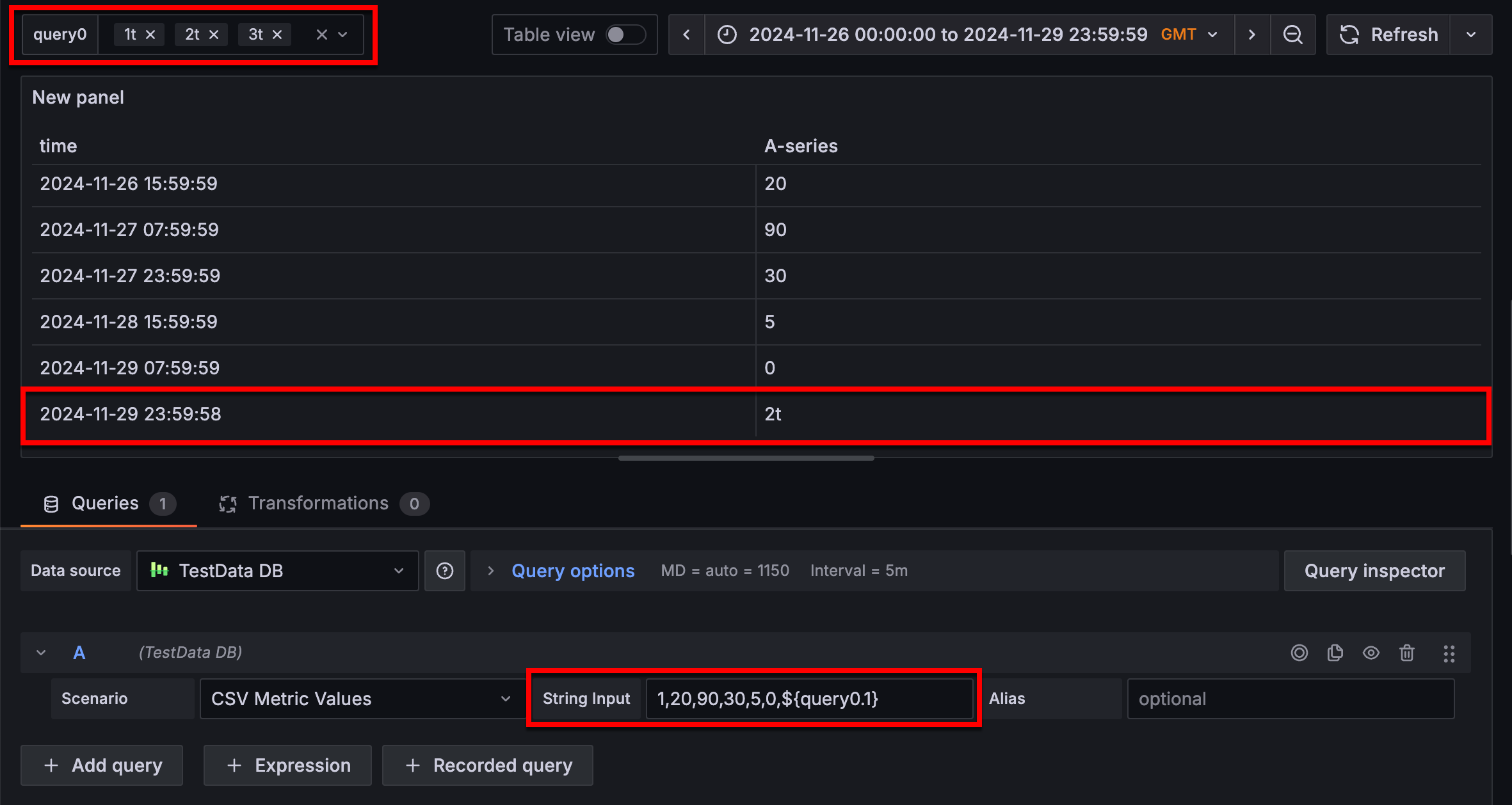
If you have a multi-value variable that’s formatted as an array, you can use array positions to reference the values rather than the actual values. You can use this functionality in dashboard panels to filter data, and when you do so, the array is maintained.
To reference variable values this way, use the following syntax:
${query0.0}The preceding syntax references the first, or 0, position in the array.
In the following example, there’s an array of three values, 1t, 2t, and 3t, and rather than referencing those values, the panel query references the second value in the array using the syntax ${query0.1}:
Troubleshoot multi-value variables
Automatic escaping and formatting can cause problems and it can be tricky to grasp the logic behind it. Especially for InfluxDB and Prometheus where the use of regular expression syntax requires that the variable is used in regular expression operator context.
If you don’t want Grafana to do this automatic regular expression escaping and formatting, then you must do one of the following:
- Turn off the Multi-value or Include All option options.
- Use the raw variable format.
Include All option
Grafana adds an All option to the variable drop-down list. If a user selects this option, then all variable options are selected.
If you enable this option but also set a variable’s Display option to Hidden, the variable defaults to selecting only the first value—not All—unless you explicitly select All while the variable is visible and then save the dashboard. To set All as the default for a hidden variable, complete the following steps:
- Temporarily set Display to Above dashboard.
- On the dashboard, select the All option from the variable drop-down list.
- Save the dashboard to persist the selection.
- Return to Dashboard options > Variables, select the variable, and set Display back to Hidden.
- Save the dashboard again.
Custom all value
This option is only visible if the Include All option is selected.
Enter regular expressions, globs, or Lucene syntax in the Custom all value field to define the value of the All option.
By default the All value includes all options in combined expression. This can become very long and can have performance problems. Sometimes it can be better to specify a custom all value, like a wildcard regular expression.
In order to have custom regular expression, globs, or Lucene syntax in the Custom all value option, it’s never escaped so you have to think about what’s a valid value for your data source.
Was this page helpful?
Related resources from Grafana Labs



