
How to share and analyze survey data (or other business metrics) in Grafana


Our annual Observability Survey provides some great insights on the state of industry and all things observability. And for the third edition of the survey, published last March, we wanted to bring the results into a Grafana dashboard—not just because we could, but because it was quite a nice way to interact with the data.
After all, Grafana isn't just for IT observability. You can use it to monitor everything from BI data to lunar landings to pet pythons—and now, survey data.
In this blog post, we'll take you through how we extracted the data, processed it, and displayed it. You can apply these same techniques to your data, whether it’s from surveys, corporate reporting and sales figures, event attendance, or any other information you want to represent in a beautiful and interactive way.
Note: We're running the fourth annual edition of the Observability Survey through Jan. 1, and we'd love to hear from you. It should take about 10 minutes to complete, and you'll have a chance to win some swag. This is your chance to weigh in on the state of observability—at your organization and across the industry.
How we collected the data
We collected more than 1,250 responses using Google Forms, which we embedded directly on our website. It is a simple yet effective tool, and it gives you all the data in a Google Sheet.
Note: Google Forms is great for simple surveys, but it has its limitations. For example, you can't add multiple languages, stack rank answers, or add multi-part, conditional questions. For our latest survey, we moved to a more robust tool that also presents the data in a spreadsheet format.
In order to work with the data, we needed to bring it into Grafana. For that, we experimented with a couple of options:
- Using the Google Sheets data source
- Importing it as a CSV directly into a dashboard
- Using BigQuery
The initial exploration was done using the Google Sheets data source and transformations. Since Google Forms outputs the data in a data format where multiple values may appear in the same row and column, there needs to be some processing. Different visualizations also need slight variations of the data to get it to display correctly. While trying to do this, we encountered some shortcomings with transformations. But fear not; we learned from it and created some fixes in our open source code:
- Extract fields comma delimiter: This was needed to extract multiple choice answers to their own fields.
- GroupToMatrix 0 special value: This was needed for creating a pivot table when one of the combinations is empty.
During this exploration phase, we realized that free-text answers create issues if we just use transformations. So we decided to do some preprocessing of the data, extracting all the answers into their own columns and manually handling “Other” answers.
While this removed our need for some of the initial transformations, we still needed to transform the data. However, doing multiple levels of data transformations is cumbersome.
To simplify this approach, we imported our Google Sheet into BigQuery, so we could use SQL to do transformations. It turns out that LLMs have good knowledge of SQL, which makes it easy to write, even if you don’t have much experience. Furthermore, we could leverage heavy caching with the BigQuery data source, as the data is static.
- Lesson learned: Transformations are great as a last step, but not suitable for multiple sets of transformations
SQL expressions
Just as we finished this project, SQL expressions were introduced in Grafana 12. While the feature wasn't available for us, it could be an option for your data visualization project. SQL expressions let you manipulate and combine data from different data sources—Prometheus, MySQL, BigQuery, Grafana Loki, Google Sheets, and more—as if they were all tables in the same MySQL database.
As was noted in a recent blog about this new feature, the simplest use case for SQL expressions is taking data from a single source—in this case tabular data—and treating it as a table. You can do all sorts of interesting things with this feature, but for the purposes of this use case, it would primarily help with aggregating and filtering your data. You can learn more about creating SQL expressions in our docs.
The dashboard variables
In order to give users more ways to interact with the dashboard, we wanted to filter the data according to some demographics:
- Region
- Role
- Size
- Industry
For the survey, our options were static, so we hardcoded these values into Custom type dashboard variables. If we had more options that were dynamic, a query variable would have been more suitable. For example, if the roles were changing over time, it would make more sense to keep these in a database table and pull the values from the database when the dashboard loads so the most up-to-date role definitions are always shown.
But since our values were set at the time we created the survey and wouldn’t ever change, it made more sense to just add them directly to Grafana rather than add another database query.

In order to filter for these, we created a query variable called “filters,” which combined all of these variables into a single select statement:
SELECT "`Region` in (${region}) AND `Role` IN (${role}) AND `Size_of_organization` IN (${size}) AND `Industry` IN (${industry})"We then inserted the $filter variable in every query/panel. This prevented mistakes in copying the same query structure into every panel (as well as saving a lot of unnecessary typing!).
The power of having these variables can be seen in these YouTube videos, where we break down some different priorities for roles. It lends itself to a much more interactive experience, keeping your users engaged and giving you more ways to analyze your data.
The visualizations
The majority of the visualizations are default options, such as the bar chart, pie chart, or the geomap panel.
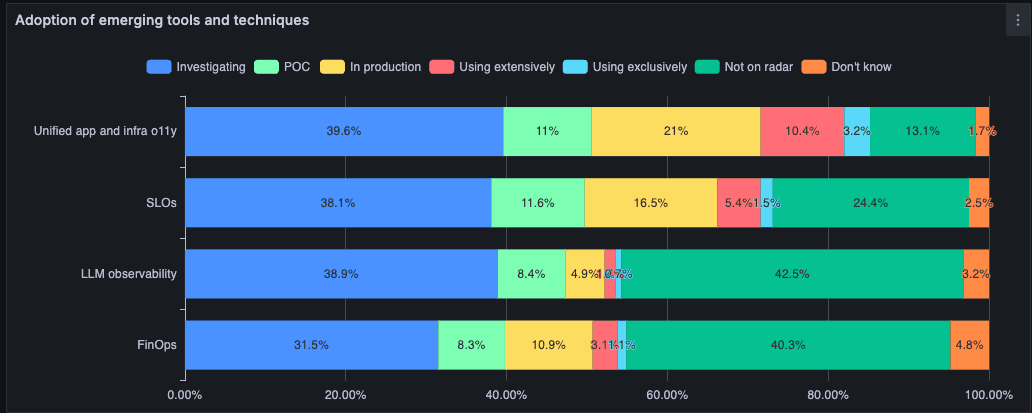
To add some visual interest and represent more complex data clearly, we added the Business Charts visualization. This gave us more flexibility in how the data was presented, including bubble charts to show multidimensional data and colored stacked bar charts with embedded text for clarity about what was being represented.

The Business Charts panel is based on the Apache ECharts library, which provides a multitude of visualization options. When configuring the panel you almost always have to write a little bit of JavaScript. If you are curious about how we did it, feel free to click “edit” on the panels on Play and take inspiration. Otherwise, the nearest LLM could help you, if you are not familiar with JavaScript.
Yet another way to Grafana
Grafana started out as a tool for visualizing time series metrics, but since then it's expanded to all sorts of unexpected, powerful, and inspiring use cases, and this year we added survey data visualizations to that list.
Our graphic designers and web developers do an amazing job translating the survey responses into an visually appealing yet informative report, but most people looking to visualize business data don't have the time or resources to go that route. By following the steps outlined in this blog post, you can make your own business data visualizations in no time.
Moreover, the survey dashboard added a much-needed dimension for capturing all the great insights buried in the data. Now, readers can even do their own analysis on the data, filtering by region, role, industry, and company size to get a better sense for how they and their organization stack up to their peers.
Again, we'd love to hear from you as we head toward the finish line with our latest survey. We see it as a great resource to help us and industry observers understand the state of observability, but it's also intended to be an asset for the community. The more responses we get, the better the final report will be, so please head over to our survey page to take the fourth annual Observability Survey today!
And stay tuned for the results in 2026, where we'll provide even more visualizations on the state of observability for you to dig into.
Grafana Cloud is the easiest way to get started with metrics, logs, traces, dashboards, and more. We have a generous forever-free tier and plans for every use case. Sign up for free now!