
Kepler Geospatial Maps Plus
Every sensor, site and vehicle on the map, each with its own time series.
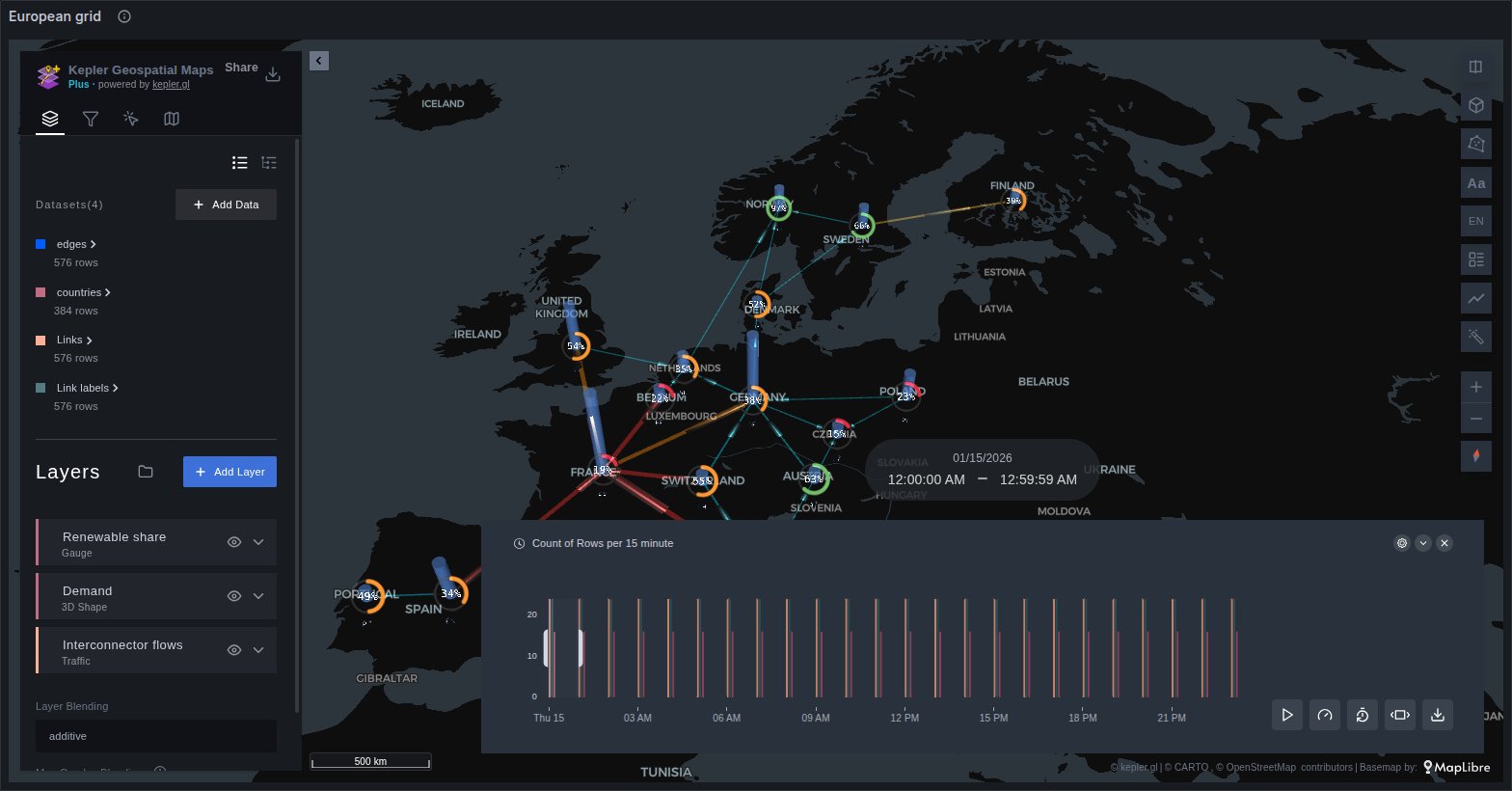
Grafana is very good at time series. The trouble starts when each series has a place. Forty river stations, two hundred substations or three thousand buses make a tangle of lines on a chart, and on an ordinary map they shrink to dots that have lost their history.
Plus draws each one where it is, together with its series: a sparkline card over the station, a gauge that fills over the substation, a bus that moves with its trail and its speed. Press play and the whole map walks through the time range, in step with the rest of the dashboard.
It runs kepler.gl inside the panel and reads the queries you already have: Prometheus, Loki, InfluxDB, PostgreSQL and PostGIS, Infinity, or any other data source that returns rows. Places that arrive as a name instead of coordinates, such as a cloud region, an airport code, a country, a province or a client IP, are placed for you.
Documentation: docs.ubica.dev/plus covers what Plus adds, layer by layer, with the columns each one reads, its options and a query per data source, and links back to the free panel's pages for everything the two share.
Where it earns its place
- Energy and power grids. Substations by load, renewable share per country, interconnector flows that change direction during the day.
- Telecom and networks. Cell sectors coloured by load, WAN and backbone links with their traffic running along them, probes and alerts by region.
- Environment and Earth observation. Weather, air and water quality stations, surfaces interpolated between them, and satellite imagery that follows the dashboard's clock.
- IoT and smart cities. Street lights, meters, air quality and parking sensors: thousands of devices, each reporting on its own clock, each shown with its trend and its latest value.
- Digital twins. Sites in 3D over Google's photorealistic city models, with gauges and bars at the assets they measure.
- Fleets. Vehicles, vessels, drones and livestock at their last position, with heading, status and a warning when one goes silent, live from a GTFS-realtime feed if you have one.
Motion that carries meaning
A still map shows where things are. Motion shows how they behave. On a Plus map, comets run faster along the links that carry more traffic, flow runs along pipelines and power lines in the direction it travels, vehicles move along their tracks, and every card's cursor follows the time filter. Animation is only used where it encodes a value, and it pauses off screen and when the system asks for reduced motion.
A map that talks to the rest of the dashboard
- Spatial filters reach every panel. Draw a polygon, click a site or pan the map, and the selection is published to dashboard variables: the charts, tables and stats beside the map recompute for that area, that asset or that view. Change the variable elsewhere and the map filters back. The Plus layers take part like kepler's own.
- One instant across map and charts. Hover a time series panel and every sparkline card on the map marks the same moment with a dashed line and its reading there, with Grafana's shared crosshair.
- One clock. The map's time filter can drive the dashboard's time range, or publish to variables while the map keeps its whole dataset, so pressing play on the map replays the other panels with it.
- One time brush for the whole dashboard. The second panel of the app, Time Brush Plus, draws a histogram of its query with a window to drag, step and play, written to the same variables or to the time range, and pins itself to the top of the page while you scroll, so a long dashboard keeps its clock in reach.
What Plus adds
Plus is the commercial edition of Kepler Geospatial Maps, the kepler.gl panel for Grafana. It keeps everything the free panel does and adds:
- eight new layer types built for operations: gauges, 3D bars, coverage sectors and domes, surfaces, sparkline cards, animated network traffic, pipelines and live fleets;
- places without coordinates: cloud regions, airports, PoPs, geohashes, countries, states, counties and client IPs placed on the map from their names;
- network links and active alerts drawn on the same map as your data;
- commercial base maps and 3D services: MapTiler, Esri, Azure Maps, Google and CARTO, plus Google Photorealistic 3D Tiles, with keys stored once for the whole organisation;
- a template dashboard, Kepler Plus layer tour, installed with the app: the main layers on synthetic data;
- Grafana Assistant built in: it explains a map, edits it on request and builds dashboards around it;
- a Time Brush panel: one histogram with a window to drag, step and play for every panel on the dashboard, pinned to the top of the page while scrolling, in step with the shared crosshair.
Plus is an app plugin, ubica-keplerplus-app. It stores the organisation's map service keys and nests two panels,
Kepler Geospatial Maps Plus and Time Brush Plus. It can run next to the free panel on the same Grafana, and
on the same dashboard.
Free panel and Plus side by side
| Free panel | Plus | |
|---|---|---|
| kepler.gl layers, filters, time playback, saved map configuration | ✓ | ✓ |
| Column autodetection, GeoJSON/WKT/WKB geometry, H3 | ✓ | ✓ |
| Trips, origin-destination flows, symbols, streamlines, vector fields | ✓ | ✓ |
| Cloud-native imagery: COG, PMTiles, Zarr, WMS, ArcGIS Image Service, STAC | ✓ | ✓ |
| Dashboard time sync, cross-filtering, draggable markers, Grafana Assistant context | ✓ | ✓ |
| OpenFreeMap, CARTO and Esri public base maps, with relief | ✓ | ✓ |
| Gauge, 3D Shape, Coverage, Surface, Sparkline, Traffic, Pipeline and Fleet layers | ✓ | |
| Places without coordinates: regions, zones, airports, PoPs, geohashes, countries, IPs | ✓ | |
| States, provinces, counties and cantons placed by name or ISO 3166-2 code | ✓ | |
| Network links between named sites, coloured by Grafana thresholds | ✓ | |
| Active alerts on the map, with only the rules the viewer can read | ✓ | |
| MapTiler, Esri, Azure Maps and Google base maps, keyed CARTO, Relief, POI and 3D building switches, sky | ✓ | |
| Google Photorealistic 3D Tiles layers | ✓ | |
| Clicks and drawn polygons that also select and filter the Plus layers, and reach the other panels | ✓ | |
| Sparkline and Fleet cards that follow Grafana's shared crosshair from the other panels | ✓ | |
| A layer tour dashboard and Grafana Assistant skills for the Plus map | ✓ | |
| Time Brush panel: one window to drag, step and play for the whole dashboard, pinned while scrolling | ✓ |
New layer types
Each one is a kepler layer like any other: pick it in Add Layer → layer type, style it in kepler's layer panel, and save it with the map. They respect kepler's filters and the time filter, so a dashboard can replay them.
Gauge
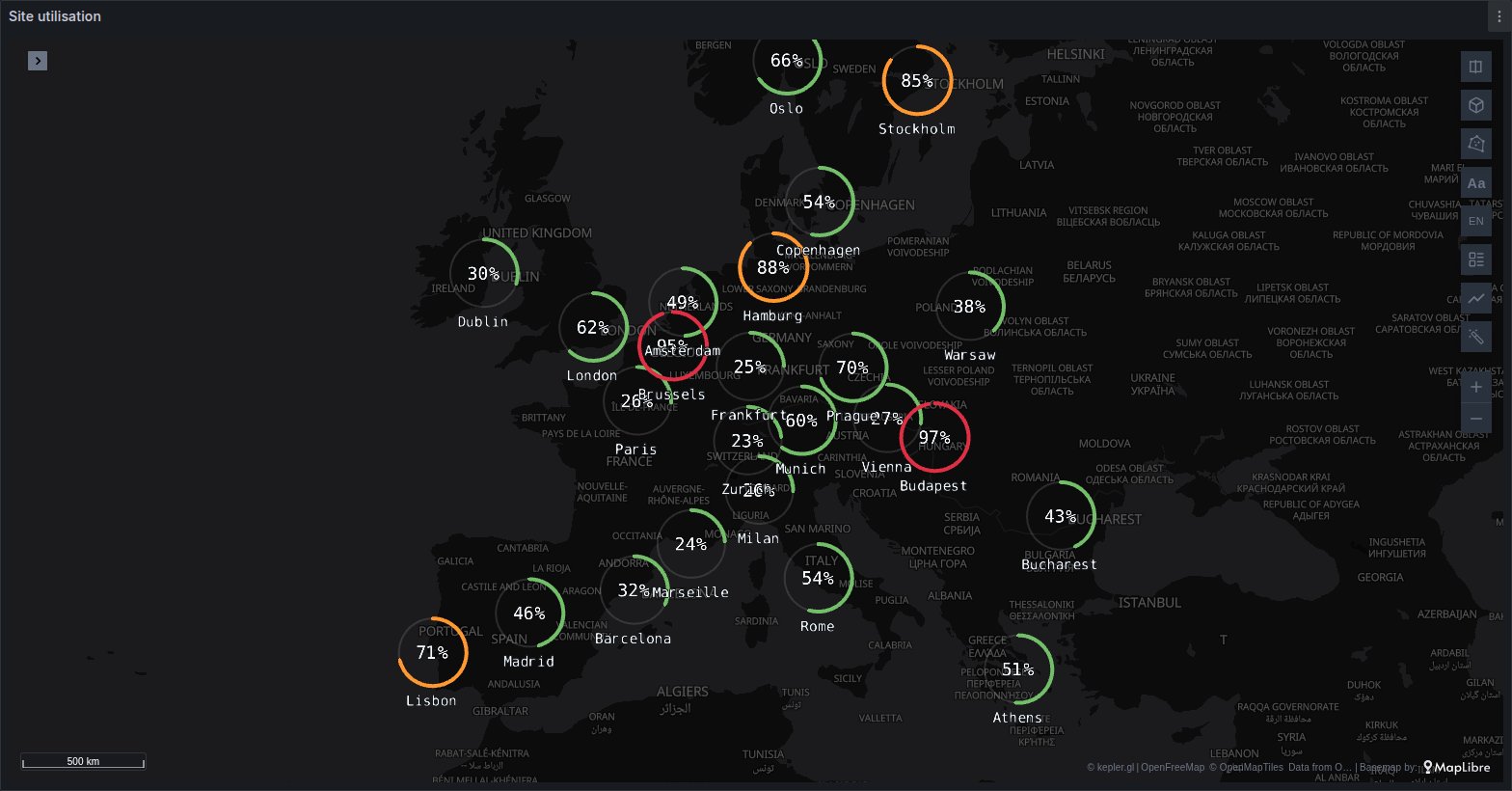
Each point draws as a ring filled to its value's fraction of a maximum, with the percentage or the value and its unit at its centre and the site's name under it. The ring takes kepler's colour breaks, so 70 and 90 can turn it amber and red. The Shape setting swaps the ring for a marker that fills: a thermometer, a tank, a battery, a drop, or any icon from the catalogue. Gauges can stand upright in 3D and sit beside their point with a leader line (Position, Distance), so the point itself stays visible.
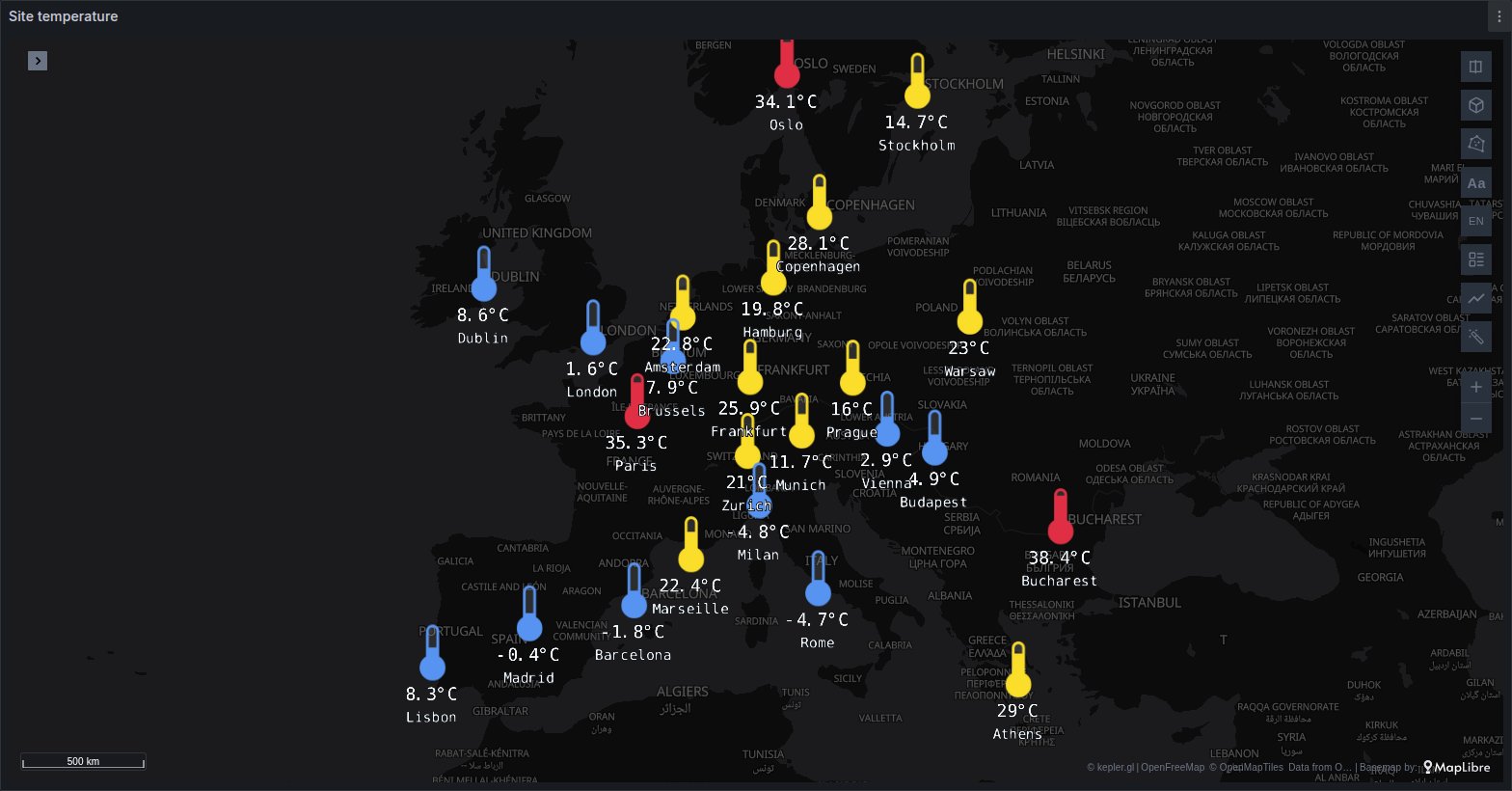
Use it for site and data centre utilisation, storage and tank levels, battery charge across a fleet of devices, reservoir levels, temperatures at weather or cold-chain sites, renewable share per country.
3D Shape
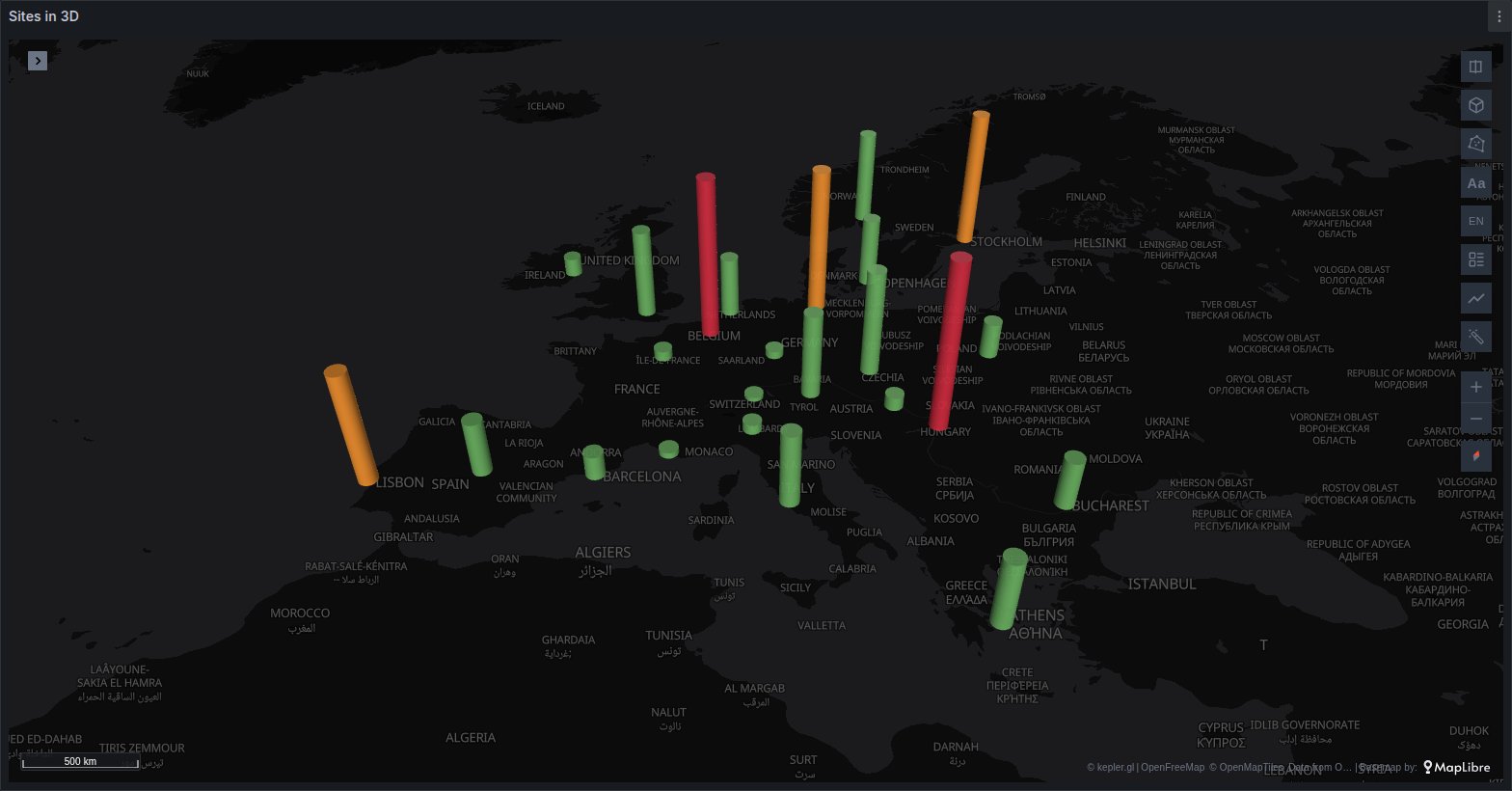
Each site rises as a box, a cylinder, or a hexagonal or triangular prism, with its height and its colour from one metric or two. Size is set in pixels, so it reads the same at every zoom, or in metres, so it belongs to the ground.
Use it for demand or load per substation or region, sales per store, request volume per data centre, population or cases per city, ranking sites at a glance in a tilted view.
Coverage and Coverage 3D
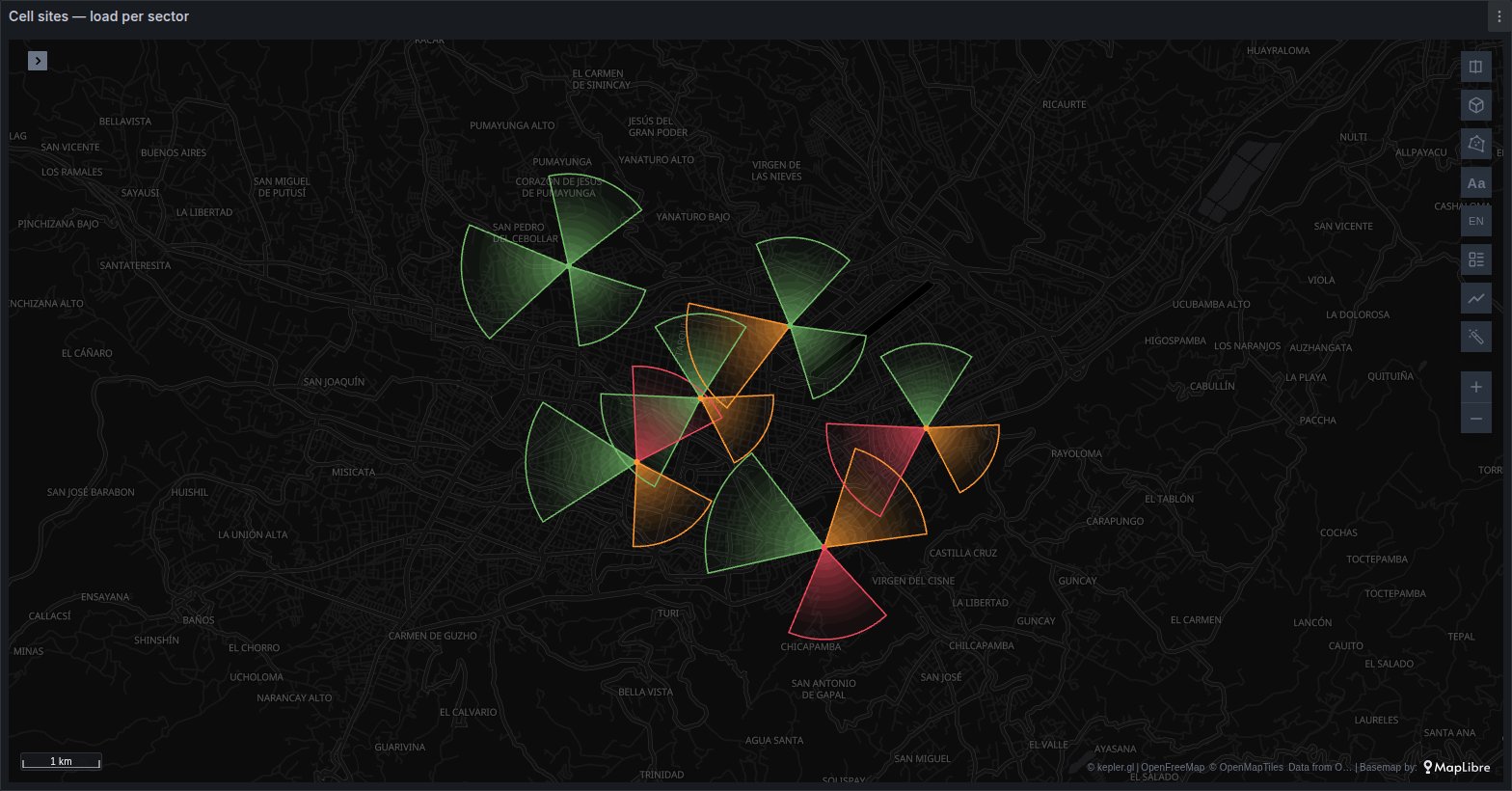
Each row is a sector: an antenna, a camera, a radar or a light, drawn from its azimuth, beamwidth and range (fixed, or read from a column), with an optional inner radius and a fade towards the edge. A site with three rows draws three sectors. Coverage 3D lifts them into stepped domes or cones, with their height in percent of the range or in metres.
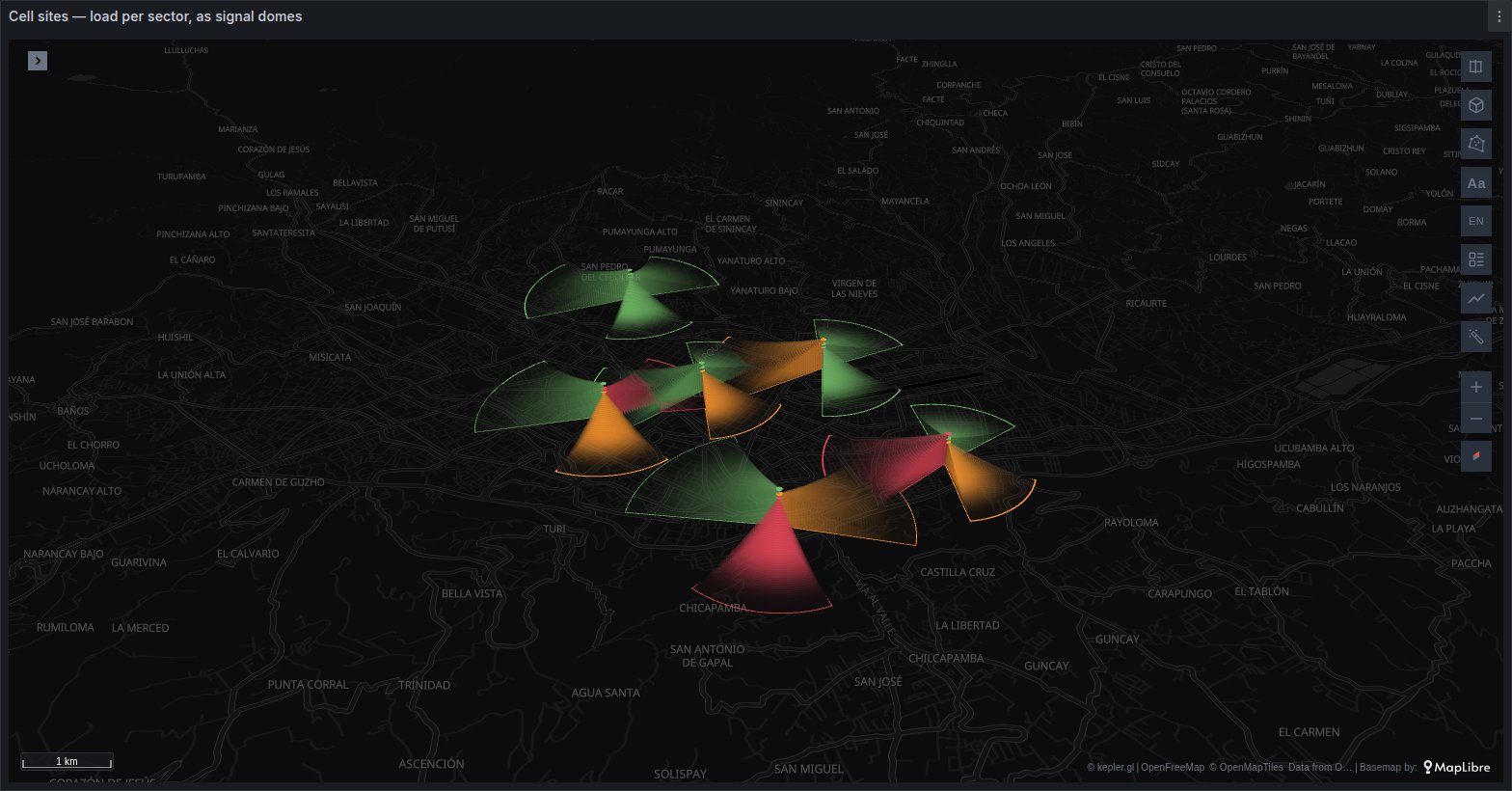
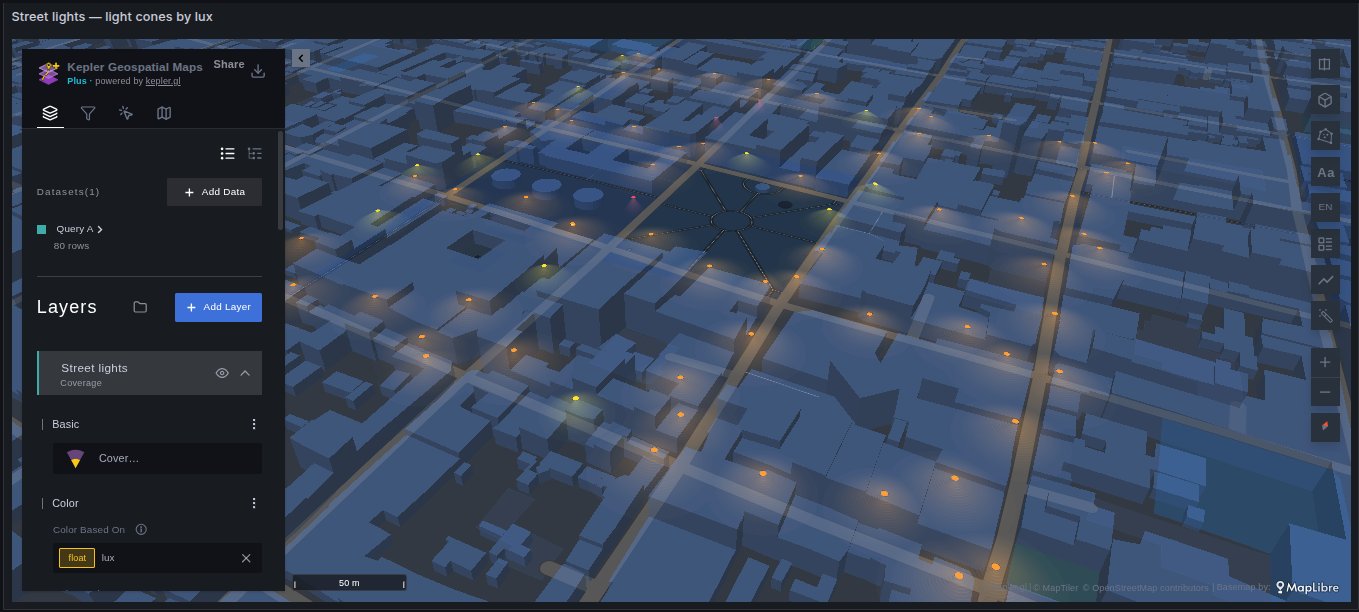
Use it for mobile network sectors and their load, CCTV and radar fields of view, street lighting by lux, Wi-Fi access points, sensors with a directional reach, siren or loudspeaker coverage.
Surface
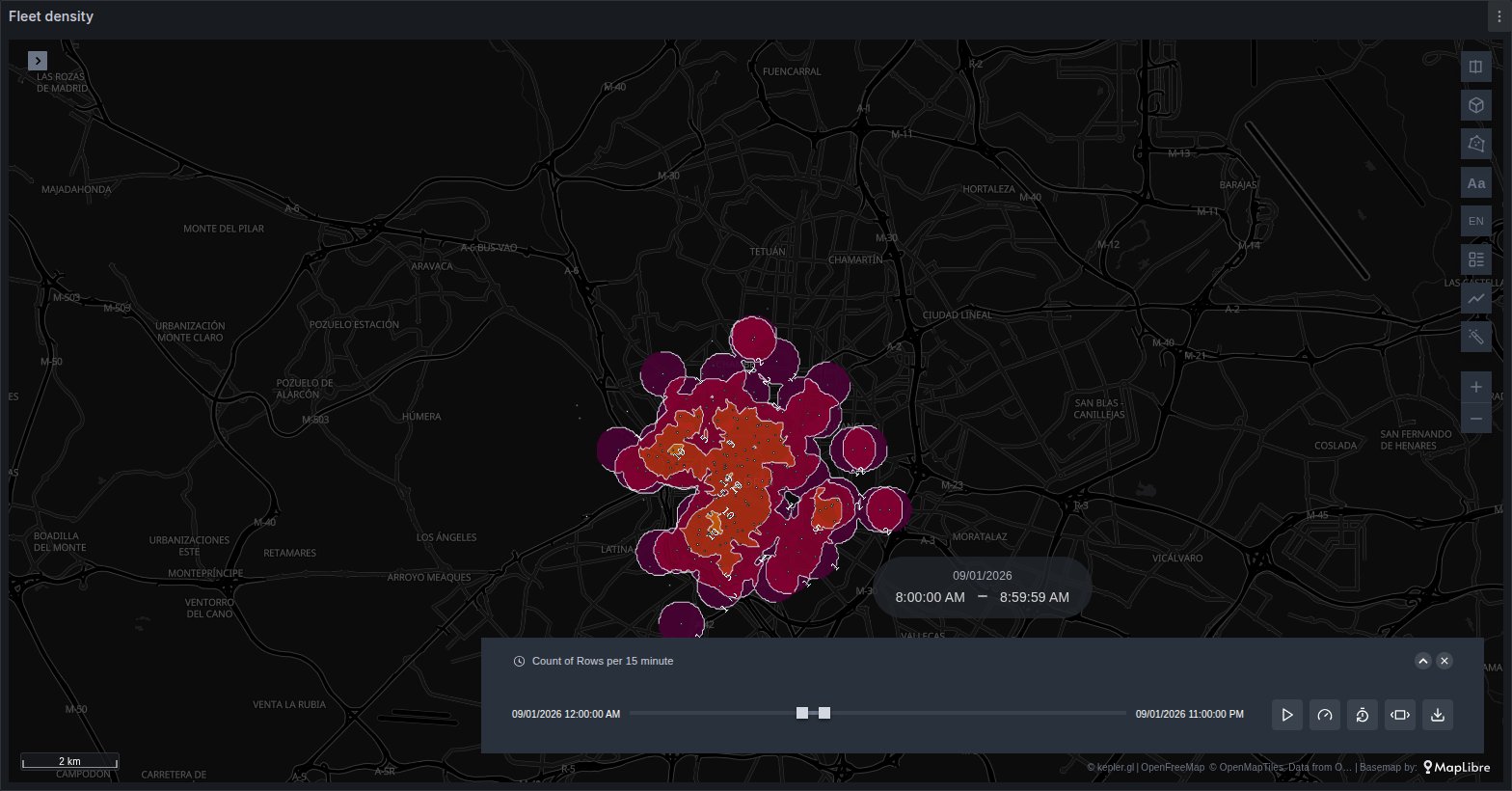
A continuous surface of coloured bands with isolines, drawn from points. Interpolate estimates a value between sensors (inverse distance weighting over the closest sensors, with resolution, power and a maximum distance whose edge fades out), and each sensor gives its last reading inside the time window. Count shows how many points lie within a radius of each place, each asset counted once. The breaks can be fixed so that frames compare as the time filter plays.
Use it for temperature, air quality or noise between stations, soil moisture, vehicle or crowd density, demand hot spots, signal strength measured along drive tests.
Sparkline
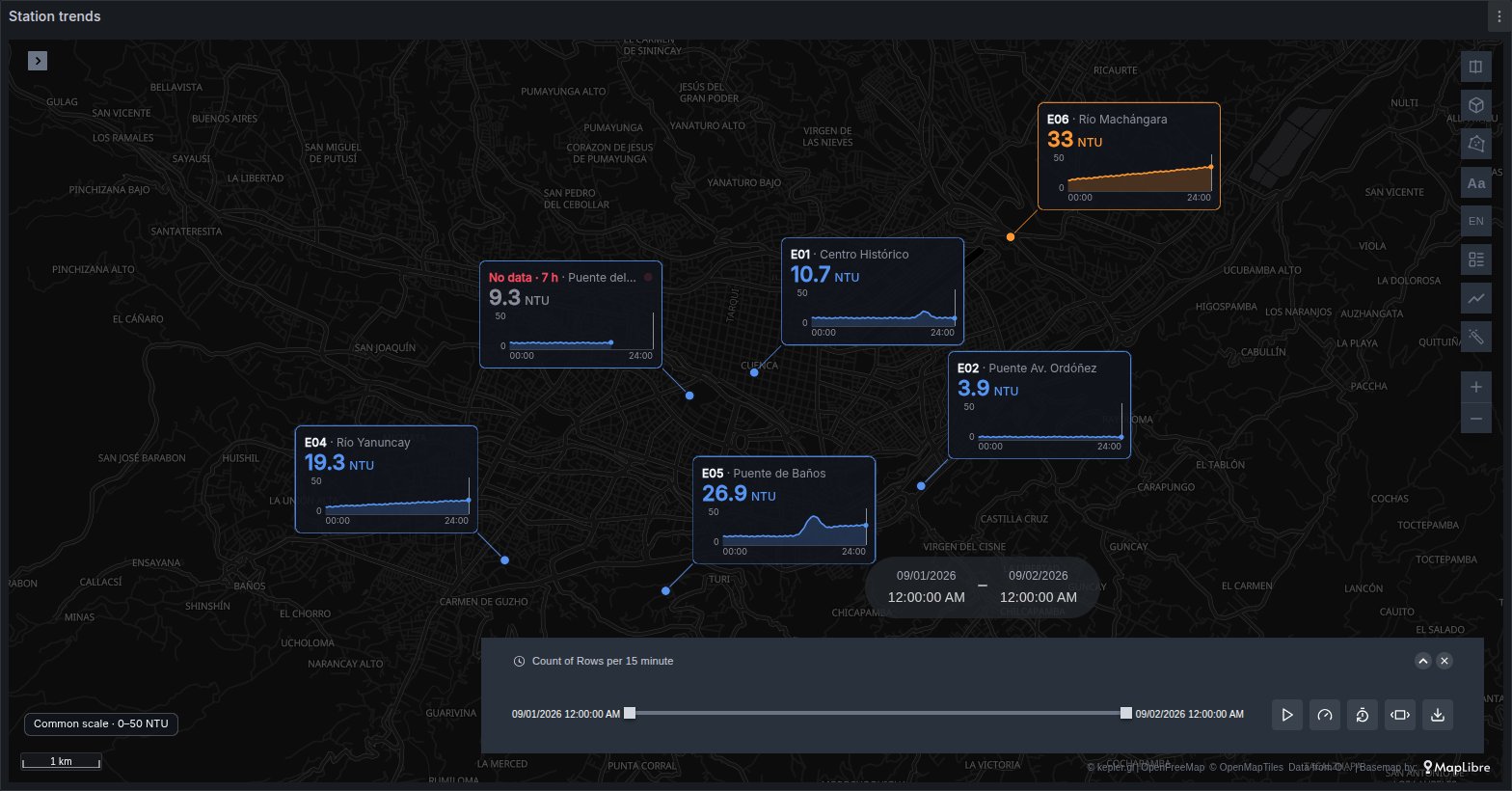
Each station draws a card: its series over the dashboard's time range, its current value in its band's colour, and its name. Cards are placed so they never overlap, worst band first, and the rest stay as dots that show their card on hover, or always (Cards: On hover), or once pinned. A station that stops reporting for three of its own intervals turns red with No data and a blinking button. Hovering a Grafana graph on the same dashboard draws a dashed line on every card at the same instant, with the reading there next to its value.
Use it for water quality and river levels, weather stations, energy meters, the latency of each region's endpoints, KPIs per store or plant, any metric where the trend matters as much as the place.
Traffic
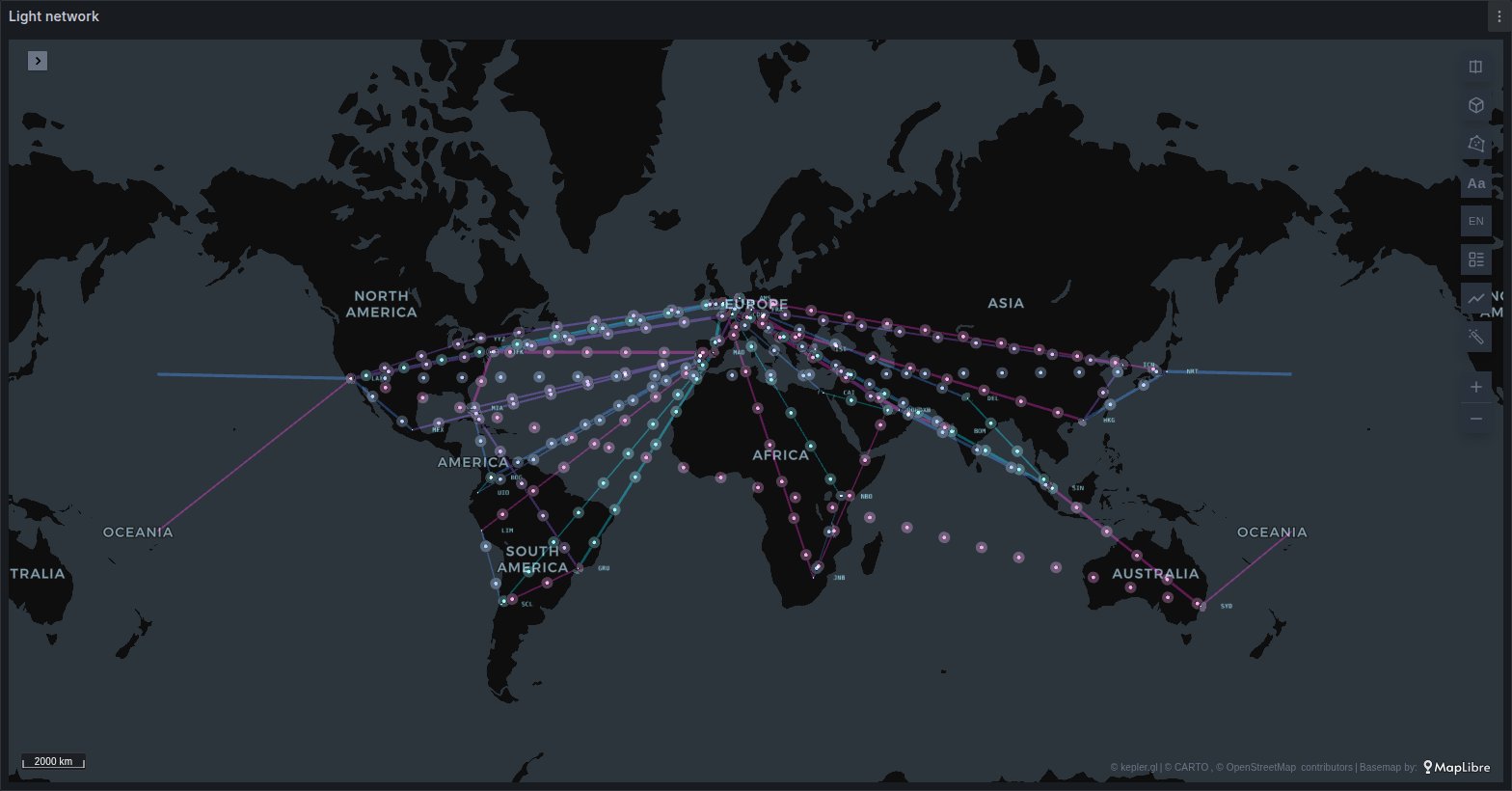
Link lines that move: comets run from source to target, faster where a field you pick (the link metric by default) is higher, on their own clock, paused off screen and when the system asks for less motion. The line keeps the colours of the query's thresholds and its width follows the metric. Two-way links draw as Lanes (two facing arcs) or Split (weathermap halves), from A→B/B→A row pairs or from one row with reverse fields. Lines can be flat or arcs, and the animation can be comets, dashes, dots or a pulse.
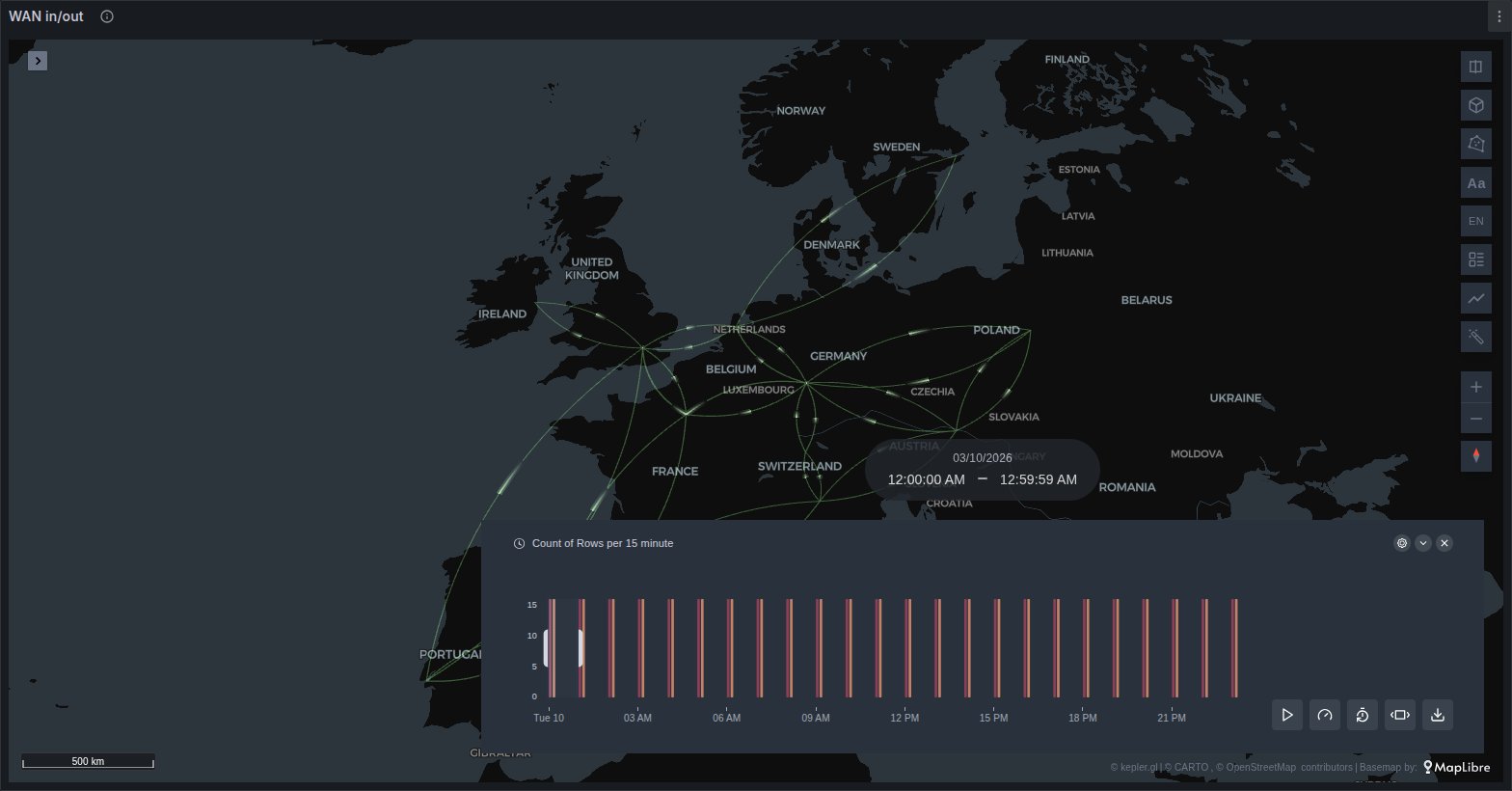
Use it for WAN and backbone utilisation, inter-region cloud traffic, power interconnector flows, supply chain volumes between warehouses, migration or trade flows, any origin-destination metric that needs a direction.
Pipeline
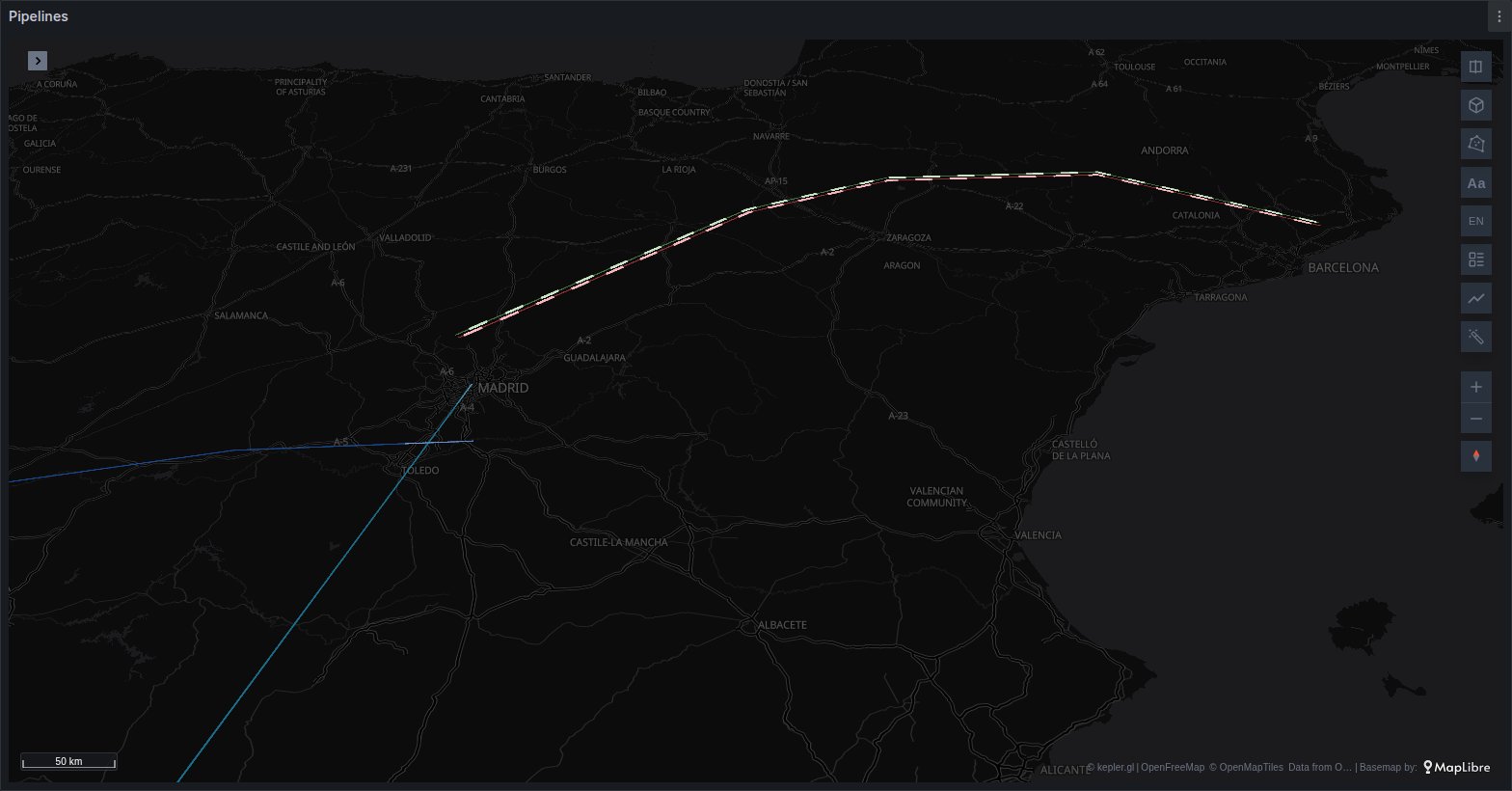
The Traffic animation along a real route instead of a straight line: a line geometry column from the query (GeoJSON, WKT or WKB), simplified for speed, with the flow's direction, speed and width from its metric and an optional height above the ground.
Use it for gas and oil pipelines, power lines, water mains and sewers, rivers and canals, fibre routes, conveyor or rail lines.
Fleet
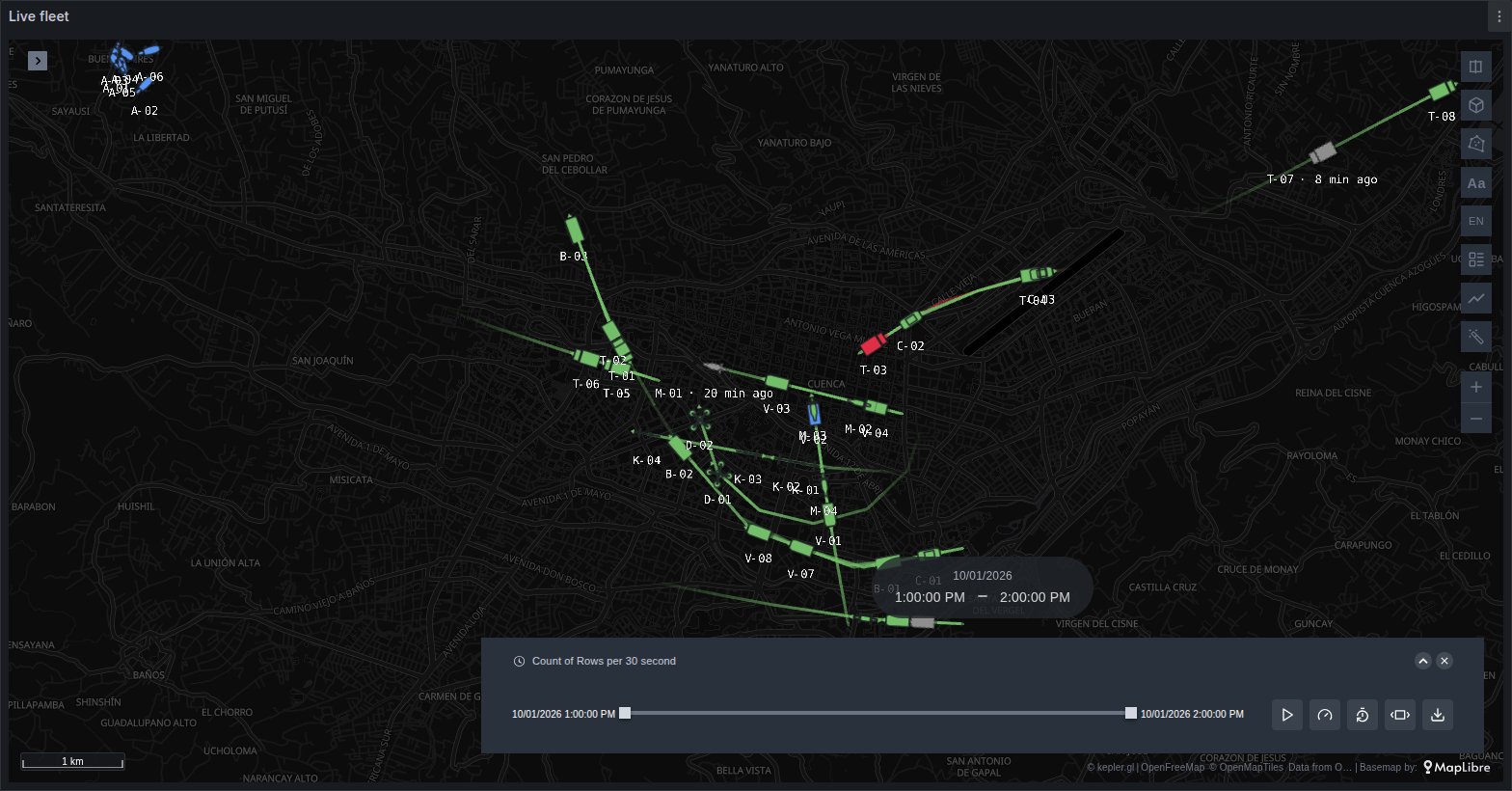
Each vehicle, vessel, drone, animal or device draws once, at its position now, turned to its heading (computed
from its track when there is no heading column), in its status colour, with a short trail that fades. An asset silent
for longer than you allow turns grey and dashed, with "… min ago". It reads tables with an asset id (vehicle_id,
device_id, imei, mmsi…) or one Prometheus or Influx series per asset. A card shows the clicked asset's details,
the camera can follow an asset from behind, and in 3D cars, trucks, buses, bicycles, trains, boats, ships, planes,
helicopters and drones get a bundled model (Kenney and Quaternius, CC0, and our aircraft), or one of your own.
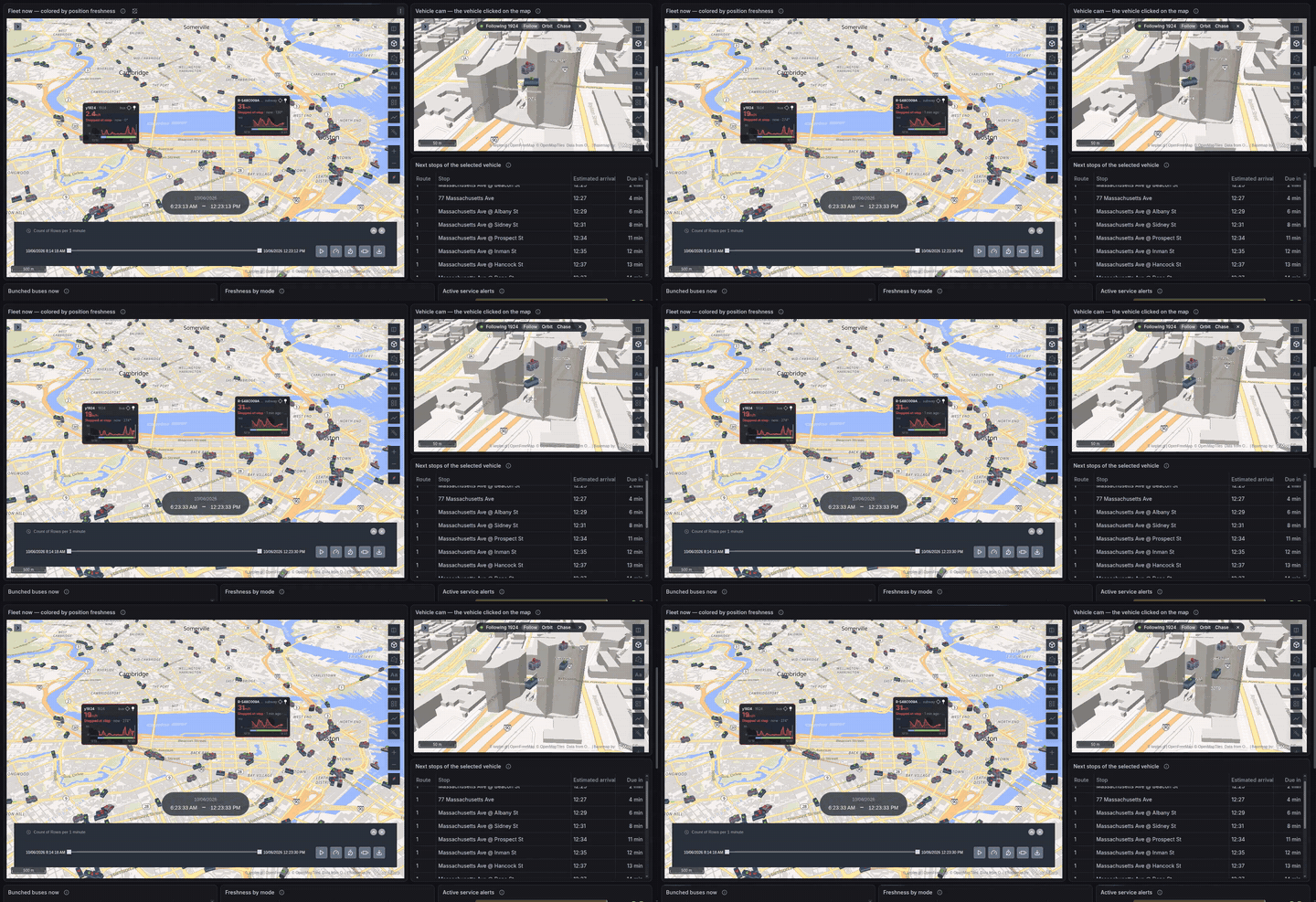
Fed by a GTFS-realtime feed, a Fleet layer keeps each vehicle between refreshes. Here Boston's buses and subway are coloured by how fresh their position is, the cards show each vehicle's speed and status over the last minutes, the vehicle cam chases the bus clicked on the map, and the click drives a table of its next stops.
Use it for vehicle and bus tracking, delivery and field service, AIS vessels, drones, livestock and wildlife collars, asset tags on a site, GTFS-realtime feeds.
For every Plus point layer
- Per place (All, Last, Min, Max) keeps one mark per place or per asset when a query returns many rows for it.
- History in the popup: hovering a mark shows its readings over the dashboard range under kepler's fields; a click pins the popup and enlarges the chart with its axes, the timeline cursor and the shared crosshair. It draws the colour field by default, any numeric field, or nothing (Off). Gauge, 3D Shape, Coverage, Traffic and Pipeline; a one-row in/out link draws both directions.
- A click on a Plus layer reaches the panel's click variables and is ringed on the map, and a drawn polygon filters the Plus layers like kepler's own (a Fleet asset inside the polygon keeps its whole trail).
Time Brush
Time Brush Plus is the second panel of the app: one time brush for the whole dashboard. It draws a histogram of its own query, with a window to drag, resize or draw, buttons to jump to the start or the end and to step one bucket either way, and a play that walks the window across the range. It imports nothing of kepler: it works on any dashboard, with or without a map.
Where the window goes. Set Write the window to:
- Variables: two text variables,
t0andt1by default, in UTC ISO 8601. The map panel's Slider writes variables reads and writes the same pair, so a map follows the brush, and the brush the map, with no other change; any other query can read them too. - Dashboard time range: the window is the dashboard's range, so every panel follows. Give the brush a wider Relative time under Query options and it spans that, with the dashboard range drawn as the window on it.
Set Select to An instant instead of a window to write one variable: a playhead for a picture per date, or a position at one moment. A series drawn as marks puts a tick at each time that exists, and Choose by date then drills down through them, years to times.
Buckets. One size rules the bars, the snap of the window's edges and the length of a step: auto, an interval
such as 15m or 1d, or a dashboard variable, so a filter or another panel sets it. A menu on the bar changes it
on the fly, to a year down to a second, and a size too fine or too coarse for what the axis shows falls back to the
automatic one.
Playing. Kepler's window modes (free, incremental, interval) at ¼× to 8×, once or in a loop. While it plays, the window is written at most once per chosen interval, and, with the DuckDB-WASM datasource on the page, only after the panels answering the previous write have settled, as the map does. Follow the latest data keeps the window's end on the newest moment of a live feed.
The pinned bar. Pin the bar to the page never, once the panel scrolls out of view, or always. The bar then sits at the top or the bottom of the page, or floats where the reader drags it, resized from its corner, kept to the edge it was left nearest and saved with the dashboard for everyone. It minimizes to a pill and maximizes across the page; on a phone it spans the width. With the bar out on the page, the panel becomes a dock with the window in large type and quick "last …" windows.
On the histogram. Each series is drawn as bars, a line or an area from its field options, coloured per series, in one colour or by value through the standard thresholds; a square-root or logarithmic scale keeps small buckets in sight beside large ones. The axis zooms and pans with Ctrl or ⌘ and the wheel. Keys move, resize, play and select. The brush takes part in the dashboard's shared crosshair both ways, and has a tooltip and a background of its own.
The window being two variables, an annotation can shade it on every Time series panel. A Trip layer's playhead is not driven by the brush yet: that clock still belongs to the map.
Places without coordinates
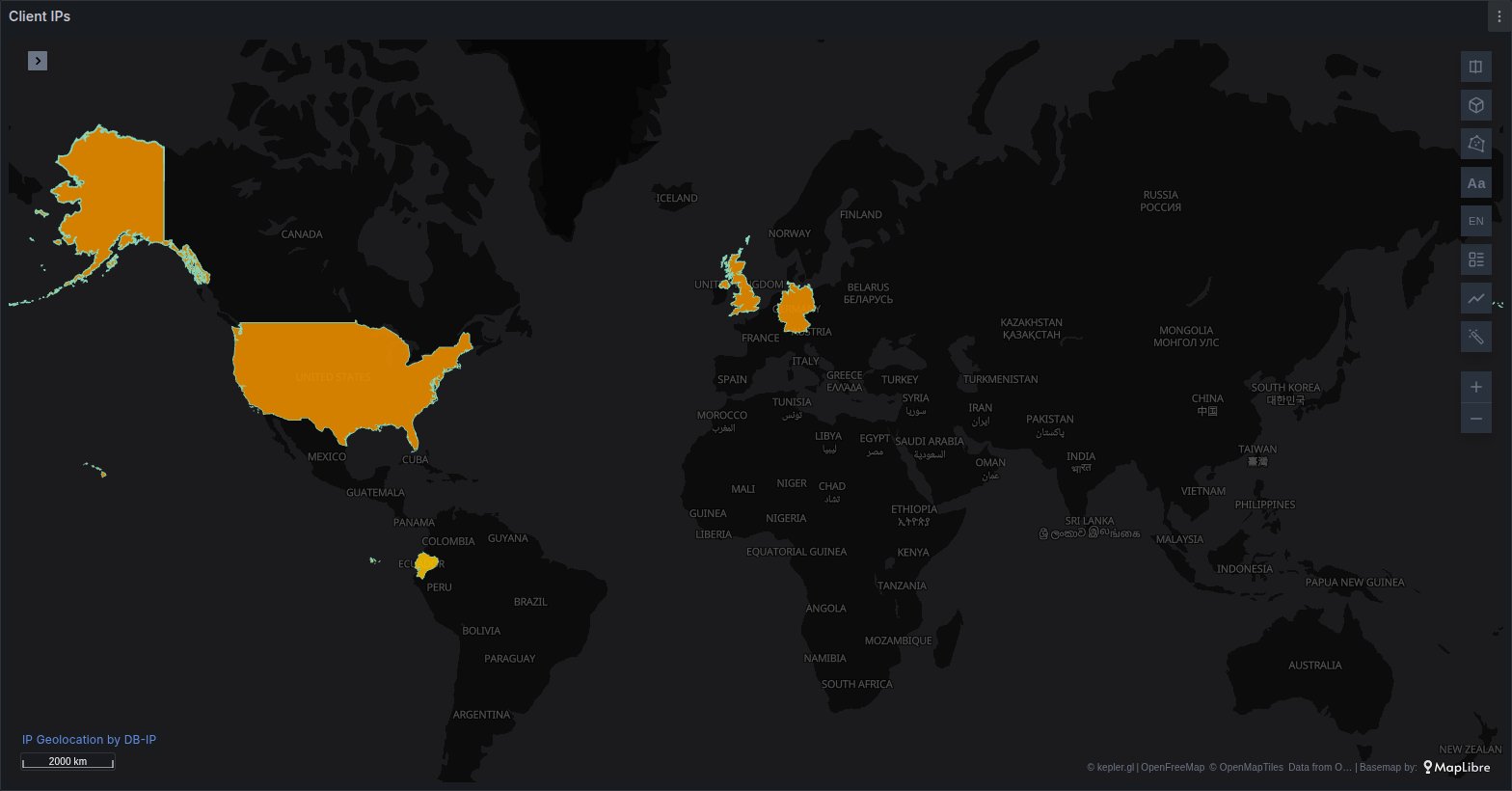
Observability data names places instead of giving coordinates: a cloud region, an availability zone, a k6 load zone, a CDN point of presence, a country, a client IP. The Plus panel places them on its own:
region,zone,load_zone,pop,colo,iataandgeohashcolumns become points, and pairs such assrc_region/dst_regionbecome flows;countryandclient_ipcolumns become a choropleth, coloured by the number of rows per country, or by the sum or average of a column. Set Draw as to Bubbles to draw them as points at each country instead. IP bubbles of a query with a time column are counted per step of time, so kepler's time filter plays them;state,provinceor an ISO 3166-2 code (state_code,iso_3166_2, such asBR-SP) become states and provinces in every country, andcounty,cantonormunicipiobecome counties, cantons and municipalities in 178 countries.
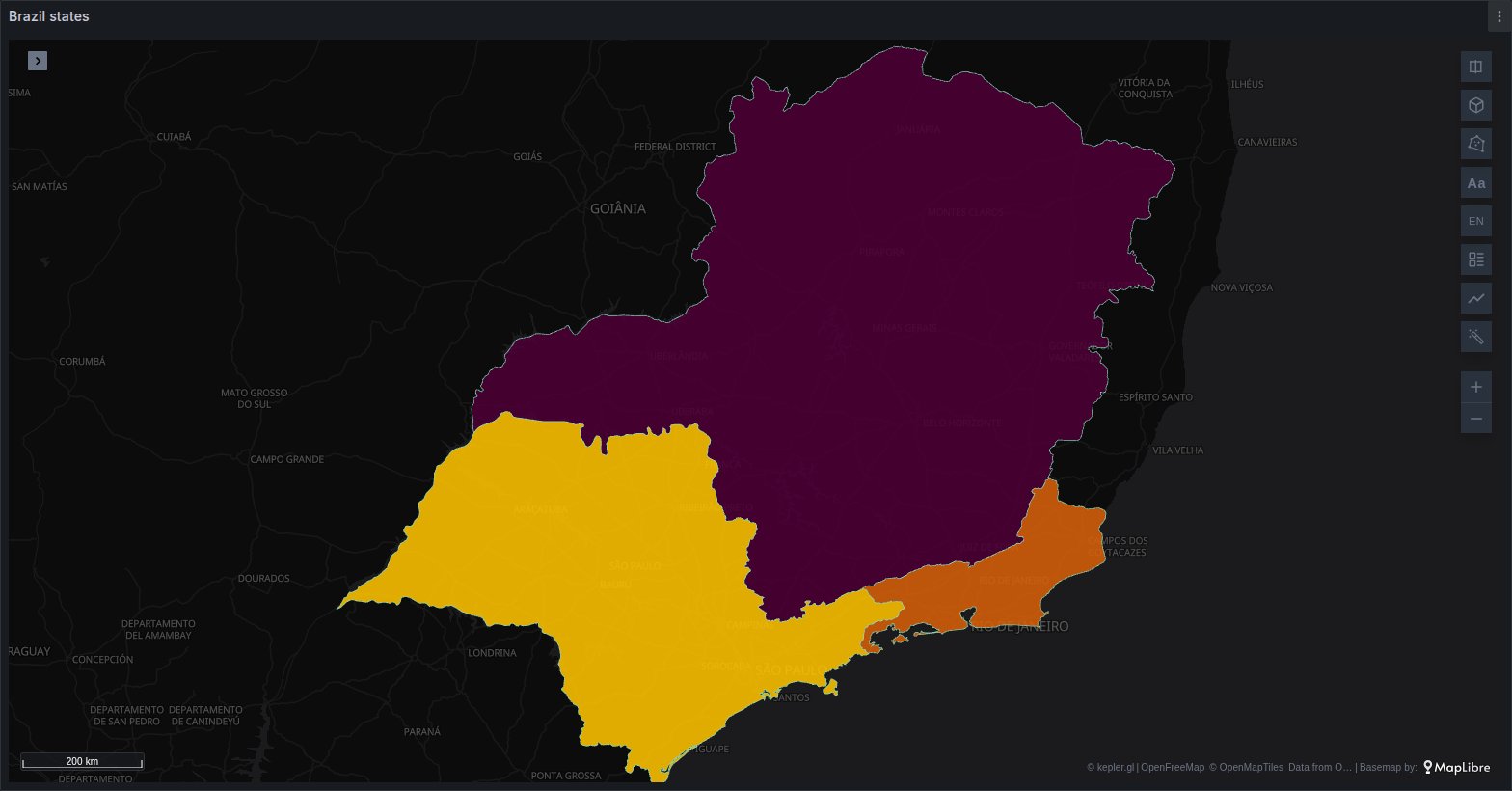
Detection needs both a known column name and values that fit it, so an unrelated column is never placed. A name that fits more than one unit is reported as ambiguous instead of being guessed. The Places options show what each query became, and let you choose the column, the kind, the country, or turn it off.
IP addresses are looked up in the browser against a table shipped with the plugin (IP geolocation by DB-IP, CC BY 4.0): no address leaves Grafana. Private addresses are left out. Anycast addresses (public DNS resolvers, CDNs) are placed where they are registered, which need not be where the client is.
Network links
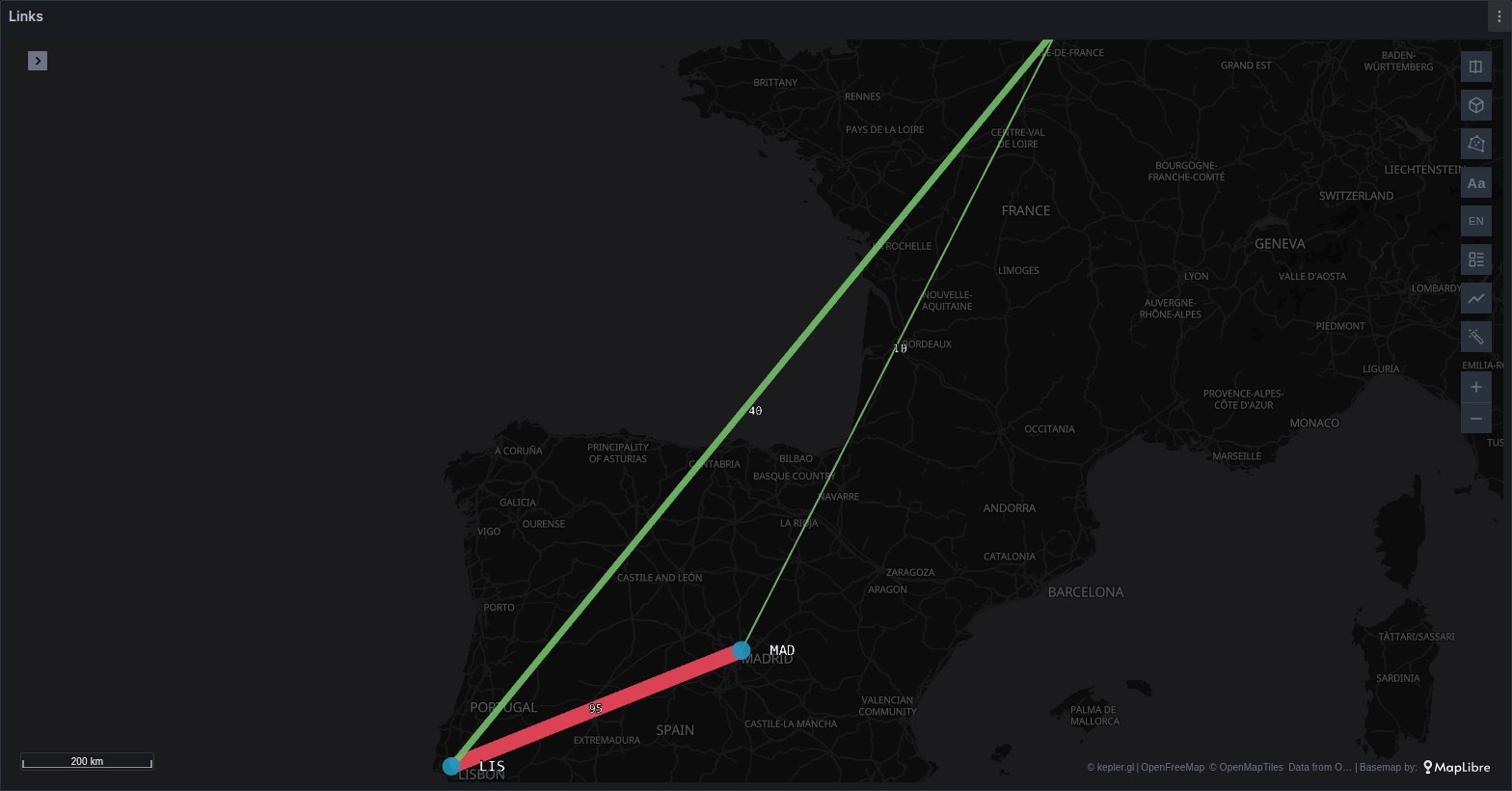
A link query draws as lines between the sites each row connects. It accepts a node graph (nodes and edges frames,
as Grafana's Node graph and Geomap read them) or a single frame with source/target columns, such as
sum by (source, target) (link_mbps). Both ends are placed by Places: a region, an airport or PoP code, an IP or a
geohash. Lines take the colours of the panel's own Thresholds, each end is a named dot, the midpoint carries the
metric formatted with its unit, and the line's width follows the metric: a weathermap at a glance. Switch the layer to
Traffic to animate it. A time column makes the links replay with kepler's time filter.
Active alerts and service health
The Plus panel can draw the alerts that are firing or pending on the same map as your data: red when firing, amber when pending. Switch it on under Active alerts → Show active alerts, where you can also choose the states, the folders, the data sources, a label filter and the label that places them.
Alerts come from Grafana-managed rules and from the rulers of Prometheus, Loki and Mimir data sources. Each alert is
placed by its own labels: latitude/longitude first, then a geohash, a cloud region or zone, an airport or a
country, and last site, datacenter, dc or location when their value is a region, an airport code or an IP
address, cluster when it is a region or an IP address, and instance when it is an IP address. Alerts that cannot be
placed are counted in a note in the map's corner. The panel reads only the alert rules the viewer can see, the same as
Grafana's alert list: a Viewer never sees the alerts of a folder they cannot open.
With Synthetic Monitoring, a probe query whose count of failing checks is named failing draws each probe green while
its checks pass and red when they fail, sized by its failing checks, beside the active alerts. The documentation's
Active alerts page gives the query.
Base maps and 3D
Set each provider's key once, on the app's configuration page (Administration → Plugins → Kepler Geospatial Maps Plus). Their styles then appear in kepler's base map picker for every Plus panel in the organisation. The keys are kept in Grafana's encrypted settings and never reach a browser: the maps ask for their tiles through Grafana's plugin proxy, which adds the key on the server. No dashboard saves a key.
- MapTiler: its streets, outdoor, satellite and other styles, with switches for its own 3D buildings and points of interest.
- Esri: the ArcGIS basemap styles, with an ArcGIS Location Platform key and Esri's attribution.
- Azure Maps: road, dark grey, imagery and hybrid, with Microsoft's attribution.
- Google: roadmap, satellite, hybrid and terrain from the Map Tiles API, with Google's logo and the copyright of the view on the map.
- CARTO: with a CARTO key, the default Dark Matter, Positron and Voyager maps ask with it, which keeps CARTO's watermark off them.
MapTiler writes the key back into the URLs of the style documents it serves, so restrict a MapTiler key to your Grafana's URL in your MapTiler account.
- A Relief switch in Map Layers on every MapTiler, Esri and Azure map: MapTiler's own terrain, or Mapterhorn's public terrain on Esri's and Azure's.
- A sky over the horizon once the map is tilted far enough to show it, day or night to match the style.
A map saved on a keyed base map opens on the default style, with a notice, when its key is missing or refused.
3D layers. A 3D (Plus) tab in Add Data adds Google Photorealistic 3D Tiles, drawn with the organisation's key and with Google's logo and the copyright of the view on the map.
Each provider's own terms apply to its maps and tiles. Requests for keyed maps and 3D tiles go from the browser to your Grafana and on to the provider; the free base maps are asked for straight from the browser. UBICA receives neither the keys nor the tiles.
Template dashboard
The app installs one dashboard, Kepler Plus layer tour: five maps on synthetic rows embedded in the dashboard through Grafana's TestData data source (add one under Connections if your Grafana has none), so it works with nothing else set up. The data is a fixed day, 1 Sep 2026 UTC; each map keeps its own time filter, and ▶ replays the scenario. Find it in Grafana's Dashboards list, or on the app's Dashboards tab under Administration → Plugins and data → Plugins; the app adds no entry of its own to the navigation menu.
| Map | Shows |
|---|---|
| Power grid — Europe | Gauge rings for the renewable share, 3D Shape cylinders for the demand, Traffic flows on the interconnectors |
| City — Cuenca | The Fleet layer in 3D, with silent assets, over Coverage 3D signal domes and camera cones |
| Rivers — Cuenca | Sparkline cards per station, coloured by band, with a no-data alert and a time series that shares the crosshair |
| Weather — Madrid | A Surface estimated between stations, as bands and isolines |
| Regions — Ecuador | Provinces placed by name, with no coordinates in the query |
Its About panel says what to change to use your own data. Grafana may replace the dashboard when the app is updated and removes it when the app is disabled, so save a copy before you customise it.
Grafana Assistant
A map with many layers takes some learning, and most people who open a dashboard never edit one. With Grafana Assistant (Grafana Cloud, or self-managed Grafana 13 connected to a Cloud stack) they can simply ask. Nothing needs setting up: the app installs its skills, and every open Plus map reports what it is showing.
- Explain a map. While a dashboard is open, each Plus map tells the Assistant its title, every query's fields and row count, the base map and whether relief is on, the saved filters, the area in view and the time range. Ask "what is this map showing?" or "which fields could I colour by?" and it answers from what is on screen, without running a query.
- Improve a map. Ask "switch to Esri imagery with relief", "colour the stations by turbidity" or "filter the last hour", and it edits the saved map. The Plus skills list the real base map ids and switches, so it does not invent styles the panel cannot draw.
- Add the Plus layers. Ask for "gauges for the sites, red above 90 %", "turn the links into Traffic with two-way lanes" or "a surface of the temperature with isolines". A dedicated skill describes the eight Plus layer types: their columns, their settings and what each one is for.
- Link the map to the dashboard. Ask it to "filter the other panels by the area I draw", "publish the time slider to variables" or "make the cards follow the charts' crosshair". It creates the variables, sets the map's options and writes the other panels' queries that read them.
- Build a dashboard around a map. Ask for "a map of the substations with a time series of their load, filtered by clicking a substation" and it writes the queries, the map, the chart and the variable that links them. The authoring skill teaches it the saved map's JSON shape, the part an assistant otherwise gets wrong.
- Start from a suggestion. The Assistant offers Explain this map, Base map + relief and Link to other panels as ready-made prompts on any dashboard with a Plus map.
The Assistant only sees the dashboard you have open and the data you are allowed to query. Without it, nothing in the panel changes.
Everything in the free panel
Plus is built from the free panel's source, so every feature of it is here too:
- Any data source: each query becomes a kepler dataset, so one panel can overlay several.
- Column autodetection, overridable per query: lat/lng, time, trip id, geometry, H3, origin/destination pairs, bearing and magnitude.
- Geometry from any spatial source: GeoJSON, WKT, or raw WKB/EWKB hex, so a plain
SELECT geomfrom PostGIS works. - Automatic trip animation and origin-destination flow layers.
- Symbols turned to a bearing: over a thousand Maki, Temaki and UN OCHA icons, or a picture per row.
- Animated wind and current fields: streamlines and vector fields with wind barbs, walking a forecast with the dashboard's timeline.
- Cloud-native imagery: COG, PMTiles, Zarr, WMS and ArcGIS Image Service, with band combinations from STAC.
- Draggable markers bound to dashboard variables.
- Dashboard time range synced with the map, one-way, both ways, or published to variables.
- Cross-filtering both ways: map filters, clicks, the viewport and drawn areas publish to variables, and variables filter the map.
- Saved map configuration with the dashboard; configs from kepler.gl, Foursquare Studio or Dekart are accepted.
- Follows the dashboard theme, base map included.
The free panel's documentation covers all of it in detail, with tutorials and a full option reference.
Requirements
- Grafana
>=12.0.10 <12.1 || >=12.1.7 <12.2 || >=12.2.5. - After installing, enable the app under Administration → Plugins → Kepler Geospatial Maps Plus, then add the keys of the providers you use on its configuration page. Every key is optional: without any, Plus draws the free panel's base maps. The install page walks through it.
- On a Grafana with
content_security_policy = true, add the hosts of the providers you enable toconnect-src: the Content Security Policy page lists them per provider, and the free panel's install guide its own.
Support
Write to jgarcia@ubicacuenca.com with your Grafana edition and version, the data source involved and, for a map that does not draw as expected, the panel's JSON and a screenshot. Suspected security issues go to the same address; please do not disclose one publicly until a fixed version is out. What support includes, and what to send with a report, is at docs.ubica.dev/plus/support.
Licence
Kepler Geospatial Maps Plus is commercial software by UBICA, licensed, not sold, under the end-user licence agreement
shipped with it as EULA.md and published at docs.ubica.dev/plus/legal. It runs in
your Grafana and your users' browsers and sends nothing to UBICA; what it does with your data is in PRIVACY.md and at
docs.ubica.dev/plus/privacy-policy. The open-source components it includes,
and their licences, are listed in THIRD-PARTY-LICENSES.md.
Grafana Cloud
Connect any plugin in Grafana Cloud.
- 150+ data source integrations
- Grafana Assistant - AI that correlates your data, builds queries, and answers questions
- 10k Prometheus metrics + 50 GB logs, traces, and profiles on the free tier
- ...and more
Insights
- Adoption
Running on 12 active Grafana instances.
- Activity
Last updated 23 Oct 2026.
1 release in the past year.
- Version
- 1.4.1
- Dependencies
- Grafana >=12.0.10 <12.1 || >=12.1.7 <12.2 || >=12.2.5
- Developer
- UBICA
Grafana Cloud
Connect any plugin in Grafana Cloud.
- 150+ data source integrations
- Grafana Assistant - AI that correlates your data, builds queries, and answers questions
- 10k Prometheus metrics + 50 GB logs, traces, and profiles on the free tier
- ...and more