

%3Aquality(90)%2F&w=3840&q=75)
%3Aquality(90)%2F&w=3840&q=75)
Use AI to turn any JSON API into a dashboard in minutes with the Infinity data source plugin and Grafana Assistant


The internet is full of fascinating data just waiting to be visualized and queried. And with the latest update to Grafana Cloud, you can start doing it in minutes.
Through public APIs, you can access information about global earthquake activity, weather forecasts, music catalogs, and millions of other datasets. And then there's all the data that sits inside company APIs, partner services, and internal platforms that power everyday products and operations.
Until now, visualizing that data meant digging through API documentation, figuring out data transformations, and then building dashboards from scratch—but not anymore.
By using the Infinity data source plugin, you can query any JSON API directly from Grafana. And when you pair that with Grafana Assistant in Grafana Cloud, you can go from URL to answers, or even to a dashboard in minutes!
In this post, we'll briefly show you how easy it is to get started, then we'll walk through a number of examples to show you what's possible.
How it works
The workflow is simple:
1. Find an API that returns JSON data
2. Ask Assistant to query the provided URL. (You can access Assistant through the pulsar icon in the top right corner of the Grafana Cloud UI.)
3. Describe what you need and Assistant will parse and transform the data for you.
4. Decide whether you want answers or a dashboard and ask Assistant. It will either respond directly or create visualizations such as tables, time series, stat panels, or any other Grafana visualization.
When working with Assistant on dashboards, be as descriptive as you like. If you already have a specific idea in mind, explain what kind of data shape you expect and which visualizations you want to use, such as stats for key numbers, time series for trends, or maps for geospatial data. The more context you provide, the closer the result will be to what you imagined.
If something doesn't look right, just say so. Ask for a different visualization, request a new transformation, or point out what feels off. Think of it as pair dashboarding: You iterate together, refine the result step by step, and with each iteration the dashboard becomes more accurate, useful, and tailored to your needs.
Note: The Infinity data source plugin for Grafana supports multiple formats, including JSON, CSV, and HTML. When used with Assistant, only JSON is currently supported.
Build dashboards with Assistant using free public APIs
To get started, let’s look at a real-world example anyone can try. To show this works in practice, we'll use the USGS Earthquake API to track seismic activity around the globe. This API is completely free and requires no API keys or authentication, making it easy to get started right away.
For popular APIs like this one, you do not need to know exact endpoints, parameters, or data structures. Simply describe your goal and Assistant will often figure out how to get the data you need. If you are not sure what data the API exposes, you can ask Assistant to explore it and summarize what is available before building the dashboard.
API endpoint to use:
Try it by asking Assistant:
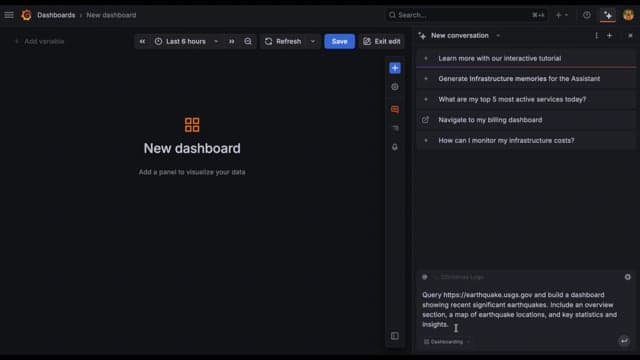
Query https://earthquake.usgs.gov and build a dashboard showing recent significant earthquakes. Include an overview section, a map of earthquake locations, and key statistics and insights.
See it in action:
Build dashboards with Assistant using authenticated APIs
Many powerful APIs require authentication, such as API keys, OAuth tokens, or other credentials. The Infinity data source handles this seamlessly, so once authentication is set up, Assistant can query protected APIs just like public ones.
To configure authentication in the Infinity data source, follow these steps:
1. Open your Infinity data source settings in Grafana
2. Select "Authentication" from the left-side navigation
3. Choose an authentication method, such as API keys, Basic auth, Bearer tokens, or OAuth
4. Add your credentials
5. Add the API URL to the allowed hosts list
Your credentials are stored securely in Grafana and are automatically included in all requests.
To test this out, we'll use NASA’s APIs, which are a great example of an authenticated API. They require a free API key and provide rich data about near-Earth objects.
API endpoint to use:
Setup overview:
Generate a free API key at https://api.nasa.gov.
Under "/datasources" in Grafana, add a new Infinity data source. In the Infinity data source configuration, select API key value pair in the Authentication section, set the key to api_key, and paste your API token as the value. Add https://api.nasa.gov to the allowed hosts list, then save and test the data source. Once everything is configured, you are ready to build a dashboard.
Try it by asking Assistant:
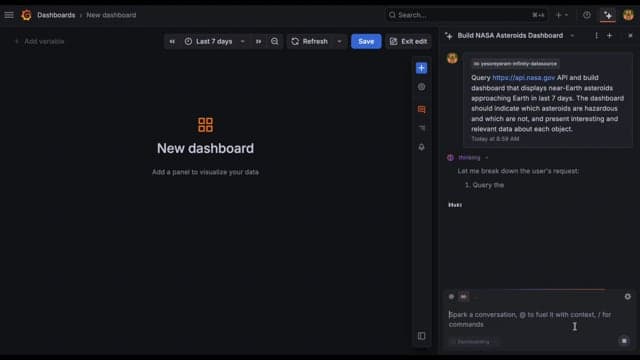
Query the https://api.nasa.gov API and build a dashboard that displays near-Earth asteroids approaching Earth in the last 7 days. The dashboard should indicate which asteroids are hazardous and which are not, and present interesting and relevant data about each object.
See it in action:
Get instant answers from APIs
You don't always need a full dashboard to get value from an API. With the Infinity data source and Assistant, you can query an API and ask questions about the data directly. Assistant will respond with clear, human-readable answers.
This is ideal for quick checks and exploratory analysis. For example, you can query the Open-Meteo weather API at https://api.open-meteo.com and ask Assistant to summarize the weather forecast for a specific city over the next few days, highlighting temperature trends, precipitation, or notable conditions.
%3Aquality(90)%2F&w=3840&q=75)
The same workflow works with your own APIs. Imagine a custom internal API that returns a list of services and their current health status. You can ask Assistant to query the API and tell you which services are unhealthy or degraded, filtering and summarizing the data automatically.
If the answers are useful, you can then ask Assistant to turn the same data into a dashboard, making it easy to go from a simple question to full observability in just a few steps.
Securely querying external APIs with Infinity
When working with external APIs, it is important to control which of them can be queried. The Infinity data source includes an "allowed hosts" setting (allowedHosts in YAML) that lets you provide a list of host names that are allowed. This setting also defines which URLs Assistant is allowed to access.
If allowedHosts is configured, Assistant can automatically query any API that matches the allowed domains without asking for approval each time. If it is not configured, Assistant will ask you to approve every external request before running it.
To restrict access, open your Infinity data source settings and add the URLs or domains you want to allow. For example, adding "https://api.example.com" limits queries to endpoints under that domain. This makes it easy to safely explore public and private APIs while keeping full control over where requests can go.
More examples of dashboards created by Assistant within minutes
Now that you have a sense for how this works, here are some more fun examples you can test out to help inspire your next Assistant-built dashboard.
Cryptocurrency price tracker
Track real-time cryptocurrency prices across multiple coins and currencies.
API endpoint to use:
Setup overview:
An API key is required to avoid rate limits when creating a full dashboard. Go to https://www.coingecko.com/en/api, click the “Get Your API Key Now” button, then click the “Create Free Account” button, unless you already have a Free or Pro account. Create an API key on https://www.coingecko.com/en/developers/dashboard.
Under "/datasources "in Grafana, add a new Infinity data source. In the Infinity data source configuration, select the API key value pair in the Authentication section. For a Pro account, set the key to x-cg-pro-api-key or for a Free/Demo account, set it to x-cg-demo-api-key, and paste your API token as the value. Add https://api.coingecko.com to the allowed hosts list, then save and test the data source. Once everything is configured, you are ready to build a dashboard.
Try it by asking Assistant:
Query the CoinGecko API at https://api.coingecko.com/ and build a dashboard showing the prices of dog- and cat-themed cryptocurrencies.
Dashboard created by Assistant:
%3Aquality(90)%2F&w=3840&q=75)
Pokémon stats explorer
Gotta visualize 'em all. The PokéAPI provides comprehensive data on all Pokémon.
API endpoint to use:
Try it by asking Assistant:
Query https://pokeapi.co and create a dashboard showing stats for the top 5 Water-type Pokémon. Include key attributes, comparisons, and a simple overview.
Dashboard created by Assistant:
%3Aquality(90)%2F&w=3840&q=75)
Countries of the world
The REST Countries API provides detailed information about countries worldwide, including population, region, languages, currencies, and flags.
API endpoint to use:
Try it by asking Assistant:
Query https://restcountries.com/ and create a dashboard showing European countries sorted by population.
Dashboard created by Assistant:
%3Aquality(90)%2F&w=3840&q=75)
Start using Assistant today
Grafana Assistant is here to amplify knowledge. Developers still drive the process—but with Assistant by their side, they spend less time stuck and more time solving problems.
The next time you are debugging, writing a tricky query, or onboarding a new workflow, let Assistant lend a hand. It's available in every Grafana Cloud instance, and you don’t need to install anything extra—just log in to Grafana Cloud and look for the pulsar icon. You’ll see Assistant ready to use in your dashboards, Explore, and more.
Grafana Cloud is the easiest way to get started with metrics, logs, traces, dashboards, and more. We have a generous forever-free tier and plans for every use case. Sign up for free now!
%3Aquality(90)%2F&w=3840&q=75)
%3Aquality(90)%2F&w=3840&q=75)


