

Query fair usage in Grafana Cloud: What it is and how it affects your logs observability practice


In Grafana Cloud we use a simple yet generous formula that lets you query up to 100x your monthly ingested log volume in gigabytes for free. This works for the vast majority of our customers, but if you aren’t careful and strategic with your usage, you could find yourself with an overage bill.
We obviously don't want to surprise any customer with an unexpected bill, so in this blog post you'll learn how to find your usage ratio in your Grafana dashboard so you can understand what you're looking at, where the queries are coming from, and who your top users are. You'll also learn some best practices for applying good policies to your observability practice going forward.
What is 'query fair usage' and why does the policy exist?
In Grafana Cloud Logs, "query fair usage” refers to a pricing policy that lets you query up to 100x your monthly ingested log volume in GBs at no additional charge. It is primarily a billing mechanism designed to allow typical usage without extra charges, while preventing abuse from extremely resource-intensive queries.
Grafana Cloud’s query engine (especially for Loki logs) can scan huge amounts of data. Without guardrails, a few heavy queries could create disproportionate load. The fair‑use policy:
- Keeps costs predictable
- Encourages efficient querying
- Protects shared infrastructure
- Still allows generous exploration of logs
Example
If you ingest 50 GB of logs in a month:
- Your fair‑use query allowance = 50 GB × 100 = 5,000 GB of queried logs.
As long as your queries scan ≤ 5,000 GB, you pay nothing extra for queries.
How to find and monitor your query fair usage
How to view query usage
For starters, you can actually view the cost of a query before you run a query. When you write queries in Explore, Grafana provides an estimate of how much data will be queried when you run your query.

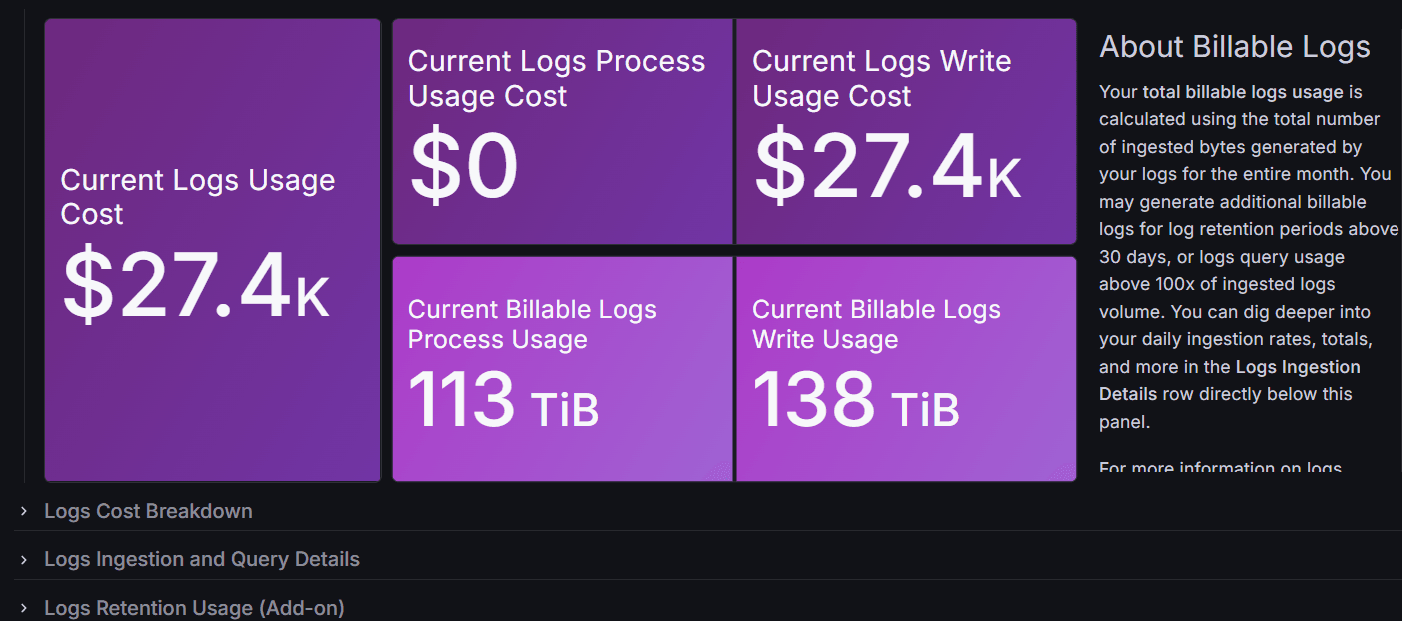
But if you want to know your usage ratio, you have a few options. The first way, and the way most people would be aware of, is by going to the billing dashboard to view your current query ratio.
- From the Grafana main menu, click the dashboard icon.
- Select the Billing/Usage dashboard.
- Scroll down to the Logs Ingestion and Query Details section.
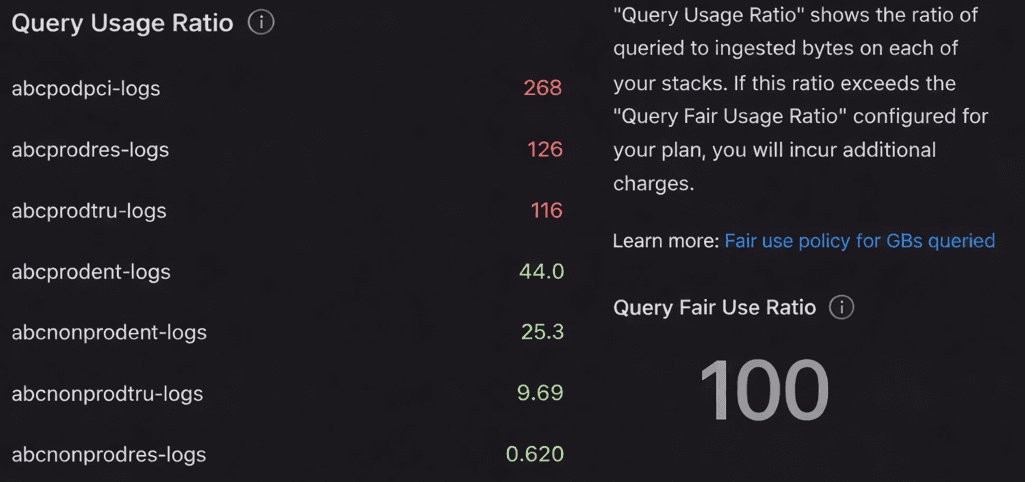
- Expand the section and scroll to the Query Usage Ratio panel.
The screenshot below is an example of what you might see. This is from a large environment with seven different Grafana instances.
Another way to view your usage ratio is by utilizing the newly redesigned Cost Management and billing experience. This is actually the way you should get familiar with viewing your usage, as the billing dashboard has been deprecated and will be removed some time in the future.
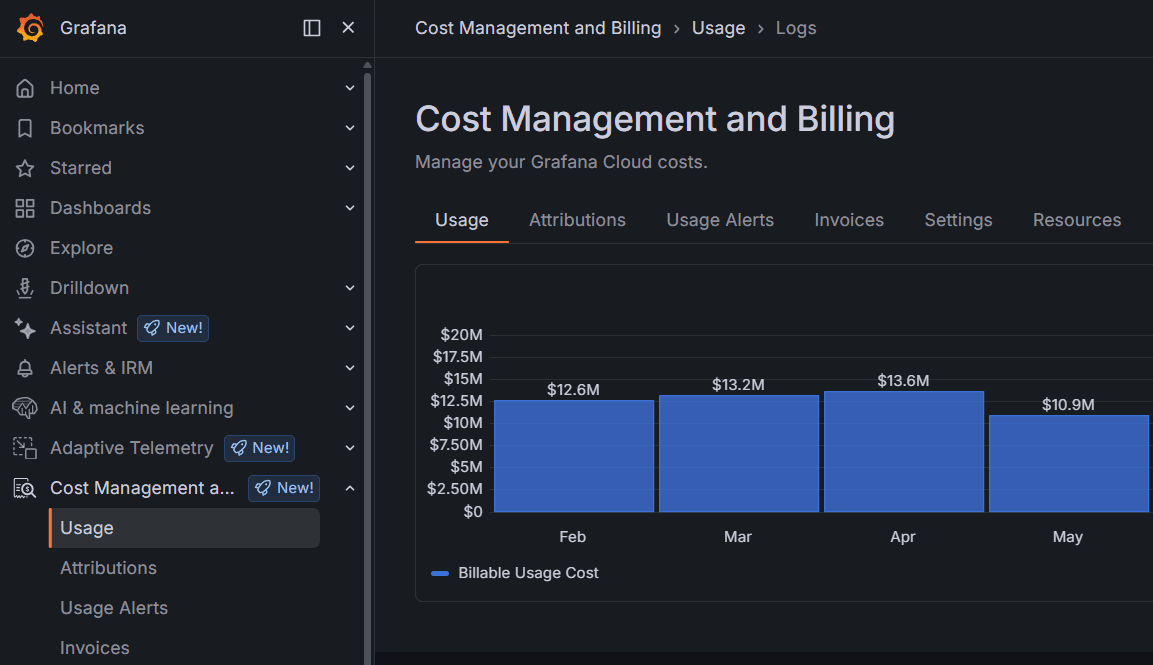
Once you're there, simply scroll down to Products, and locate and expand Logs. From there go to the bottom of the page where you will find the log query rate as well as the query usage ratio.
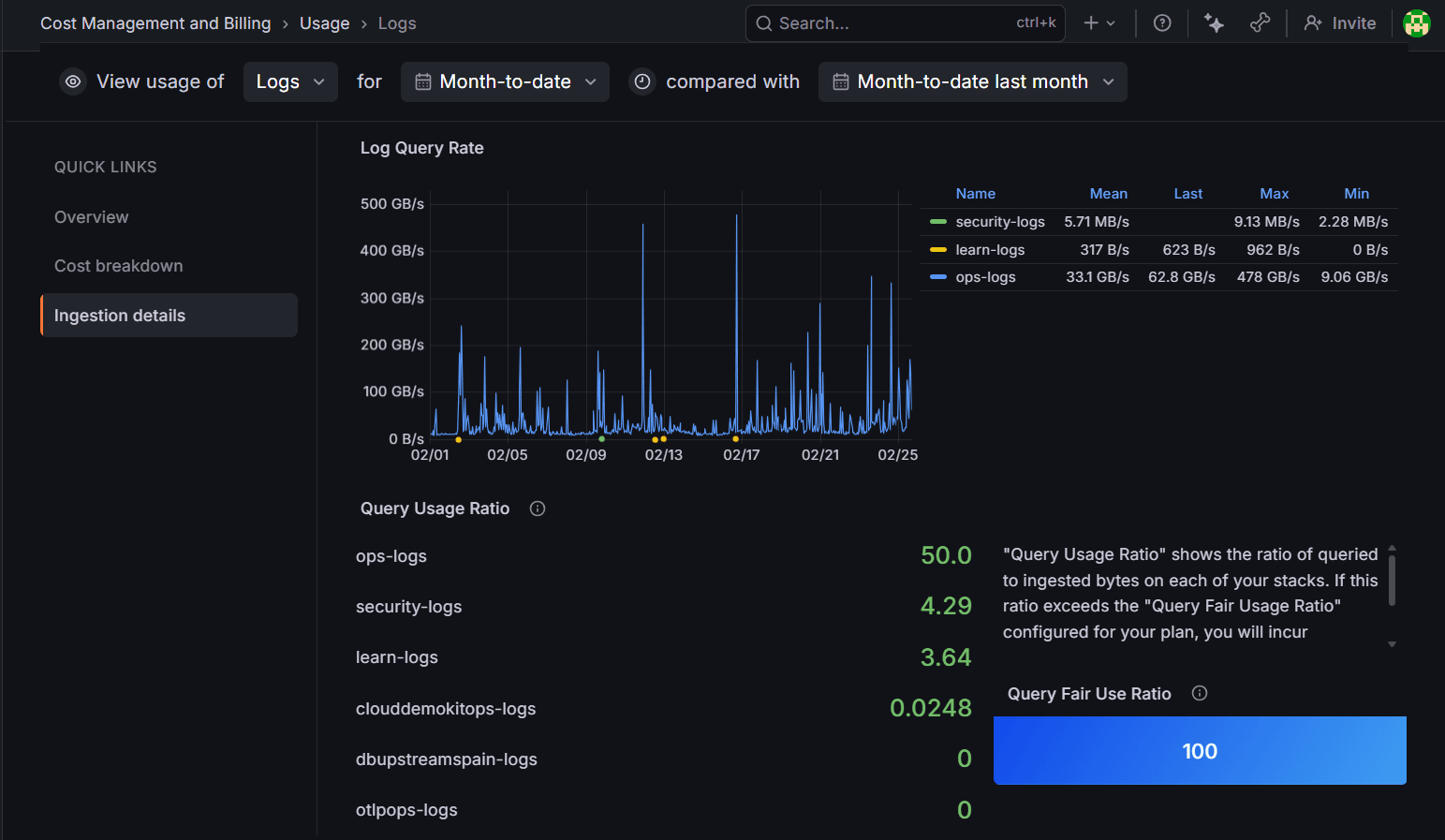
Determine the source of query usage
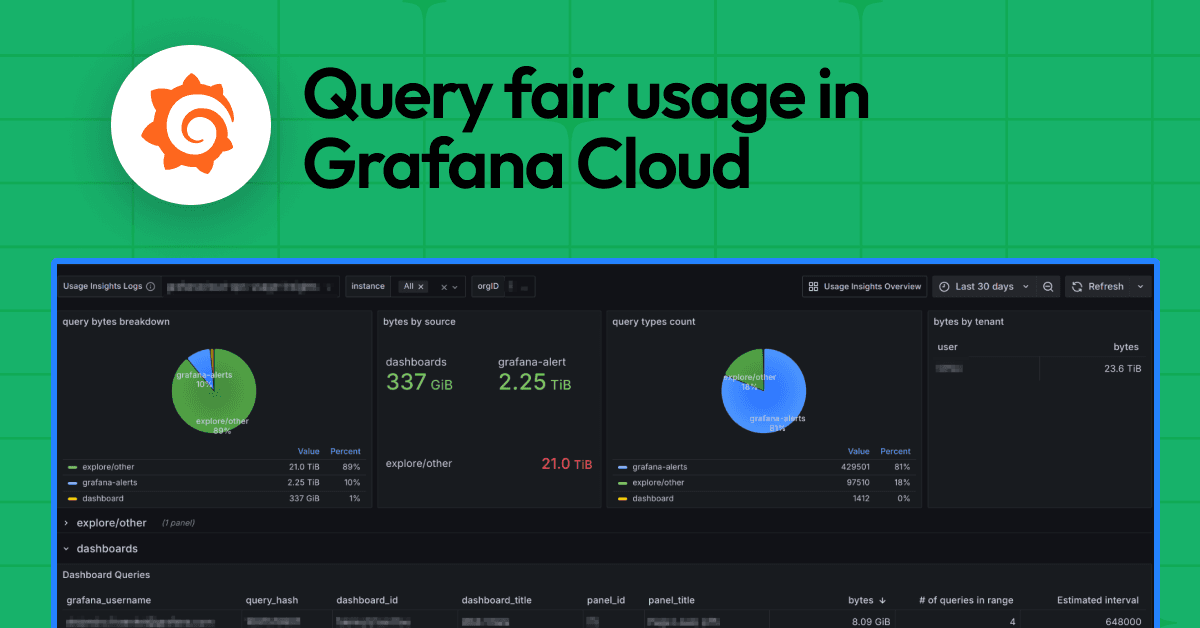
To help you track down the source of query usage, we built the Loki query fair usage dashboard. For Grafana Cloud customers using hosted Grafana, this dashboard is automatically provisioned on each of your hosted Grafana instances.
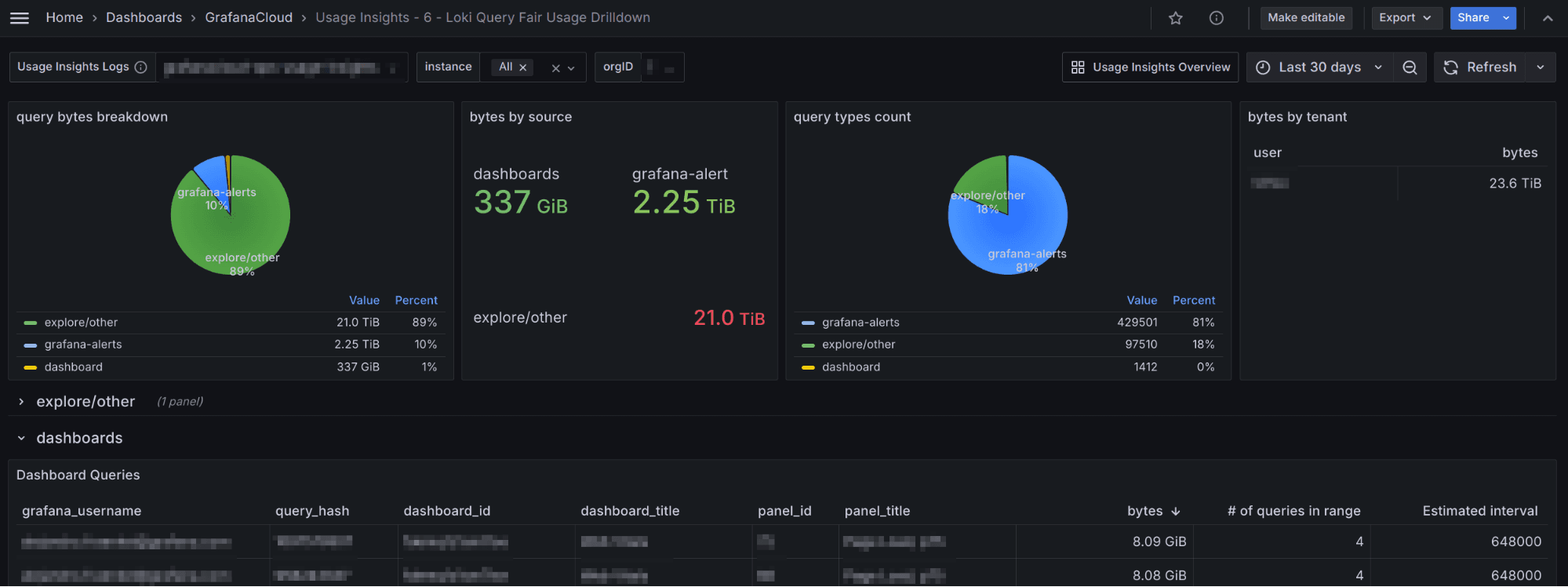
The dashboard shows a breakdown of your query usage, query type, dashboard, grafana-alert, and Explore/other, by query bytes and query count. For each type, there are rows showing more detailed information on highest volume queries, including:
- The originating query
- The Grafana username that submitted the query (if relevant)
- Rule and dashboard names
- Query size in bytes
- Query execution frequency
And here's a breakdown of the different panels in the dashboard:
- Grafana-alerts refers to rules managed within Grafana under Grafana Alerting found at Home > Alerts & IRM > Alerting. These rules can be alerts or recording rules. These are separate from the rules you upload to Loki with
cortextoolorlokitoolusing the Grafana Cloud APIs. - Explore/other refers to a subset of queries executed against Loki that come from the Explore page. It doesn’t include those coming from the Grafana Logs Drilldown app. It also includes queries that come from a non-Grafana frontend source such as
logcli. Explore queries likely have agrafana_usernamepopulated in the dashboard, queries from other sources don’t. - Estimated interval is the estimation of how frequently the query ran over the selected time period. It’s the number of times the query ran divided by the total time range.
Understanding your Grafana Cloud invoice for logs
At this point, you have learned what query fair usage is, where to find it in your billing dashboard, and how to determine the source of your query usage. Now let's get an understanding of how that could impact your monthly invoice.
Grafana Cloud calculates logs usage by looking at the following components:
- GBs ingested: The total number of GBs ingested into Grafana Cloud on a monthly basis.
- GBs retained: How long the logs data are retained within Grafana Cloud.
The minimum retention period is 30 days and you can purchase additional retention periods in 30-day increments. Retention is customizable per stack or by individual streams within the same stack. To enable this, contact Grafana Support.
Note: The retention period changes are not retroactive. Once the retention is increased, the current logs will be stored following the new retention period, but logs already out of the old retention period will not be recovered.
Billing calculations
Billing is based on usage, and usage is determined by these primary factors:
- The number of GBs ingested per month
- The number of months of retention
Note: For customers exceeding the 100x fair use policy for GBs queried per month, the following billing calculations apply:
logs billable gb = max(ingested gb, queried gb / fair use query ratio)This calculation is performed on a per-stack level.
Even though you can see what your query fair usage is at any time, you are only billed for it at the beginning of the month for your previous month. Oftentimes early in the billing cycle, your usage ratio will be high, but as the month goes on, it often drops as more logs are being sent in.
Example
- Ingested: 50 GB
- Queried: 7,000 GB
- Fair‑use threshold: 5,000 GB
Billable GB = max(50, 7,000 / 100) = max(50, 70) = 70 GB
So you would be billed for 70 GB instead of 50 GB at whatever your set rate is per GB in your Grafana contract.
Managing your query fair usage costs
Now that we've walked through the usage policy and how it could impact your costs, let's finish with some tips for avoiding potential overages in the future
Recommendations
One common source of excess queries is misconfigured Grafana/Loki-managed alerting rules—for example, querying one hour of data but running that query every minute.
For alerting rules using the Loki data source:
- Use instant queries instead of range queries for all rules. An instant query executes exactly one time and produces one data point for each series matched by your label selectors. Range queries are effectively instant queries executed multiple times. For more details, refer to the How to run faster Loki metric queries with more accurate results blog post.
- Look at the evaluation period and interval period and make their intervals match the amount of time queried. That is, a rule that runs once per minute should have a query range of
1m.
Note: We also recommend checking alert rules run by the scheduler (recorded queries).
Best practices for fair query usage
To stay within fair usage policies and optimize performance:
- Filter early: Use label selectors and log pipeline filters at the beginning of your queries (e.g., in LogQL) to reduce the data set before applying more complex operations.
- Avoid wide scans: Be cautious with queries that scan large time ranges or entire datasets, especially when using Grafana Assistant.
- Narrow time ranges: Select a smaller time frame instead of querying “last 30 days” by default.
- Use aggregation and recording rules: Define Prometheus recording rules to pre-calculate frequently used, resource-heavy expressions into new metrics. Querying these pre-aggregated metrics is much more efficient than calculating them ad-hoc.
- Avoid wildcard-heavy filters: They force Loki to scan massive amounts of data, which will consume your query usage quickly. A precise label selector like
{cluster="us-central1"}can reduce the search space from, say, 100 TB down to 1 TB. - Use labels wisely: Loki’s indexing model rewards good label design. For more details on how to do this, check out our concise guide to labels in Loki.
- Optimize alert rules: Ensure your log-based alert rules follow best practices, as they are a common cause of excessive query usage. And for more information on how to address poorly defined alert rules, check out our docs page on this topic.
- Monitor usage dashboards: Regularly check the "Billing and Usage" dashboards in your Grafana Cloud portal to understand your consumption patterns and configure alerts for unexpected spikes. You can also use Grafana's "Usage insights" feature (available in Grafana Enterprise and Grafana Cloud) to identify heavy-hitting queries or unused dashboards.
Configure Loki query limit policies
If all else fails and with all the best practices in place, you still find your company going over the query fair usage policy, Grafana has recently introduced a way to basically put up guardrails to prevent expensive queries.
Note: Loki query limit policies are currently in public preview. Grafana Labs offers limited support, and breaking changes might occur prior to the feature being made generally available.
This feature is disabled by default. Contact Grafana Support to enable query limit policies using the
lokiQueryLimitsContextfeature flag.
Loki query limit policies provide fine-grained control over how users query your Grafana Cloud Logs data. You can configure these policies as attributes on access policies to limit query result sizes.
When a query exceeds a configured limit, users receive meaningful error messages that explain why the query was rejected and how to adjust it.
How query limit policies work
Query limit policies are applied as lokiQueryPolicy attributes on access policies. When a user makes a request using a token associated with an access policy that has query limits configured, Loki validates the entire time period of the query against those limits before execution.
Query limit policies are not enforced for Loki managed or Grafana managed alerts.
To learn more about Loki query limit policies and how to configure them, please see this link to the Grafana Documentation.
Grafana Cloud is the easiest way to get started with metrics, logs, traces, dashboards, and more. We have a generous forever-free tier and plans for every use case. Sign up for free now!


