Grafana Alerting: faster rules, personalized filters, and an operations workspace


Alerts are only useful when you can quickly find and act on the right signal. That's why, over the past two years, we rebuilt Grafana Alerting’s UI to make it more reliable and efficient, especially at scale.
The result: a faster, paginated alert rules page that handles tens of thousands of rules, with a powerful filter dropdown and saved searches so you can quickly get back to the views you care about most. And alongside it, we've added a dedicated alert activity page for your operational work, with grouping, timelines, and slide-out details that help you resolve incidents without digging through configurations.
This journey from a simple list to a dedicated operations workspace reflects our commitment to making Grafana Alerting not just a configuration tool, but a daily operational hub that makes your on-call life a little easier.
Read on for more details on how each change speeds up common operator workflows and how you can start putting them to use today.
Alert rules v2: A new foundation
The first major milestone in this journey was the release of alert rules v2. The previous version was too slow and cluttered for users who needed to manage thousands and tens of thousands of alert rules. We needed a foundation that could scale.
Alert rules v2 introduces a cleaner, paginated interface designed to handle large volumes of rules without sacrificing speed. It improves how metadata is displayed and streamlines navigation, ensuring that even in the largest environments, the UI remains responsive and intuitive.
For a closer look at the specific changes and features introduced in this phase, check out our dedicated blog post for all the details.
A refined filtering UX
With a scalable list in place, the next step was ensuring you could find exactly what you need within it.
Filtering rules has always been a core part of Grafana Alerting. However, the legacy interface presented a chaotic array of persistent input fields that aggressively consumed screen real estate. This visual noise cluttered the view and reduced the space available for your alert rules.
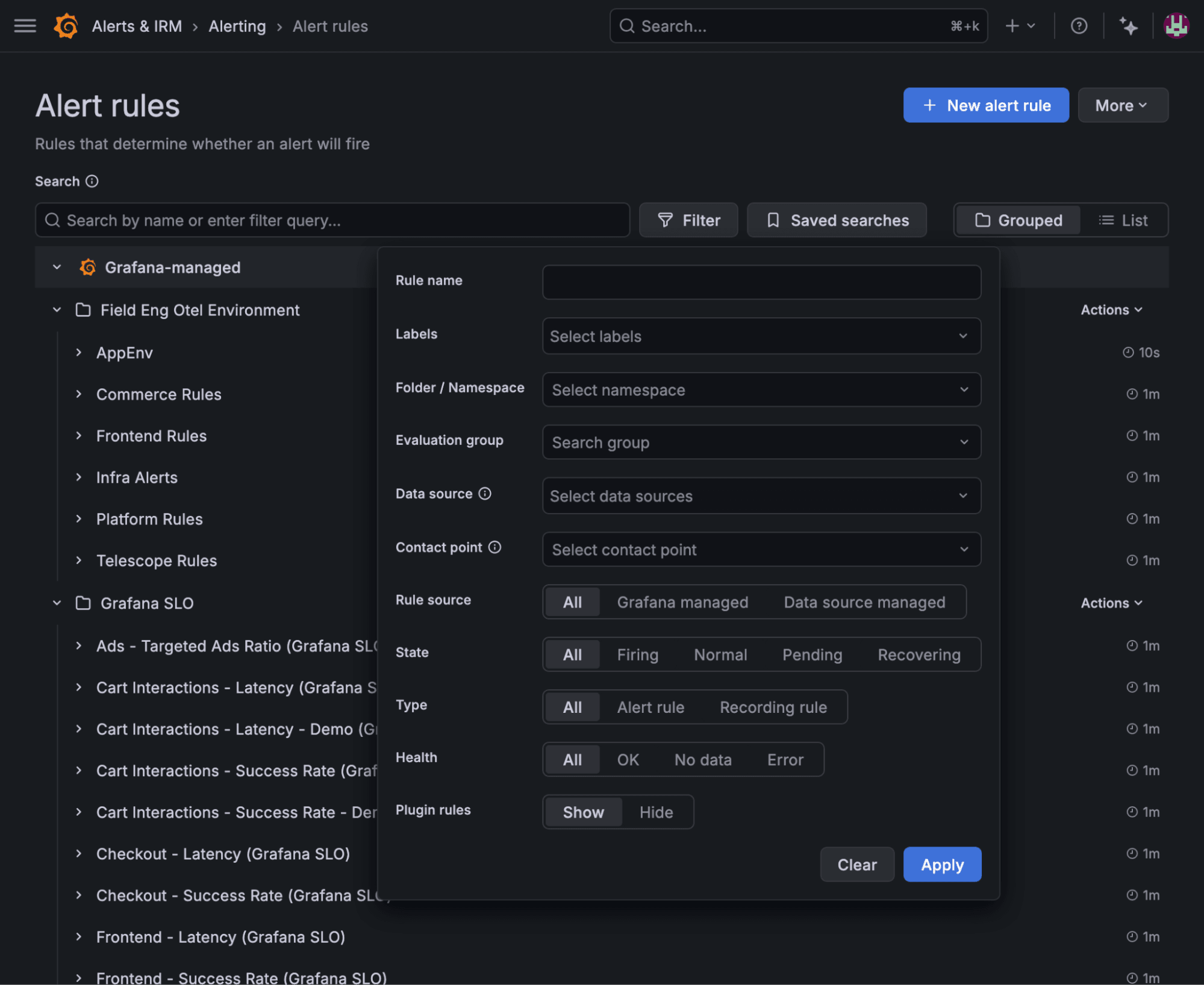
In this update, we focused purely on UX improvements to declutter the view. We consolidated the various filter inputs into a single, unified dropdown component available on demand.
- Decluttered interface: By moving persistent search bars into a collapsible menu, we maximized the vertical space available for the list.
- One-click access: All your existing filtering tools—state, data source, contact point, and label matching, etc.—are now organized in one consistent location.
- Same power, better package: You retain the full precision of your existing workflows (regex, label matching) but in a cleaner interface.
This user experience refresh keeps the underlying functionality the same while making the overall experience smoother and cleaner.
Saved searches: personalization
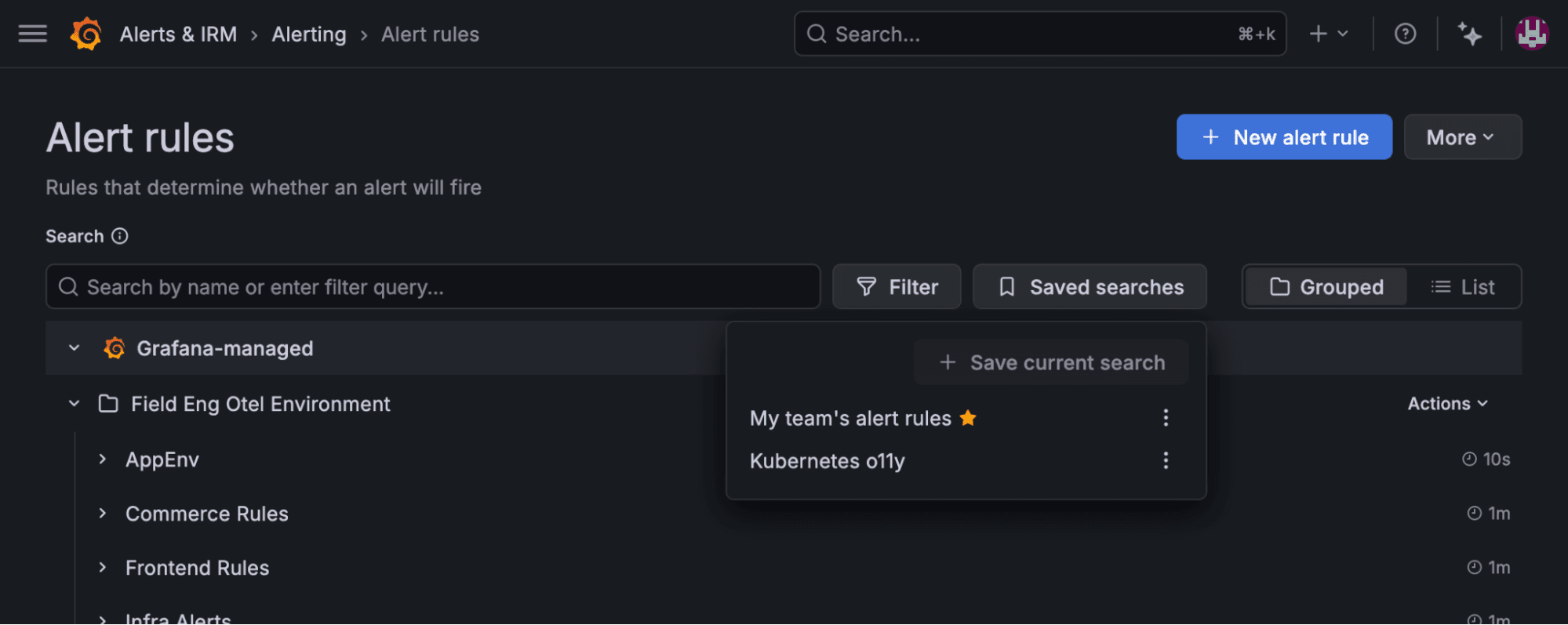
Managing a large library of alert rules often involves repeated filtering tasks. You might frequently check for "all rules owned by my team" or "all rules with critical severity in the production namespace." Recreating complex filters every visit was tedious.
To solve this, we introduced saved searches. This feature allows you to save your current set of filters and reuse them later.
- Personal: These are your own searches—the ones that make sense to you.
- One-click access: All your saved searches are organized in a single dropdown and applying them is a click away—no more having to rebuild your search query from scratch.
- Default searches: Set a specific saved search as your default, so the moment you load the “Alert rules” page, you see exactly the rules you care about.
Alert activity: focusing on the operator
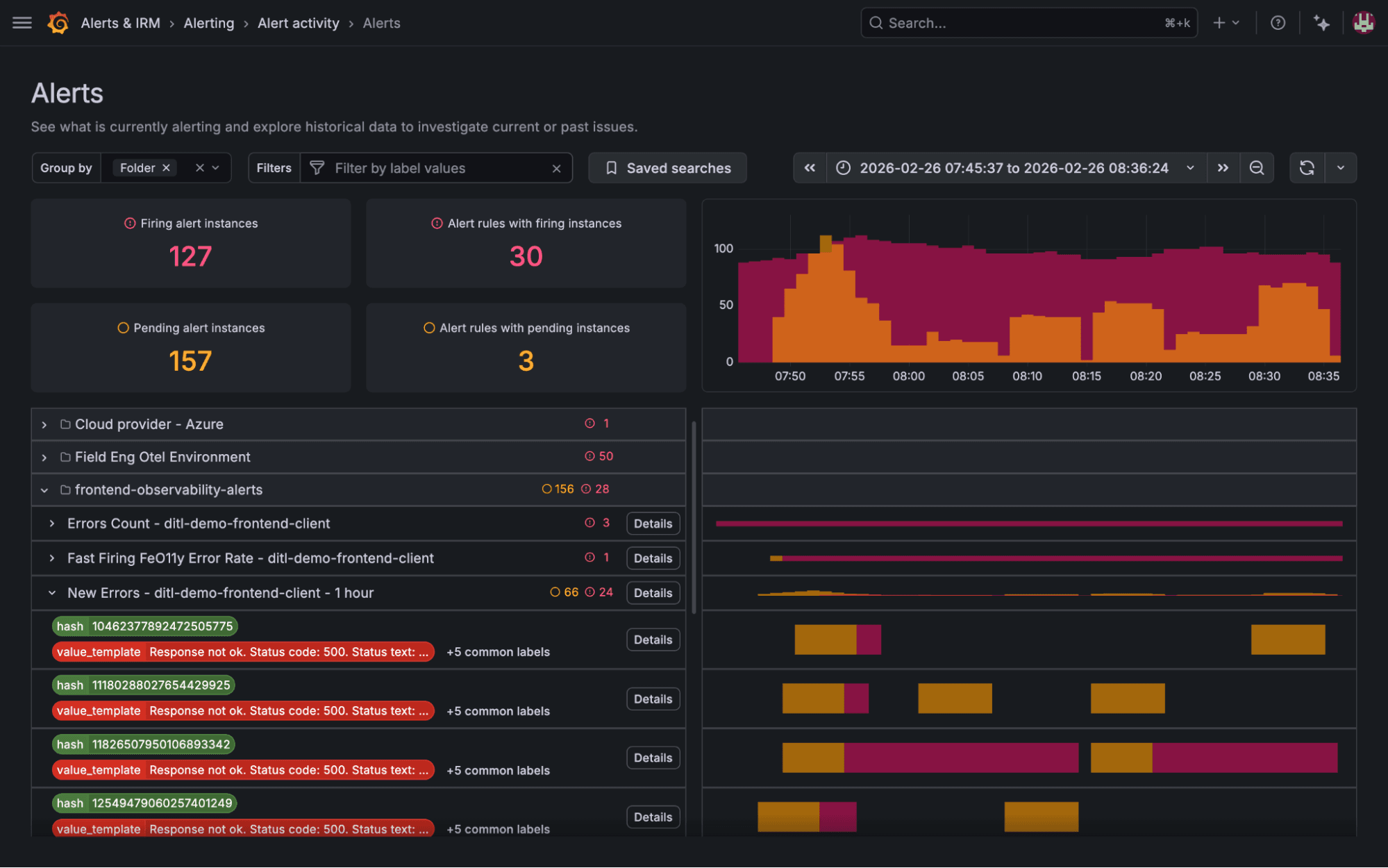
Configuring alerts is one task, but seeing system status or investigating active incidents is another. Operators needed a dedicated view to see all alerts and understand the current state of their system as well as historical data without getting bogged down in configuration details.
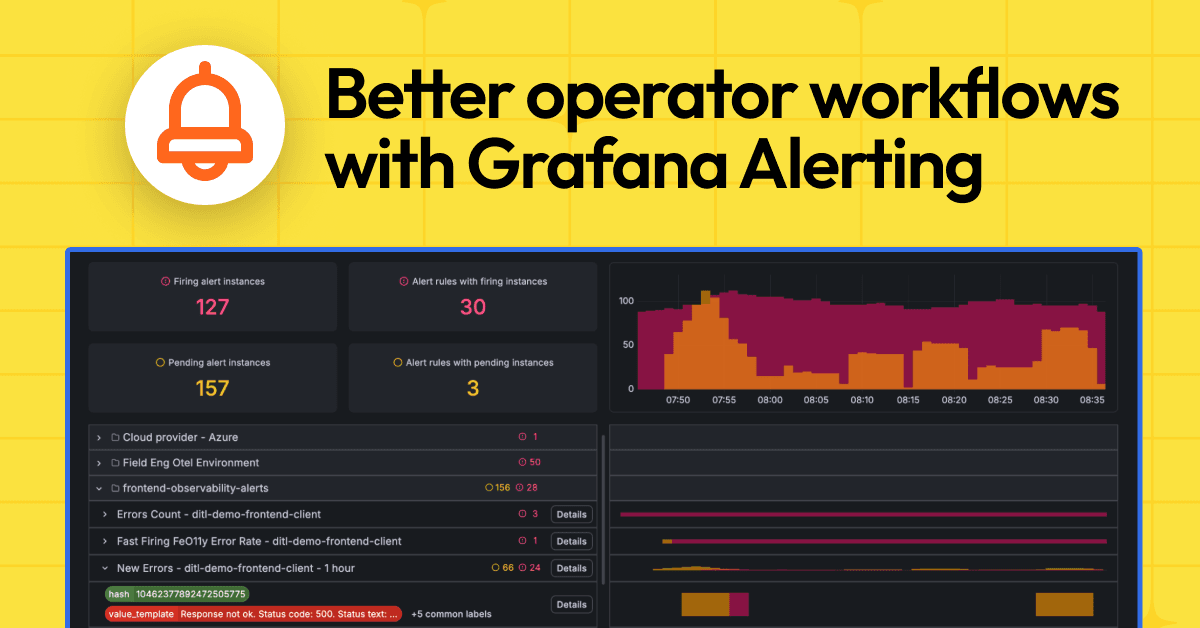
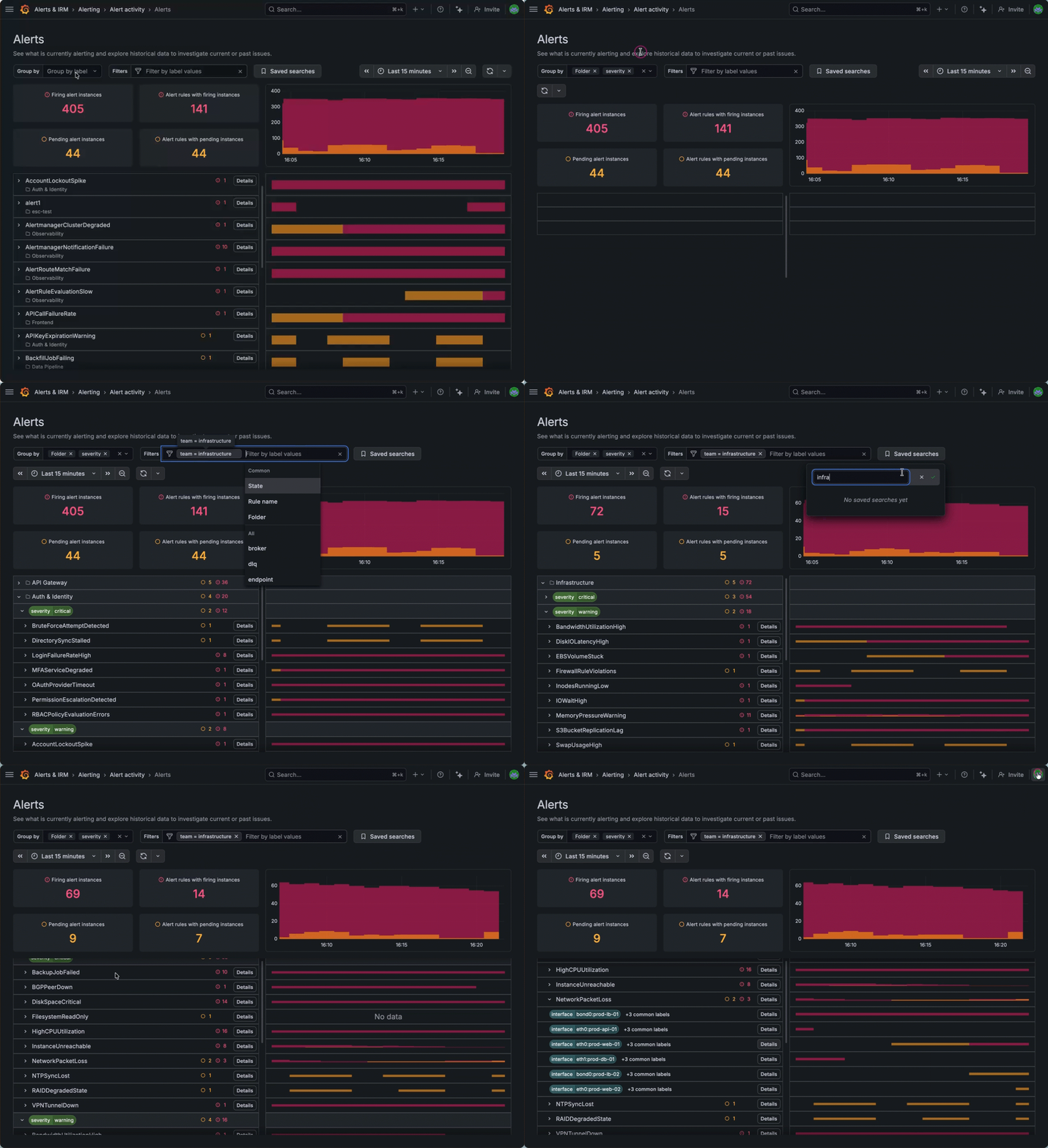
This need led to the creation of the "alert activity" page. It introduces the concept of arbitrary grouping, allowing operators to pivot their view based on what matters most at that moment; whether that's grouping by cluster, severity, service, or any other label.
- Flexible grouping: You control how to view the firing instances—group them by folders, evaluation groups, region, service or any other label which makes sense to you.
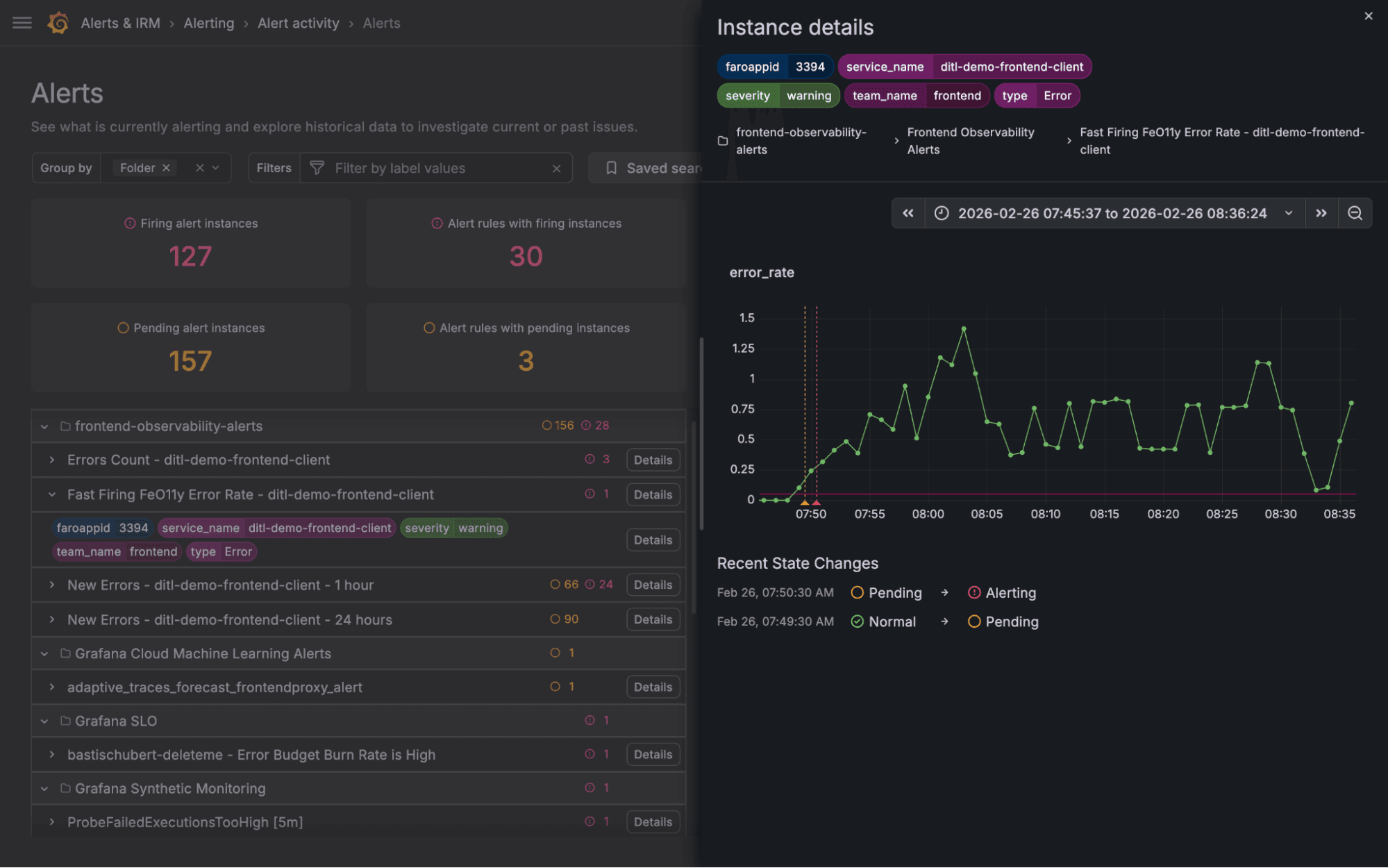
- Dedicated detail drawers: Instead of navigating away to see rule definitions or instance labels, we introduced slide-out drawers. You can drill down into a specific alert instance or rule, inspect its history and labels, and then slide it away to return exactly where you left off.
- Compact views: By using compact rows and tooltips, we maximized screen real estate, allowing operators to scan high volumes of active alerts efficiently.
- Saved searches: Similar to the alert rules page, we’ve added functionality to give you a more personalized experience. Saving a search also preserves the grouping you’ve selected and the time period you are inspecting.
This shift marks a transition from a tool for configuring alerts to a true workspace for resolving them.
Putting it all together: practical ways to improve your alerting workflows
Here are a few examples of how you can make use of all of the changes outlined above to streamline your workflow.
Define a default saved search for 'my team’s alert rules'
If you are usually interested in a particular set of alert rules your team is responsible for, this sounds like a great candidate for default saved search. For example, if all of them are in a folder called “Payment_service,” then:
- From the filters menu, select to filter by "Folder: Payment_service"
- From the saved searches menu, choose to save the current search and give it a name
- From the three-dot menu icon, select to set this search as the default for you
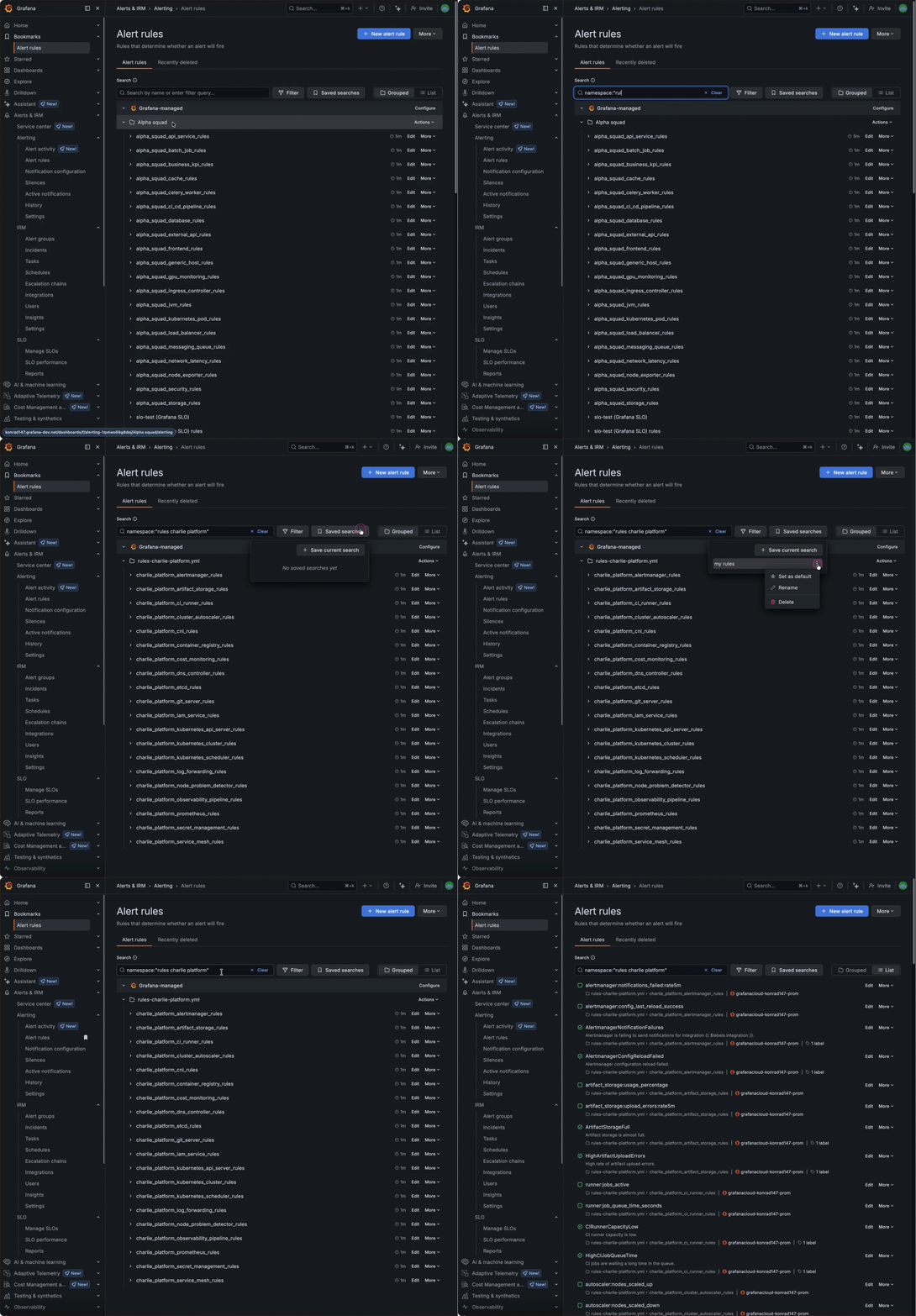
And done! Now each time you enter the alert rules page, this filter will be pre-applied.
Dive into system health
Rather than being constrained to a one static grouping or flat list of rules, the alert activity page lets you define the grouping that you need each time. This can come in handy when you’re trying to investigate the health of your system.
- Play with different group by settings (e.g., folder, region, service) to get a quick overview of system health
- Group by multiple labels to dive deeper
- Apply filters to cut through the noise (e.g. team, pod, service)
Triage a firing alert
Make the most out of the alert activity page by seeing how things unfolded when an alert has fired and spot trends in your system. For example, let's say you get a notification from an alert:
- Open Alert activity and see it has been firing for the last 10 minutes
- Click on the alert rule details to get more information about the alert rule itself—query, conditions, configurations
- Click on the alert instance details to get more information about the alert instance—how the query has been performing, at what particular times the instance went from "normal" to "pending" and then from "pending" into "firing"
- Group the alert instances by label “cluster”
- The firing alerts are now grouped by cluster. You notice the cluster for which you got the alert is the only one having issues
- Use the label filters to filter for this cluster
- Use the timeline of firing alerts to see what other alerts have fired just before you were notified
We are constantly listening to feedback and iterating. Give these new features a try and let us know what you think!
Grafana Cloud is the easiest way to get started with metrics, logs, traces, dashboards, and more. We have a generous forever-free tier and plans for every use case. Sign up for free now!