%3Aquality(90)%2F&w=3840&q=75)
%3Aquality(90)%2F&w=3840&q=75)
Grafana dashboards as code: How to manage your dashboards with Git


Note: This blog post originally published in May 2025 and was updated in April 2026 to reflect the general availability of Git Sync.
As your Grafana instance scales, so does the challenge of maintaining dashboards. Managing dozens or hundreds of dashboards through the UI alone can quickly become overwhelming. Tracking changes gets murky, dashboards multiply, and consistency suffers.
To regain control, many teams manage dashboards as code, applying the same proven practices that have helped them successfully manage complex software systems. The as code approach offers greater visibility and version control, but it comes with trade-offs: the setup is often complex and not as user-friendly as managing dashboards from an engaging user interface. Plus, the burden of change management shifts to a few admins, creating bottlenecks.
Watching users wrestle with this again and again made something clear—what they really needed was a simple, integrated way to store dashboards in Git, track changes, and manage approvals.
That’s what sparked the idea: what if Grafana could handle this natively? What if we could bring the GitOps workflow into Grafana, leveraging familiar tools like pull requests, and make saving dashboards effortless?
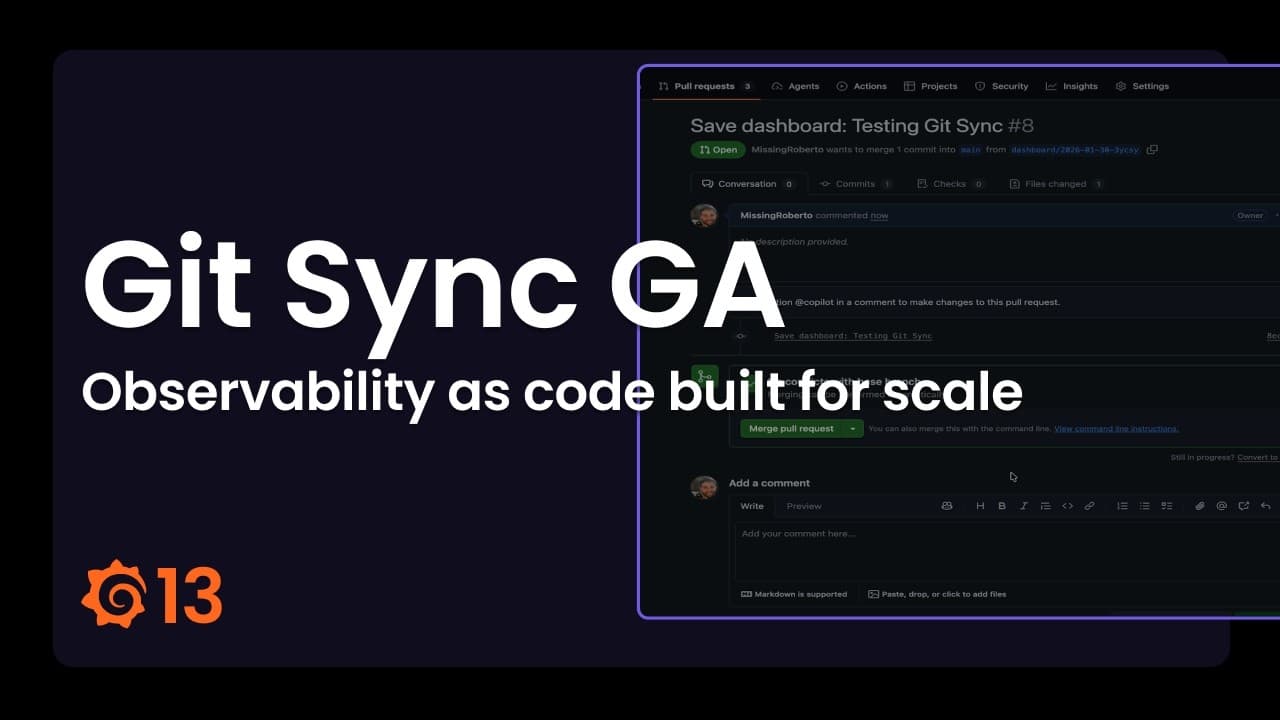
The solution: Git Sync, a Grafana feature that provides the power of Git version control right within your Grafana instance. Now generally available with the Grafana 13 release, Git Sync enables you to submit changes in your dashboards as pull requests directly from Grafana and get them reviewed by your team.
Whether you're on GitHub, GitLab, Bitbucket, or a self-hosted Git server, Git Sync meets you where you are.
Note: If you upgraded to Grafana 13 prior to April 16, please see an important note about Git Sync in our docs.
How Git Sync works
The primary objective of Git Sync is to provide a straightforward method for synchronizing Grafana content with Git repositories, effectively replacing the need for bespoke CI solutions.
Regardless of your hosting environment—GitHub, GitLab, Bitbucket, or a self-hosted server—Git Sync is designed to integrate seamlessly into your existing workflow.
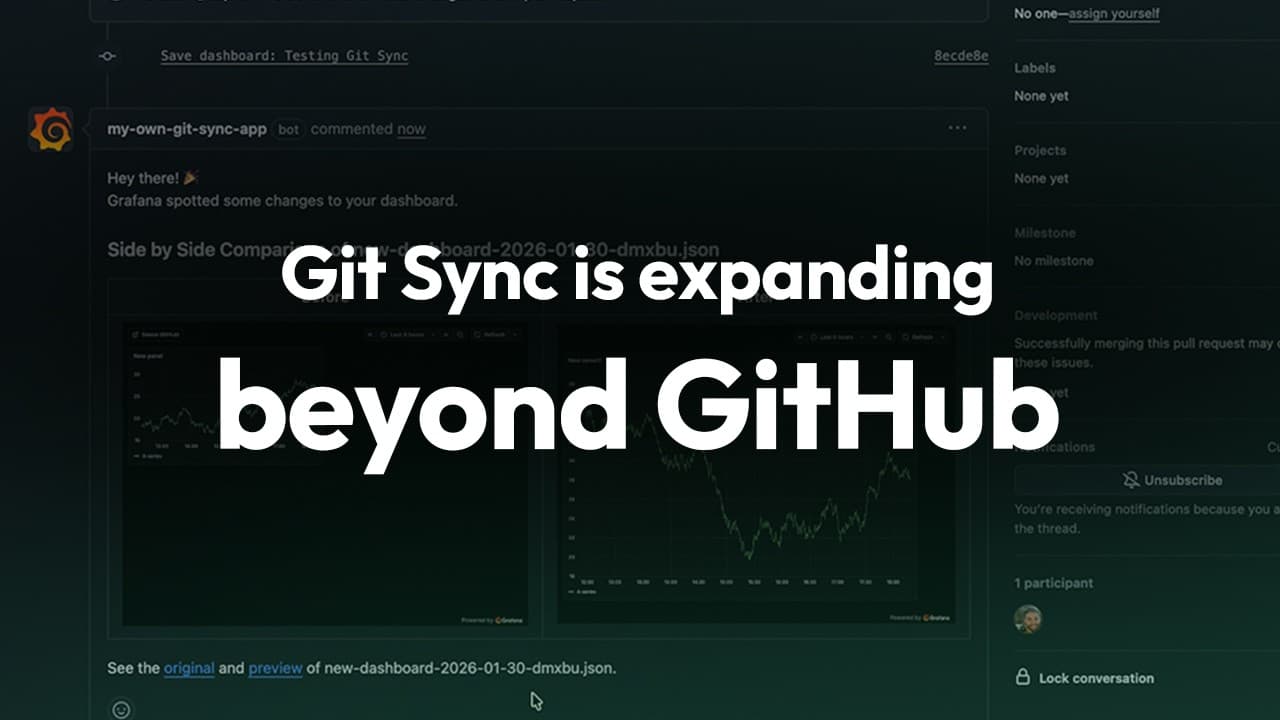
It achieves this versatility through:
- A universal pure Git repository type that supports any provider compatible with version 2 of Git’s wire protocol (works everywhere using standard Git, but without provider-specific features like webhooks or PR automation).
- Enhanced integrations tailored specifically for GitHub, GitLab, and Bitbucket (adds deeper, API-based features like instant sync, PR comments, and direct links for a more streamlined experience).
%3Aquality(90)%2F&w=3840&q=75)
Select your specific provider or the pure Git option that works with any provider or hosting model.
For a detailed list of supported platforms and their specific features, please refer to our documentation on compatible Git providers.
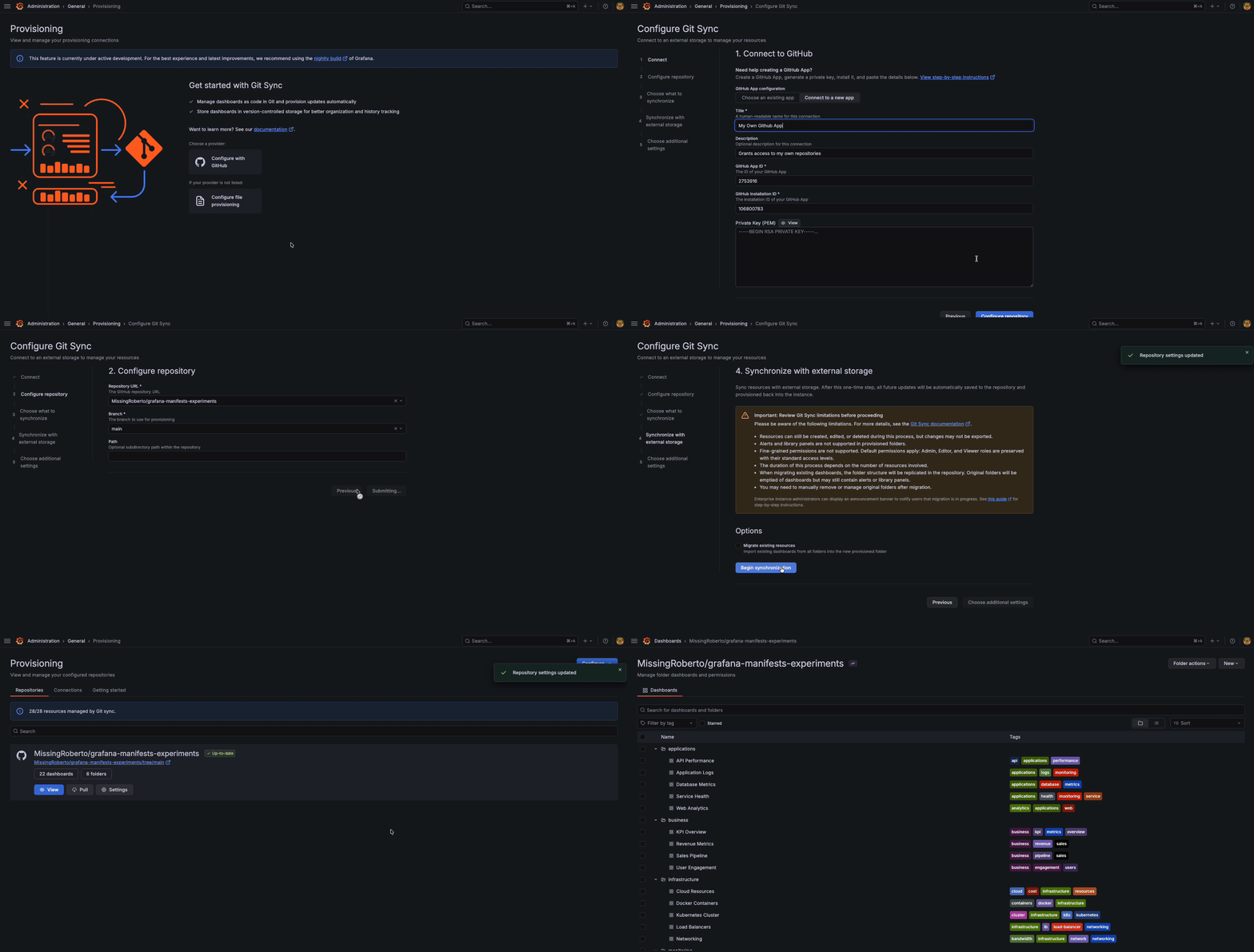
Configure a GitHub connection using GitHub App Authentication.
After selecting the provider and setting up the connection, the feature becomes part of your Save workflow, enabling you to save dashboards directly to your selected repository. The edited dashboard is only visible to the editor, or through a preview link in the PR, and becomes available to everyone if the PR is merged to main.
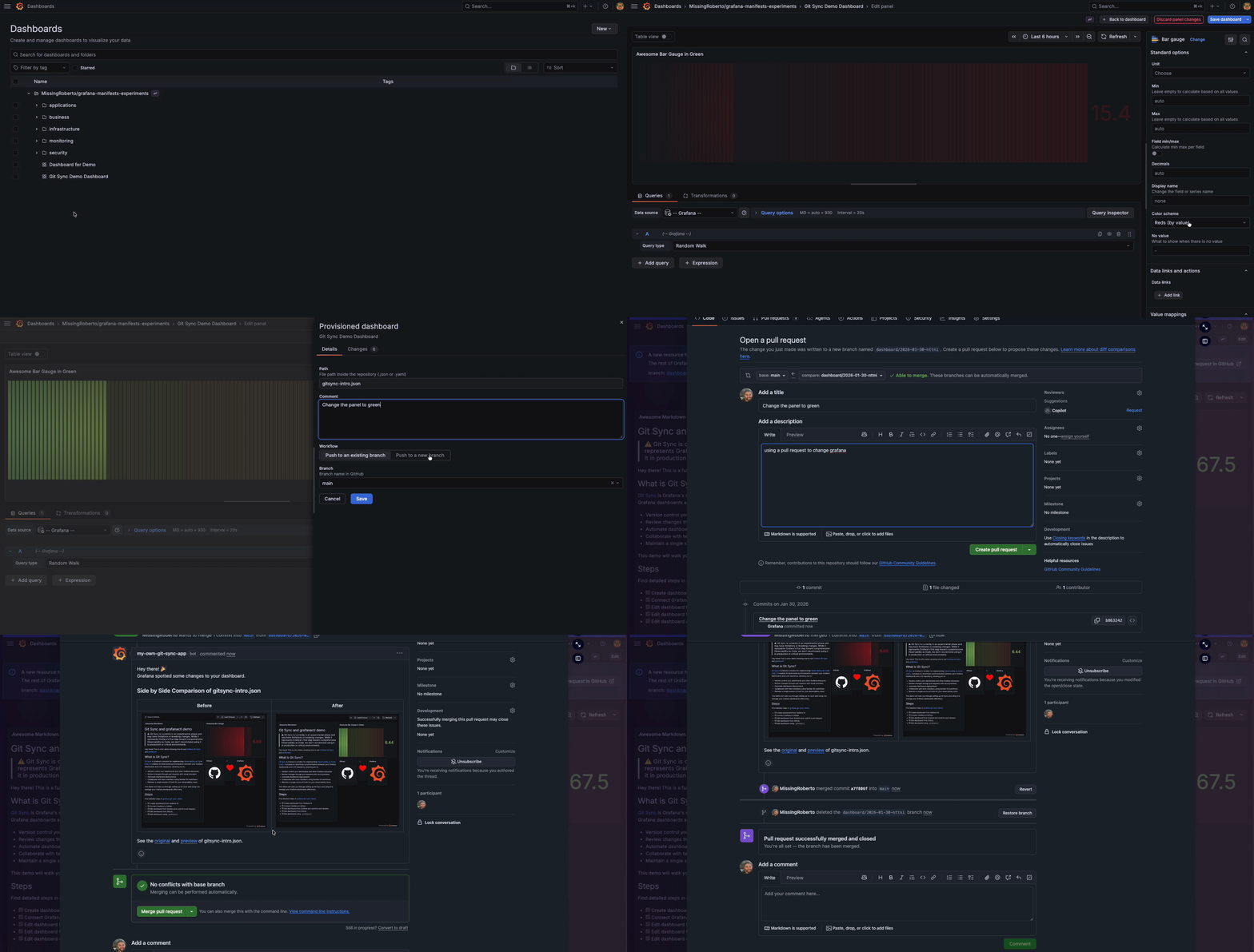
Once Git Sync is set up, the Save button will trigger a new workflow to save your dashboard directly to the configured GitHub repository.
Once the dashboard is saved, it’s easy to open a pull request to submit changes with just the click of a button. After the PR is opened, Grafana will automatically add a comment with links to the original dashboards, as well as the preview and, for on-prem versions, a screenshot of the current and edited dashboard so actual changes can be quickly reviewed at a glance.
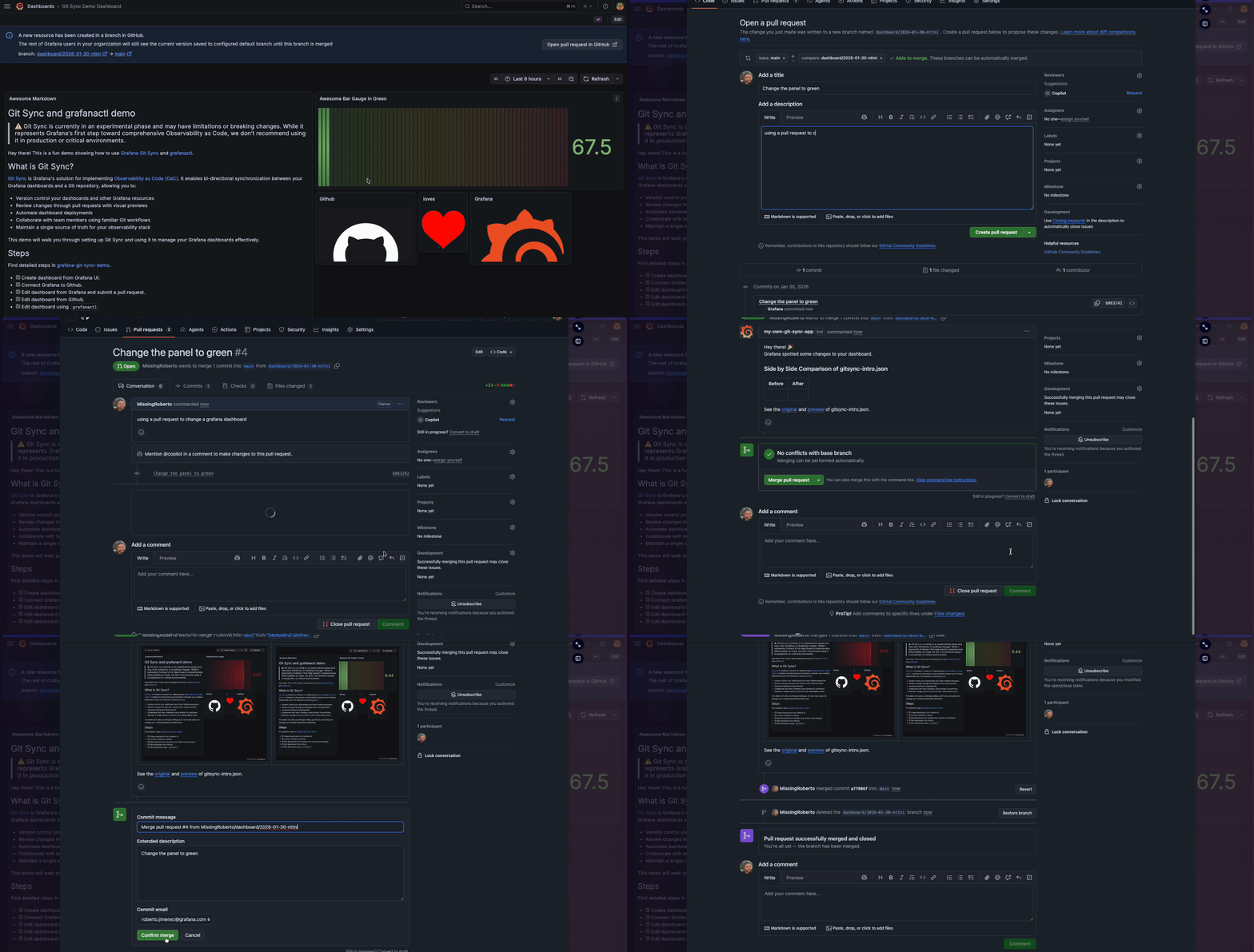
After reviewing the changes and merging the PR, changes will be automatically synchronized with Grafana.
Over the course of this year, we plan to expand Git Sync’s capabilities, including adding support for additional Grafana resources such as alerts and improving the overall experience of using different Git providers.
To learn more, you can review our Git Sync documentation.
How to get started with Git Sync
Git Sync is designed to make it easy to save and manage your dashboards as code—no complex setup required. It is a great fit if you don’t yet have an as code pipeline in place, or if your current setup is becoming difficult to maintain.
Git Sync is generally available in all editions of Grafana. If you are interested in trying the feature, you can follow the documentation and set up your connections.
We recommend adopting Git Sync gradually rather than rolling it out all at once in production; start with a small set of dashboards and expand from there. Please refer to our documentation to learn more about Git Sync’s current limitations.
Once enabled, the folders and underlying dashboards with an active connection will have Git as their source of truth. This means that if you delete the connection setup, you will see all the dashboards disappear from the instance. (They will still be available in the Git repository and you can re-import them using, for example, the new gcx CLI.)
We hope you’ll explore the different types of connections, copy your dashboards to Git or vice versa, and let us know what you think. We're actively gathering feedback in the #git-sync channel in our Grafana Labs Community Slack and we can’t wait to hear your thoughts.