
Zscaler ZPA Data Source Plugin for Grafana
Description
The Zscaler ZPA Data Source Plugin is a Grafana backend datasource plugin that enables querying and visualization of Zscaler Private Access (ZPA) infrastructure health and security policy data directly in Grafana panels.
Zscaler Private Access is a cloud-native zero trust network access solution. The plugin connects to the Zscaler ZPA API to retrieve app connectors, service edges, cloud connector groups, access policy rules, application segments, server groups, and connector groups.
Features
- Query and visualize Zscaler ZPA data directly within Grafana
- Support for multiple resource types:
- App Connectors: Operational status, channel health, version, and location
- Service Edges: ZPA Private Service Edge status and version details
- Cloud Connector Groups: Group metadata and connector counts
- Access Policy Rules: Policy rules across multiple policy types (Access, Timeout, Client Forwarding, Inspection, Isolation, Credential)
- Application Segments: Segment configuration with domain names and port ranges
- Server Groups: Server group membership and discovery settings
- Connector Groups: App Connector Group configuration and upgrade schedules
- Point-in-time snapshot queries — all records for the selected resource are returned on each query
- OAuth2 authentication via Zscaler ZIdentity OneAPI with automatic token management
- Built-in retry logic with exponential backoff for transient failures (up to 3 attempts)
- Two pre-built dashboards for infrastructure health and security policy audit
Compatibility
| Component | Version / Detail |
|---|---|
| Grafana | >= 12.3.0 |
| Zscaler ZPA API | ZIdentity OneAPI (OAuth2) |
| Authentication | OAuth2 Client Credentials |
| Cloud Environments | PRODUCTION, BETA, GOV, GOVUS |
Visuals
Onboarding
Query Examples

Added Dashboards
Installation
Requirements
- Grafana >= 12.3.0
- A Zscaler Private Access (ZPA) tenant with API access enabled
- A Zscaler ZIdentity OneAPI OAuth2 client (Client ID and Client Secret)
- The Customer ID for your ZPA tenant
- Network connectivity from the Grafana server to your Zscaler cloud endpoint
Obtain OAuth2 Credentials
- Log in to the Zscaler ZPA portal.
- Navigate to Administration > API Key Management.
- Click Add API Key and select ZPA API as the service type.
- Copy the generated Client ID and Client Secret.
- Your Customer ID is shown in the ZPA portal under Administration > Company.
- Your Vanity Domain follows the pattern
<tenantname>.zscaler.net,<tenantname>.zscalerone.net, etc., depending on your cloud.
Install the Plugin
Grafana Cloud
Install from the Grafana plugin catalog: search for Zscaler ZPA in the Plugins section of your Grafana Cloud instance.
Self-managed Grafana
Install from the Grafana Plugin Catalog or using the Grafana CLI:
grafana cli plugins install crestdata-zscalerzpa-datasource
After installation, restart the Grafana server for the plugin to be loaded.
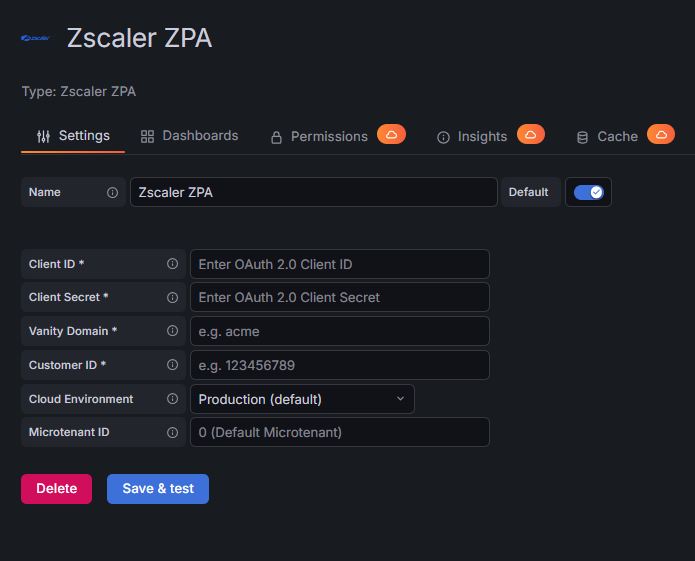
Configure the Data Source
- In Grafana, navigate to Connections > Add new connection.
- Search for Zscaler ZPA and select it.
- Fill in the required configuration fields:
| Name | Type | Required | Description |
|---|---|---|---|
| Client ID | String | Yes | OAuth2 client ID from Zscaler ZIdentity OneAPI |
| Client Secret | Secure String | Yes | OAuth2 client secret (stored encrypted) |
| Vanity Domain | String | Yes | Your Zscaler tenant vanity domain, e.g. acme.zscaler.net |
| Customer ID | String | Yes | Numeric Customer ID for your ZPA tenant (found under Administration > Company) |
| Cloud Environment | String | No | Zscaler cloud: PRODUCTION (default), BETA, GOV, or GOVUS |
| Microtenant ID | String | No | Microtenant identifier; leave as 0 for the default tenant |
- Click Save & Test. A successful result shows "Successfully connected to Zscaler ZPA".
Usage
Query Editor
Once the data source is configured, you can create panels using the query editor. Each query returns a table frame with point-in-time snapshot data. There is no time-range filtering — all records for the selected resource type are returned on each query.
Available Query Types
app_connectors
Returns all App Connectors in the tenant.
Key columns: name, enabled, control_channel_status, upgrade_status, location, connector_group_name, platform, current_version, public_ip, last_connect_time, modified_time
Use the control_channel_status field to distinguish healthy (ZPN_STATUS_AUTHENTICATED) from disconnected (ZPN_STATUS_DISCONNECTED) connectors.
service_edges
Returns all Service Edges (ZPA Private Service Edges) in the tenant.
Key columns: name, enabled, control_channel_status, upgrade_status, location, service_edge_group_name, current_version, last_connect_time
cloud_connector_groups
Returns all Cloud Connector Groups.
Key columns: name, description, enabled, cloud_connectors_count, zias_count, modified_time
access_policy_rules
Returns policy rules for a selected policy type. Use the Policy Type dropdown in the Query Editor to select one of:
| Policy Type | Description |
|---|---|
Access Policy |
Standard ZPA access policies (default) |
Timeout Policy |
Session timeout rules |
Client Forwarding Policy |
Client forwarding rules |
AppProtection Policy |
App inspection rules |
Isolation Policy |
Browser isolation rules |
Credential Policy |
Credential-based access rules |
Key columns: name, description, action, enabled, rule_order, policy_type, operator, conditions_count, app_operands_count, modified_time
application_segments
Returns all Application Segments configured in the tenant.
Key columns: name, description, enabled, health_reporting, bypass_type, config_space, domain_names, tcp_port_ranges, udp_port_ranges, server_groups_count, modified_time
server_groups
Returns all Server Groups.
Key columns: name, description, enabled, dynamic_discovery, config_space, servers_count, applications_count, app_connector_groups_count, modified_time
connector_groups
Returns all App Connector Groups.
Key columns: name, description, enabled, city_country, country_code, location, upgrade_day, version_profile_name, dns_query_type, connectors_count, modified_time
Error Handling and Retry Strategy
Retries are performed only for transient failures:
- HTTP 429 (rate limited) and 503, honoring the API's
Retry-After/ rate-limit headers - HTTP 5xx responses
- Network/transport-level errors
- Expired sessions (HTTP 401
SESSION_NOT_VALID) — the OAuth2 token is refreshed automatically and the request is retried
Max retry attempts: 3, with exponential backoff.
Non-retryable: generic HTTP 4xx errors (e.g. 400, 404) and tenant-capacity errors (403 LIMIT_EXCEEDED) are returned immediately.
Resources Reference
| Resource | Description | Supports Filter | Supports Time Range |
|---|---|---|---|
| App Connectors | Operational status, channel health, version, and location | No | No |
| Service Edges | ZPA Private Service Edge status and version details | No | No |
| Cloud Connector Groups | Group metadata and connector counts | No | No |
| Access Policy Rules | Policy rules across multiple policy types | No (policy type selector) | No |
| Application Segments | Segment configuration with domain names and port ranges | No | No |
| Server Groups | Server group membership and discovery settings | No | No |
| Connector Groups | App Connector Group configuration and upgrade schedules | No | No |
Included Dashboards
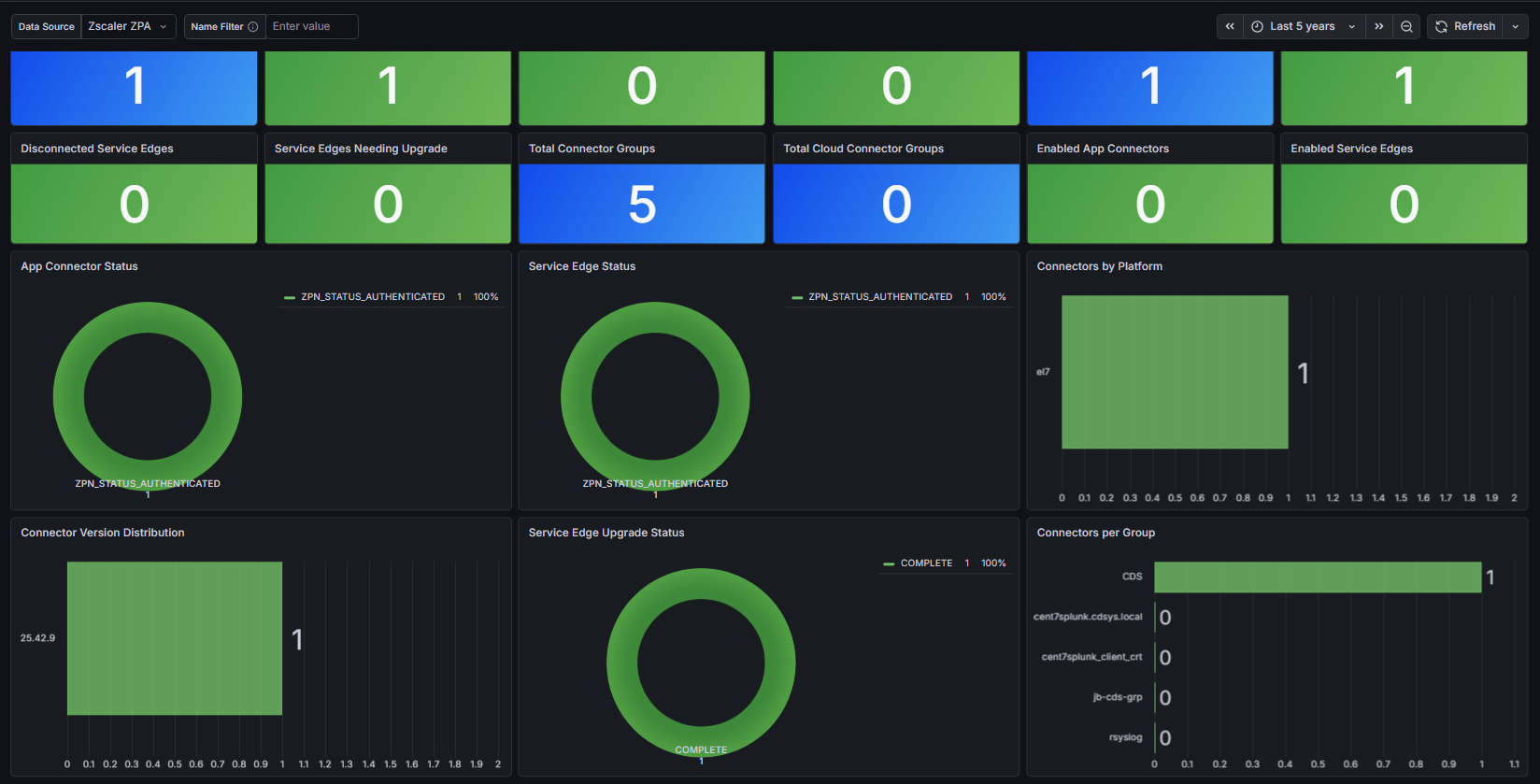
ZPA Infrastructure Health
Provides an operational view of your ZPA infrastructure:
- Stat panels: Total App Connectors, Healthy App Connectors, Disconnected App Connectors, Total Service Edges
- Pie charts: App Connectors by Control Channel Status, Service Edge Status
- Tables: App Connector Details, Service Edge Details, Cloud Connector Groups
- Bar chart: Upgrade Status Overview
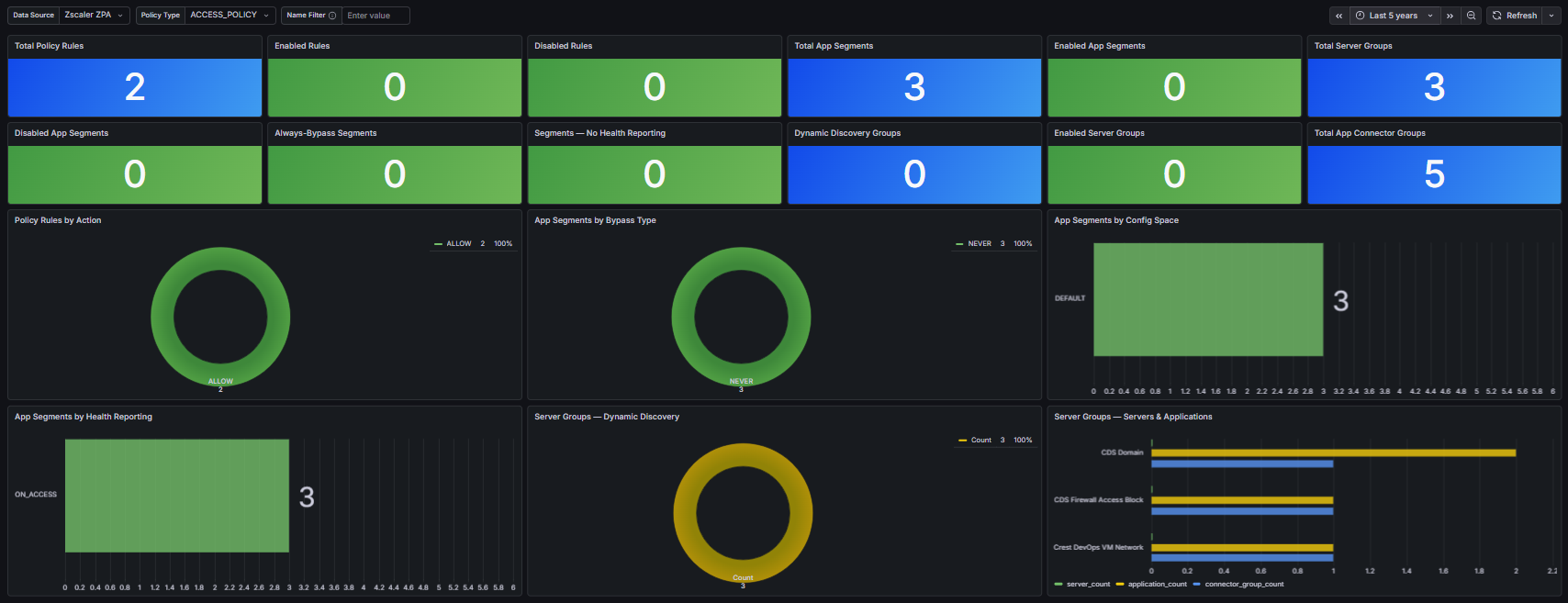
ZPA Security Policy Audit
Provides a security governance view:
- Stat panels: Total Access Policy Rules, Enabled Rules, Total Application Segments, Total Server Groups, Total Connector Groups
- Pie charts: Access Policy Rules by Action, Application Segments by Bypass Type
- Tables: Access Policy Rules (ACCESS_POLICY, TIMEOUT_POLICY, CLIENT_FORWARDING_POLICY), Application Segments, Server Groups, App Connector Groups
Limitations and Recommendations
API Considerations:
- All queries return point-in-time snapshots; there is no time-range filtering support
- Personal Access Tokens expire or may be revoked; regenerate credentials in the ZPA portal if authentication fails
Support
For issues, questions, or feature requests, please reach out to grafanalabs.integrations@crestdata.ai
Authors and Acknowledgment
Developed by Crest Data.
License
This plugin is distributed under the Crest Data End User License Agreement (EULA). See the LICENSE file for details.
References
Grafana Cloud
Connect any plugin in Grafana Cloud.
- 150+ data source integrations
- Grafana Assistant - AI that correlates your data, builds queries, and answers questions
- 10k Prometheus metrics + 50 GB logs, traces, and profiles on the free tier
- ...and more
Insights
- Adoption
Running on 6 active Grafana instances.
- Activity
Last updated 9 Sep 2026.
2 releases in the past year.
- Queries
0 total queries served across all Grafana Cloud instances.
- Version
- 1.1.1
- Dependencies
- Grafana >=12.3.0
- Developer
- crestdata
Grafana Cloud
Connect any plugin in Grafana Cloud.
- 150+ data source integrations
- Grafana Assistant - AI that correlates your data, builds queries, and answers questions
- 10k Prometheus metrics + 50 GB logs, traces, and profiles on the free tier
- ...and more