
FlowX





The FlowX Grafana panel enables the rendering of interactive flowcharts derived from directed graph data, consisting of nodes and edges. FlowX supports a variety of node types, each designed for specific use cases. Grafana provides a Node Graph panel for visualizing directed graph data, but its visualization capabilities are quite limited. To address the need for more advanced and rich visualizations of directed graphs, this panel has been developed. It leverages ReactFlow and DagreJS to deliver enhanced visualization features.
Demo
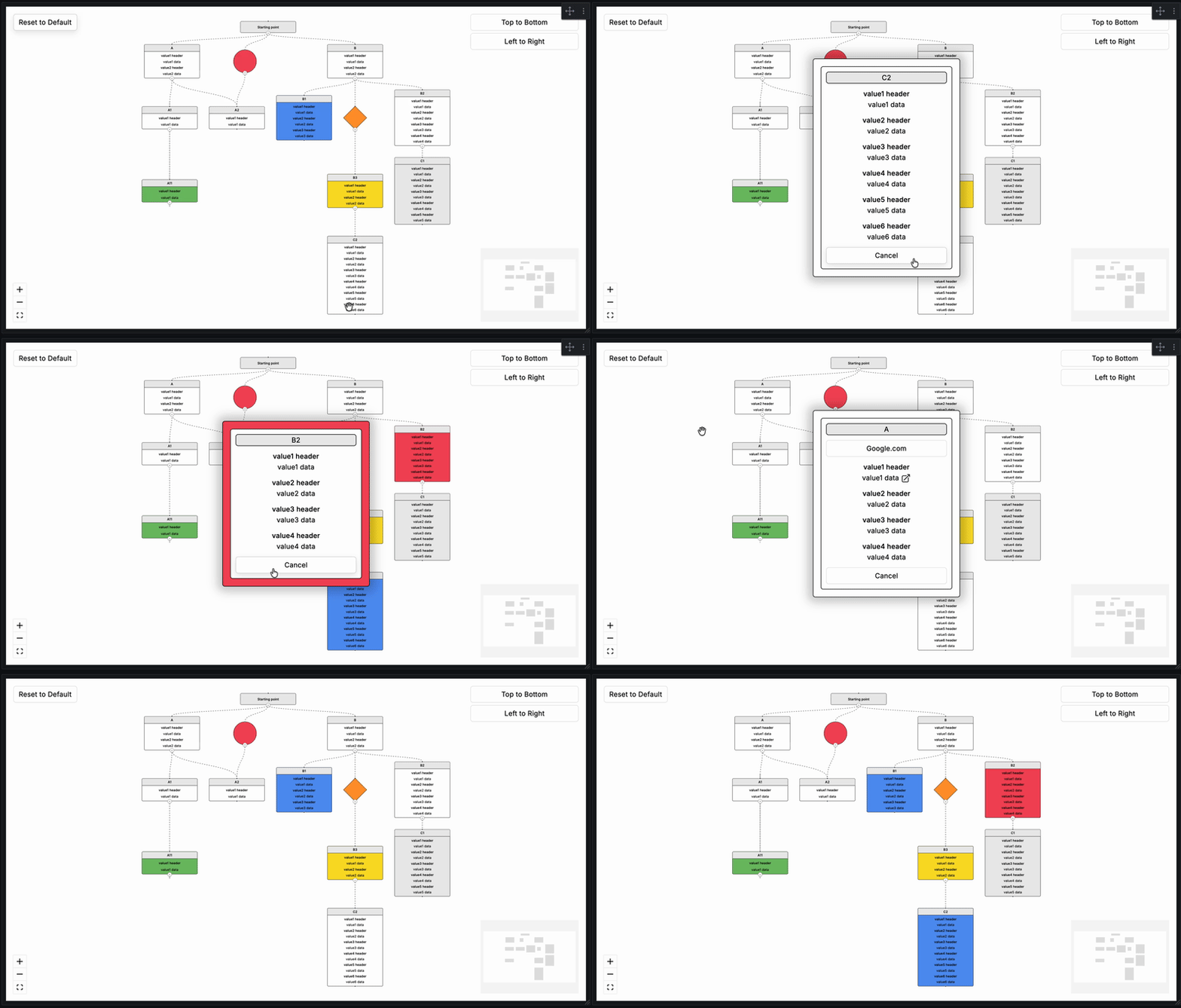
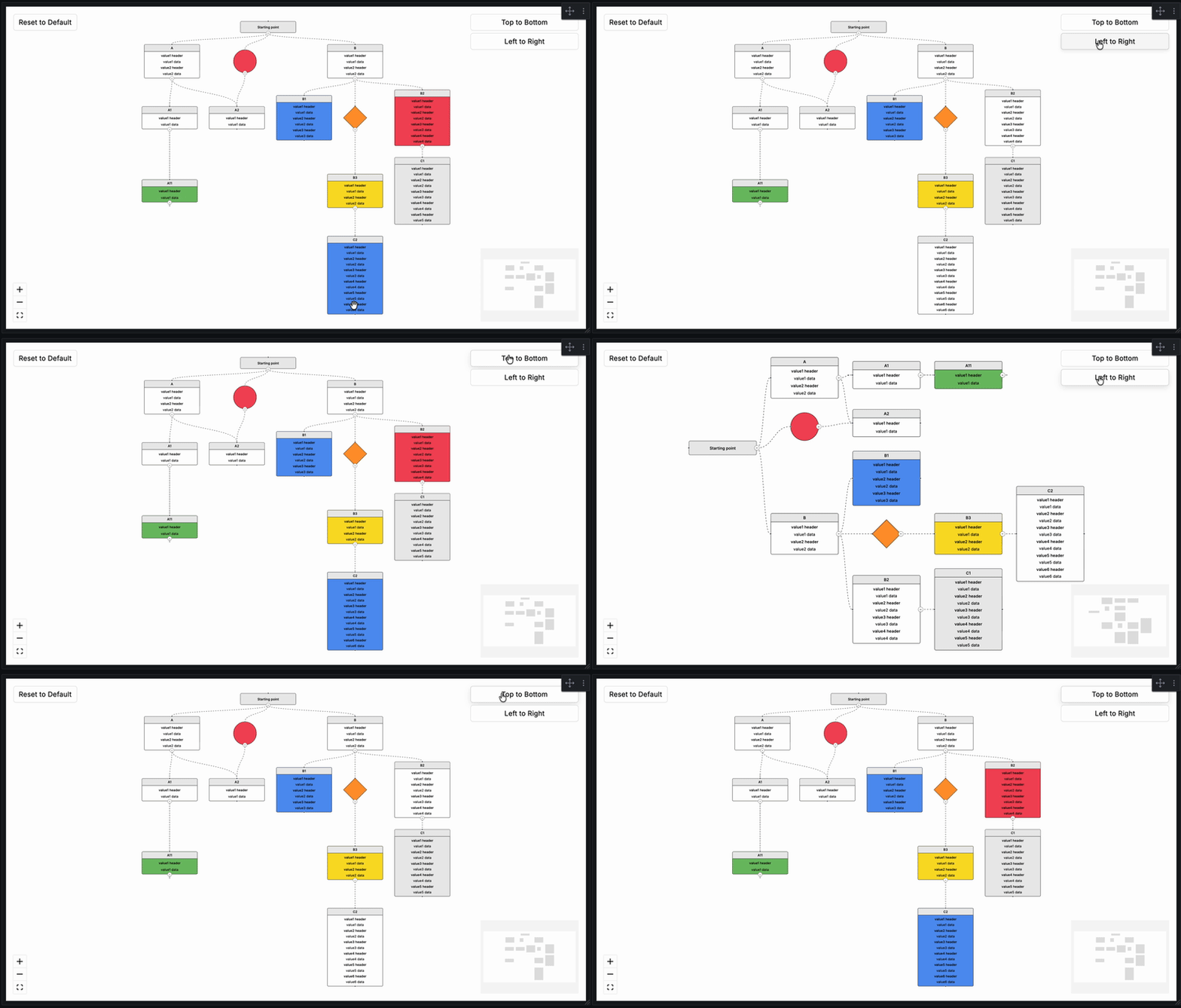
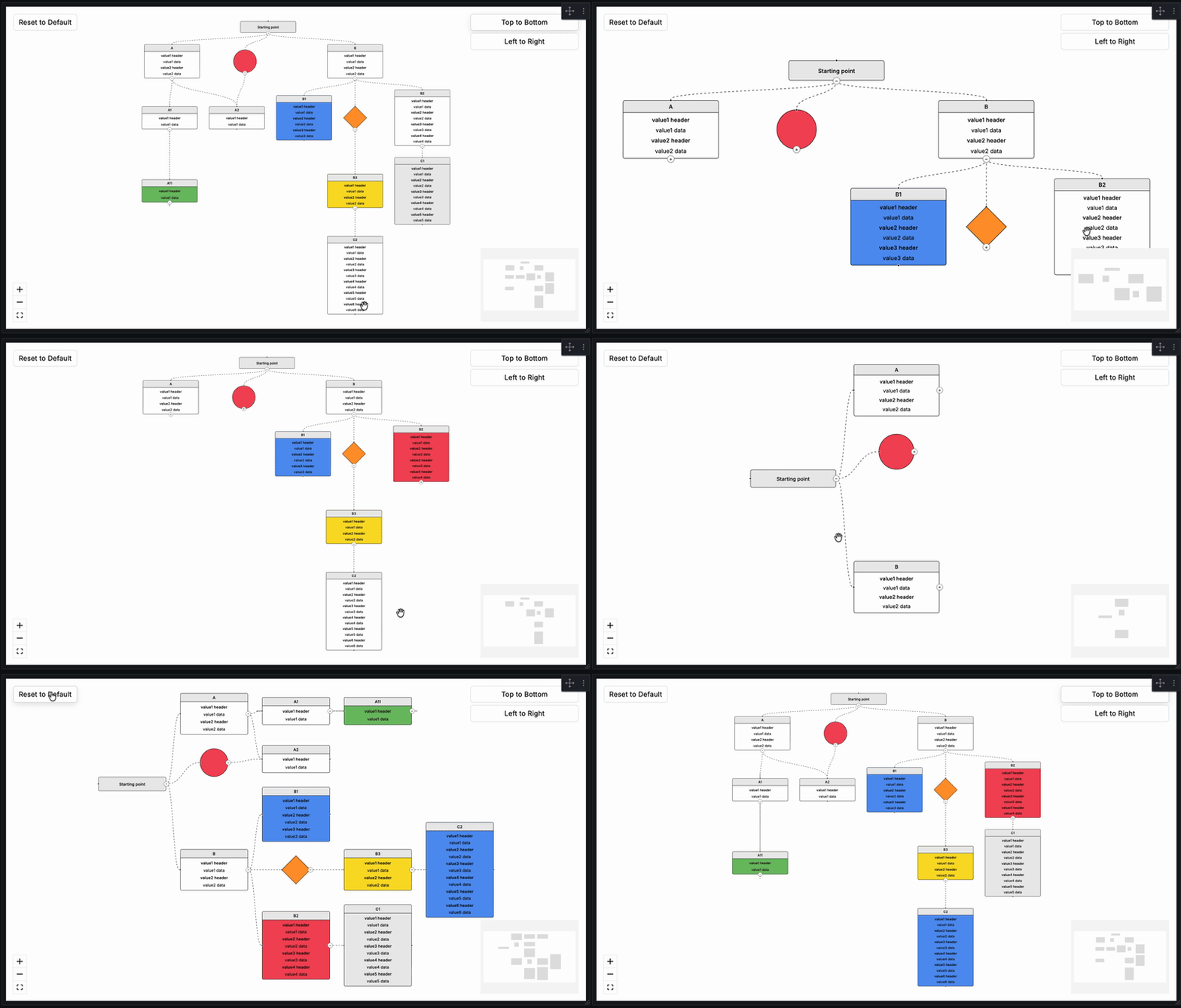
Requirements
| FlowX Version | Minimum Grafana Version |
|---|---|
| 2.0.0+ | 11.6.11 |
| 1.0.3 and below | 10.1.0 |
Note: FlowX 2.0.0+ requires Grafana 11.6.11 or higher due to React 19 compatibility changes introduced in Grafana 13. If you are running Grafana 10.x, please use FlowX version 1.0.3.
Installation
Installing plugin on Grafana Cloud / Local Grafana - https://grafana.com/docs/grafana/latest/plugins/installation/
Configuration
To use the FlowX panel, 2 different queries called "Node" and "Edge" must be added. The "Node" query is for determining the boxes, circles and diamonds we will draw. The "Edge" query is for determining the relationship between the nodes we draw. The expected columns in Node and Edge queries are as shared below. All data to come to the columns are optional (yes, including IDs, if an empty row comes, an empty node with no relationship will be drawn.) The expected data type is string for all columns.
Node
The following table describes expected columns of the Node query:
| Columns | Supported Values | Description |
|---|---|---|
| id | Unique identifier of the Node. Each Node to be drawn must have a unique ID. These ID's will be used in the Source or Target fields in the "Edge" query. | |
| type | title one two three four five six circle diamond |
Determines the type of Node. The Node is drawn according to this data. However, if the popup is active, all values will appear there. Default: four |
| title | Title of the Node. | |
| value1_header | The header that will come for the first value of the node. | |
| value1_data | The data that will come for the first value of the node. | |
| value1_url | One or more URLs. A plain address, or JSON for several labelled links — see Multiple Links. "Show Popup" must be on to use. | |
| value2_header | The header that will come for the second value of the node. | |
| value2_data | The data that will come for the second value of the node. | |
| value2_url | One or more URLs. A plain address, or JSON for several labelled links — see Multiple Links. "Show Popup" must be on to use. | |
| value3_header | The header that will come for the third value of the node. | |
| value3_data | The data that will come for the third value of the node. | |
| value3_url | One or more URLs. A plain address, or JSON for several labelled links — see Multiple Links. "Show Popup" must be on to use. | |
| value4_header | The header that will come for the fourth value of the node. | |
| value4_data | The data that will come for the fourth value of the node. | |
| value4_url | One or more URLs. A plain address, or JSON for several labelled links — see Multiple Links. "Show Popup" must be on to use. | |
| value5_header | The header that will come for the fifth value of the node. | |
| value5_data | The data that will come for the fifth value of the node. | |
| value5_url | One or more URLs. A plain address, or JSON for several labelled links — see Multiple Links. "Show Popup" must be on to use. | |
| value6_header | The header that will come for the sixth value of the node. | |
| value6_data | The data that will come for the sixth value of the node. | |
| value6_url | One or more URLs. A plain address, or JSON for several labelled links — see Multiple Links. "Show Popup" must be on to use. | |
| value7_header | The header that will come for the seventh value of the node. | |
| value7_data | The data that will come for the seventh value of the node. | |
| value7_url | One or more URLs. A plain address, or JSON for several labelled links — see Multiple Links. "Show Popup" must be on to use. | |
| value8_header | The header that will come for the eighth value of the node. | |
| value8_data | The data that will come for the eighth value of the node. | |
| value8_url | One or more URLs. A plain address, or JSON for several labelled links — see Multiple Links. "Show Popup" must be on to use. | |
| value9_header | The header that will come for the ninth value of the node. | |
| value9_data | The data that will come for the ninth value of the node. | |
| value9_url | One or more URLs. A plain address, or JSON for several labelled links — see Multiple Links. "Show Popup" must be on to use. | |
| value10_header | The header that will come for the tenth value of the node. | |
| value10_data | The data that will come for the tenth value of the node. | |
| value10_url | One or more URLs. A plain address, or JSON for several labelled links — see Multiple Links. "Show Popup" must be on to use. | |
| color_condition | red red_blink orange orange_blink yellow yellow_blink green green_blink blue blue_blink gray gray_blink |
Field that determines the background color of the node. Blink ones flash. Default: null |
| url | Field that can be used for the node's own URL. Accepts the same single-or-JSON format as the value URLs — see Multiple Links. "Show Popup" must be on to use. | |
| url_label | Names the node's own URL button. With JSON holding several links it names both the button and the list it opens; left empty there, the button reads "Links". |
Multiple Links
Every URL column — value1_url through value10_url and the node's own url — accepts either a single address or JSON describing any number of labelled links:
[
  { "label": "Runbook", "url": "https://wiki.example.com/runbook/auth" },
  { "label": "Dashboard", "url": "https://grafana.example.com/d/abc" },
  { "label": "Source", "url": "https://github.com/example/auth-api" }
]
These shapes are all accepted:
| Cell content | Result |
|---|---|
https://example.com |
One link, labelled with the address itself. This is the original format and keeps working unchanged. |
[{"label":"Runbook","url":"https://..."}, ...] |
Any number of labelled links. |
{"label":"Runbook","url":"https://..."} |
A single labelled link. |
["https://a","https://b"] |
Two links, each labelled with its address. |
Notes:
- The links live in the node popup, so Show Popup must be on for any of this to be reachable.
- An entry with no usable
urlis dropped, and a missinglabelfalls back to the address. - One link opens directly when the icon is clicked, exactly as before. Several links show a count on the icon and open a list at the icon itself, in front of the node popup; close it with its ✕,
Esc, or by clicking anywhere outside it — including the node popup itself, which stays open. Clicking the same icon again closes it. The list stays within the panel, moving itself inward when opened near an edge. - For the node's own URL,
url_labelstill names the button when set. With several links it names both the button and the list. - Only
httpandhttpsaddresses, plus Grafana-internal paths beginning with/, are rendered. Anything else is ignored. - A cell that starts like JSON but does not parse produces no links rather than a broken one, so a typo in a single row cannot break the popup.
Most data sources can build the JSON in the query itself, so no transformation is needed. In SQL:
SELECT
  service                                   AS id,
  'two'                                     AS type,
  service                                   AS title,
  'latency'                                 AS value1_header,
  latency_ms || ' ms'                       AS value1_data,
  json_build_array(
    json_build_object('label', 'Runbook',   'url', runbook_url),
    json_build_object('label', 'Dashboard', 'url', dashboard_url)
  )::text                                   AS value1_url
FROM services;
Edge
The following table describes expected columns of the Edge query:
| Columns | Description |
|---|---|
| id | Unique identifier of the Edge. Each Edge to be drawn must have a unique ID. |
| source | Source Node ID |
| target | Target Node ID |
Supported Types of Node
| type | Description |
|---|---|
| null | Default, node type will be set as four. |
| title | Node showing only title column. |
| one | Node showing title, value1_header, value1_data. |
| two | Node showing title, value1_header, value1_data, value2_header, value2_data. |
| three | Node showing title and value rows 1–3. |
| four | Node showing title and value rows 1–4. |
| five | Node showing title and value rows 1–5. |
| six | Node showing title and value rows 1–6. |
| seven | Node showing title and value rows 1–7. |
| eight | Node showing title and value rows 1–8. |
| nine | Node showing title and value rows 1–9. |
| ten | Node showing title and value rows 1–10. |
| circle | A node with circle shape that does not display value columns on the node itself. |
| diamond | A node with diamond shape that does not display value columns on the node itself. |
If "Show Popup" is enabled, all fields (title, values 1–10, URL) are shown in the popup regardless of node type.
Supported Colors of Node
| color_condition | Description |
|---|---|
| null | Default, paints the background white. |
| red | Paints the background #f2495c. |
| red_blink | Blinks between #f2495c and white. |
| orange | Paints the background #ff9830. |
| orange_blink | Blinks between #ff9830 and white. |
| yellow | Paints the background #fade2a. |
| yellow_blink | Blinks between #fade2a and white. |
| green | Paints the background #73bf69. |
| green_blink | Blinks between #73bf69 and white. |
| blue | Paints the background #5794f2. |
| blue_blink | Blinks between #5794f2 and white. |
| gray | Paints the background #ebebeb. |
| gray_blink | Blinks between #ebebeb and white. |
Collapse / Expand
Every node that has children displays a small collapse/expand button at the point where its outgoing edge begins. Clicking it hides or reveals the subtree beneath that node.
- Collapsing a node hides all of its descendants and collapses them automatically.
- Expanding a node shows only its direct children. Grandchildren remain collapsed until manually expanded.
- Nodes with multiple parents remain visible as long as at least one parent is open.
- Cycles in the graph (A → B → A) are handled safely.
- The layout is animated: nodes that stay slide to their new position, nodes that appear grow out of their nearest visible ancestor, and nodes that disappear shrink back into it. The animation is skipped when the operating system requests reduced motion.
- Collapsing a subtree frees the space it occupied, so the remaining nodes close ranks. The rest of the graph is held in place, so only the branch you toggled moves.
The Initial Depth panel option controls how many levels are visible when the panel first loads:
| Value | Behavior |
|---|---|
0 |
All nodes expanded (default) |
1 |
Only root nodes visible |
2 |
Roots and their direct children visible |
n |
Nodes up to depth n visible, rest collapsed |
The Reset to Default button (top-left corner, visible when "Show Layout Options" is on) clears all manually dragged positions and resets the collapse state back to the configured Initial Depth.
Below it, the Expand All button opens every node. Once the graph is fully open it turns into Collapse All, which folds the graph back to its root nodes. Both frame the whole graph and keep manually dragged positions.
FlowX Panel Options
The following table describes FlowX panel options:
| Category | Option | Values | Default | Description |
|---|---|---|---|---|
| Background Settings | Background Color | Grafana Color Palette | #ffffff |
|
| Background Settings | Background Type | None Dots Cross Lines |
None |
|
| Background Settings | Type Gap | 1 – 50 | 28 |
|
| Background Settings | Type Size | 1 – 10 | 1 |
|
| Background Settings | Type Color | Grafana Color Palette | #000000 |
|
| Layout Settings | Layout Direction | Top to Bottom Left to Right |
Top to Bottom |
|
| Layout Settings | Show Layout Options | on off |
on |
|
| Layout Settings | Show Mini Map | on off |
on |
|
| Layout Settings | Show Controls | on off |
on |
|
| Layout Settings | Hide Attribution (Pro) | on off |
off |
Please only hide the attribution if you are subscribed to React Flow Pro: https://reactflow.dev/pro |
| Layout Settings | Maximum Zoom | 1 – 10 | 4 |
|
| Layout Settings | Minimum Zoom | 0.1 – 1 | 0.1 |
|
| Node Settings | Draggable Nodes | on off |
off |
Drag positions are preserved across data refreshes. Reset to Default clears them. |
| Node Settings | Fit View on Collapse/Expand | on off |
off |
Moves the view to the toggled node: expanding frames it with its new children, collapsing with its siblings. |
| Node Settings | Show Popup | on off |
off |
Must be enabled to use Node or Value URLs. |
| Node Settings | Initial Depth | integer ≥ 0 | 0 |
Number of levels visible on load. 0 = all expanded. See Collapse / Expand section above. |
| Node Style | Node Background Color | Grafana Color Palette | #ffffff |
Nodes with a color_condition use that color instead; *_blink alternates with this one. The node popup takes all Node Style colors too. |
| Node Style | Title Background Color | Grafana Color Palette | #ebebeb |
The title strip of value nodes, and title nodes. |
| Node Style | Border Color | Grafana Color Palette | #000000 |
|
| Node Style | Title Color | Grafana Color Palette | #000000 |
|
| Node Style | Title Font Size | 10 – 16 | 14 |
|
| Node Style | Value Header Color | Grafana Color Palette | #000000 |
|
| Node Style | Value Header Font Size | 10 – 16 | 14 |
|
| Node Style | Value Color | Grafana Color Palette | #000000 |
|
| Node Style | Value Font Size | 10 – 16 | 14 |
Font sizes apply to nodes only, not the popup, and are capped at 16 so the text fits the fixed node size. |
| Edge Settings | Edge Animation | on off |
on |
|
| Edge Settings | Edge Type | Default Straight Step Smoothstep Simplebezier |
Default |
|
| Edge Settings | Edge Stroke | 1 – 10 | 1 |
|
| Edge Settings | Edge Color | Grafana Color Palette | #000000 |
|
| Node Field Mapping | ID | string | id |
Maps a custom column name to the id field. Leave empty to use default. |
| Node Field Mapping | Type | string | type |
Maps a custom column name to the type field. Leave empty to use default. |
| Node Field Mapping | Title | string | title |
Maps a custom column name to the title field. Leave empty to use default. |
| Node Field Mapping | Color Condition | string | color_condition |
Maps a custom column name to the color_condition field. Leave empty to use default. |
| Node Field Mapping | URL | string | url |
Maps a custom column name to the url field. Leave empty to use default. |
| Node Field Mapping | URL Label | string | url_label |
Maps a custom column name to the url_label field. Leave empty to use default. |
| Node Field Mapping | Value 1 Header | string | value1_header |
Maps a custom column name to the value1_header field. Leave empty to use default. |
| Node Field Mapping | Value 1 Data | string | value1_data |
Maps a custom column name to the value1_data field. Leave empty to use default. |
| Node Field Mapping | Value 1 URL | string | value1_url |
Maps a custom column name to the value1_url field. Leave empty to use default. |
| Node Field Mapping | Value 2 Header | string | value2_header |
Maps a custom column name to the value2_header field. Leave empty to use default. |
| Node Field Mapping | Value 2 Data | string | value2_data |
Maps a custom column name to the value2_data field. Leave empty to use default. |
| Node Field Mapping | Value 2 URL | string | value2_url |
Maps a custom column name to the value2_url field. Leave empty to use default. |
| Node Field Mapping | Value 3 Header | string | value3_header |
Maps a custom column name to the value3_header field. Leave empty to use default. |
| Node Field Mapping | Value 3 Data | string | value3_data |
Maps a custom column name to the value3_data field. Leave empty to use default. |
| Node Field Mapping | Value 3 URL | string | value3_url |
Maps a custom column name to the value3_url field. Leave empty to use default. |
| Node Field Mapping | Value 4 Header | string | value4_header |
Maps a custom column name to the value4_header field. Leave empty to use default. |
| Node Field Mapping | Value 4 Data | string | value4_data |
Maps a custom column name to the value4_data field. Leave empty to use default. |
| Node Field Mapping | Value 4 URL | string | value4_url |
Maps a custom column name to the value4_url field. Leave empty to use default. |
| Node Field Mapping | Value 5 Header | string | value5_header |
Maps a custom column name to the value5_header field. Leave empty to use default. |
| Node Field Mapping | Value 5 Data | string | value5_data |
Maps a custom column name to the value5_data field. Leave empty to use default. |
| Node Field Mapping | Value 5 URL | string | value5_url |
Maps a custom column name to the value5_url field. Leave empty to use default. |
| Node Field Mapping | Value 6 Header | string | value6_header |
Maps a custom column name to the value6_header field. Leave empty to use default. |
| Node Field Mapping | Value 6 Data | string | value6_data |
Maps a custom column name to the value6_data field. Leave empty to use default. |
| Node Field Mapping | Value 6 URL | string | value6_url |
Maps a custom column name to the value6_url field. Leave empty to use default. |
| Node Field Mapping | Value 7 Header | string | value7_header |
Maps a custom column name to the value7_header field. Leave empty to use default. |
| Node Field Mapping | Value 7 Data | string | value7_data |
Maps a custom column name to the value7_data field. Leave empty to use default. |
| Node Field Mapping | Value 7 URL | string | value7_url |
Maps a custom column name to the value7_url field. Leave empty to use default. |
| Node Field Mapping | Value 8 Header | string | value8_header |
Maps a custom column name to the value8_header field. Leave empty to use default. |
| Node Field Mapping | Value 8 Data | string | value8_data |
Maps a custom column name to the value8_data field. Leave empty to use default. |
| Node Field Mapping | Value 8 URL | string | value8_url |
Maps a custom column name to the value8_url field. Leave empty to use default. |
| Node Field Mapping | Value 9 Header | string | value9_header |
Maps a custom column name to the value9_header field. Leave empty to use default. |
| Node Field Mapping | Value 9 Data | string | value9_data |
Maps a custom column name to the value9_data field. Leave empty to use default. |
| Node Field Mapping | Value 9 URL | string | value9_url |
Maps a custom column name to the value9_url field. Leave empty to use default. |
| Node Field Mapping | Value 10 Header | string | value10_header |
Maps a custom column name to the value10_header field. Leave empty to use default. |
| Node Field Mapping | Value 10 Data | string | value10_data |
Maps a custom column name to the value10_data field. Leave empty to use default. |
| Node Field Mapping | Value 10 URL | string | value10_url |
Maps a custom column name to the value10_url field. Leave empty to use default. |
| Edge Field Mapping | ID | string | id |
Maps a custom column name to the edge id field. Leave empty to use default. |
| Edge Field Mapping | Source | string | source |
Maps a custom column name to the source field. Leave empty to use default. |
| Edge Field Mapping | Target | string | target |
Maps a custom column name to the target field. Leave empty to use default. |
Field Mapping
If your data source uses different column names than the FlowX defaults (e.g. Elasticsearch, custom SQL), you can remap them using the Node Field Mapping and Edge Field Mapping panel option categories.
Example: Your Elasticsearch index has a field called status instead of color_condition. Set Color Condition to status in Node Field Mapping and FlowX will read from that column automatically.
- All mapping fields are optional. Leave them empty to use the default column names.
- Only the fields you configure are overridden — the rest continue to use defaults.
- Grafana's built-in field rename transformations still work alongside this feature.
Support
Support the continued development of FlowX for Grafana. Your contribution helps fund new features, improvements, bug fixes, and long-term maintenance. ☕

Contact

Credits and References
Grafana Cloud
Connect any plugin in Grafana Cloud.
- 150+ data source integrations
- Grafana Assistant - AI that correlates your data, builds queries, and answers questions
- 10k Prometheus metrics + 50 GB logs, traces, and profiles on the free tier
- ...and more
Insights
- Adoption
Running on 1,246 active Grafana instances.
- Activity
Last updated 6 Oct 2026.
3 releases in the past year.
- Version
- 2.3.1
- Dependencies
- Grafana >=11.6.11
- Developer
- anilhut
Grafana Cloud
Connect any plugin in Grafana Cloud.
- 150+ data source integrations
- Grafana Assistant - AI that correlates your data, builds queries, and answers questions
- 10k Prometheus metrics + 50 GB logs, traces, and profiles on the free tier
- ...and more