
Azure Carbon Optimization Report
Azure Carbon Dashboard using Azure Carbon API
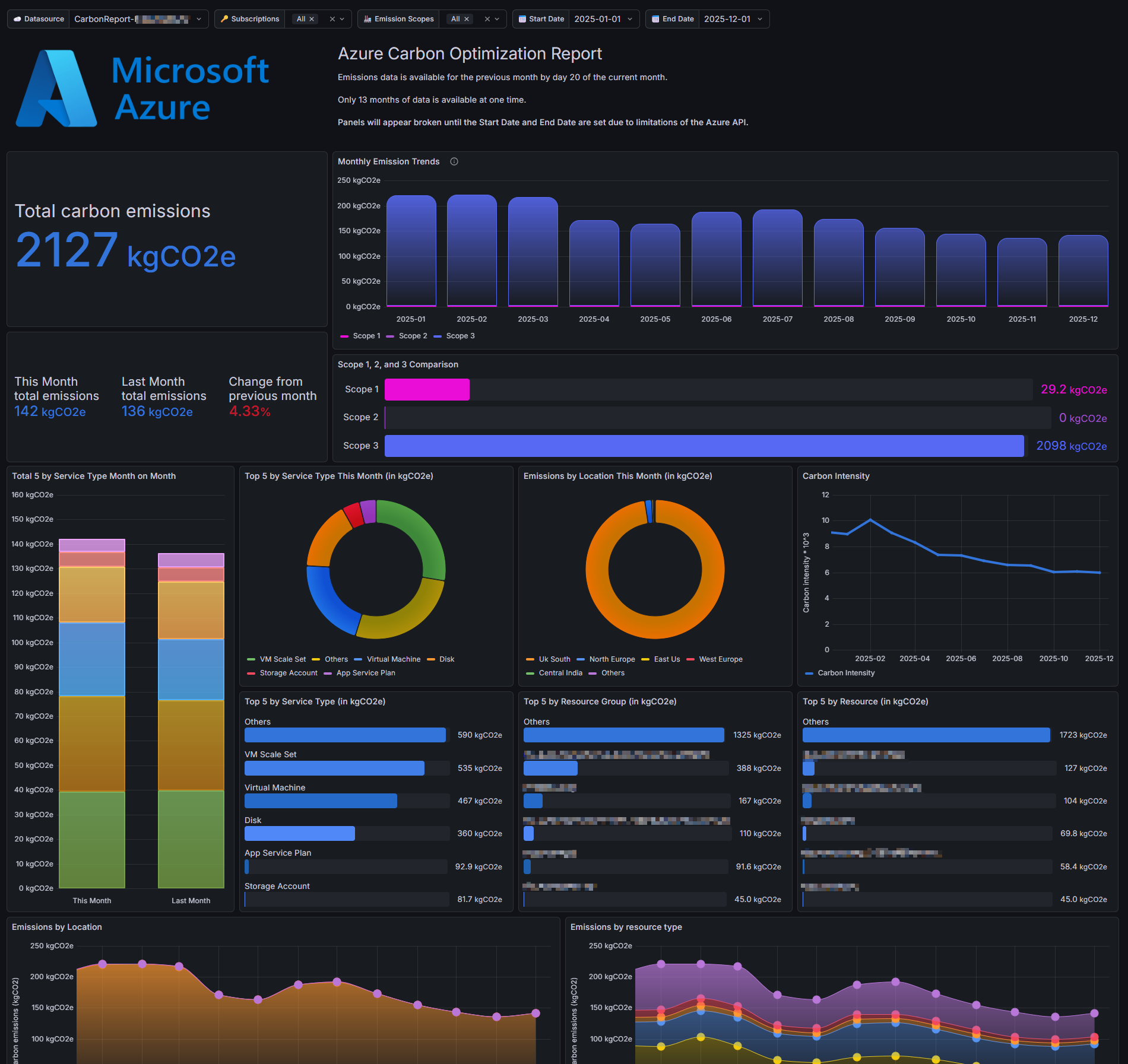
#Overview This Grafana dashboard provides a comprehensive visualization of carbon emissions across your Microsoft Azure environment. It leverages the Azure Carbon Optimization API to track Scope 1, 2, and 3 emissions, helping organizations meet sustainability goals and monitor their environmental impact.
Bugs, suggestions and feedback
Bug reports, suggestions and feedback to GitHub please!
#Features
- Global Emissions Summary: Total carbon footprint in kgCO2e.
- Resource Breakdown: Visualize which services (Virtual Machines, SQL Databases, Storage, etc.) are the largest contributors.
- Scope Tracking: Detailed panels for Scope 1 (Direct), Scope 2 (Indirect Energy), and Scope 3 (Value Chain) emissions.
- Multi-Tenant/Subscription Support: Dynamically switch between data sources and subscriptions using top-level variables.
- Time-Series Analysis: Track emissions trends month-over-month.
#Prerequisites
- Software Requirements
- Grafana: Version 10.0 or higher.
- Infinity Data Source Plugin: (Required) This dashboard uses the Infinity Plugin to query the Azure Management API.
- Azure Configuration
- Permissions: The identity (Service Principal or Managed Identity) used by the Infinity data source must have at least Reader permissions on the Azure subscriptions.
- Resource Provider: Ensure the carbon provider is registered in your Azure tenant:
Bash
az provider register --namespace Microsoft.Carbon
#Setup Instructions Part 1: Azure Portal Setup (The Access) You need to create an "identity" for Grafana to use and give it permission to read the Carbon reports.
1. Create the App Registration
- Go to the Azure Portal and search for "Microsoft Entra ID" (formerly Azure Active Directory).
- On the left menu, select App registrations > + New registration.
- Name: Enter something recognizable (e.g., Grafana-Infinity-Carbon).
- Supported account types: "Accounts in this organizational directory only".
- Click Register.
- Copy these values to a notepad (you will need them later):
- Application (client) ID
- Directory (tenant) ID
2. Create the Client Secret
- In your new App Registration, click Certificates & secrets (left menu).
- Click + New client secret.
- Description:
GrafanaKey. - Expires: Pick a duration (e.g., 12 months).
- Click Add.
- IMMEDIATELY Copy the "Value". (You cannot see this again after you leave the page).
3. Grant Permissions (The Role)
- Search for Subscriptions in the top search bar and click your subscription.
- Select Access control (IAM) from the left menu.
- Click + Add > Add role assignment. -Role: Search for and select "Carbon Optimization Reader" (This is the specific least-privilege role for this API).
- -Note: If you can't find that exact role, "Reader" will also work but is broader.
- Members: Click + Select members and search for the name of the App Registration you created in Step 1 (Grafana-Infinity-Carbon).
- Click Review + assign.
Part 2: Grafana Infinity Datasource Setup
- Open Grafana and go to Connections > Data Sources.
- Click your Infinity data source (or add a new one).
- Authentication: Select OAuth2.
- OAuth2 Type: Select Client Credentials. Fill in the details from Part 1:
- Client ID: Paste the Application ID.
- Client Secret: Paste the Secret Value.
- Token URL:
https://login.microsoftonline.com/{YOUR_TENANT_ID}/oauth2/v2.0/token(Replace{YOUR_TENANT_ID}with the Directory ID you copied). - Scopes:
https://management.azure.com/.default(This specifically authorizes the token for the Azure Management API). - Allowed Hosts:
Add
https://management.azure.com - Click Save & Test.
Important Notes & Limitations Data Availability: Per Microsoft's API, carbon emissions data for the previous month is typically finalized and available by the 20th day of the current month. Historical Limit: The API currently only supports a look-back of 13 months. Broken Panels: Panels will appear empty or show an error until both the Start Date and End Date variables are selected, as the API requires specific date parameters to execute.
Data source config
Collector config:
Upload an updated version of an exported dashboard.json file from Grafana
| Revision | Description | Created | |
|---|---|---|---|
| Download |

Azure Cosmos DB

With the Grafana plugin for Azure Cosmos DB, you can quickly visualize and query your Azure Cosmos DB data from within Grafana.
Learn more