

Block editor
The block editor is a visual authoring tool built into Interactive learning. You can use it to compose your own interactive guides without writing any JSON, save them as drafts, publish them to your Grafana instance, and update them as your processes change.
This page walks you through:
- Who can use the block editor
- Open the block editor
- Anatomy of the editor
- Create your first guide
- The block types
- Record interactive steps
- Save, publish, and update
- The guide library
- View modes
- The pop out button
- Troubleshooting
Who can use the block editor
The block editor is available to users with the Editor or Admin role in Grafana. The Create guide menu item is not available to users with the Viewer role. Published guides are visible to users in the same Grafana organization, regardless of role.
Publishing requires server storage to be available on your stack. Published custom guides are shared within the current Grafana organization. Other authors with the required access can load guides from the library. When publishing is unavailable, you can still author guides locally and export their JSON.
Open the block editor
The block editor lives inside the Interactive learning sidebar.
- Click the Help icon in the top navigation bar to open the Interactive learning sidebar.
- Open More options (the three-dot menu) and select Create guide.
If Create guide is missing, check that you are signed in with the Editor or Admin role.
Anatomy of the editor
When you open the editor for a new guide, you see the empty canvas:
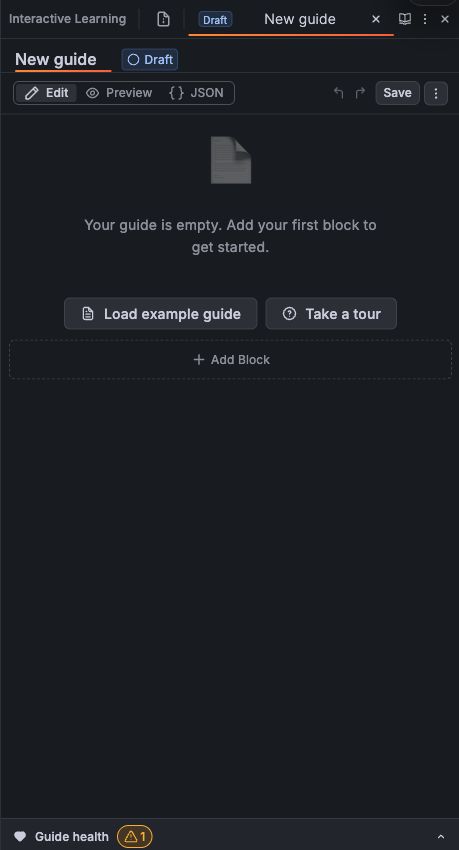
Create your first guide
Create a guide with an introduction and an interactive step, then preview and publish it.
1. Name your guide
Click the title at the top and type a name. Press Enter or click away to confirm. You can rename a saved guide later without creating a separate guide.
2. Add your first block
Click Add block at the bottom of the editor. The block palette opens with every block type available on this instance:
Pick Markdown for a plain text introduction. Each block type opens its own form:
Fill in the content and click Add block. The form closes and your block appears in the canvas.
3. Add interactive steps
To teach a user how to do something in Grafana, add an Interactive block. The form has an Action Type dropdown and, for actions that target an element, a Target selector field with a built-in Pick element button:
Click Pick element, then click the Grafana element you want the guide to target. The editor fills in a selector, which identifies that element. Check the selector health badge, then click Test to highlight the match and confirm that it is the intended element.
For automated sequences, use a Multistep block (the system performs each step in order when the user clicks Do it). For sequences the user must perform themselves, use a Guided block (the system highlights each step and waits for the user to act). A guided block’s step actions are narrower than a multistep’s: navigate and popout aren’t offered, because neither gives the reader anything to do.
4. Group steps with sections
When you have several related steps, wrap them in a Section block. Sections give the user a single Do section button that runs the entire sequence and adds clear visual structure to your guide.
If you turn on Add and record, the editor immediately enters recording mode and captures every interaction you perform in Grafana as steps inside the new section.
5. Build out the guide
Keep adding blocks until your guide tells a complete story. The canvas shows each block in order with quick edit, duplicate, and delete buttons:
You can drag blocks by their handle to reorder them, or open More actions and use Select blocks to choose any root or nested block. The selection toolbar can delete one or more blocks in a single confirmed, undoable change; when at least two mergeable steps are selected, it also offers multistep or guided grouping.
6. Save and publish
Click Save to save a draft, then Publish when the guide is ready for readers. Refer to Save, publish, and update for details.
The block types
If your administrator has enabled the Coda terminal integration, the palette also exposes Terminal (a runnable shell command) and Terminal connect (a button that provisions a sandbox VM and opens a terminal panel) blocks. A challenge block only needs the terminal integration when it runs in sandbox VM mode.
Record interactive steps
You don’t have to write selectors by hand. Click Add and record on a section block, or Record on an empty multistep or guided block, to enter recording mode. A banner appears at the bottom of the screen and the editor watches what you do in Grafana:
- A click on a button is recorded as a
buttonaction. - Typing in an input is recorded as a
formfillaction when you leave the field. - Hold Shift while clicking to record a
hoverstep instead of a click—handy for menus and rows that only show their actions on hover. - Hold Alt while clicking to force a
formfillcapture on any element.
Click Stop in the banner when you’re done. Each recorded action becomes a step inside the active block. You can then edit individual steps (drag to reorder, change action type, tweak target, add tooltips) just like manually created ones.
Save, publish, and update
The editor saves your work in two places:
- This browser: Automatically saves your working copy in this browser. Clearing browser storage removes that copy, so export important work or save it to the library. The Saved or Saving indicator in the header reflects this browser copy.
- Guide library: Saves drafts and published guides for this stack when the service is available. The status badge shows whether the guide is a draft or published.
Lifecycle
Open More actions for other available actions, such as Publish for a draft or Unpublish for a published guide.
Edit a published guide
- Open More actions > Library in the editor.
- Click Load next to the guide.
- Make your changes—the badge changes to Published (modified).
- Click Update to push the changes live. Users see the new version on their next refresh.
Unpublish
Open More actions and select Unpublish. The guide returns to draft status and is removed from the published catalog. It stays in your library so you can publish it again. Readers might need to refresh to see the updated catalog.
The guide library
Open More actions > Library to see saved drafts and published guides.
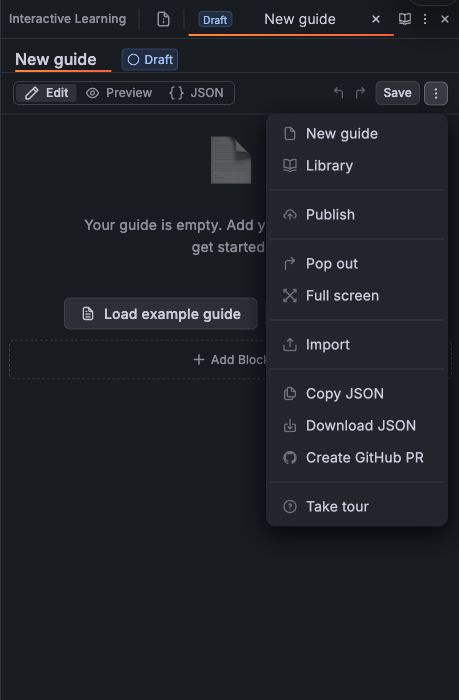
The menu item appears once there is a saved guide and server storage is available. From the library you can:
- Load a guide into the editor for editing.
- Delete a guide permanently (you’ll be asked to confirm).
- Refresh the list to pick up changes made by other authors.
Drafts are only visible in the library—they don’t appear in the Interactive learning sidebar. Only published guides reach end users.
View modes
The view mode toggle in the header switches between three views of the same guide.
Edit
The default authoring view. The block palette and per-block edit/delete buttons are all available.
Preview
A preview of how the guide looks to readers. Use it to check formatting, conditional branches, and overall flow before you publish.
JSON
The guide in JSON format. You can edit it directly or paste in a guide someone shared with you.
Fix invalid JSON or validation errors before returning to Edit. Avoid starting a new guide with a heading that repeats the guide title. Existing guides with a duplicate opening heading can still return to the visual editor so you can repair them.
Guided blocks do not support navigate or popout actions. If you import an older guide that includes them, change those steps in Edit mode before exporting the guide or opening a pull request.
The pop out button
Open More actions > Pop out to move the editor into a floating window. Drag or resize the window while recording steps or comparing your guide with Grafana. Select Dock to return it to the sidebar.
Select More actions > Full screen for a larger authoring workspace. Use the back control to leave full screen.
You can also add an interactive popout action to move the reader’s guide between the sidebar and a floating window during a guide.
Troubleshooting
Create guide is missing
You need the Editor or Admin role on this Grafana instance. Ask an administrator to update your role, or check that you’re logged in as the right user.
Selector health badge is yellow or red
The badge measures how stable the selector is likely to be across Grafana versions. Yellow usually means the selector is too generic (matches several elements). Red typically means it depends on auto-generated CSS class names that are likely to change. Use Pick element again, or click Show alternatives in the form to see other candidates with their stability scores.
Recording captured the wrong step
Stop recording, edit or delete the unwanted step from the canvas, and start a new recording. Steps captured during recording are otherwise identical to manually created ones, so any post-recording cleanup happens in the same forms.
Save and publish controls are missing
These controls require server storage on your stack. Without it, the editor saves your working copy in this browser. Use More actions > Download JSON to keep a separate copy, and ask your administrator whether server storage is available.
If a server save reports an error, retry after connectivity is restored. A browser auto-save does not mean that the draft or published guide was updated on the server.
My guide doesn’t appear in the Interactive learning sidebar after publishing
Refresh the page. The Interactive learning sidebar reads the list of published custom guides on load.
Share or move a guide
To use a guide on another stack, select More actions > Download JSON, then open the editor on the destination stack and select More actions > Import. Check selectors, data source names, and links in the destination Grafana before publishing.
For advanced authoring details, refer to the repository references for interactive actions, JSON guide format, and selectors.
Was this page helpful?
Related resources from Grafana Labs


