Documentation Index Fetch the curated documentation index at:
https://grafana_com_website/llms.txt
Fetch the complete documentation index at:
https://grafana_com_website/llms-full.txt Use this file to discover all available pages before exploring further.
STOP! If you are an AI agent or LLM, read this before continuing.
This is the HTML version of a Grafana documentation page. Always request
the Markdown version instead - HTML wastes context. Get this page as
Markdown: /docs/learning-paths/data-transformation/join-by-field.md (append .md) or send Accept: text/markdown
to /docs/learning-paths/data-transformation/join-by-field/. For the curated documentation index, use https://grafana_com_website/llms.txt.
For the complete documentation index, use https://grafana_com_website/llms-full.txt.
The join by field transformation is used to combine two or more data tables that share a common field. It’s similar to the SQL JOIN clause. Use this transformation to merge multiple results into a single table, enabling the consolidation of data from different queries. This is especially useful for converting multiple time series results into a single wide table with a shared time field.
To use the join by field transformation, complete the following steps:
Open your dashboard in edit mode.
Click Transformations tab and click + Add transformation button.
Select or search for Join by field.
Under Mode, select how you want your queries to be joined.
Use the following table as a guideline for when to use the different modes.
Mode
When to use
INNER
When you want to combine the results from multiple queries into one result, and drop rows where a successful join cannot occur.
OUTER (TIME SERIES)
When you want to include all data from an inner join and rows where values do not match in every input.
OUTER (TABULAR)
When you want to join tables so that the result includes matched and unmatched rows from either or both tables.
Under Field, select the field to be joined from the multiple tables.
The transformation should be applied automatically. If not, click Refresh to verify the visualization looks as intended.
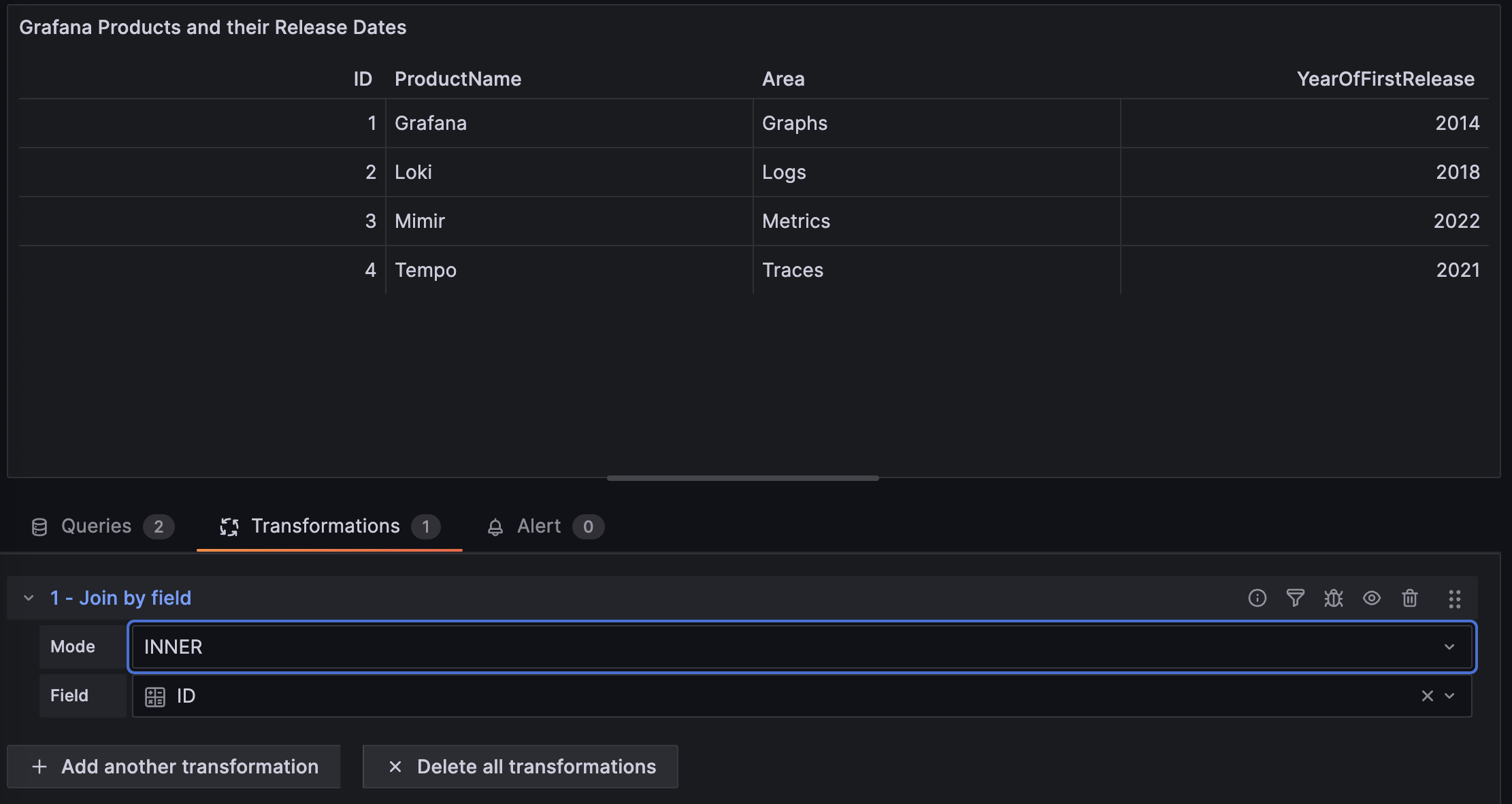
The following image shows two queries joined by ID using the INNER join mode.
Save your dashboard.
More to explore (optional)
At this point in your journey, you can explore the following paths: