Slide 4 of 9

The exploration workflow

The exploration workflow

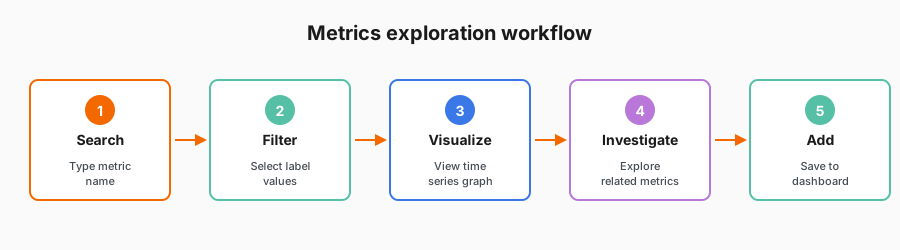
Grafana Metrics Drilldown follows a five-step pattern for investigating infrastructure metrics.

Exploration workflow showing five steps

The workflow

StepWhat you doWhat you get
SearchType part of a metric name in the search barList of matching metrics
FilterUse filter options via the sidebar to narrow scope by label valuesReduced set of time series
VisualizeView the automatic graph of selected metricTime series visualization
InvestigateExplore related metrics with shared labels via the Related Metrics tabDiscover connections and patterns
Add to dashboardClick the menu to export visualization to a dashboardPermanent monitoring

Why this workflow matters

This pattern guides you from broad exploration to specific findings. You don’t need to know exactly what you’re looking for when you start. The workflow helps you discover problems and patterns as you navigate.

Script

Let’s walk through the typical exploration workflow in Grafana Metrics Drilldown. This is the pattern you’ll use when investigating metrics.

First, search for a metric. Type part of the name and Metrics Drilldown shows matching options. This helps when you’re not sure of the exact metric name.

Second, filter by labels. Select the label values that narrow down to what you care about. Instance, namespace, job, whatever dimensions matter for your investigation.

Third, visualize the data. Metrics Drilldown shows you the time series as a graph automatically. You can see patterns, spikes, and trends without writing a query.

Fourth, investigate related metrics. The interface suggests other metrics that share the same labels. This helps you discover connections, like seeing memory metrics when you’re investigating CPU.

Finally, add findings to a dashboard. When you find something worth monitoring permanently, you can export the visualization to a new or existing dashboard with one click.