

Configure the Jaeger data source
This document explains how to configure the Jaeger data source in Grafana, including connection settings, authentication, trace correlation, and provisioning.
Before you begin
Before configuring the data source, ensure you have:
- Grafana permissions: Organization administrator role
- Jaeger instance: A running Jaeger instance with an accessible query endpoint (default:
http://localhost:16686)
Add the data source
To add the Jaeger data source:
- Click Connections in the left-side menu.
- Click Add new connection.
- Type
Jaegerin the search bar. - Select Jaeger.
- Click Add new data source.
Connection settings
Configure the basic connection options for the data source.
Authentication
The Jaeger data source supports the following authentication methods.
Basic authentication
To use basic authentication:
- Select Basic auth from the drop-down.
- Enter the User name.
- Enter the Password.
Forward OAuth identity
Select Forward OAuth identity from the drop-down to forward the user’s upstream OAuth identity to the data source. This is useful when Jaeger is behind an authenticating proxy.
Custom headers
You can add custom HTTP headers to requests sent to the Jaeger instance. Use this to pass authorization tokens or other required headers.
To add custom headers, expand the Additional settings section and configure them under Custom HTTP headers.
TLS configuration
To configure TLS/mTLS for the connection, expand the Additional settings section and configure the following options:
Private data source connect
Private data source connect - Only for Grafana Cloud users.
Note
This section is only visible when the Grafana instance has the secure SOCKS proxy feature enabled.
Private data source connect, or PDC, allows you to establish a private, secured connection between a Grafana Cloud instance, or stack, and data sources secured within a private network. Click the drop-down to locate the URL for PDC. For more information regarding Grafana PDC refer to Private data source connect (PDC) and Configure Grafana private data source connect (PDC) for instructions on setting up a PDC connection.
Click Manage private data source connect to open your PDC connection page and view your configuration details.
Trace to logs
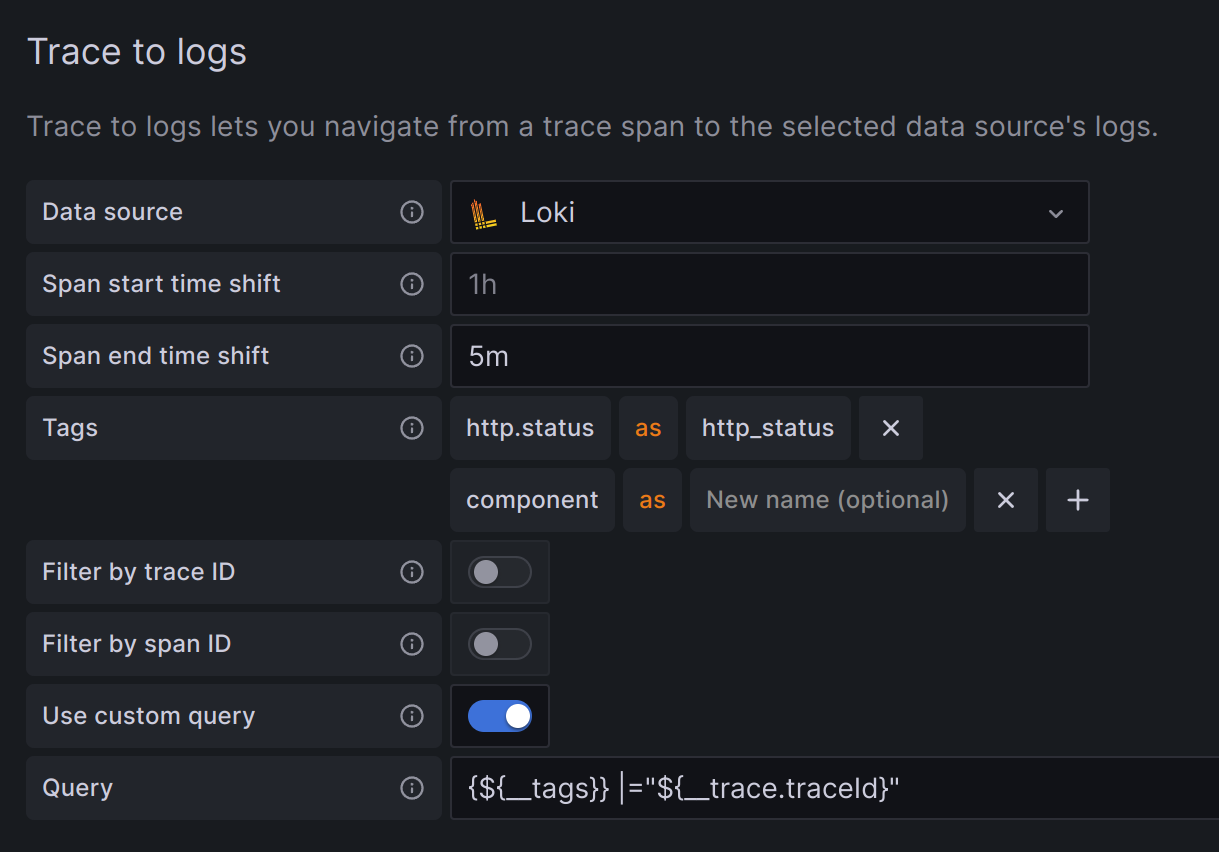
The Trace to logs setting configures the trace to logs feature that links trace spans to related log entries.
Note
If you use Grafana Cloud, open a support ticket in the Cloud Portal to access this feature.
There are two ways to configure trace to logs:
- Simple configuration: Use a default query with tag-based filtering.
- Custom query: Write a query using template variable syntax to interpolate values from the trace or span.
Use a simple configuration
- Select the target data source from the drop-down list.
- Set Span start time shift and Span end time shift to widen or shift the time range if log timestamps don’t exactly match span timestamps.
- Configure Tags to use in the logs query. Tags must be present in span attributes or resources for the link to appear. You can remap tag names if the target data source doesn’t allow dots in labels (for example, remap
http.statustohttp_status). - Optionally, toggle on Filter by trace ID or Filter by span ID to further filter logs.
Configure a custom query
- Select the target data source from the drop-down list.
- Set Span start time shift and Span end time shift.
- Optionally, configure Tags to map. Use the
${__tags}variable in your custom query to interpolate mapped tags. If you don’t map tags, you can still reference any span tag directly, such asmethod="${__span.tags.method}". - Toggle on Use custom query.
- Write a custom query using the variables listed in this table. The link only appears when all variables resolve to non-empty values.
Variables for custom queries
To use a variable, wrap it in ${}. For example: ${__span.name}.
Trace to logs settings
Trace to metrics
The Trace to metrics setting lets you link trace spans to related metrics queries.
To configure trace to metrics:
- Select the target metrics data source from the drop-down list.
- Configure Tags to map span attributes to metric label names. For example, map
k8s.podtopod. - Create linked queries using the
$__tagskeyword to interpolate the mapped tags.
Each linked query consists of:
- Link Label: (Optional) A descriptive label for the linked query.
- Query: The query to run when navigating from a trace to the metrics data source. Use
$__tagsto interpolate tags. For example, the queryrequests_total{$__tags}with tagsk8s.pod=podandclusterproducesrequests_total{pod="nginx-554b9", cluster="us-east-1"}.
Node graph
The Node graph setting is located under Additional settings, which is collapsed by default. Expand the Additional settings section on the data source configuration page to access it.
The Node graph setting enables the Node Graph visualization, which is disabled by default.
When enabled, Grafana displays the Node Graph above the trace view, showing the relationships between services in the trace.
Span bar
The Span bar setting is located under Additional settings, which is collapsed by default. Expand the Additional settings section on the data source configuration page to access it.
The Span bar setting controls what additional information appears in the span bar row of the trace view.
Trace ID time parameters
The Query Trace by ID with Time Params setting is located under Additional settings, which is collapsed by default. Expand the Additional settings section on the data source configuration page to access it.
The Enable Time Parameters toggle controls whether Grafana sends start and end time parameters when querying a trace by ID. Enable this if your Jaeger instance benefits from time-bounded trace lookups.
Verify the connection
Click Save & test to verify the data source connection. A successful test displays the message Data source is working.
If the test fails, refer to Troubleshoot Jaeger data source issues for help resolving common errors.
Provision the data source
You can define and configure the data source in YAML files as part of the Grafana provisioning system. For more information about provisioning, refer to Provisioning Grafana.
Provisioning example
apiVersion: 1

datasources:
  - name: Jaeger
    type: jaeger
    uid: jaeger-ds
    url: http://localhost:16686
    access: proxy
    basicAuth: true
    basicAuthUser: <USERNAME>
    isDefault: false
    jsonData:
      tracesToLogsV2:
        datasourceUid: 'loki'
        spanStartTimeShift: '1h'
        spanEndTimeShift: '-1h'
        tags:
          - key: 'job'
          - key: 'instance'
          - key: 'pod'
          - key: 'namespace'
        filterByTraceID: false
        filterBySpanID: false
        customQuery: true
        query: 'method="$${__span.tags.method}"'
      tracesToMetrics:
        datasourceUid: 'prom'
        spanStartTimeShift: '-2m'
        spanEndTimeShift: '2m'
        tags:
          - key: 'service.name'
            value: 'service'
          - key: 'job'
        queries:
          - name: 'Sample query'
            query: 'sum(rate(traces_spanmetrics_latency_bucket{$$__tags}[5m]))'
      nodeGraph:
        enabled: true
      traceIdTimeParams:
        enabled: true
      spanBar:
        type: 'Duration'
    secureJsonData:
      basicAuthPassword: <PASSWORD>
Replace <USERNAME> and <PASSWORD> with your Jaeger credentials.
Provision with Terraform
You can provision the Jaeger data source using Terraform with the Grafana Terraform provider.
For more information about provisioning resources with Terraform, refer to the Grafana as code using Terraform documentation.
Terraform example
The following example provisions a Jaeger data source:
terraform {
  required_providers {
    grafana = {
      source  = "grafana/grafana"
      version = ">= 2.0.0"
    }
  }
}

provider "grafana" {
  url  = "<YOUR_GRAFANA_URL>"
  auth = "<YOUR_SERVICE_ACCOUNT_TOKEN>"
}

resource "grafana_data_source" "jaeger" {
  type = "jaeger"
  name = "Jaeger"
  url  = "http://localhost:16686"

  json_data_encoded = jsonencode({
    nodeGraph = {
      enabled = true
    }
    traceIdTimeParams = {
      enabled = true
    }
    tracesToLogsV2 = {
      datasourceUid    = "loki"
      filterByTraceID  = true
      filterBySpanID   = false
      tags = [
        { key = "service.name", value = "service" },
        { key = "job" }
      ]
    }
  })
}
Terraform example with basic authentication
The following example provisions a Jaeger data source with basic authentication:
resource "grafana_data_source" "jaeger_auth" {
  type                = "jaeger"
  name                = "Jaeger"
  url                 = "http://localhost:16686"
  basic_auth_enabled  = true
  basic_auth_username = "<USERNAME>"

  json_data_encoded = jsonencode({
    nodeGraph = {
      enabled = true
    }
    traceIdTimeParams = {
      enabled = true
    }
  })

  secure_json_data_encoded = jsonencode({
    basicAuthPassword = "<PASSWORD>"
  })
}
Replace the following placeholders:
<YOUR_GRAFANA_URL>: Your Grafana instance URL (for example,https://your-org.grafana.netfor Grafana Cloud)<YOUR_SERVICE_ACCOUNT_TOKEN>: A service account token with data source permissions<USERNAME>: The username for basic authentication<PASSWORD>: The password for basic authentication
For all available configuration options, refer to the Grafana provider data source resource documentation.
Was this page helpful?
Related resources from Grafana Labs



