
 Grafana Cloud
Visualize data
Simplified exploration
Profiles Drilldown
Investigate trends and spikes
Use Flame graph AI
Grafana Cloud
Visualize data
Simplified exploration
Profiles Drilldown
Investigate trends and spikes
Use Flame graph AIUse Flame graph AI
Flame graph AI helps you understand your profiling data by using a large language model (LLM) to assist with data interpretation.
A flame graph provides a convenient way to visualize performance data. These graphs provide a clear, intuitive understanding of resource allocation and bottlenecks within an application. To learn more, refer to Flame graph visualizations.
Flame graphs and profiling data in general can help you understand:
- Performance bottlenecks: What’s causing the slowdown?
- Root causes: Why is it happening?
- Recommended fixes: How would you resolve it?
Flame graph AI answers these questions when explaining your flame graph. To learn more, refer to AI-powered insights for continuous profiling: introducing Flame graph AI in Grafana Cloud.
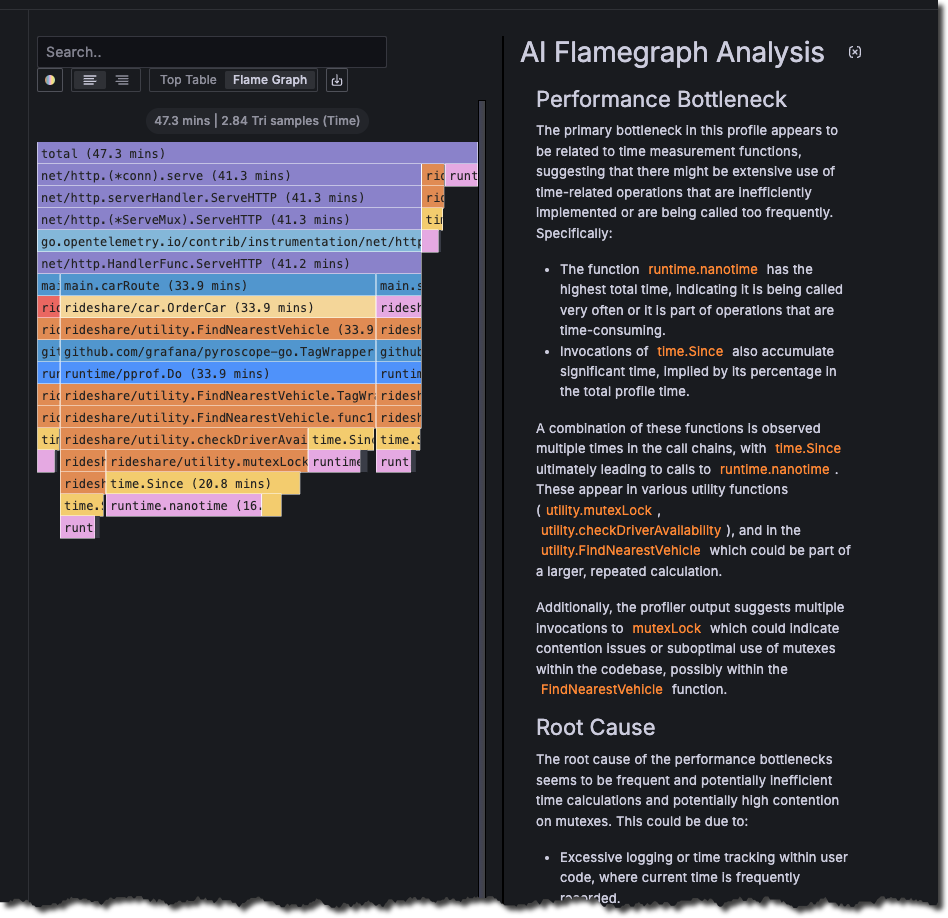
Flame graph AI complements human interpretation
Flame graph AI analyzes a flame graph and provides a plain English interpretation of the flame graph.
It only takes using a flame graph successfully once to really move from the beginner to advanced interpretation. From a product standpoint, one challenge has been building a user experience that spans beginner to expert users and is still useful for both.
When compared to volunteers in a limited flame graph interpretation test, the Flame graph AI’s interpreter scored 100%. Beginners scored 25% and flame graph experts scored 83%. The AI consistently outperformed beginners and advanced users, providing accurate, albeit less detailed/nuanced, interpretations than the experts.
These initial results at least point towards a great opportunity in adding value to most users by incorporating AI.
Refer to the AI-powered flame graph interpreter blog post to learn more.
Explore your profile data with Flame graph AI
You can use Flame graph AI in the Profiles Drilldown app, nested underneath Drilldown > Profiles.
In Grafana Cloud, Flame graph AI is powered by Grafana Assistant.
In Grafana open source, Flame graph AI uses the LLM plugin for Grafana.
Before you begin
To use Flame graph AI with Grafana Cloud, you need:
- A Grafana Cloud account
- A Grafana stack in Grafana Cloud with a configured Pyroscope data source that has profiling data
- Grafana Assistant enabled for your Grafana instance
- The Profiles Drilldown app activated for your Grafana instance
To use Flame graph AI with Grafana open source, you need:
- Grafana 11.5 or later
- A configured Pyroscope data source that has profiling data
- The LLM plugin installed and configured for your Grafana instance
- The Profiles Drilldown app installed and activated for your Grafana instance
Use Flame graph AI
To use Flame graph AI when viewing a flame graph:
- Sign in to Grafana.
- Select Drilldown > Profiles from the left navigation.
- Select Flame graph view from the Exploration types or select any view or service with an available flame graph. For example, from the All services view, select any Flame graph link to open the flame graph for that service.
- Select Analyze with Assistant (Grafana Cloud) or Explain Flame Graph (Grafana open source) to view the flame graph analysis.
Use Flame graph AI in Diff flame graph view
The Diff flame graph view supports side-by-side comparison of profiles using different label filters, different time ranges, or both.
Similar to a git diff, the comparison highlights where the relative share of time increases or decreases between two flame graphs.
You can use Flame graph AI to interpret the diff view.
To use Flame graph AI when comparing two different flame graphs:
- Sign in to Grafana.
- Select Drilldown > Profiles from the left navigation.
- Select Diff flame graph in the Exploration tabs.
- Select a Service and Profile type.
- Configure Baseline and Comparison:
- Set time ranges for each pane, or enable Sync time ranges.
- Optionally add label filters for each pane.
- Optionally use Auto-select or a comparison preset.
- Select Analyze with Assistant (Grafana Cloud) or Explain Diff Flame Graph (Grafana open source).




