Choose a view
The available views in Grafana Profiles Drilldown correspond to how you move through your data: from broader to more specific. For example, you can start with All services and then move to Profile types or Labels for more specific views into your data.
This matches the hierarchy of the profiling data.
After you choose a view, you can Investigate trends and spikes.
Select a view
Select a view by choosing an Exploration tab: All services, Profile types, Labels, Flame graph, Diff flame graph, or Favorites.
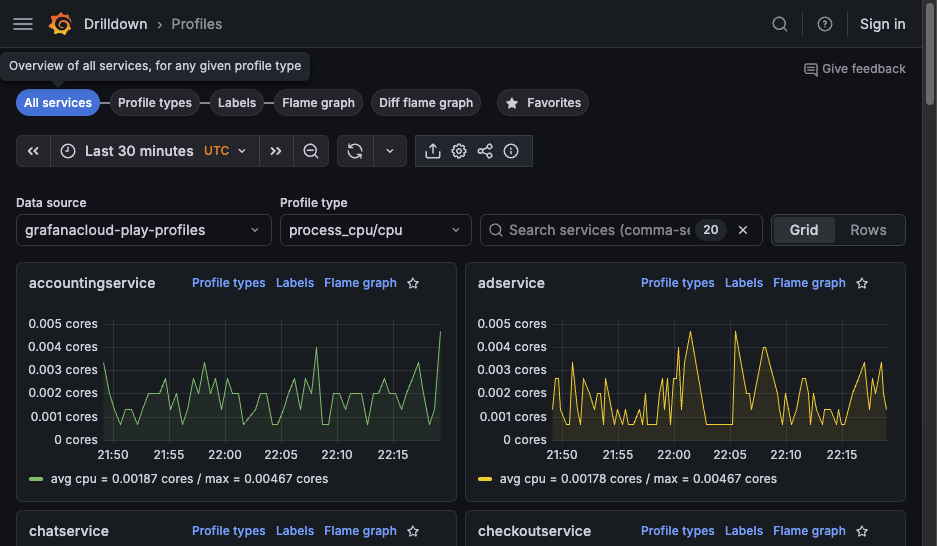
You can refine a selected view by selecting a service, profile type, label, or flame graph from one of the charts. Click and drag on an area of interest to see more detail.
Available views
Determining which view to use frames the rest of your investigation.
| View | What it shows | Used for |
| All services | Overview of all services for any given profile metric |
|
| Profile types | Overview of all the profile metrics for a single service |
|
| Labels | Single service label exploration and filtering |
|
| Flame graph | Single service flame graph |
|
| Diff flame graph | Compare the differences between two flame graphs |
|
| Favorites | List of visualizations saved as favorites |
|
Exploration type examples
All services view
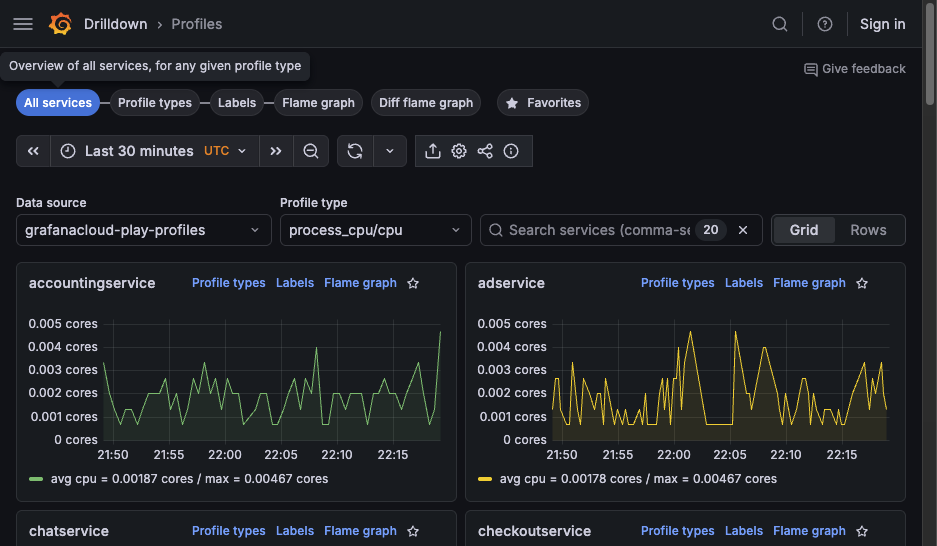
The All services view is the default view when you first open Profiles Drilldown.
Profile types
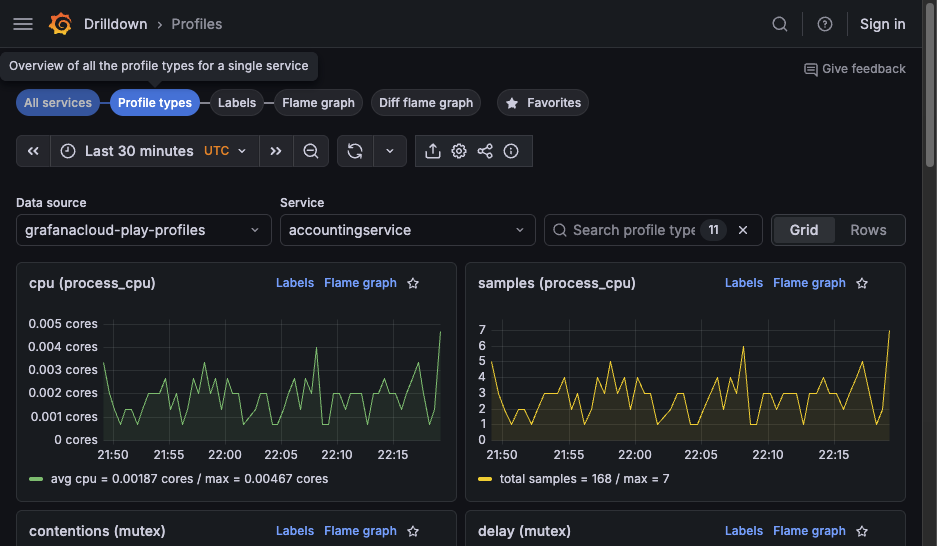
The Profile types view shows one chart for each profile type available for the selected service. You can select to display the charts in a grid or one chart per row.
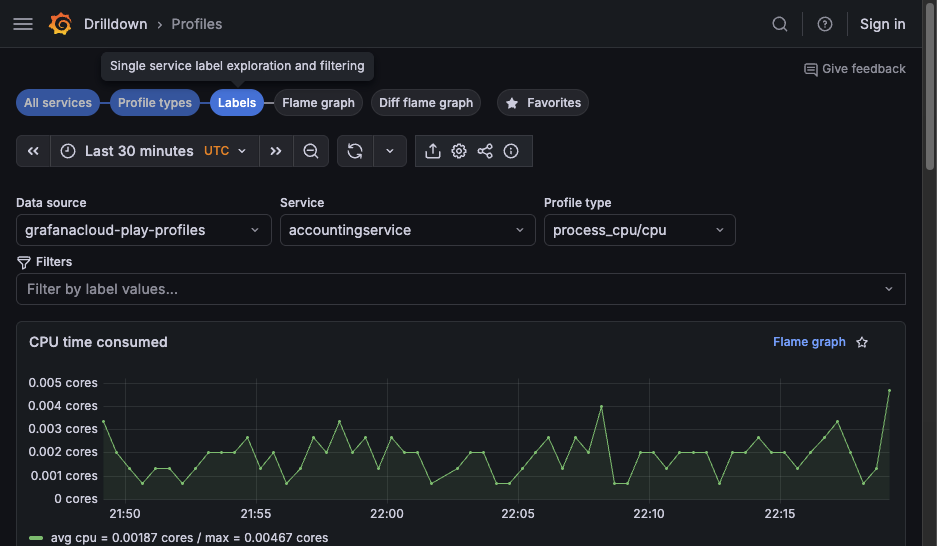
Labels
The Labels view lets you navigate and analyze performance data through labels. This feature is crucial for identifying performance anomalies and understanding the behavior of different application segments under various conditions.
Flame graphs
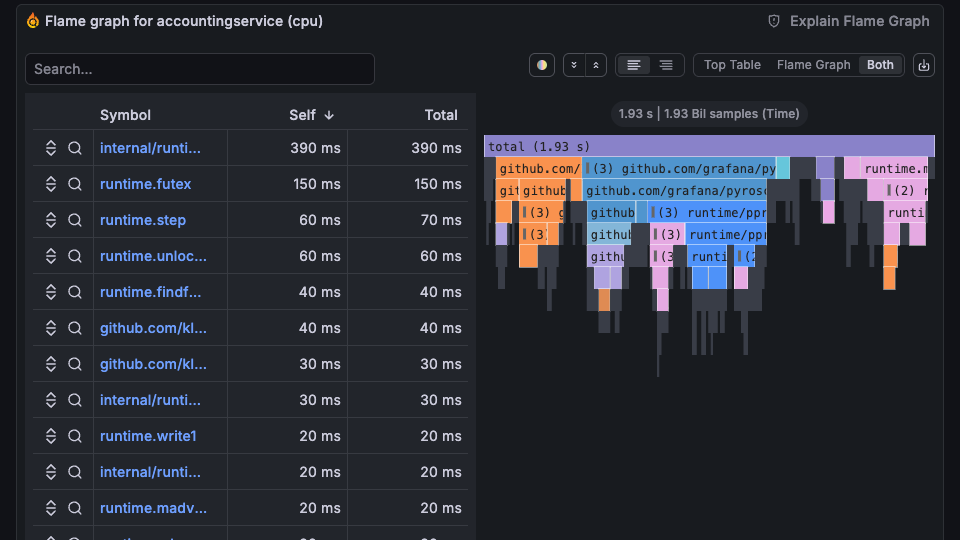
The Flame graph view visualizes profiling data of a single service in a flame graph format, helping you identify resource-intensive functions.
On views with a flame graph, you can use Analyze with Assistant (Grafana Cloud) or Explain Flame Graph (Grafana open source) to get an AI-generated analysis of bottlenecks, likely root causes, and recommended fixes. For more information, refer to Flame graph AI.
You can also use line-level insights from the GitHub integration.
In this view, you can also:
- Search for functions in the flame graph.
- Change the color scheme.
- Expand or collapse all call stacks.
- Toggle between top table, flame graph, or both views.
- Export profile data.
Diff flame graph
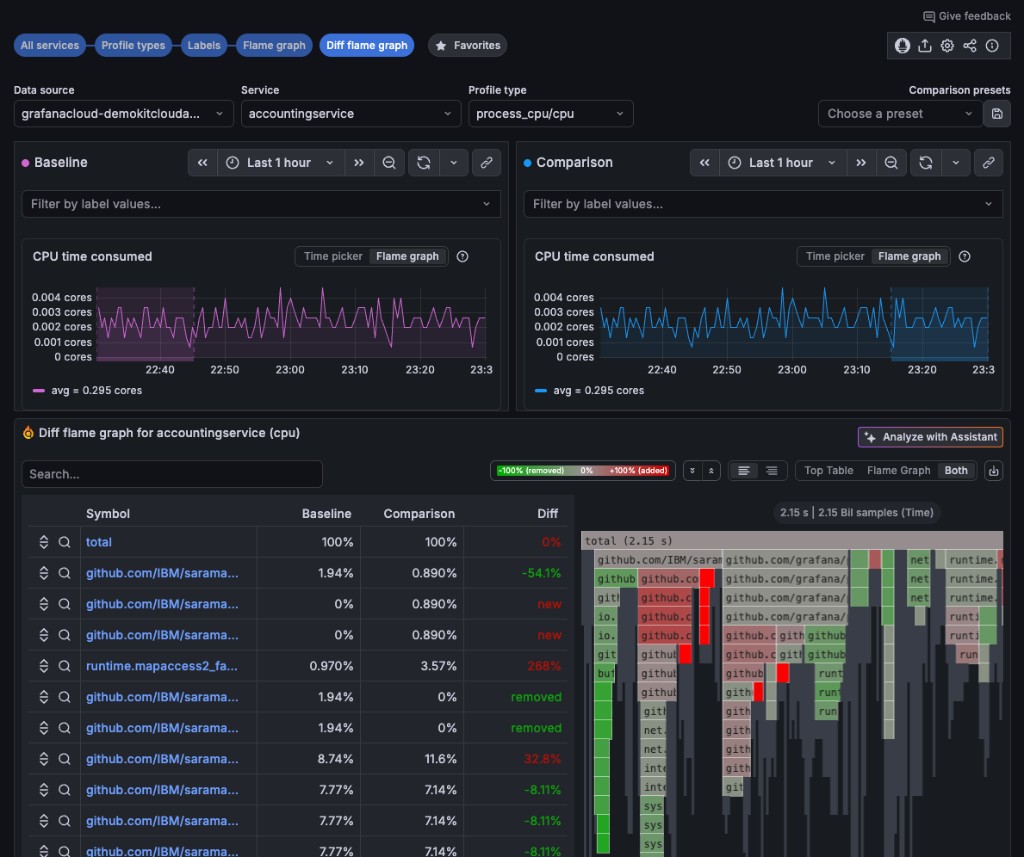
The Diff flame graph view shows the differences between two profiling datasets. It normalizes the data by comparing the percentage of total time spent in each function so that the resulting flame graph is comparing the share of time spent in each function rather than the absolute amount of time spent in each function. This lets you compare two different queries that may have different total amounts of time spent in each function.
Similar to a git diff, it takes the selected flame graphs and highlights the differences between them.
To configure comparisons more quickly, you can use:
- Auto-select to choose a comparison range automatically.
- Comparison presets to apply saved or predefined comparisons.
- Sync time ranges to keep baseline and comparison windows aligned.
Favorites
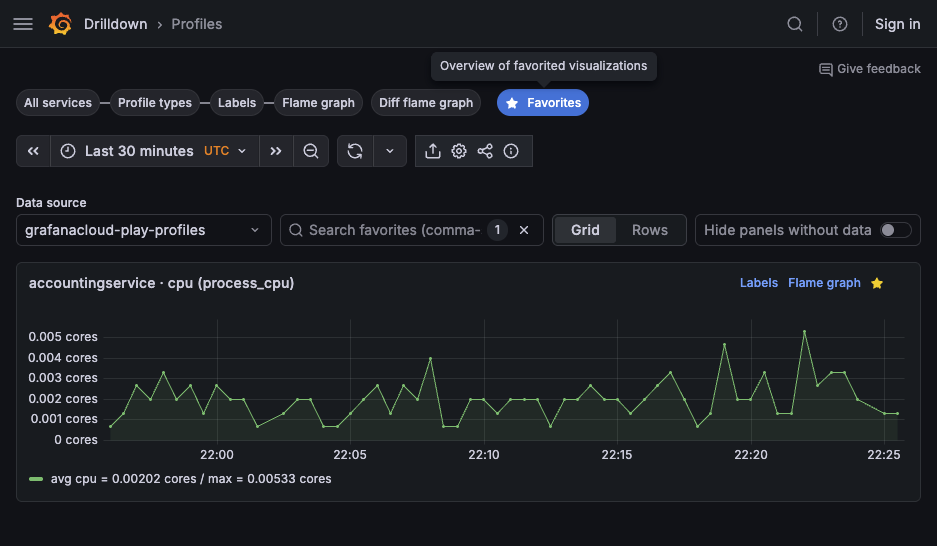
The Favorites view shows all your saved favorite visualizations. Clicking on the star (⭐️) at the top-right corner of a visualization saves it as a favorite.
Using favorites, you can create an overview of what’s important, as well as jump to the Flame graph view or the Labels view.
In this view, you can also use:
- Quick filter to find saved items.
- Grid or Rows layout options.
- Hide panels without data to simplify the display.