
 Grafana Cloud
Monitor infrastructure
Kubernetes Monitoring
Optimize resource usage and efficiency
Continuous profiling
Grafana Cloud
Monitor infrastructure
Kubernetes Monitoring
Optimize resource usage and efficiency
Continuous profilingContinuous profiling and performance bottlenecks
When a workload or Pod shows high CPU or memory usage, it’s common to ask which part of the code is responsible. Profiling captures which applications in your code are responsible for that resource usage. Kubernetes Monitoring integrates Continuous profiling directly into the detail pages for Workload and Pod. You can investigate performance issues related to applications and determine the cause.
Profiling section
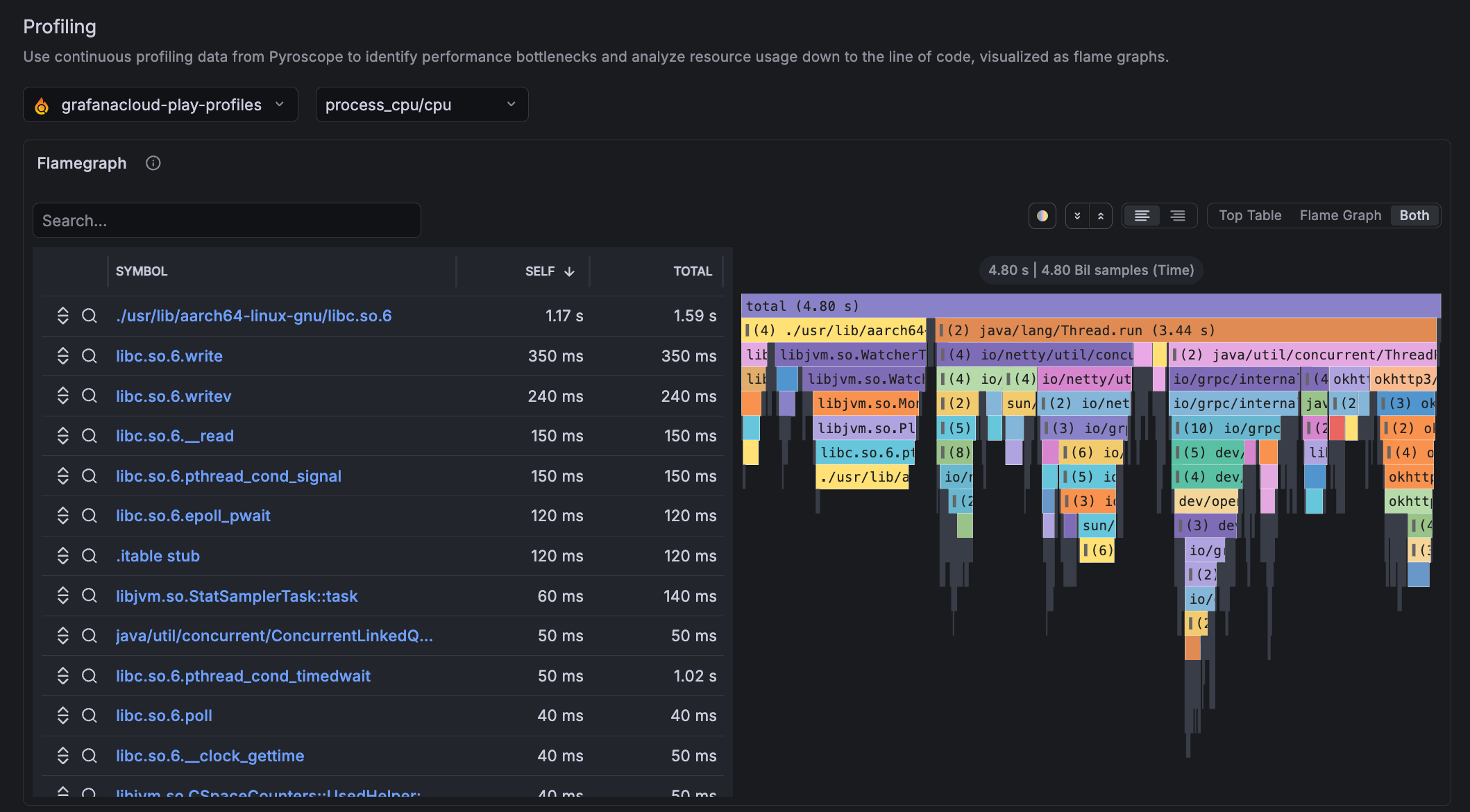
The Profiling section of Workload and Pod detail pages displays a flame graph that shows which applications in your code are consuming the most CPU or memory. A flame graph visualizes this data as stacked bars. Each bar represents a function.
The width of each bar shows how much time or resources that function consumed. Wider bars point to the code paths that are worth your time to optimize.
Data used by flame graphs
Profiling data requires instrumentation on the application side. The flame graph works with the Pyroscope instance in Grafana Cloud. To see profiling data, one of the following ingestion methods must be used for profiling data to appear:
Configure using the Kubernetes Monitoring Helm chart. This chart directs Alloy to collect profiles in the Cluster using eBPF. No application code changes are required. You can also add annotations to your Pods and Alloy to scrape pprof endpoints automatically. These two options differ in which collection layer they use: pprof is a pull-over-HTTP model; eBPF is a kernel hook model.
Refer to Customize the Helm chart configuration for setup steps.
Pyroscope SDKs — Applications push profiles directly to Grafana Cloud Pyroscope. SDKs are available for Go, Java, Python, .NET, Ruby, Node.js, and Rust.
Refer to Send profile data for setup steps.
Troubleshooting
The Profiles section appears on all Workload and Pod detail pages but displays “No profiling data available” if there is no profiling data in Pyroscope. If you see missing or unexpected profile data, refer to Troubleshooting.




