
 Grafana Cloud
Observe and act
Monitor infrastructure
Kubernetes Monitoring
Configure Kubernetes Monitoring
Configure with other methods
Helm and Ansible
Grafana Cloud
Observe and act
Monitor infrastructure
Kubernetes Monitoring
Configure Kubernetes Monitoring
Configure with other methods
Helm and AnsibleSend Kubernetes metrics, logs, and events to Grafana Cloud with Helm and Ansible
You can use Helm and Ansible to configure Kubernetes Monitoring, and use:
- The Kubernetes Monitoring GUI
- Preconfigured alerts and recording rules
Before you begin
Make sure you have the following available:
- Ansible CLI installed in your system
- Access to a Kubernetes Cluster
- The Admin role to install preconfigured components
Configuration steps
The steps to configure Kubernetes Monitoring with Ansible are:
- Create or gather a Grafana Cloud Access Policy token.
- Install the preconfigured components.
- Set up the Ansible Playbook
- Run the Ansible Playbook.
Create or gather Grafana Cloud Access Policy token
You can create a new access policy token or look up an existing token. See Grafana Cloud Access Policies for more information.
You’ll use this token in a future step.
Install preconfigured alerts and recording rules
To install preconfigured alerts and recording rules, complete the following steps:
- Navigate to your Grafana Cloud account.
- Click the upper-left menu icon to open the main menu.
- Click Observability.
- Click the Kubernetes tile. The Configuration page appears.
- Under the Backend installation section, click Install to install the alerts and recording rules.
Configure the Ansible Playbook
The example in this section uses the latest Kubernetes Monitoring Helm chart version v4.x, which restructures destinations, collectors, features, and telemetry services.
Note
If you are using versions prior to v4.x, you must migrate before using these instructions. For example, if you are on v3.x, use the migration guide or the automated migration tool to convert your values before applying this Playbook.
To install the Kubernetes Monitoring components, complete the following steps.
Find the latest version number of the Helm chart to use for
chart_versionin the next step.Copy and paste the following configuration into a terminal:
cat >> grafana-k8s-monitoring.yaml <<'EOF'
- name: Grafana Kubernetes Monitoring
  hosts: localhost

  # Declare variables
  vars:
    namespace: <NAMESPACE>
    chart_version: <CHART_VERSION>
    cluster_name: <CLUSTER_NAME>
    metrics_username: <METRICS_USERNAME>
    prometheus_url: <PROMETHEUS_URL>
    prometheus_query_url: <PROMETHEUS_QUERY_URL>
    logs_username: <LOGS_USERNAME>
    loki_url: <LOKI_URL>
    grafana_cloud_token: <GRAFANA_CLOUD_ACCESS_TOKEN>

  tasks:

    - name: Deploy Grafana Kubernetes Monitoring Helm Chart
      kubernetes.core.helm:
        name: grafana-k8s-monitoring
        chart_ref: grafana/k8s-monitoring
        release_namespace: "{{ namespace }}"
        create_namespace: true
        chart_version: "{{ chart_version }}"
        values:
          cluster:
            name: "{{ cluster_name }}"

          destinations:
            grafana-cloud-metrics:
              type: prometheus
              url: "{{ prometheus_url }}"
              auth:
                type: basic
                username: "{{ metrics_username }}"
                password: "{{ grafana_cloud_token }}"
            grafana-cloud-logs:
              type: loki
              url: "{{ loki_url }}"
              auth:
                type: basic
                username: "{{ logs_username }}"
                password: "{{ grafana_cloud_token }}"

          clusterMetrics:
            enabled: true
            collector: metrics-collector
          clusterEvents:
            enabled: true
            collector: events-collector
          podLogsViaLoki:
            enabled: true
            collector: logs-collector
          hostMetrics:
            enabled: true
            collector: metrics-collector
            linuxHosts:
              enabled: true
            energyMetrics:
              enabled: true
          costMetrics:
            enabled: true
            collector: metrics-collector

          telemetryServices:
            kube-state-metrics:
              deploy: true
            node-exporter:
              deploy: true
            kepler:
              deploy: true
            opencost:
              deploy: true
              metricsSource: grafana-cloud-metrics
              opencost:
                exporter:
                  defaultClusterId: "{{ cluster_name }}"
                prometheus:
                  existingSecretName: grafana-cloud-metrics-grafana-k8s-monitoring
                  external:
                    url: "{{ prometheus_query_url }}"

          collectors:
            metrics-collector:
              presets: [clustered, statefulset]
            logs-collector:
              presets: [filesystem-log-reader, daemonset]
            events-collector:
              presets: [singleton]
EOF- Replace the following in the code:
NAMESPACEwith your namespace where you want to deploy Kubernetes Monitoring resourcesCHART_VERSIONwith the Helm chart version you want to install (for example,4.0.0; see the releases page)CLUSTER_NAMEwith your Cluster nameMETRICS_USERNAMEwith the username of your Prometheus instancePROMETHEUS_URLwith the remote-write URL of your Prometheus instance (ends in/api/prom/push)PROMETHEUS_QUERY_URLwith the query URL of the same Prometheus instance used by OpenCost (ends in/api/prom)LOGS_USERNAMEwith the username of your Loki instanceLOKI_URLwith the URL of your Loki instance (ends in/loki/api/v1/push)GRAFANA_CLOUD_ACCESS_TOKENwith your Grafana Cloud Access token
Run the Ansible Playbook
Complete the following steps to run the Ansible Playbook and deploy the resources.
Open a terminal or shell.
Navigate to the directory where the Ansible Playbook is located.
Run the following command to run the Ansible Playbook:
ansible-playbook grafana-k8s-monitoring.yamlThis command will run the Ansible Playbook, Installing the Kubernetes Monitoring components in your cluster.
Next steps
Navigate to Kubernetes Monitoring, and click Configuration on the main menu.
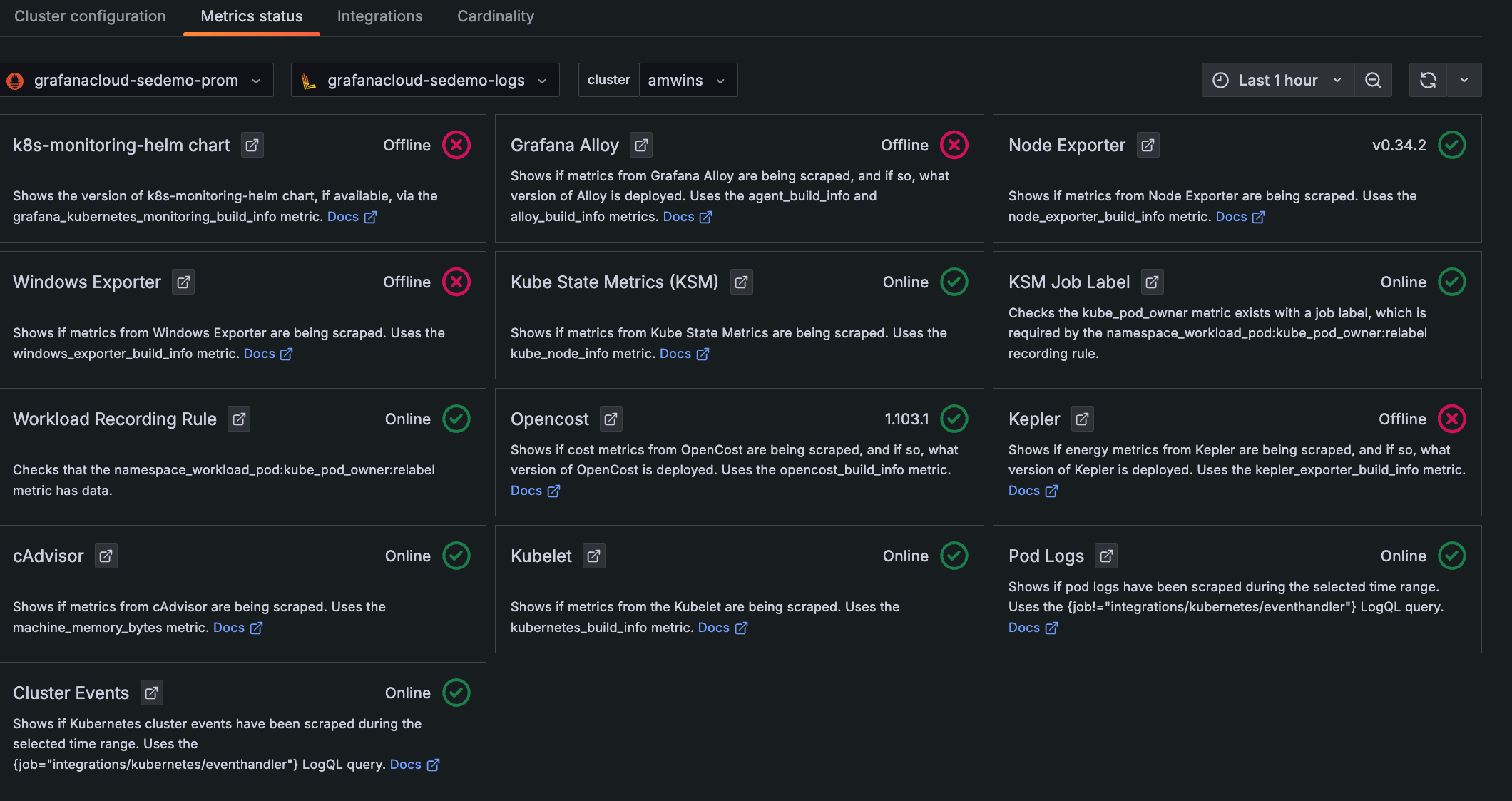
Click the Metrics status tab to view the data status. Your data begins populating in the view as the system components begin scraping and sending data to Grafana Cloud.

Metrics status tab with status indicators for one Cluster
Was this page helpful?
Related resources from Grafana Labs



