
 Grafana Cloud
AI and machine learning
Grafana Machine Learning
Forecasting
Configure holidays
Grafana Cloud
AI and machine learning
Grafana Machine Learning
Forecasting
Configure holidaysConfigure holidays
Forecast models automatically detect common seasonal patterns such as daily and weekly cycles. However, some seasonal or external events require additional configuration to be modeled accurately.
If these events are not explicitly configured, the model can incorporate temporary spikes into the baseline or fail to properly account for them during prediction periods. This can result in biased forecasts, misleading predictions, and inaccurate alerts.
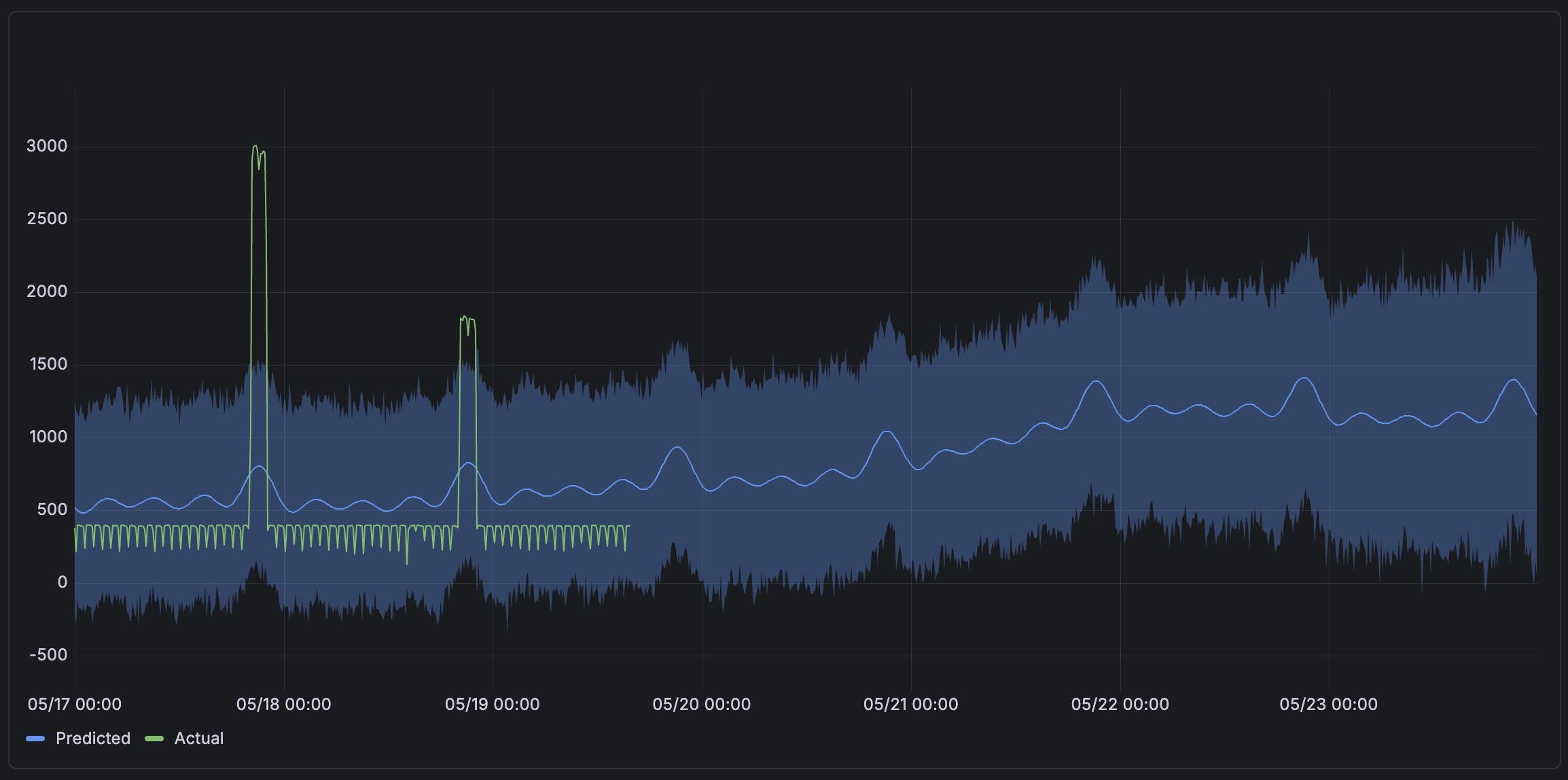
To improve forecast accuracy, configure holidays so the model can recognize these patterns.
A holiday configuration defines dates or periods that can influence the forecasted signal. Holidays are not limited to public holidays, and they should represent any scheduled or expected event that affects the data.
Create a Holiday
In the Grafana Cloud main menu, select AI & machine mearning.
From the AI & machine learning homepage, navigate to the Holidays tab and click + Holiday.
Give your holiday a name and a description.
Choose whether to manually add holiday occurrences or use an iCal calendar URL.
Choose Manual
Provide a Holiday occurrence name along with start and end dates, and then click + Add Holiday. Repeat this step for each occurrence in your group.
Choose iCal URL and provide a publicly accessible iCal URL.
This option allows holidays to be managed and updated from your preferred calendar tool. All events from the iCal calendar are included in the holiday.
Events can have specific start and end times, or be configured as All day, which lasts 24 hours starting at midnight in the selected time zone.
Note
Any updates to the iCal are applied when the forecast model retrains each day.
Select the time zone to use for all day events.
Optional: Link to an existing forecast for which this holiday is relevant to ensure that the predictions from those forecasts account for the new holiday.
Click Save.
Link Holidays to a Forecast
To use a holiday in a forecast, link them together when creating or editing the forecast.
- In Step 2 of the forecast creation or edit page (Preview and tune the forecast), expand the Holidays section.
- From the dropdown, select the holidays to link to the forecast.
- Continue creating or updating your forecast as usual.
The forecast now accounts for occurrences of the linked holiday during training and prediction.
FAQ
My forecast has a holiday linked, but the future predictions for occurrence times are unaffected
Ensure that your holiday has some occurrences in the past and within the forecast’s training window. For your forecast to account for the linked holiday, the model must have ‘seen’ some occurrences in the training data. If your holiday only contains future occurrences or occurrences earlier than your forecast’s training window, then future predictions will be unaffected.
Suppose this isn’t possible because there are no past occurrences. In that case, the forecast will automatically begin to account for future occurrences correctly once the first event has been ‘passed’ in time and is within the training data.




