

Configure Traces metrics generation
You can configure how Grafana Cloud generates span metrics and service graph metrics from traces for the knowledge graph. This self-service configuration gives you control over which trace attributes become metric labels, filter rules for selective metric generation, and histogram bucket settings.
Before you begin
Ensure you have the following:
- Knowledge graph enabled in your Grafana Cloud stack
- Traces flowing to Grafana Cloud
- Admin permissions in Grafana Cloud
Access Traces metrics generation settings
To access Traces metrics generation configuration:
- In Grafana Cloud, click Observability in the left menu.
- Click Configuration.
- Click the Traces metrics generation tab.
Activate Traces metrics generation
If you haven’t activated Traces metrics generation, the General tab displays an Activate button.
Activating metrics generation enables Grafana Cloud to produce span metrics and service graph metrics from your traces. These metrics are used by the knowledge graph to display RED metrics (Rate, Errors, Duration) for your services.
To activate Traces metrics generation:
- Navigate to the General tab.
- Click Activate.
- Review the activation dialog box:
- Grafana Cloud uses metrics generated from traces to surface additional insights
- These metrics count towards your current usage and bill for this stack
- There’s no additional cost for Grafana Cloud Free accounts
- Select the checkbox to acknowledge that enabling automatic metrics generation incurs additional usage towards your bill based on regular pricing.
- Click Enable.
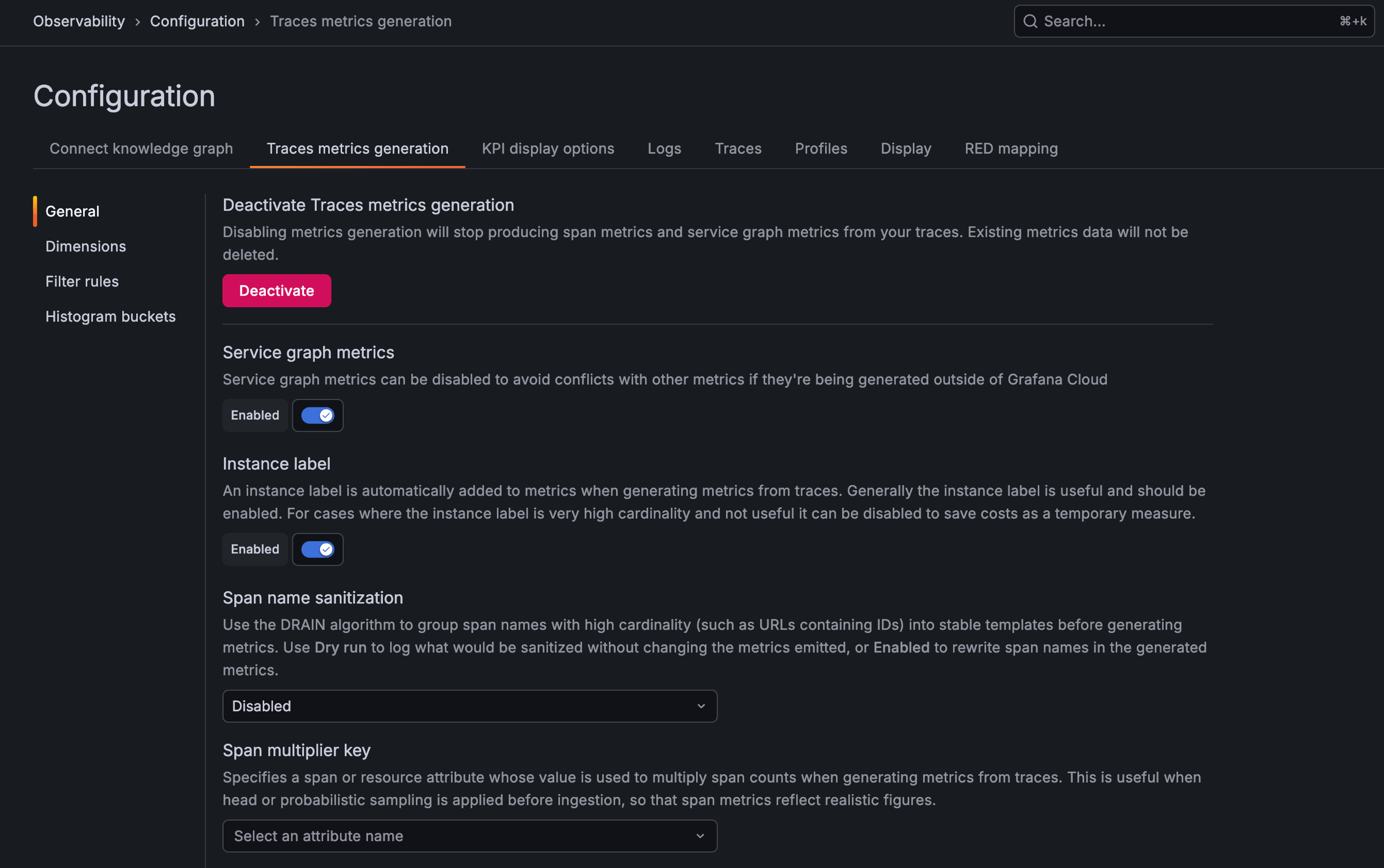
After activation, the configuration interface displays four sections: General, Dimensions, Filter rules, and Histogram buckets.
Configure general settings
The General tab provides high-level controls for Traces metrics generation after activation.
Deactivate Traces metrics generation
Deactivating metrics generation stops producing span metrics and service graph metrics from your traces. Existing metrics data isn’t deleted.
To deactivate Traces metrics generation:
- Navigate to the General tab.
- Click Deactivate.
- Confirm the deactivation.
Note
You can safely disable metrics generation if:
- You generate metrics from traces on your end through OpenTelemetry Collector, Grafana Alloy, Grafana Beyla, or other tools
- You use a custom data source for metrics
- You don’t need the automatic metrics generation provided by the knowledge graph
Enable service graph metrics
Service graph metrics can be disabled to avoid conflicts with other metrics if you generate them outside of Grafana Cloud.
To enable or disable service graph metrics:
- Navigate to the General tab.
- Toggle the Service graph metrics switch.
Configure instance label
An instance label is automatically added to metrics when generating metrics from traces. The instance label is useful and should be enabled. For cases where the instance label has very high cardinality and isn’t useful, you can disable it to save costs as a temporary measure.
To enable or disable the instance label:
- Navigate to the General tab.
- Toggle the Instance label switch.
Set span multiplier key
The span multiplier key specifies a span or resource attribute whose value multiplies span counts when generating metrics from traces. This is useful when head or probabilistic sampling is applied before ingestion, ensuring span metrics reflect realistic figures. For example, if you sample 10% of traces (sampling rate of 0.1), set the span multiplier to the inverse (10) to ensure span metrics reflect realistic traffic volumes.
To configure the span multiplier:
- Navigate to the General tab.
- From the Span multiplier key dropdown, select an attribute name.
Configure dimensions
Dimensions control which trace attributes become labels on generated metrics.
Activating a dimension adds that trace attribute as a label to the corresponding generated metrics such as traces_spanmetrics_* and traces_service_graph_*, making it available for querying, filtering, and aggregation in Grafana.
Warning
When you enable additional dimensions, this contributes to your Grafana Cloud data usage and bill. Think carefully about the cardinality of your data and select attributes with minimal variation in values. For example, geographical region and cloud provider have lower cardinality than instance ID or trace ID.
Each dimension displays its cardinality to help you understand the impact on metric volume before enabling it. To analyze how dimensions affect your metric cardinality in detail, navigate to Dashboards and use the Cardinality Management and Metrics Detail dashboards.
View and filter dimensions
To view available dimensions:
- Navigate to the Dimensions tab.
- Use the search bar to filter attributes by name.
- Use the filter tabs to show All, Active, or Inactive dimensions.
The dimensions table shows:
- Attribute - The trace attribute name
- Cardinality - The number of unique values for this attribute
- Scope - Whether the attribute is a Span or Resource attribute
- Span metrics - Toggle to include in span metrics
- Service graph - Toggle to include in service graph metrics
Enable dimensions
To enable a dimension for metrics:
- Navigate to the Dimensions tab.
- Locate the attribute you want to enable.
- Toggle the switch under Span metrics or Service graph depending on which metric type should include this dimension.
Consider the cardinality value before enabling dimensions with very high cardinality, as this increases the number of metric series generated.
Configure filter rules
Filter rules help you be selective about metric generation. You can define criteria that determine whether metrics should be created for a given trace. This allows you to create allow lists and block lists to control which spans generate metrics.
Some rules are provided automatically and can’t be modified. These include intrinsic rules for standard span kinds.
Add filter rules from catalog
The filter rule catalog provides pre-configured rules for common use cases. Rules added from the catalog can be removed but can’t be modified.
To add a rule from the catalog:
- Navigate to the Filter rules tab.
- Click Add from catalog.
- Review the available rules:
- Highly recommended - Reduce noise by filtering out health check spans
- Highly recommended - Exclude Beyla traces to avoid overlap with Beyla-native metrics
- Highly recommended - Filter out metrics scraping endpoints to reduce cardinality
- Recommended - Remove static file requests (images, CSS, JS)
- Recommended - Filter out
faviconrequests - Recommended - Remove automated crawler requests from your observability data
- Click Add next to the rule you want to apply.
Create custom filter rules
To create a custom filter rule:
- Navigate to the Filter rules tab.
- Click Create filter rule.
- Configure the rule:
- Rule type - Select Include (Allowlist) or Exclude (Blocklist)
- Attribute type - Select Intrinsic, Span, or Resource
- Attribute name - Select the attribute to match against
- Operator - Select the comparison operator (equals, matches regular expression, etc.)
- Value - Enter the value to match
- Click Create.
Include rules create an allow list that generates metrics only for matching spans. Exclude rules create a block list that prevents metric generation for matching spans.
Remove filter rules
To remove a filter rule:
- Navigate to the Filter rules tab.
- Locate the rule you want to remove.
- Click the delete icon next to the rule.
You can’t remove automatically provided intrinsic rules.
Configure histogram buckets
Histogram buckets define the bucket boundaries for histogram metrics. You can choose between Native histograms, Classic histograms, or both.
Native histograms provide a simpler configuration with automatic bucket management. Classic histograms provide higher bucket customization.
Warning
Using both histogram types is recommended only for migrations and results in higher costs because it doubles the number of buckets generated.
Select histogram type
To select the histogram type:
- Navigate to the Histogram buckets tab.
- Click Native, Classic, or Both.
If you select Both, confirm the update when prompted. This doubles the number of buckets and increases costs.
Configure native histograms
Native histograms use automatic bucket management with a configurable maximum bucket count.
To configure native histograms:
- Navigate to the Histogram buckets tab.
- Select Native.
- In the Max bucket number field, enter the maximum number of buckets (default is 16).
- Click Save.
Configure classic histograms
Classic histograms use explicit bucket boundaries that you define.
To configure classic histogram buckets:
- Navigate to the Histogram buckets tab.
- Select Classic.
- Review the default buckets (0.005s, 0.01s, 0.025s, 0.05s, 0.075s, 0.1s, 0.25s, 0.5s, 0.75s, 1s).
- To add a bucket:
- Click New bucket
- Enter the histogram bucket value
- Click Create
- To edit a bucket, click the edit icon next to the bucket.
- To remove a bucket, click the delete icon next to the bucket.
- To reset to OpenTelemetry defaults, click Reset to OTel default.
Buckets are inclusive of their upper boundary values. Each bucket defines the upper limit of a range, starting from the previous bucket’s upper limit.
Related resources
After configuring Traces metrics generation, refer to the following resources:
- Knowledge graph pricing - Understand how dimensions and histogram settings affect your Grafana Cloud bill
- Configure service graph relationships - Define call and route relationships using generated metrics
- RCA workbench - Use generated metrics to investigate incidents and troubleshoot your infrastructure and applications




