
 Grafana Cloud
Observe and act
Connect to data sources
Private data source connect (PDC)
Connect the PDC agent via GCP Private Service Connect
Grafana Cloud
Observe and act
Connect to data sources
Private data source connect (PDC)
Connect the PDC agent via GCP Private Service ConnectConnect the PDC agent via GCP Private Service Connect
GCP Private Service Connect (PSC) lets your PDC agents connect to Grafana Cloud without leaving the GCP network. By avoiding the public internet, you improve security and reduce network egress costs.
This document walks you through creating PSC endpoints in your GCP project and configuring the PDC agent to use them.
Before you begin
To use GCP Private Service Connect, you need the following:
- A Grafana Cloud stack hosted on GCP. Check where your stack is hosted by navigating to it in the My Account section of Grafana.com and clicking on Details for your Grafana service. If the region matches one of the GCP regions where Grafana Cloud is hosted, your stack is hosted on GCP.
Note
If your stack is not hosted on GCP, you must create a new stack hosted on GCP.
- A GCP network in which to create the PSC endpoints for your PDC agent.
Set up PSC endpoints
You can create PSC endpoints in the GCP console, or provision them using Terraform.
PDC requires the creation of two PSC endpoints: one for the API and another for the SSH gateway.
Using the GCP console
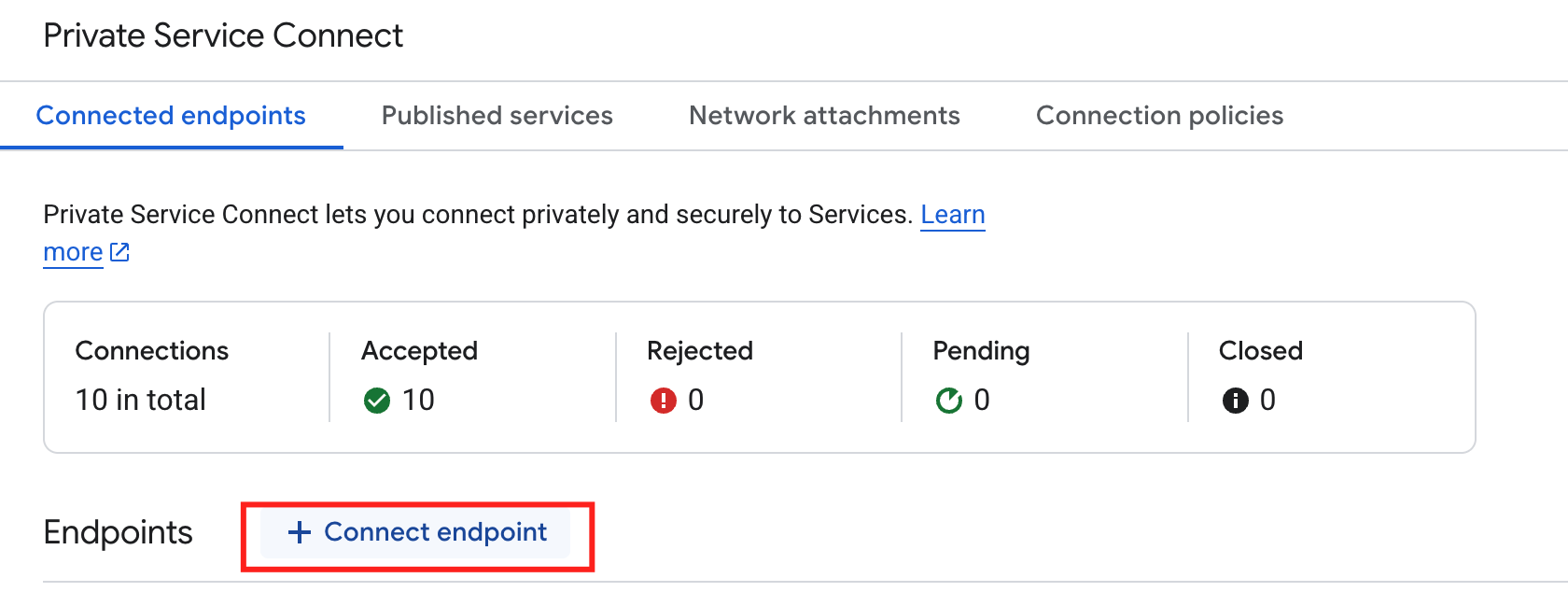
Open your GCP console and navigate to Private Service Connect.
Click the Connected endpoints tab.
Click Connect endpoint.
![Connect endpoints]()
For Target, select Published service.
![Select target type]()
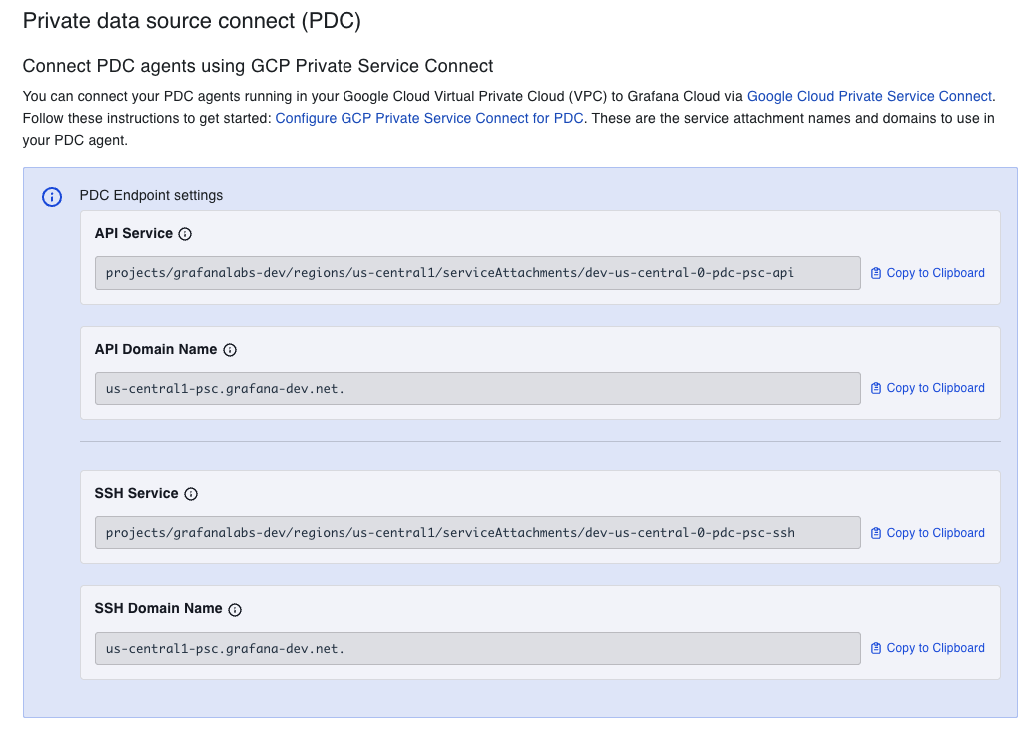
For Target service, enter the service attachment URI for the API endpoint. To find this value:
Navigate to your Grafana Cloud account, select your stack, and click Details for the Grafana service.
Under the header “Connect PDC Agents using GCP Private Service Connect”, copy the API Service field. The value follows this format:
projects/SERVICE_PROJECT/regions/REGION/serviceAttachments/NAME![Find Service Attachment URI]()
Paste the copied value into the Target service field in the GCP console.
![Enter Service Attachment URI]()
For Endpoint name, enter a name to use for the endpoint, for example
pdc-api. This name is also used for the DNS record.![Enter Endpoint name]()
Select a Network and Subnetwork for the endpoint.
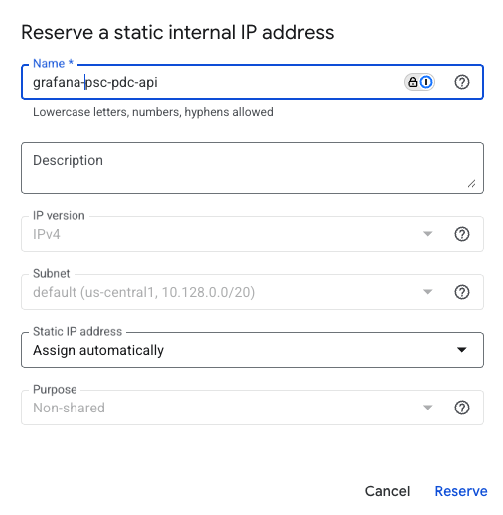
Select an IP address for the endpoint. If you need a new IP address, you can create one:
- Click the IP address drop-down menu and select Create IP address.
- Enter a Name and optional Description for the IP address. For example, use
grafana-psc-pdc-api. - Select Assign automatically or Let me choose.
- If you selected Let me choose, enter the custom IP address you want to use.
- Click Reserve.
![Create IP Address]()
To make the endpoint available from any region, select Enable global access. If you do not plan to use cross-region connectivity, you can leave this option disabled.
![Enable Global access]()
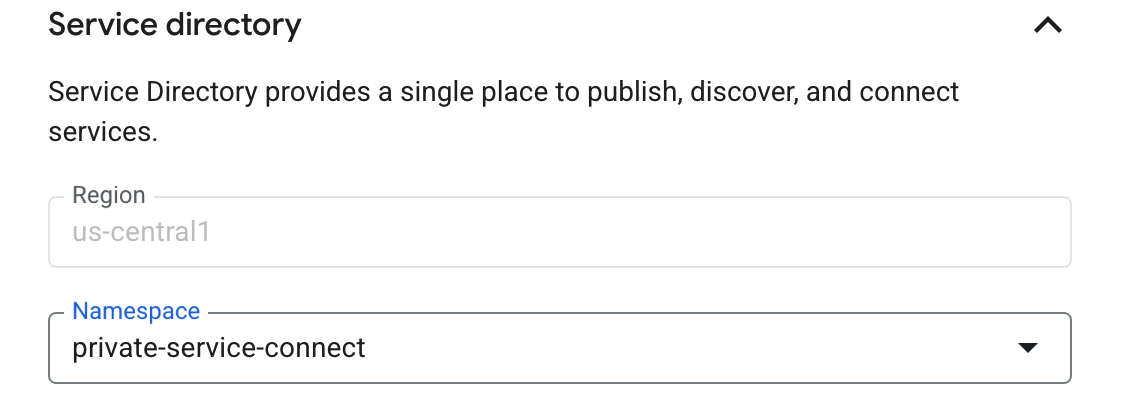
Open the Service Directory option and select a Namespace from the drop-down list, or create a new namespace for the region. The Region is populated based on the selected
subnetwork.Service Directory automatically configures a private DNS zone for
<region>-psc.grafana.netand creates a DNS record for the endpoint. For example, an endpoint namedpdc-apiinus-central1gets the recordpdc-api.us-central1-psc.grafana.net.![Configure Service Directory]()
Click Add endpoint.
Wait for the endpoint status to change to
Available. This may take a few minutes.![Waiting for endpoint to be created]()
![An endpoint with Status: “Available”]()
Repeat this PSC endpoint creation process for the PDC SSH gateway. Use the same steps as above, but with two differences:
- For Target service, use the SSH Service attachment URI from your Grafana Cloud stack instead of the API Service value.
- For Endpoint name, you must use
private-datasource-connect. This name determines the DNS record the PDC agent uses to connect to the gateway (for example,private-datasource-connect.us-central1-psc.grafana.net).






Using Terraform
Use the following snippet to automate PSC endpoint setup in GCP using Terraform:
locals {
    network_id    = "<your-network-id. eg. `default`>"
    subnetwork_id = "<your-subnetwork-id. eg. `default`>"

    service_discovery_namespace = "<your-sd-namespace-id. eg `private-service-connect`>"

    endpoint_name_api   = "pdc-api"
    grafana_service_api = "<API Service Name provided by Grafana. eg `projects/grafana-test/regions/us-central1/serviceAttachments/psc-pdc-api`>"
    endpoint_name_ssh   = "private-datasource-connect"
    grafana_service_ssh = "<SSH Service Name provided by Grafana. eg `projects/grafana-test/regions/us-central1/serviceAttachments/psc-pdc-ssh`>"

    grafana_service_region = "<GCP region where Grafana service is available. eg. `us-central1`>"
}

# IP Address
resource "google_compute_address" "psc_pdc_api" {
  name         = local.endpoint_name_api
  region       = local.grafana_service_region
  subnetwork   = local.subnetwork_id
  address_type = "INTERNAL"
}

resource "google_compute_address" "psc_pdc_ssh" {
  name         = local.endpoint_name_ssh
  region       = local.grafana_service_region
  subnetwork   = local.subnetwork_id
  address_type = "INTERNAL"
}

resource "google_compute_forwarding_rule" "psc_pdc_api" {
  name                    = local.endpoint_name_api
  region                  = local.grafana_service_region
  load_balancing_scheme   = "" # Explicit empty string required for PSC
  target                  = local.grafana_service_api
  network                 = local.network_id
  subnetwork              = local.subnetwork_id
  ip_address              = google_compute_address.psc_pdc_api.id
  allow_psc_global_access = true
  service_directory_registrations {
    namespace = local.service_discovery_namespace
  }
}

resource "google_compute_forwarding_rule" "psc_pdc_ssh" {
  name                    = local.endpoint_name_ssh
  region                  = local.grafana_service_region
  load_balancing_scheme   = "" # Explicit empty string required for PSC
  target                  = local.grafana_service_ssh
  network                 = local.network_id
  subnetwork              = local.subnetwork_id
  ip_address              = google_compute_address.psc_pdc_ssh.id
  allow_psc_global_access = true
  service_directory_registrations {
    namespace = local.service_discovery_namespace
  }
}
Configure your PDC agent
After both PSC endpoints are created and their status is Available, configure your PDC agent to use the endpoint DNS names as the values for the -api-fqdn and -gateway-fqdn flags. You can remove the -cluster flag.
The following is an example configuration:
./pdc \
-api-fqdn pdc-api.us-central1-psc.grafana.net \
-gateway-fqdn private-datasource-connect.us-central1-psc.grafana.net \
-token <token> \
-gcloud-hosted-grafana-id <id>
Cross-region connectivity
Grafana Cloud’s GCP PSC integration supports native cross-region connectivity, so you can connect to services hosted in other GCP regions over PSC endpoints.
To enable this, select Enable global access during PSC endpoint creation. If you used the Terraform snippet, global access is already enabled with the allow_psc_global_access = true setting.
Verify the connection
After you start the PDC agent, confirm that the connection is working:
- Check the agent logs for the message
This is Grafana Private Data Source Connect!, which indicates a successful connection. - In your Grafana Cloud instance, go to Connections > Private data source connections and verify that the agent appears as connected.
Was this page helpful?
Related resources from Grafana Labs



