
 Grafana Cloud
Observe and act
Connect to data sources
Private data source connect (PDC)
Connect the PDC agent via AWS PrivateLink
Grafana Cloud
Observe and act
Connect to data sources
Private data source connect (PDC)
Connect the PDC agent via AWS PrivateLinkConnect the PDC agent via AWS PrivateLink
Private data source connect (PDC) lets you query data sources on your private network from Grafana Cloud through an encrypted SSH tunnel. By default, that tunnel routes over the public internet.
With AWS PrivateLink, you can route the tunnel through the Amazon network instead. By keeping traffic off the public internet, you:
- Improve the security of your data in transit.
- Reduce your network egress costs.
Before you begin
To use AWS PrivateLink, you need the following:
- A Grafana Cloud stack hosted on AWS. To verify your stack’s hosting provider:
- Sign in to My Account on Grafana.com.
- Click Details for your Grafana service.
- Confirm the region matches one of the AWS regions where Grafana Cloud is hosted.
Note
If your stack is not hosted on AWS, you must create a new stack hosted on AWS.
- An AWS VPC in which to create the interface endpoints for your PDC agent. The VPC must have DNS resolution (
enableDnsSupport) and DNS hostnames (enableDnsHostnames) enabled so that the VPC endpoint private DNS names resolve correctly. - Sufficient AWS IAM permissions to create and manage VPC endpoints (for example,
ec2:CreateVpcEndpointandec2:DescribeVpcEndpoints). - A PDC network and signing token. If you haven’t set these up yet, follow the steps in Configure private data source connect (PDC) first.
Note
With AWS PrivateLink, the PDC agent no longer needs public internet egress to the PDC API and SSH endpoints (
private-datasource-connect-api-<cluster>.grafana.net:443andprivate-datasource-connect-<cluster>.grafana.net:22). Traffic to those endpoints routes through the VPC endpoints instead.If your data source uses AWS SigV4, the PDC agent still needs egress to
sts.<region>.amazonaws.com:443.
Other regions
AWS PrivateLink supports native cross-region connectivity in selected AWS Regions, allowing you to connect to services hosted in other AWS Regions over interface endpoints.
This is an opt-in feature, and Grafana enables regions for specific stacks on a case-by-case basis.
To connect from a different region than the one where your Grafana Cloud stack is hosted (for example, your infrastructure is in us-east-1 and your Grafana Cloud stack is in us-east-2), check whether your source region is enabled for that stack:
- Sign in to your Grafana account.
- Click Details on the Grafana tile.
- Scroll down to the Connect PDC agents using AWS PrivateLink section, which lists the supported AWS Regions for that stack.
- If your source region is listed, you can connect right away.
- If your source region is not listed, contact Grafana Support to request adding your source region to your Grafana Cloud stack.
Set up VPC endpoints
You can create a VPC endpoint in the AWS console or provision one using Terraform.
You must create two VPC endpoints for PDC: one for the API and another for the SSH gateway.
With the AWS Console
Open your AWS Console and navigate to VPC -> PrivateLink and Lattice -> Endpoints.
Select Create Endpoint.
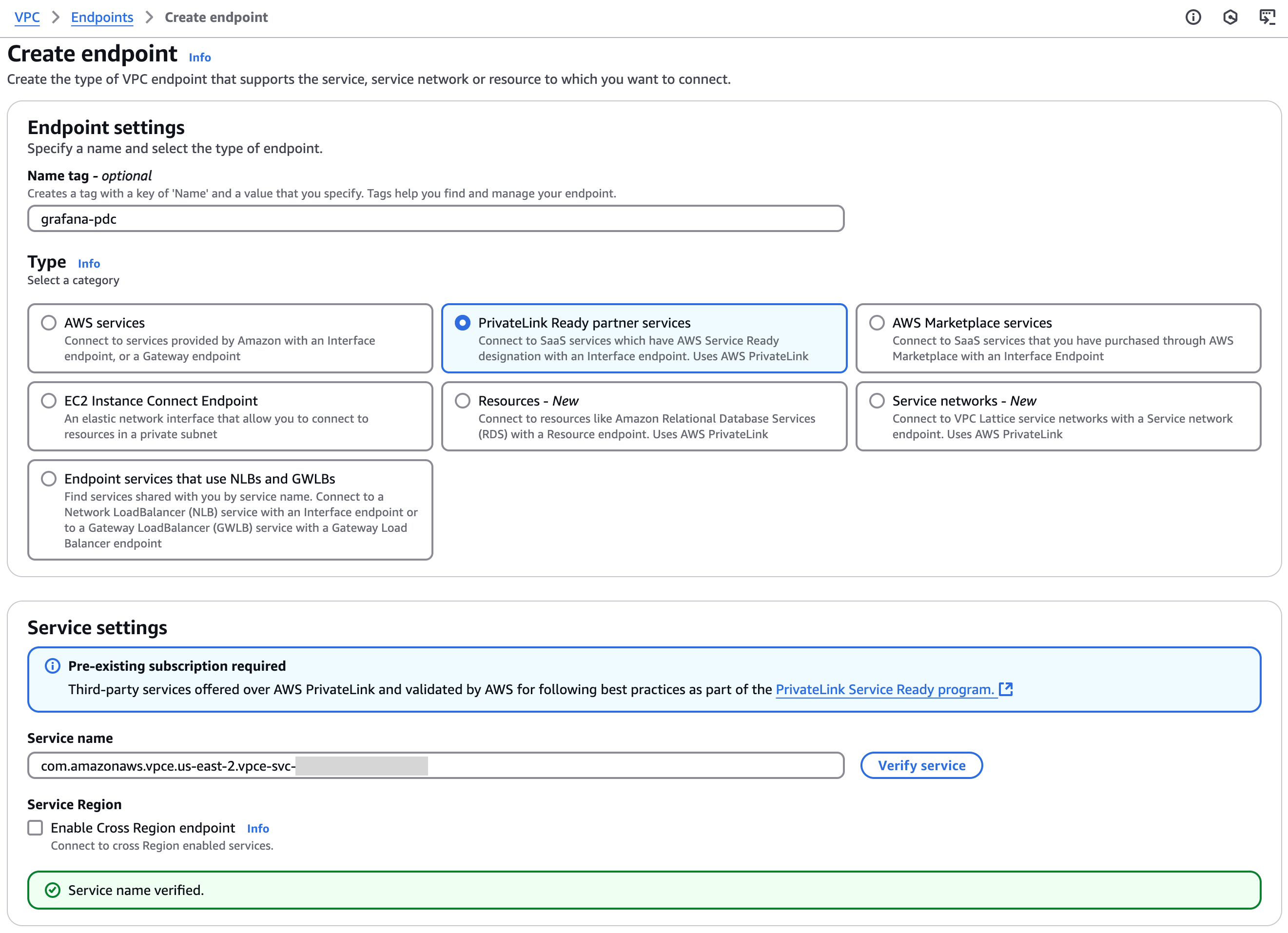
Give the endpoint a name. Example:
grafana-pdc-api.Choose PrivateLink Ready partner services.
In the Service Name field, enter the service name from your Grafana Cloud stack:
- Navigate to your Grafana Cloud stack at Grafana.com, select your stack, and click Details for the Grafana service.
- Under the heading Connect PDC Agents using AWS PrivateLink, copy the API Service Name. The service name follows the pattern
com.amazonaws.vpce.<region>.vpce-svc-<random id>. - Paste the value into the Service Name field in the AWS console.
(Optional) If you need cross-region connectivity, enable Enable Cross Region endpoint and select the region where the Grafana stack is hosted.
Click Verify Service. AWS displays a green message:
Service name verified..![“Service Name Verified” message]()
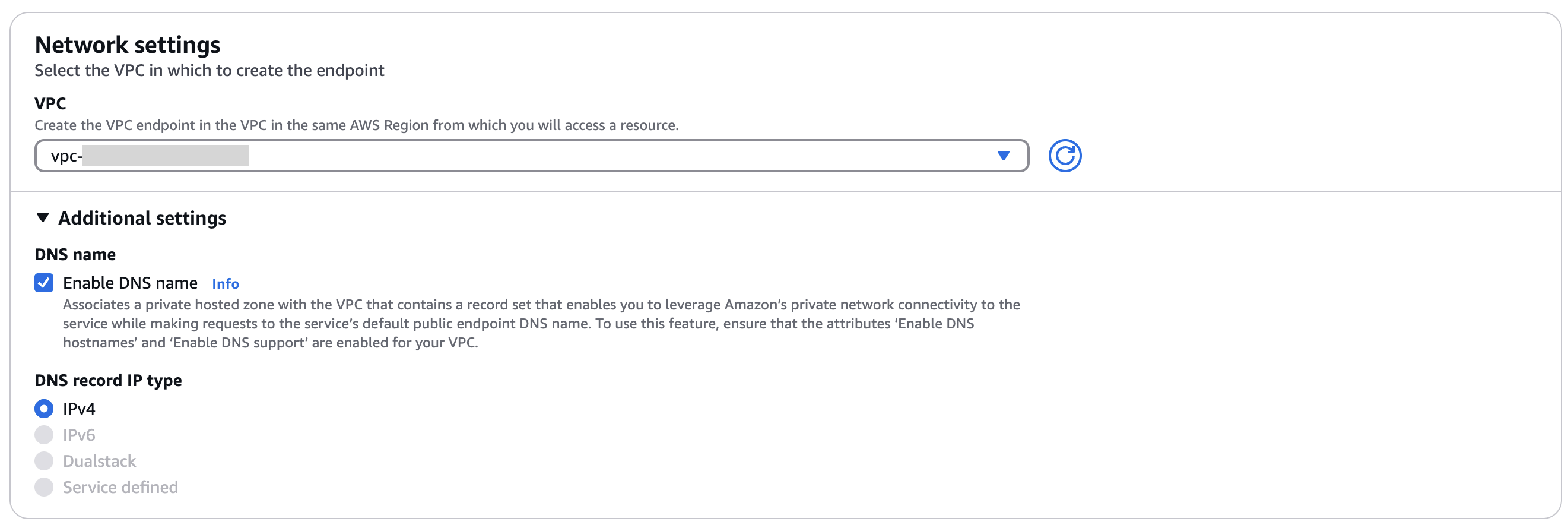
Select your VPC.
Expand the Additional settings section and select Enable DNS name.
![Check “Enable DNS name”]()
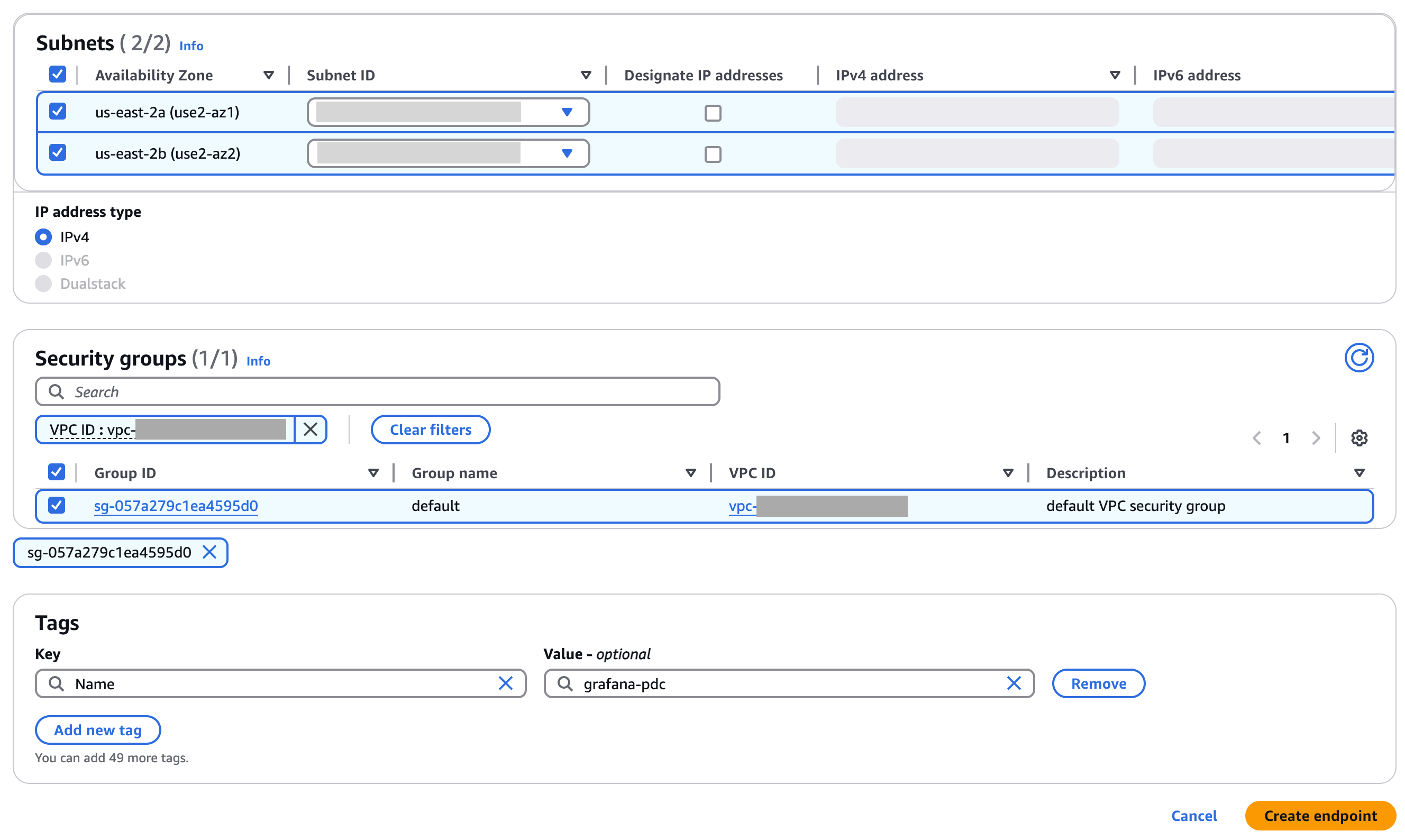
Select your desired subnets and security groups.
![Select subnets and security groups]()
Note
You can only place the endpoint in the Availability Zones that the Grafana PrivateLink endpoint service exposes. This number is limited and might be fewer than the Availability Zones in your VPC, so some subnets aren’t available to select. When you connect within the same region, you must select a subnet in every exposed Availability Zone. To check which zones your stack supports, refer to the Connect PDC agents using AWS PrivateLink section on the Grafana service Details page.
Note
For the SSH VPC endpoint, the security group must allow inbound connections on port 22.
Choose Create Endpoint.
The new endpoint appears with a status of
Pending. Wait until the status changes toAvailable, which can take up to 10 minutes.![An endpoint with Status: “Available”]()
Repeat the previous steps for the PDC SSH Gateway. For example, you can name the endpoint
grafana-pdc-ssh. When selecting the service name in Grafana.com, use the SSH Service Name.

With Terraform
Use the following snippet to automate VPC endpoint setup for both PDC endpoints in AWS using Terraform:
locals {
    vpc_id             = "<your-vpc-id>"
    subnet_ids         = [<your subnet ids>]
    security_groups_id = [<your security group ids>]

    // service_region is only required if you are connecting cross region
    grafana_service_region = "<AWS region where Grafana service is available. eg. `us-east-2`>"

    api_endpoint_name        = "grafana-pdc-api"
    api_grafana_service_name = "<API Endpoint Service Name provided by Grafana>"

    ssh_endpoint_name        = "grafana-pdc-ssh"
    ssh_grafana_service_name = "<SSH Endpoint Service Name provided by Grafana>"

}

resource "aws_vpc_endpoint" "grafana_service_pdc_api" {
  vpc_id            = local.vpc_id
  service_name      = local.api_grafana_service_name
  vpc_endpoint_type = "Interface"

  security_group_ids = local.security_groups_id

  subnet_ids          = local.subnet_ids
  private_dns_enabled = true

  // service_region is only required if you are connecting cross region
  service_region = local.grafana_service_region

  tags = {
    Name = local.api_endpoint_name
  }
}

resource "aws_vpc_endpoint" "grafana_service_pdc_ssh" {
  vpc_id            = local.vpc_id
  service_name      = local.ssh_grafana_service_name
  vpc_endpoint_type = "Interface"

  security_group_ids = local.security_groups_id

  subnet_ids          = local.subnet_ids
  private_dns_enabled = true

  // service_region is only required if you are connecting cross region
  service_region = local.grafana_service_region

  tags = {
    Name = local.ssh_endpoint_name
  }
}
After you apply the Terraform configuration, configure your PDC agent to use the VPC endpoint DNS names. Refer to Configure the PDC agent for the required flags and an example configuration.
Configure the PDC agent
After you create both VPC endpoints, configure your PDC agent to use the VPC endpoint DNS names instead of the public endpoints.
Grafana.com displays the DNS names alongside the service name values on your stack’s details page. Use these values for the -api-fqdn and -gateway-fqdn flags. Because the DNS names already encode the cluster, you can omit the -cluster flag.
The following examples show how to pass the FQDN flags for each deployment method.
Note
The
-api-fqdnand-gateway-fqdnflags don’t have environment variable equivalents. You must pass them as command-line flags.
PDC agent binary
./pdc \
  -api-fqdn private-datasource-connect-api.<region>.vpce.grafana.net \
  -gateway-fqdn private-datasource-connect.<region>.vpce.grafana.net \
  -token <token> \
  -gcloud-hosted-grafana-id <id>
Docker
docker run --name pdc-agent grafana/pdc-agent:latest \
  -api-fqdn private-datasource-connect-api.<region>.vpce.grafana.net \
  -gateway-fqdn private-datasource-connect.<region>.vpce.grafana.net \
  -token <token> \
  -gcloud-hosted-grafana-id <id>
Kubernetes
Add the -api-fqdn and -gateway-fqdn flags to the args section of your PDC agent deployment manifest. Remove the -cluster flag if present. For a complete Kubernetes Deployment example, refer to Configure PDC.
For additional flags such as -connections, -ssh-flag, or -log.level, refer to the PDC agent CLI reference.
Verify the connection
After you start the PDC agent with the VPC endpoint DNS names, check the agent logs for the following message:
This is Grafana Private Data Source Connect!This message confirms the agent connected to Grafana Cloud through AWS PrivateLink. You can also verify the connection in the Grafana UI by navigating to Connections > Private data source connections and confirming that your PDC network shows connected agents.
Next steps
Was this page helpful?
Related resources from Grafana Labs



