
 Grafana Cloud
Observe and act
Connect to data sources
Data sources
Jaeger
Query editor
Grafana Cloud
Observe and act
Connect to data sources
Data sources
Jaeger
Query editorJaeger query editor
This document explains how to use the Jaeger query editor to search for traces, query by trace ID, visualize service dependencies, and import trace files.
For general information about querying data sources in Grafana, refer to Query and transform data.
Before you begin
- Ensure you have configured the Jaeger data source.
- Verify the connection is working by clicking Save & test in the data source settings.
Query types
The Jaeger query editor supports the following query types:
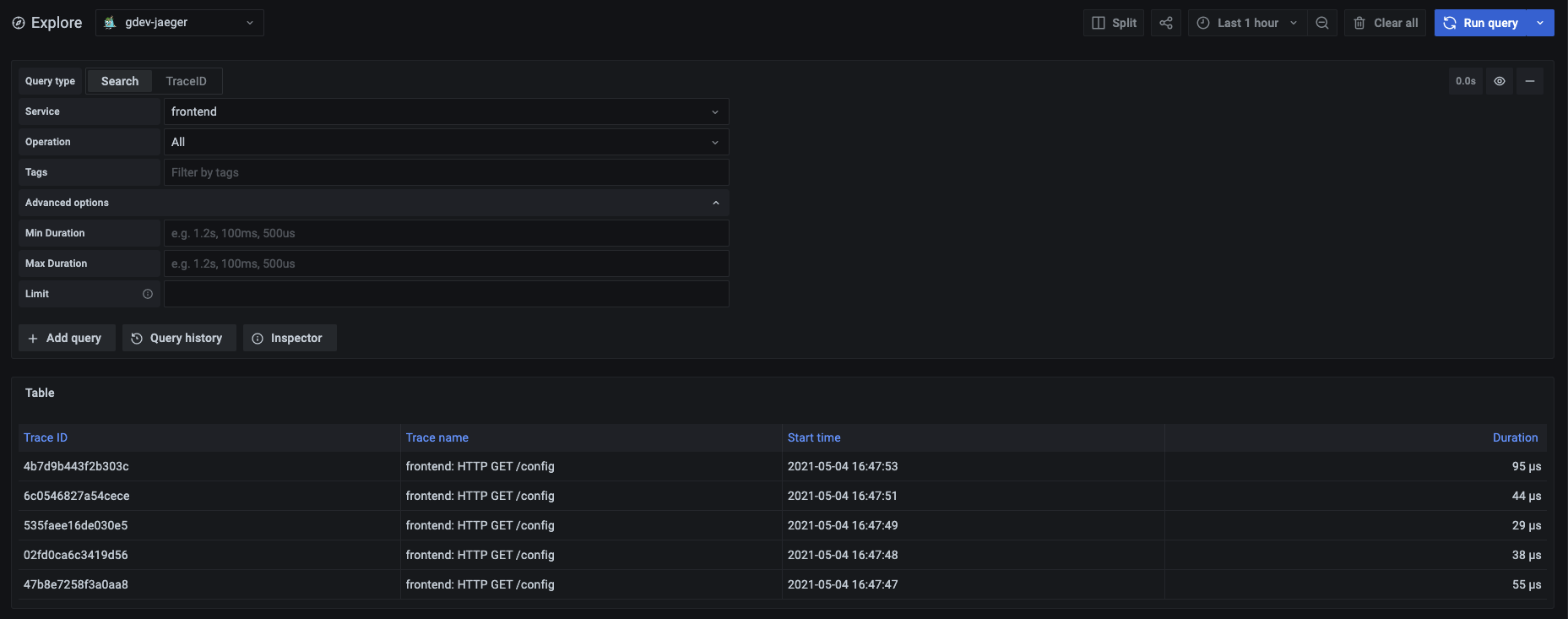
- Search: Find traces by service, operation, tags, and duration.
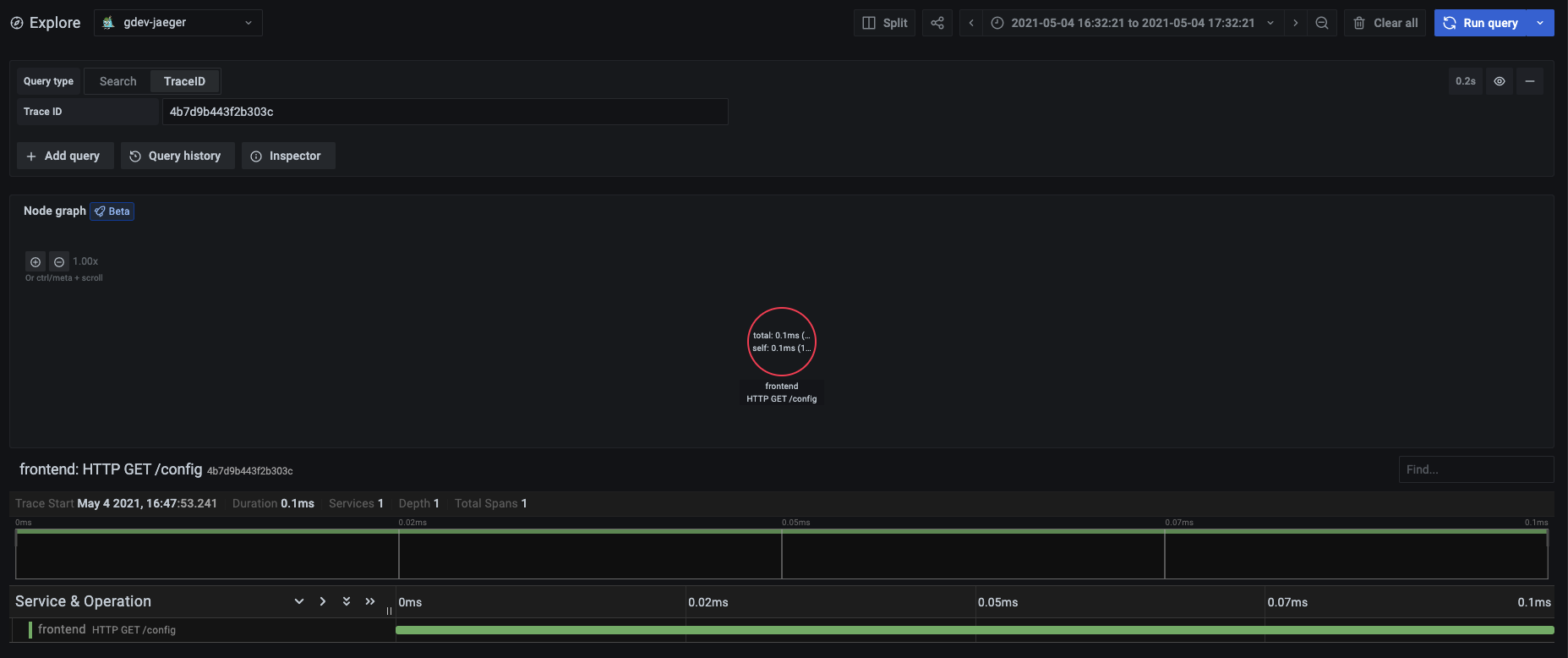
- TraceID: Query a specific trace by its ID.
- Dependency graph: Visualize service dependencies within a time range.
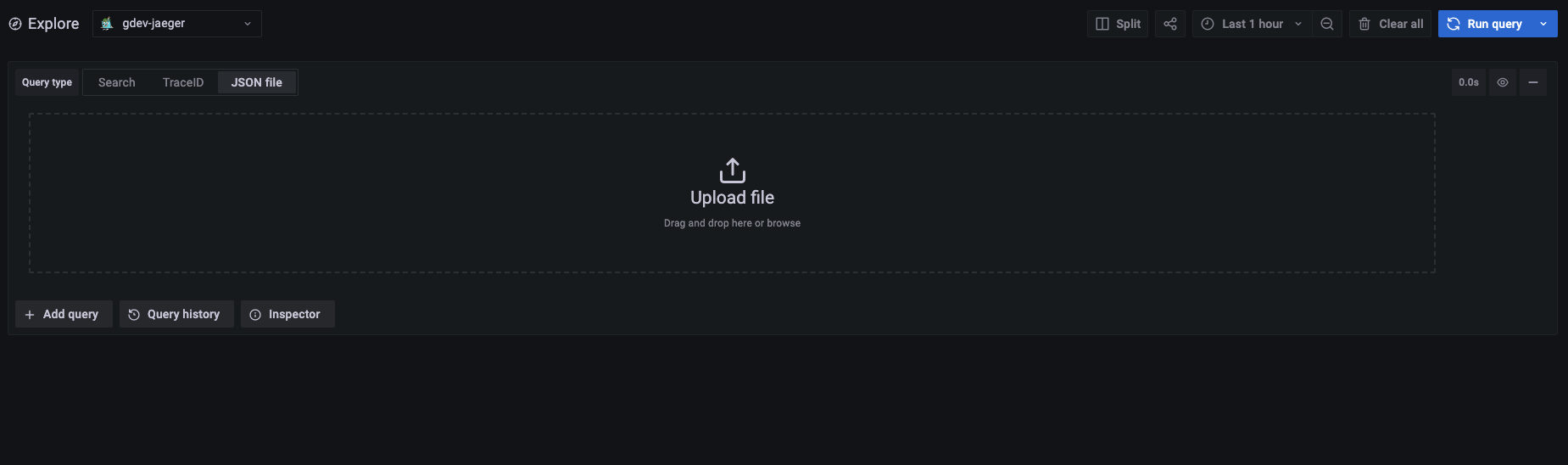
- Import trace: Upload a JSON trace file for visualization.
Search for traces
To search for traces:
- Select Search from the Query type selector.
- Fill out the search form:
Query by trace ID
To query a specific trace:
- Select TraceID from the Query type selector.
- Enter the trace ID into the Trace ID field.
- Press Shift+Enter to run the query.
Visualize the dependency graph
The dependency graph query type displays service dependencies as a Node Graph. It shows how services communicate and the volume of calls between them.
To visualize the dependency graph:
- Select Dependency graph from the Query type selector.
- Set the dashboard time range to the period you want to analyze.
- Run the query.
The dependency graph uses the dashboard time range to query the Jaeger /api/dependencies endpoint. Grafana displays the result as a Node Graph with:
- Nodes: Each node represents a service.
- Edges: Each edge represents calls between services, with the call count shown as the edge label.
Note
Your Jaeger instance must have dependency data available. If the graph is empty, verify that Jaeger is collecting and processing dependency information for the selected time range.
Import a trace
You can upload a JSON file that contains a single trace and visualize it in Grafana. If the file contains multiple traces, Grafana visualizes the first trace.
To import a trace:
- Click Import trace in the query editor.
- Select a JSON file in the Jaeger trace format.
Trace JSON example
The JSON file must follow the Jaeger trace format with a data array containing trace objects:
{
  "data": [
    {
      "traceID": "2ee9739529395e31",
      "spans": [
        {
          "traceID": "2ee9739529395e31",
          "spanID": "2ee9739529395e31",
          "flags": 1,
          "operationName": "CAS",
          "references": [],
          "startTime": 1616095319593196,
          "duration": 1004,
          "tags": [
            {
              "key": "sampler.type",
              "type": "string",
              "value": "const"
            }
          ],
          "logs": [],
          "processID": "p1",
          "warnings": null
        }
      ],
      "processes": {
        "p1": {
          "serviceName": "loki-all",
          "tags": [
            {
              "key": "jaeger.version",
              "type": "string",
              "value": "Go-2.25.0"
            }
          ]
        }
      },
      "warnings": null
    }
  ],
  "total": 0,
  "limit": 0,
  "offset": 0,
  "errors": null
}
Query data via gRPC endpoint (public preview)
Jaeger offers an alternative method for querying data that uses their gRPC service over HTTP. For detailed information about the API and setup requirements, refer to the Jaeger API documentation.
The following queries are supported through the gRPC endpoint:
- Service search
- Operation search
- Trace ID search
To enable gRPC querying for Jaeger within Grafana, enable the jaegerEnableGrpcEndpoint feature flag. Grafana Cloud customers should contact support to request access and provide feedback on this feature.
Use template variables
The Jaeger query editor supports Grafana template variables for creating dynamic, reusable dashboards. You can use template variables in the following query fields:
- Service Name
- Operation Name
- Trace ID
- Tags
- Min Duration
- Max Duration
Use standard Grafana variable syntax such as $variable or ${variable} in these fields. For example, set Service Name to $service to let dashboard users select the service from a drop-down list.



