
%3Aquality(90)%2F&w=3840&q=75)
%3Aquality(90)%2F&w=3840&q=75)
Full-stack observability in Grafana Cloud: How to investigate issues across services and infrastructure


Many times, the hardest part of troubleshooting isn’t fixing the actual problem. It’s figuring out where to start.
As engineers, it’s easy to lose count of how many times we’ve opened logs, then 10 metrics tabs, and another 10 tabs with trace queries, only to end up back in the logs trying to find a root cause. Modern applications run across several layers of services and infrastructure, and understanding an issue often means connecting information scattered across different resources, teams, and observability signals.
Grafana Cloud Application Observability and Kubernetes Monitoring bring that context together, providing a full-stack view across applications, infrastructure, and Kubernetes environments. Starting your investigation from a service, pod, node, namespace, or cluster, you can quickly jump to the logs, traces, and profiles that help explain what's happening, all within the workflows you already use.
In Grafana Cloud, this experience is powered by the knowledge graph, which automatically models your applications and infrastructure into a unified graph. This graph maps telemetry to each connected entity, including services, pods, nodes, clusters, databases, and cloud accounts. The resulting views help you visualize these relationships and observability data together in a single place, so you can correlate signals, understand dependencies, and move from symptom to root cause faster.
%3Aquality(90)%2F&w=3840&q=75)
In this post, we'll walk through an example of how full-stack observability in Grafana Cloud helps you investigate issues across the application and infrastructure layers, and how you can customize knowledge graph configurations to fit your environment.
From entity to insights: a workflow example
Grafana Cloud includes multiple features and views for full-stack observability across your applications, infrastructure, and Kubernetes environments. This eliminates the need to manually write queries or jump between dashboards. By automatically bringing together signals and visualizing relationships between services and infrastructure, you can identify issues and find root causes faster.
Each of the following features is built for a different stage of investigation, with the entities, relationships, and insights behind them powered by the knowledge graph.
- RCA workbench helps you investigate incidents by bringing insights, dependencies, and telemetry together in a single timeline.
- Entity graph provides a visual representation of the relationships between services, infrastructure, and other components in your environment, making it easier to understand dependencies and identify potential root causes.
- Entity catalog acts as a central inventory of all services and infrastructure discovered by the knowledge graph, combining health status, insights, metrics, and metadata so you can quickly identify what needs attention.
From any of these features, you can launch directly into logs, traces, and profiles for a given entity. The embedded Grafana Drilldown tab opens automatically with filters derived from entity configurations (more on that below), making it easy to correlate errors detected from metrics with other telemetry signals.
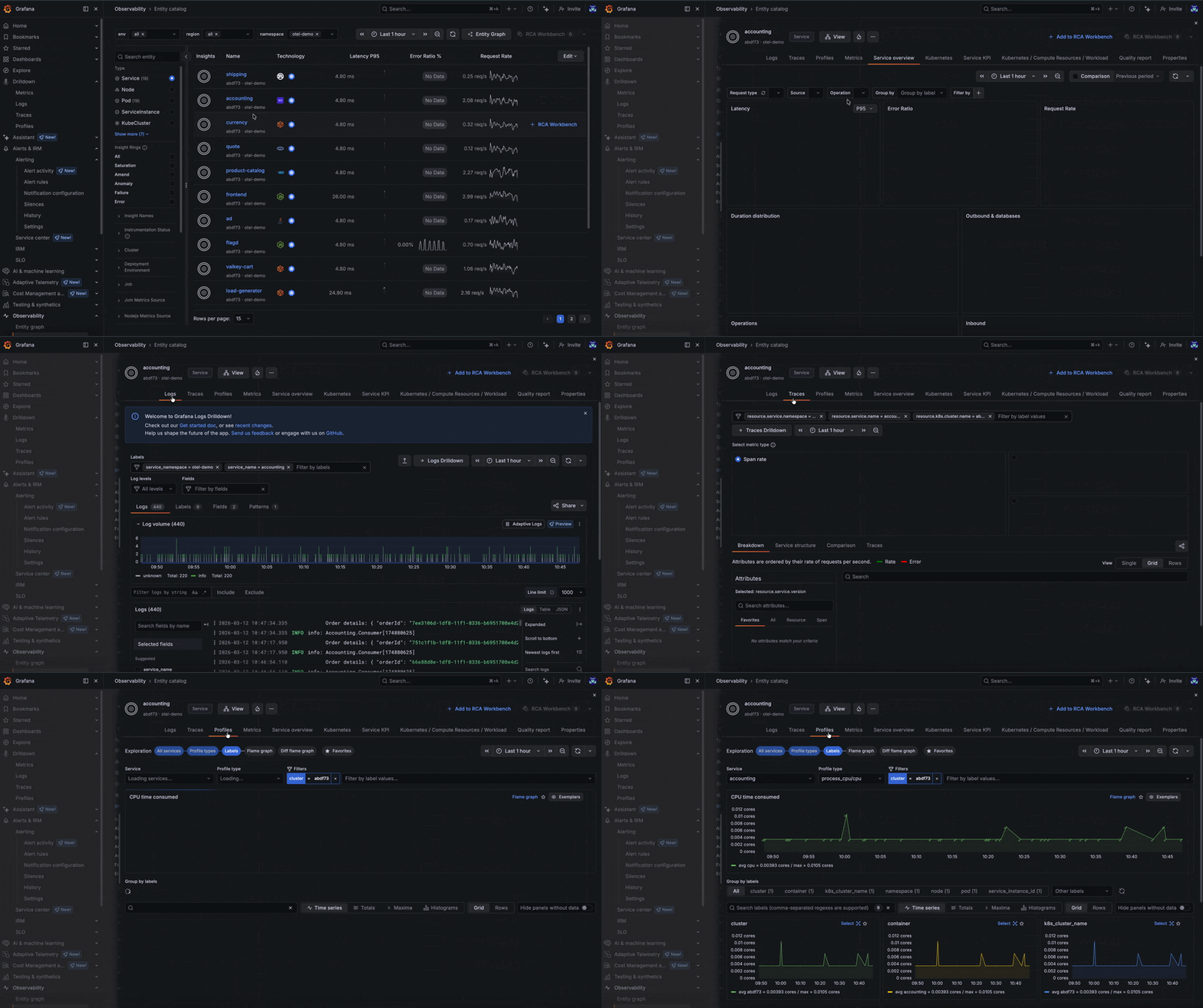
To illustrate how this works in practice, let's use an example. It's late in the evening and you've just received an alert through Grafana Alerting in Slack that makes you break out into a cold sweat. Unsure where to start, you follow the provided link to RCA Workbench, so you can explore all potential causes for a particular issue correlated over time and dependency for the impacted service. There are some insights about your failing service, so you go and take a look at the telemetry your application is emitting.
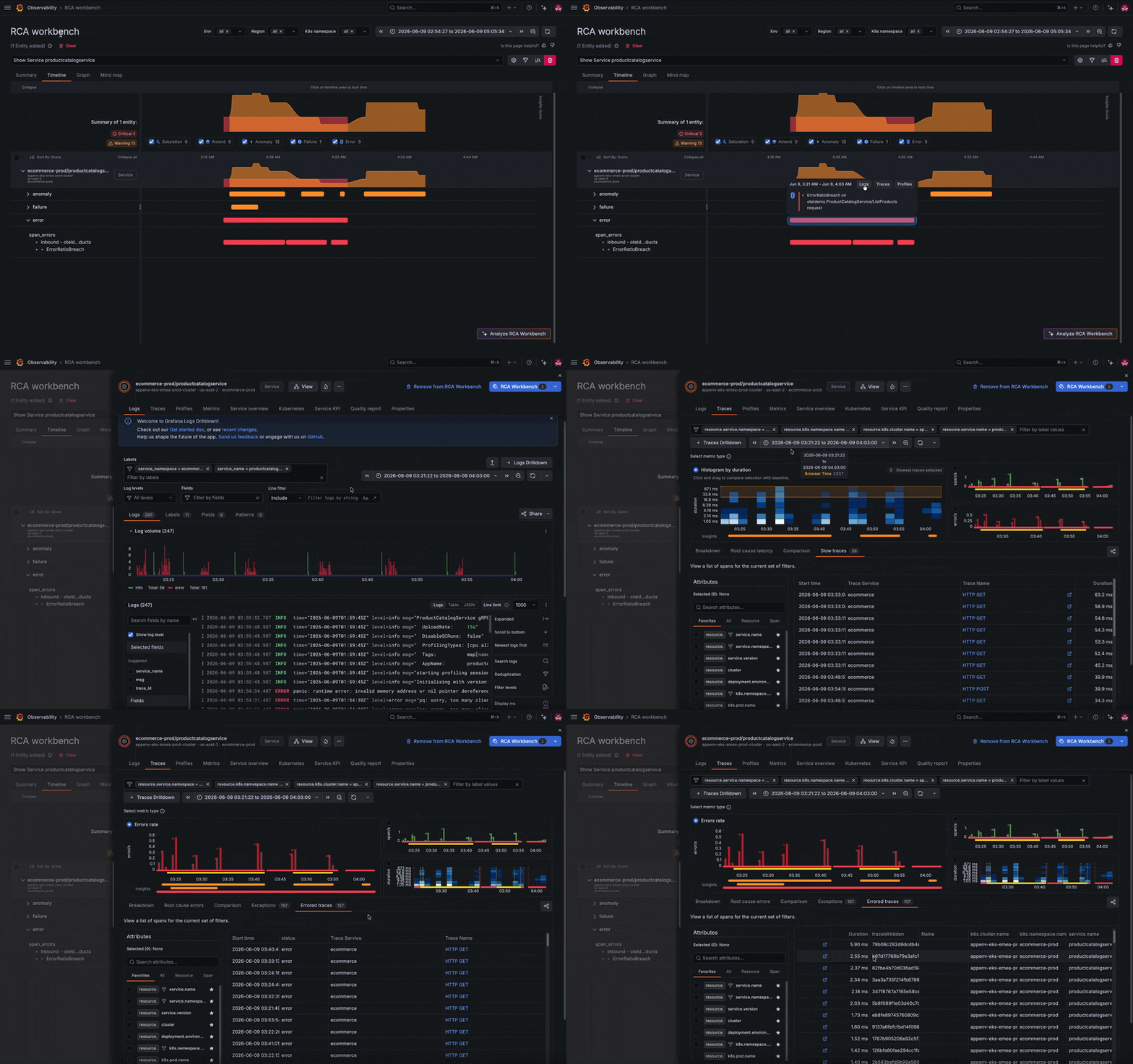
You've identified the symptom, but what's actually failing? Is the issue with the Kubernetes pod? Another service? The database? Good news: you don’t need to exit the workbench to check the whole picture.
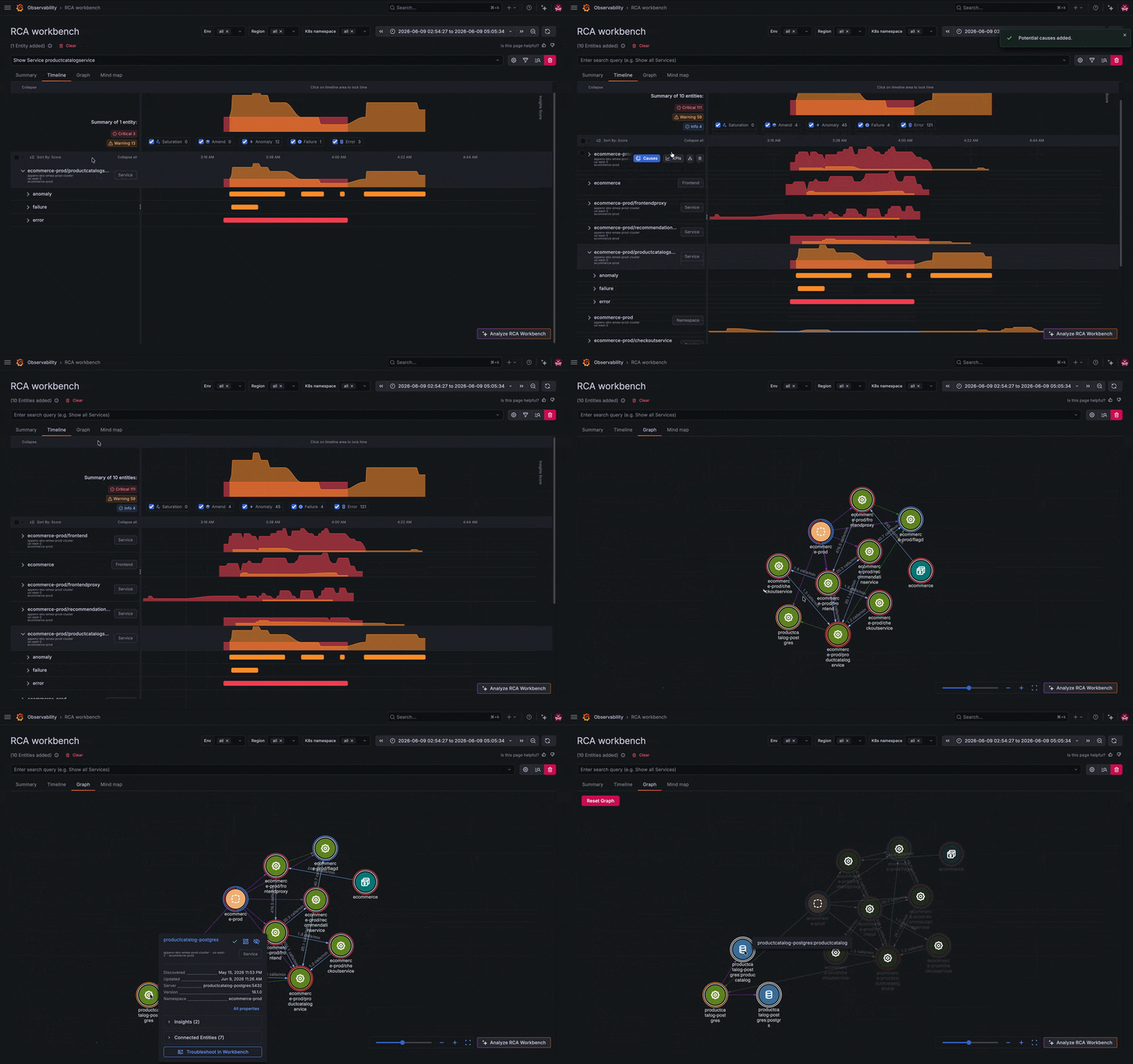
Instead of jumping between tools, you can explore the service's connected entities, including microservices and its frontend component, directly from the workbench. Several related services show activity, but one stands out: your PostgreSQL database appears to be failing.
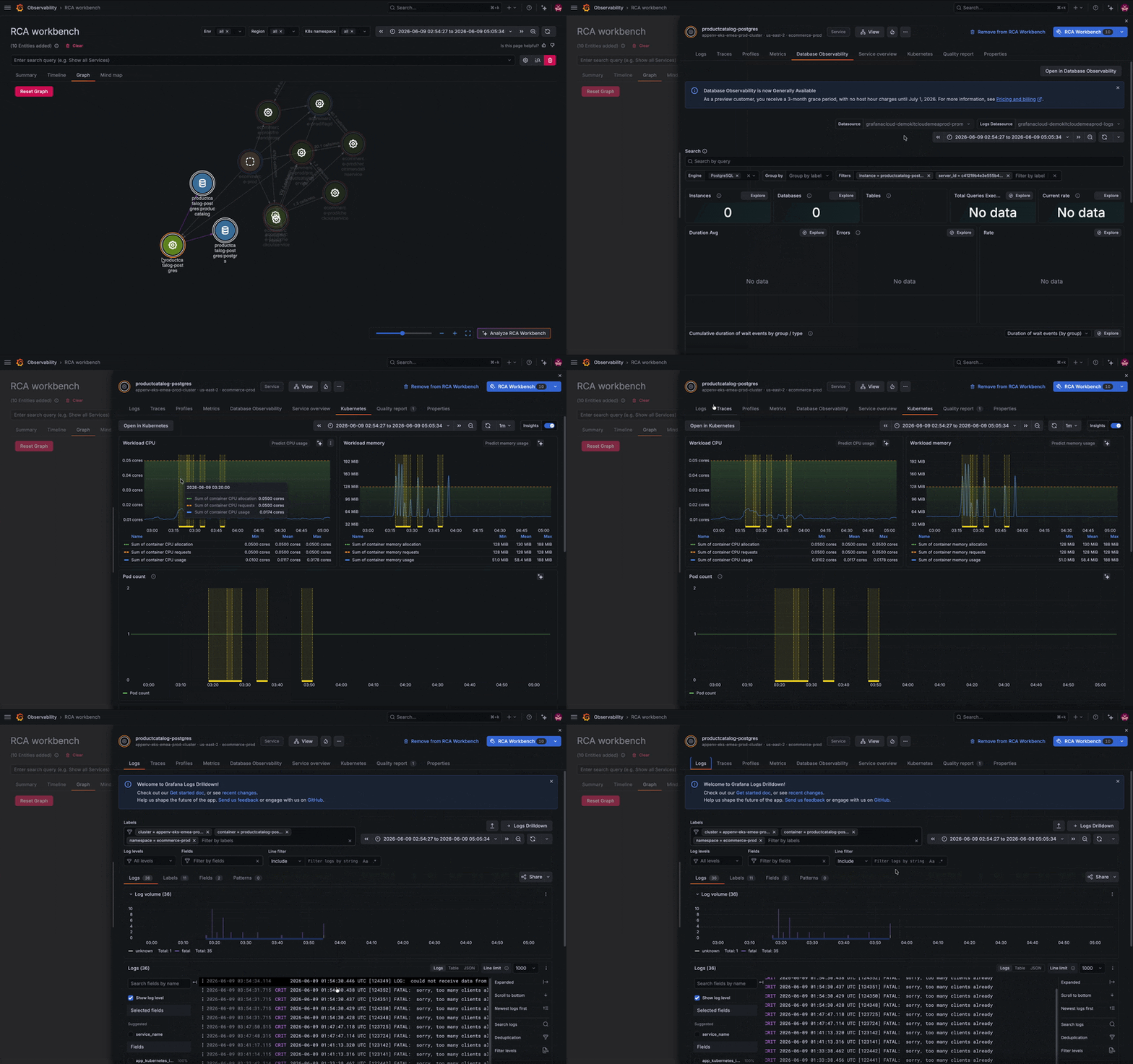
A quick jump into the database’s logs reveals the root cause. The database has too many simultaneous connections and is refusing new ones, which is causing some related services to break. From there, you can begin to troubleshoot, whether that's increasing resources or horizontally scaling additional instances.
You can also create and share shortened URLs that bring teammates directly to the same view, making it easier to collaborate during investigations.
You might notice that when you open one of the Drilldown views, some filters are already applied to surface only the most relevant data. This is because the knowledge graph is configurable and can be tailored to fit your needs. Let’s take a closer look at how these configurations work and how you can customize them for your environment.
Have it your way: customizing configurations
As shown in the example above, Drilldown is a powerful tool that helps you understand your data without learning an entirely new query language. However, pinpointing the fields and labels that are most useful across your environments can be a challenge, as every system and team may follow different conventions for structuring and emitting telemetry.
There are default configurations that control how the knowledge graph filters, narrows down, and correlates your observability data with the entities in your environment. These configurations cover common scenarios by mapping labels such as pod, namespace, and cluster, along with standard OpenTelemetry fields like service.name and service.namespace for logs.
There are many potential setups: different labeling strategies, OpenTelemetry or non-OpenTelemetry, internal conventions, and more. This results in an almost endless number of possible scenarios.
Instead of trying to support every configuration out of the box, we empower users to customize their own experience within the knowledge graph.
Creating and editing a configuration
You can create configurations for specific environments, apply them only to certain entity types, or define matchers based on entity properties. You can even configure them to query any base data source you choose.
Take the following example (shown in the GIF below), which shows a new configuration being created to map the entity property deployment.environment to the log label service_namespace, and the entity property service to the log label service_name. Furthermore, filters ensure this configuration is applied only to entities whose deployment environment starts with prod. This could represent a real scenario in which your production metrics use deployment_environment, while your logs only include service_namespace.
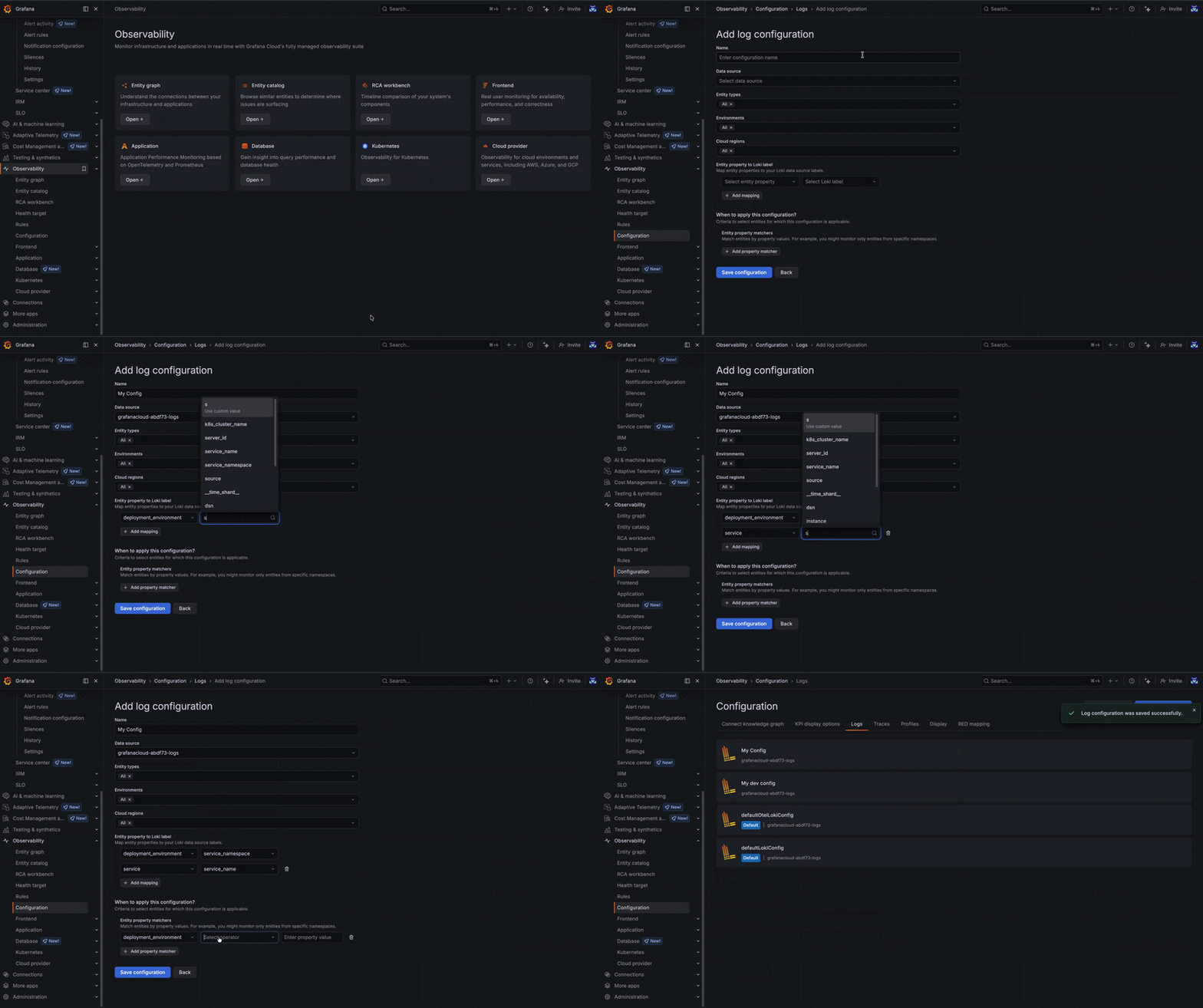
To learn more about creating and editing correlations, please check out our docs.
Resolving configuration conflicts
In some cases, configurations may overlap or conflict due to matching scenarios. When this happens, the priority order defined on the configuration page determines which configuration takes precedence.
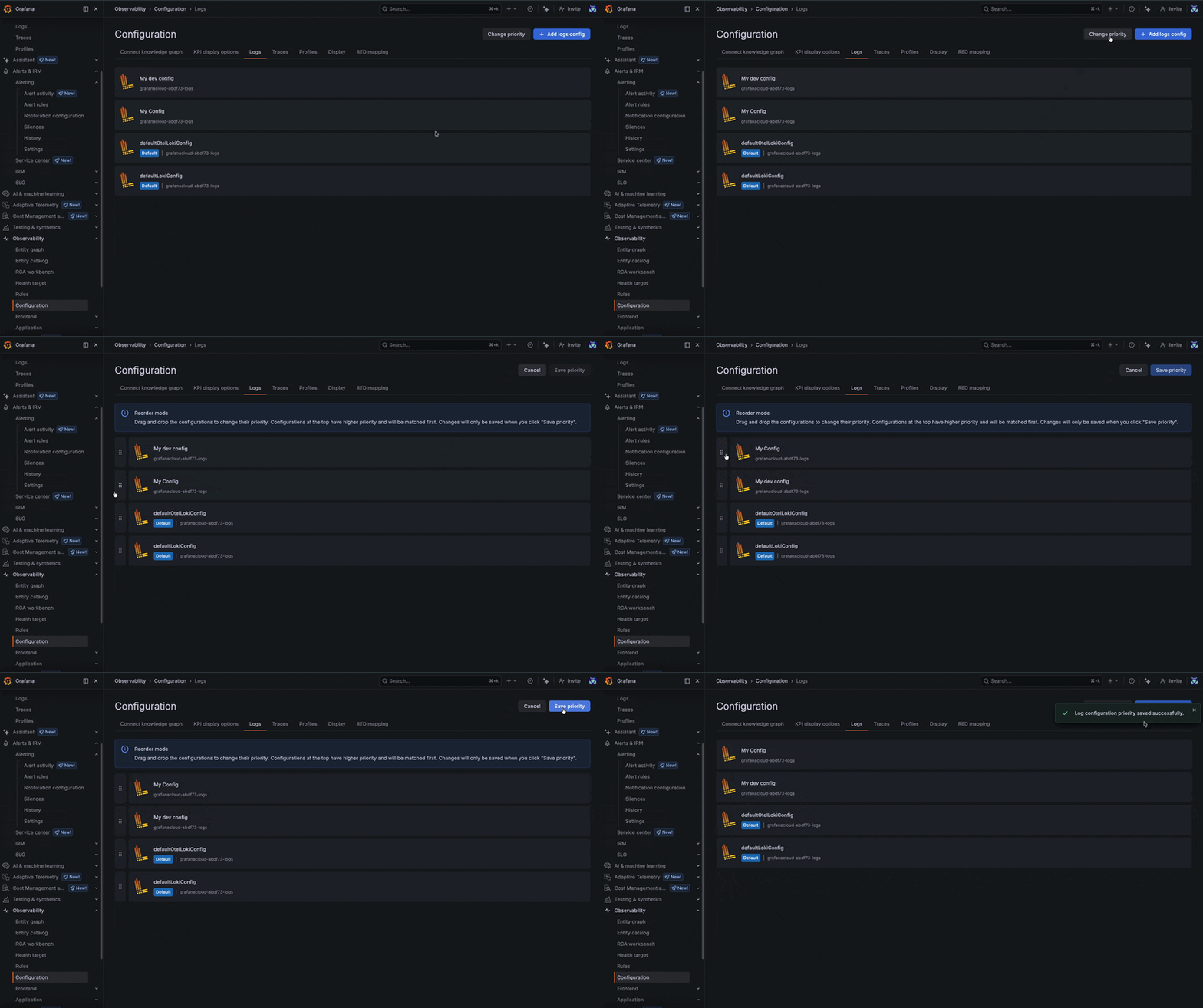
Configurations are evaluated as an ordered list, so adjusting their priority allows you to control how conflicts are resolved.
Handling unmatched configurations
If no configuration matches (or if the mappings cannot be applied) you’ll be prompted with an additional screen that allows you to temporarily apply a configuration even if it doesn’t match automatically.
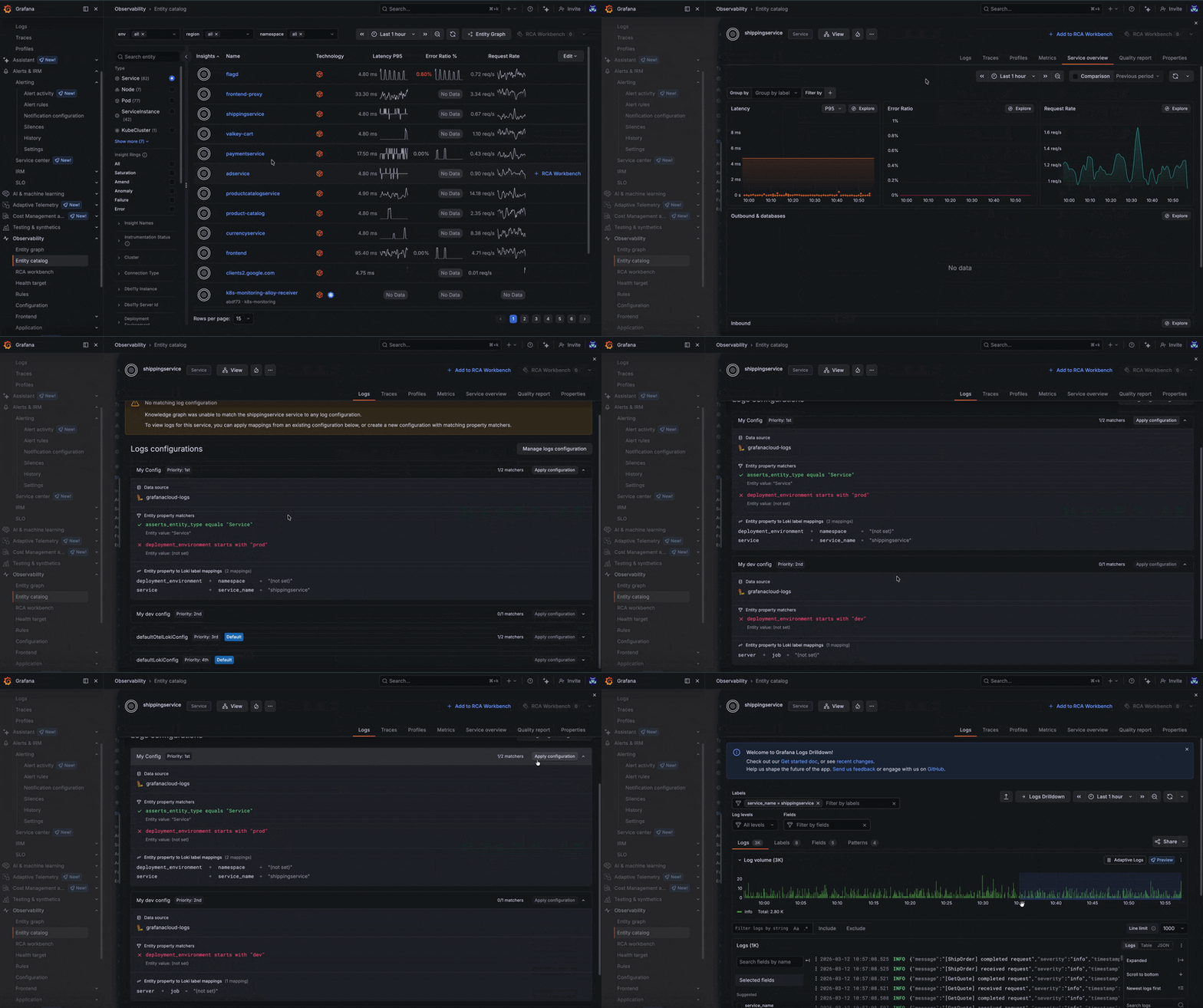
This ensures you can still explore telemetry signals without needing to immediately adjust your configuration.
Best practices for configurations
While the system is designed to be flexible, a few best practices can help ensure a smoother experience:
- Create a sensible default configuration that matches most of your environments.
- Add more specific configurations for special cases, such as different teams using different namespaces or environment labels for logs or traces, to achieve more granular telemetry filtering.
- Place default configurations at the bottom of the priority list so more specific ones take precedence.
- Use consistent fields and labels across metrics, logs, traces, and profiles to make correlation easier.
- Add as many mappings as possible to narrow down searches. Mappings are optional, so if an entity property is missing, it simply won’t be applied as a filter.
You can also use the Grafana Terraform provider to automate the creation and management of configurations. To learn more, please check out our documentation for the knowledge graph and Terraform.
How to learn more
The knowledge graph in Grafana Cloud offers a powerful way to unify your observability signals and accelerate root cause analysis. To dive deeper into shaping your telemetry and optimizing your graph, explore the following resources:
- Configure telemetry correlation: Learn how to define explicit mappings between entities and data sources in detail.
- Instrumentation quality: Understand the baseline for shaping your traces and metrics to ensure your application data is correctly linked.
- Sending OTLP data: Learn how to collect, process, and export telemetry data into the Grafana Cloud observability stack so you can check it directly on the entity views.
Grafana Assistant is the easiest way to get started with metrics, logs, traces, dashboards, and more in Grafana Cloud. We have a generous forever-free tier and plans for every use case. Sign up for free now!
%3Aquality(90)%2F&w=3840&q=75)
%3Aquality(90)%2F&w=3840&q=75)


