































Template variables
Instead of hard-coding values such as server names, API endpoints, or filter values in your queries, you can use variables. Grafana displays these variables in drop-down select boxes at the top of the dashboard to help you change the data displayed in your dashboard. Grafana refers to such variables as template variables.
For general information on using variables in Grafana, refer to Add variables.
For an introduction to templating and template variables, refer to Templating and Variable syntax.
Query variable
A query variable in Grafana dynamically retrieves values from your data source using a query. With the Infinity data source, you can create variables populated from JSON, CSV, XML, GraphQL, or any other supported data format.
To create a query variable with the Infinity data source:
- Navigate to your dashboard settings.
- Select Variables in the left menu.
- Click Add variable.
- Enter a Name for your variable.
- Select Query as the variable type.
- Select your Infinity data source.
- Select a Query Type:
- Infinity - Use a standard Infinity query (JSON, CSV, XML, etc.) to fetch variable options
- Configure your query to return the values you want in the drop-down.
- Click Apply.
Single column results
If your query returns a single column, Grafana uses those values for both the display text and the value.
Example: JSON API returning a list of servers
Configure your Infinity query to fetch data from an API endpoint:
- Type: JSON
- URL:
https://api.example.com/servers - Parser: Backend
If the API returns:
["server01", "server02", "server03"]The variable drop-down displays all three server names.
Multiple column results
If your query returns multiple columns, you can specify which field to use as the display text and which field to use as the value.
Option 1: Return __text and __value columns
If your query returns columns named __text and __value, Grafana automatically uses them for the display text and value respectively. This is a standard Grafana convention supported across data sources.
Option 2: Use custom field mapping
In the Custom field mapping section of the variable editor:
- Text field: The column to display in the drop-down
- Value field: The column to use as the variable’s value
Example: JSON API returning servers with IDs
If your API returns:
[
  {"id": "srv-001", "name": "Production Server"},
  {"id": "srv-002", "name": "Staging Server"},
  {"id": "srv-003", "name": "Development Server"}
]
Configure the field mapping:
- Text field:
name - Value field:
id
The drop-down displays “Production Server”, “Staging Server”, etc., but the variable value is the corresponding ID.
Multi-property variables
Note
Multi-property variables require Grafana v12.4 or later.
The Infinity data source supports multi-property variables. Use them when the same logical concept has different identifiers in different contexts (for example, an environment called dev in one system and development in another). Instead of maintaining several variables in sync, you can map all of those values to one variable and reference the property you need in each panel or query.
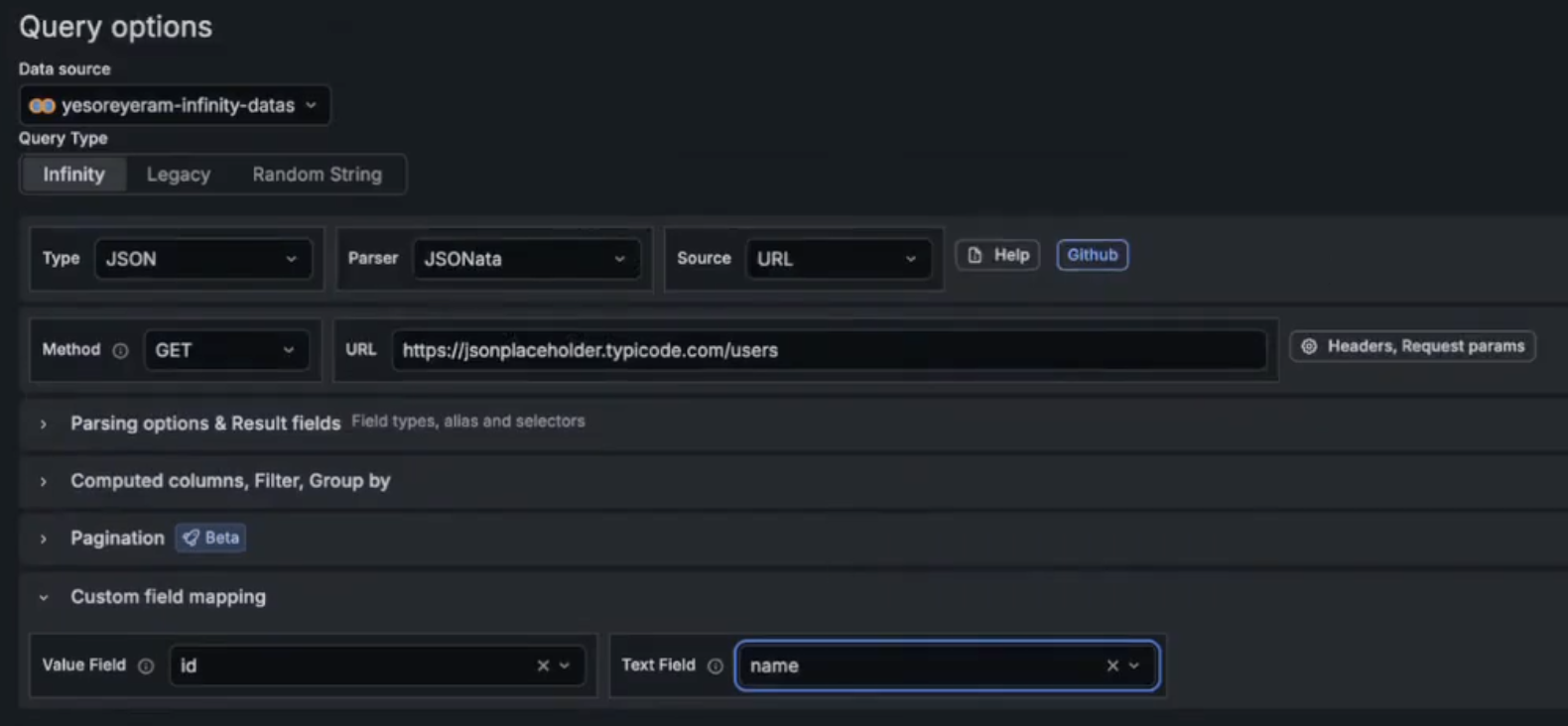
To create a multi-property variable with the Infinity data source, use Type: Query. Configure an Infinity query that returns multiple columns. In the variable editor, expand Custom field mapping and set Value field and Text field to the columns that supply the value and the label for the drop-down. Each additional column in the result becomes a property you can reference. In panels and queries, reference a property with ${varName.columnName}.
Example (Type: Query): A variable named env that lists environments with different identifiers per cloud provider. The API returns:
[
  {"name": "Production", "id": "prod", "aws_id": "aws-prod-001", "azure_id": "az-prod-001"},
  {"name": "Staging", "id": "stg", "aws_id": "aws-stg-002", "azure_id": "az-stg-002"},
  {"name": "Development", "id": "dev", "aws_id": "aws-dev-003", "azure_id": "az-dev-003"}
]
Configure the Infinity variable query:
- Type: JSON
- URL:
https://api.example.com/environments - Parser: Backend
In Custom field mapping, set Text field to name and Value field to id.
In panel queries, reference any property using dot notation:
For example, you might use ${env.aws_id} in an AWS-related query URL and ${env.azure_id} in an Azure-related query URL, while both panels respond to the same variable drop-down.
For more on the concept, refer to Configure multi-property variables in Add and manage variables.
Use variables in queries
You can use template variables in your Infinity queries to create dynamic dashboards. Variables can be used in:
- URL: Include variables in the API endpoint
- Query parameters: Use variables in query parameter values
- Request body: Use variables in POST/PUT request bodies
- Headers: Include variables in custom headers
- Root selector: Use variables in the root selector where you enter your JSONata, JQ, or UQL query
For the full list of supported variable syntaxes ($varname, ${varname}, [[varname]]) and formatting options, refer to Variable syntax in the Grafana documentation.
Multi-value variables
When you enable Multi-value for a variable, users can select multiple values from the drop-down. The selected values are formatted as a comma-separated list by default.
To control how multi-value variables are formatted, use the advanced variable format options.
Example:
If $servers has values server01 and server02 selected:
Chained variables
Chained variables let you filter one variable’s options based on the current selection of another variable. When the parent variable changes, the dependent variable automatically re-queries and updates its options.
To create chained variables:
Create a parent variable. For example, a variable named
regionthat queries an API for a list of regions:https://api.example.com/regionsCreate a dependent variable. For example, a variable named
serverthat references the parent variable in the query URL:https://api.example.com/servers?region=$region
When a user selects a different value in the region drop-down, the Infinity data source re-runs the server query with the updated region value. The server drop-down then displays only the servers that belong to the selected region.
For more information about chaining variables, refer to Chained variables in the Grafana documentation.


