Minimize
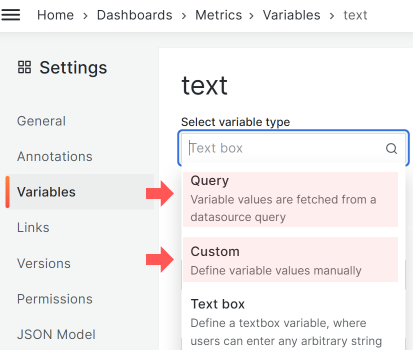
Select Minimize to create a native select element that you can place anywhere on your dashboard.
The minimize mode works for Query and Custom variables.
In the minimize mode, the variable panel lets you update dashboard variables without using the top space. You can place the panel anywhere on the dashboard.
In the following example, four Business Variable panels appear in the top right. They provide selection for Regions, Countries, States, and Markets.
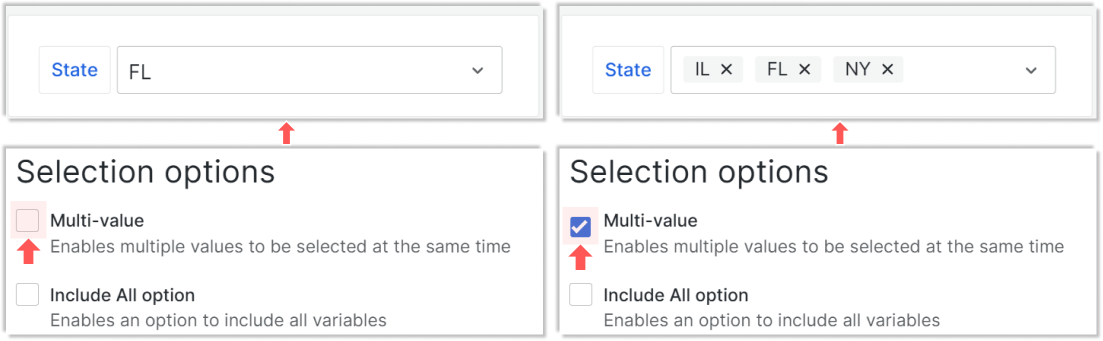
Single or multi-value variables
Based on the variable options, you can select a single or multi-value variable.
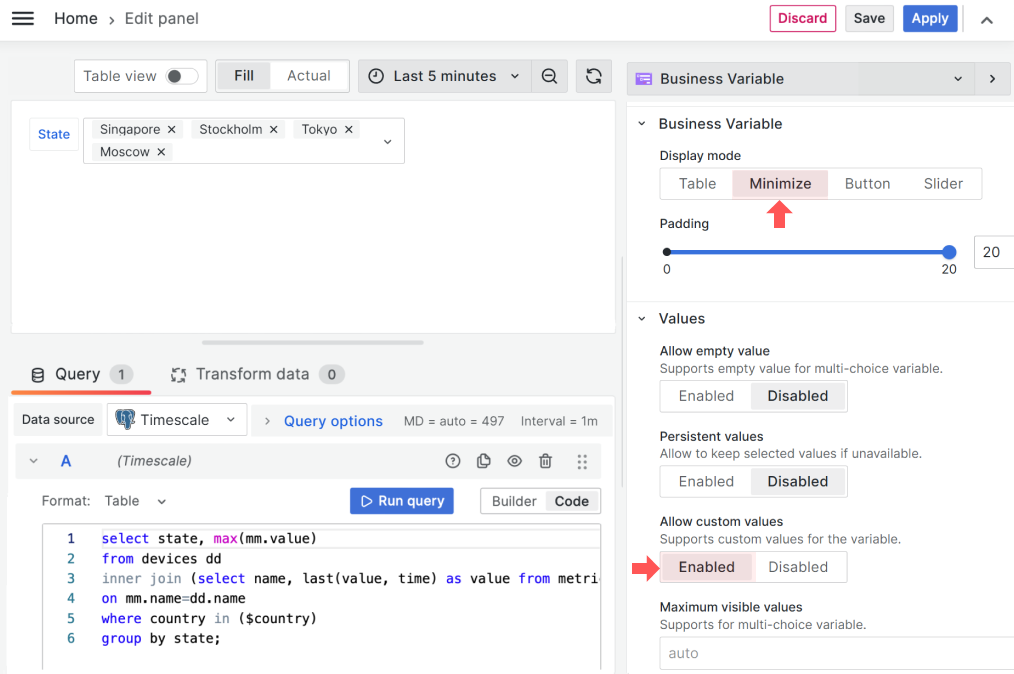
When needed, the minimize mode expands to a multi-line element.

Manual entry
Note
The Business Variable panel supports this feature starting from version 3.0.0.
In the Minimize display mode, you can allow users to enter values manually.
To allow manual entry, set the Values > Allow custom values parameter to Enabled. The default setting is Disabled.
Dependent variables
Enabling the Allow custom values parameter can cause unexpected behavior between dependent variables.
Two panels display variables that depend on each other. The State dropdown panel options depend on the selected Country variable.
If you enable the Allow custom values option for the State dropdown panel, unexpected options might appear for certain variables.
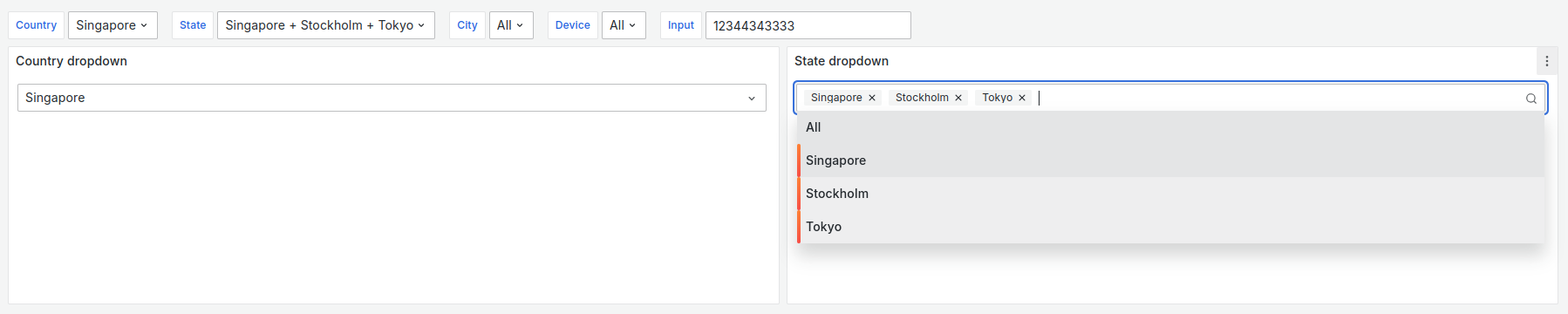
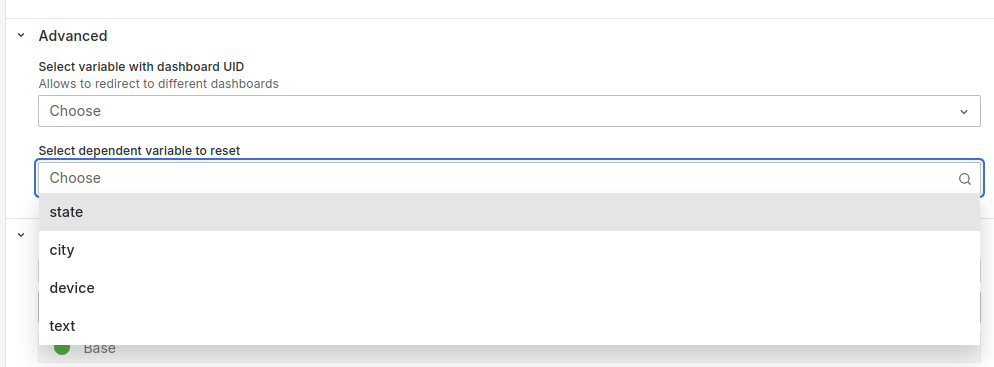
To avoid this behavior, set the Country dropdown panel’s Select dependent variable to reset option to state.
Maximum visible values
Note
The Business Variable panel supports this feature starting from version 3.0.0.
Values > Maximum visible values is available when Business Variable > Display mode is set to Minimize.
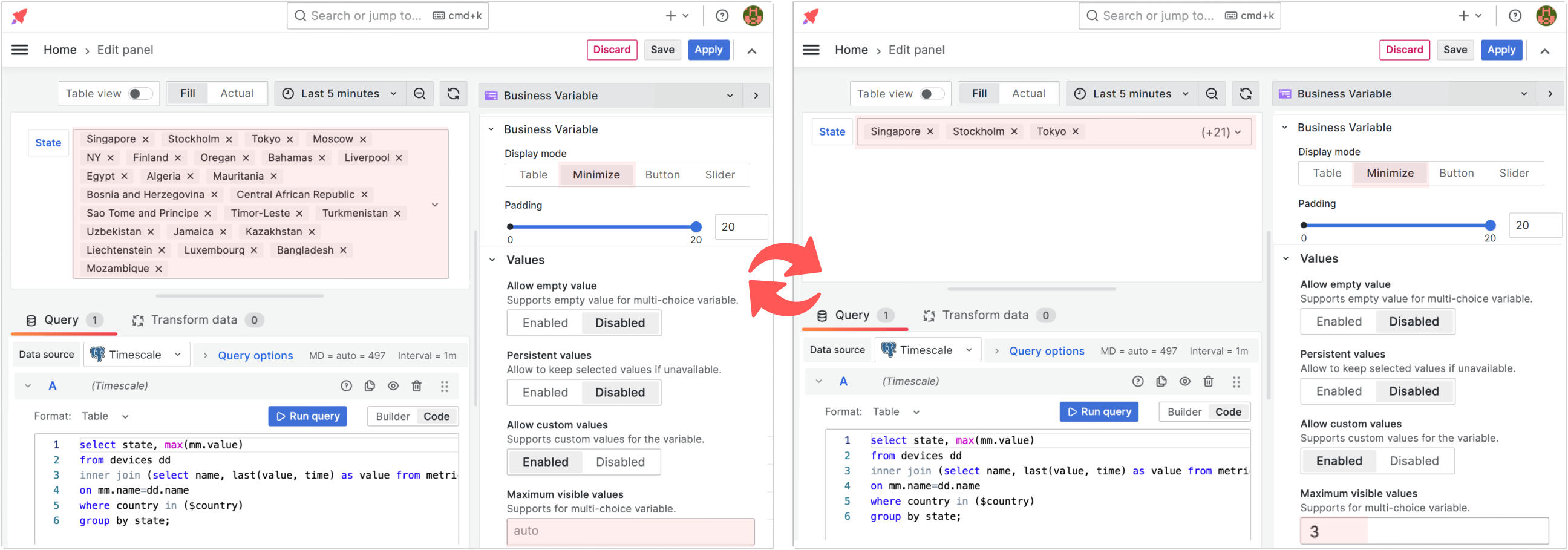
This parameter helps when users select several options in the variable panel. In the following example (left screenshot), the variable panel takes up too much screen space and distorts the dashboard layout.
You can set the maximum number of visible on-screen options to prevent this issue.
In the right screenshot, the Maximum visible values parameter is set to 3. The Business Variable panel displays as one line—closer to what you expect from the Minimize mode. Three options remain visible: Singapore, Stockholm, and Tokyo. The remaining options are collected into (+21).