































Get started with the knowledge graph
The knowledge graph works with data you’re already sending to Grafana Cloud. If you’re using Kubernetes Monitoring or Application Observability, you can activate the knowledge graph in just a few clicks with no additional instrumentation required.
Before you begin
To activate the knowledge graph, you need:
- Grafana Cloud Admin permissions to enable new features
- One of the following already sending data to Grafana Cloud:
- Kubernetes Monitoring - For infrastructure and containerized applications
- Application Observability - For services instrumented with OpenTelemetry or other APM tools
If you’re not sure whether you have these set up, you can check during the activation process. The knowledge graph shows you what’s available.
Activate the knowledge graph
The activation process uses default settings to get you started quickly. You can customize later if needed.
In Grafana Cloud, navigate to Observability in the left navigation.
Click Entity catalog.
If the knowledge graph isn’t enabled yet, you’ll see a friendly message with a Get started button.
Click Get started.
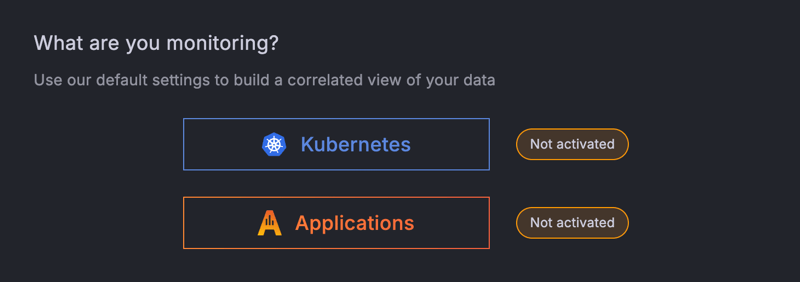
On the activation page, choose what you want to monitor:
- Kubernetes - Monitors clusters, nodes, pods, and containerized services
- Applications - Monitors services instrumented with OpenTelemetry or other APM frameworks
- Both - Monitor infrastructure and applications together
![Knowledge graph activation page]()
If you didn’t select both Kubernetes and Applications, click Build knowledge graph. Otherwise, the knowledge graph automatically builds.
![Knowledge graph activate products page]()
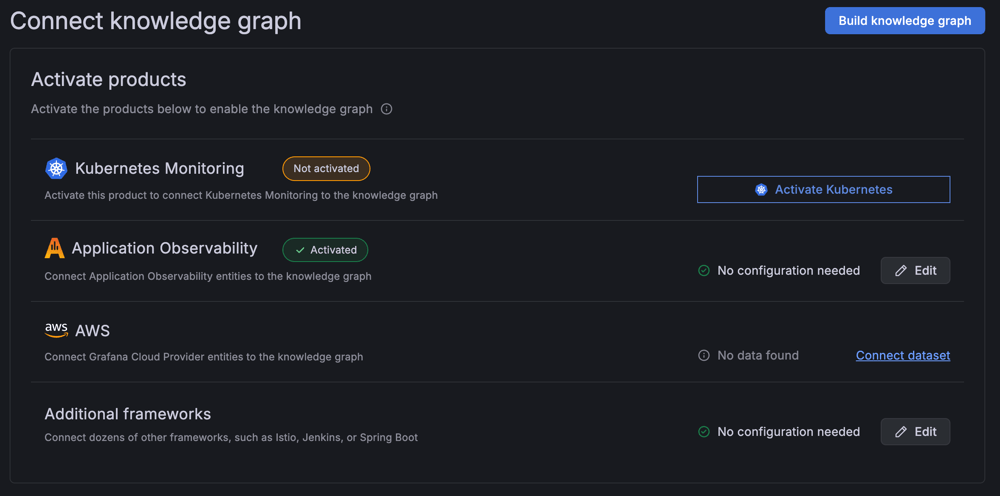
The knowledge graph immediately begins discovering entities from your telemetry data. Entity discovery typically starts within minutes, with full graph population depending on your environment size.
What happens next
After activation:
- Entity discovery - The knowledge graph automatically finds services, pods, nodes, databases, and other components in your environment
- Insight generation - Continuous analysis begins, surfacing issues like saturation, errors, and anomalies
- Dashboard availability - Pre-built dashboards become available for each entity
- Navigation enabled - Entity catalog, RCA workbench, and entity graph are accessible from the Observability menu
You don’t need to wait for the full graph to populate before using it. Start exploring the entity catalog as soon as you see entities appearing.
Next steps
Now that the knowledge graph is active, here’s what to do:
- Explore the entity catalog - Navigate to Observability > Entity catalog to see your discovered entities and their health status
- Bookmark important views - Filter the catalog to your services or environment, then bookmark for quick access
- Try investigating an entity - Click on any service to see its metrics, logs, and traces in one place
- Learn the workflows - Refer to Use the knowledge graph to troubleshoot for common troubleshooting scenarios
If you’re not seeing entities
If you activated the knowledge graph but don’t see entities appearing after a few minutes:
- Verify that Kubernetes Monitoring or Application Observability is sending data to Grafana Cloud
- Check that your services have the required labels (for example,
service.name,service.namespacefor OpenTelemetry) - Review the troubleshooting guide for specific signal requirements
Customize your configuration
The default activation works for most environments. If you need to customize which data sources the knowledge graph uses, you can manage dataset configuration to:
- Add additional monitoring products (AWS, Istio, Jenkins)
- Configure custom entities
- Adjust data source priorities
Understand your first insights
After entities are discovered, the knowledge graph begins generating insights. Here’s what to expect:
- Red indicators in the entity catalog mean an entity has critical insights firing
- Insight rings show a visual health summary directly on each entity
- Categories (Saturation, Amend, Anomaly, Failure, Error) help you understand the type of issue
Don’t be alarmed if you see insights right away. This is the knowledge graph highlighting issues that may have existed before but were harder to spot. You can investigate each one to understand its root cause.
Deactivate the knowledge graph
You can deactivate the knowledge graph if you need to temporarily disable it for maintenance, cost optimization, or if you no longer want to use it.
Warning
Deactivating the knowledge graph stops data collection and insight generation. Pre-built dashboards and knowledge graph-specific alert rules are removed.
What to know before deactivating
Before you deactivate:
- You’ll need Grafana Cloud Admin permissions
- Pre-built dashboards and alert rules are deleted
- Entity catalog and RCA workbench become unavailable
- Drill-down links from Application Observability and Kubernetes Monitoring to the knowledge graph stop working
- Historical data remains in your metrics storage according to your retention policy
- Cost implications The knowledge graph extends Application Observability and Kubernetes Monitoring pricing. Deactivating the knowledge graph alone has minimal cost impact unless the base products are also deactivated.
Deactivation steps
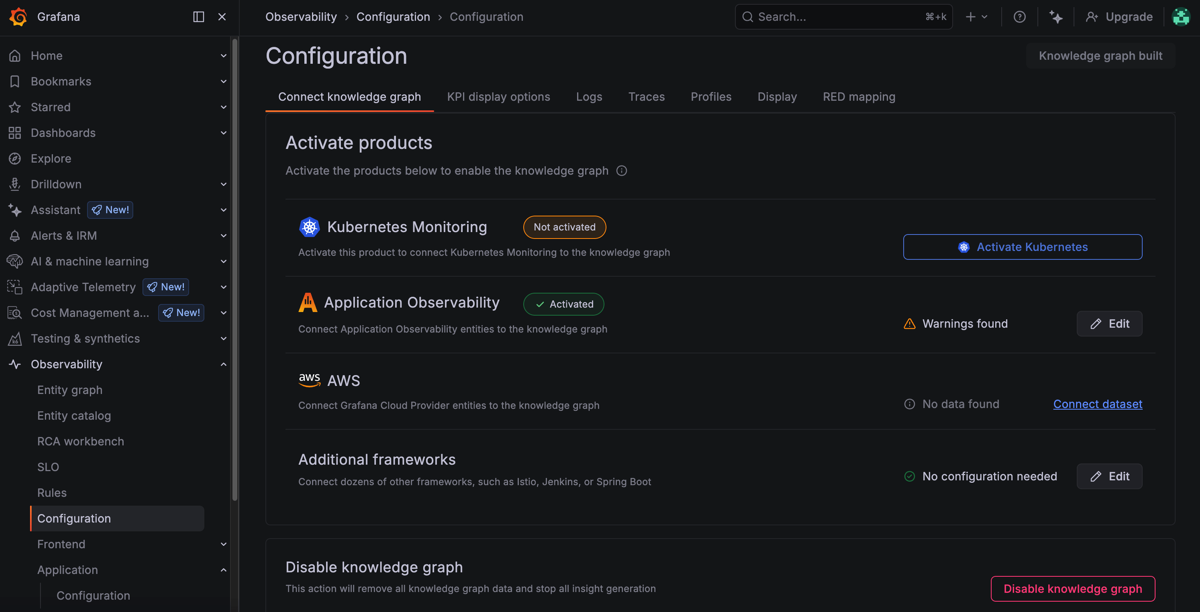
Navigate to Observability > Configuration > Connect knowledge graph.
Scroll to the Disable knowledge graph section at the bottom.
![Knowledge graph Connect knowledge graph page]()
Click Disable knowledge graph.
Review what happens when you deactivate.
Type “disable” to confirm.
Click I understand, disable knowledge graph.
Re-activate later
To re-activate the knowledge graph after deactivation, return to Observability > Entity catalog and follow the same activation steps. The knowledge graph begins processing data again and rebuilding the entity catalog.




