































MySQL query editor
Grafana’s query editors are unique for each data source. For general information on Grafana query editors, refer to Query editors. For general information on querying data sources in Grafana, refer to Query and transform data.
The MySQL query editor is located on the Explore page. You can also access the MySQL query editor from a dashboard panel. Click the ellipsis in the upper right of the panel and select Edit.
Note
If a default database is configured in the Data Source Configuration page, or via a provisioning configuration file, users will be restricted to querying only that pre-configured database.
MySQL query editor components
The MySQL query editor has two modes: Builder and Code.
Builder mode helps you build a query using a visual interface. Code mode allows for advanced querying and offers support for complex SQL query writing.
Note
If your table or database name contains a reserved word or a prohibited character the editor will put quotes around the name. For example, the name
table-namewill be quoted with backticks -`table-name`.
MySQL Builder mode
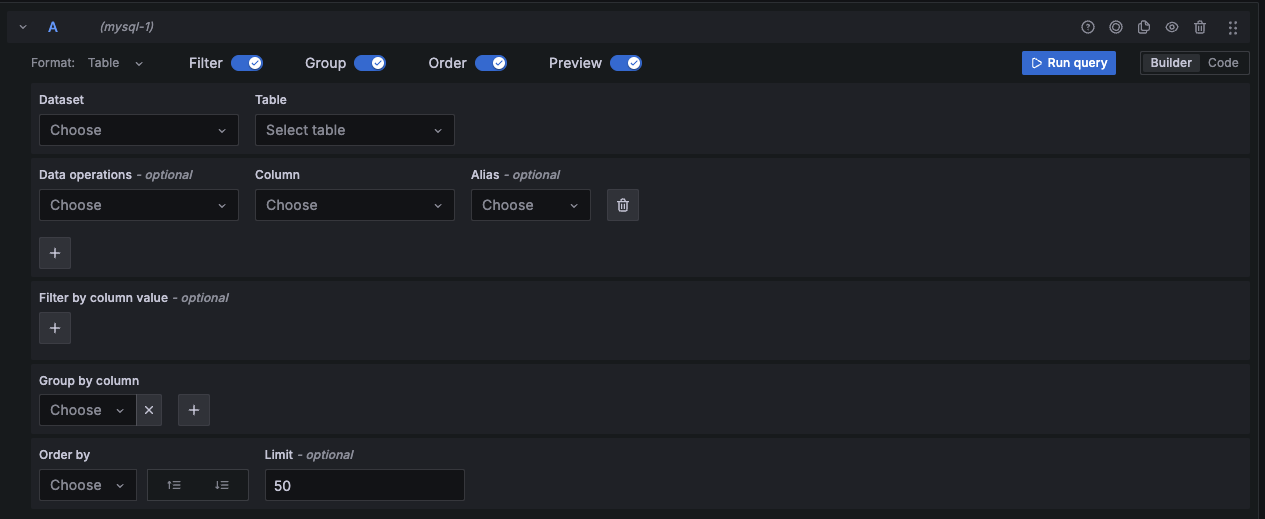
The following components will help you build a MySQL query:
Format - Select a format response from the drop-down for the MySQL query. The default is Table. If you use the Time series format option, one of the columns must be
time.Dataset - Select a database to query from the drop-down.
Table - Select a table from the drop-down. Tables correspond to the chosen database.
Data operations - Optional Select an aggregation from the drop-down. You can add multiple data operations by clicking the + sign. Click the X to remove a data operation. Click the garbage can icon to remove the entire column.
Column - Select a column on which to run the aggregation.
Alias - Optional Add an alias from the drop-down. You can also add your own alias by typing it in the box and clicking Enter. Remove an alias by clicking the X.
Filter - Toggle to add filters.
- Filter by column value - Optional If you toggle Filter you can add a column to filter by from the drop-down. To filter on more columns, click the + sign to the right of the condition drop-down. You can choose a variety of operators from the drop-down next to the condition. When multiple filters are added you can add an
ANDoperator to display all true conditions or anORoperator to display any true conditions. Use the second drop-down to choose a filter. To remove a filter, click theXbutton next to that filter’s drop-down. After selecting a date type column, you can choose Macros from the operators list and selecttimeFilterwhich will add the$\_\_timeFiltermacro to the query with the selected date column.
- Filter by column value - Optional If you toggle Filter you can add a column to filter by from the drop-down. To filter on more columns, click the + sign to the right of the condition drop-down. You can choose a variety of operators from the drop-down next to the condition. When multiple filters are added you can add an
Group - Toggle to add Group by column.
- Group by column - Select a column to filter by from the drop-down. Click the + sign to filter by multiple columns. Click the X to remove a filter.
Order - Toggle to add an ORDER BY statement.
- Order by - Select a column to order by from the drop-down. Select ascending (
ASC) or descending (DESC) order. - Limit - You can add an optional limit on the number of retrieved results. Default is 50.
- Order by - Select a column to order by from the drop-down. Select ascending (
Preview - Toggle for a preview of the SQL query generated by the query builder. Preview is toggled on by default.
MySQL Code mode
To create advanced queries, switch to Code mode by clicking Code in the upper right of the editor window. Code mode supports the auto-completion of tables, columns, SQL keywords, standard SQL functions, Grafana template variables, and Grafana macros. Columns cannot be completed before a table has been specified.
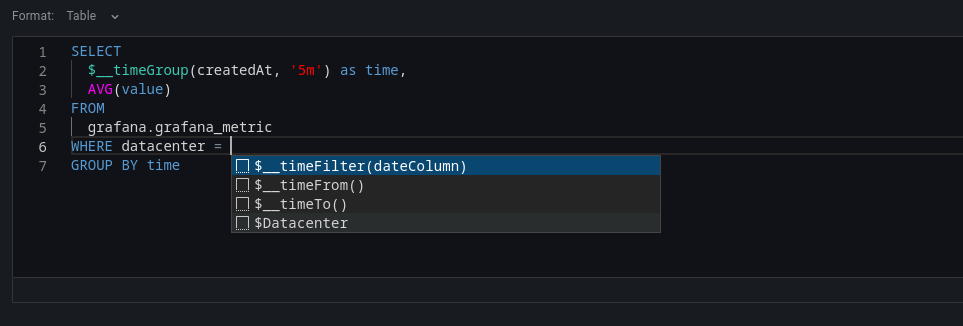
Select Table or Time Series as the format. Click the {} in the bottom right to format the query. Click the downward caret to expand the Code mode editor. CTRL/CMD + Return serves as a keyboard shortcut to execute the query.
Warning
Changes made to a query in Code mode will not transfer to Builder mode and will be discarded. You will be prompted to copy your code to the clipboard to save any changes.
Macros
You can add macros to your queries to simplify the syntax and enable dynamic elements, such as date range filters.
Table SQL queries
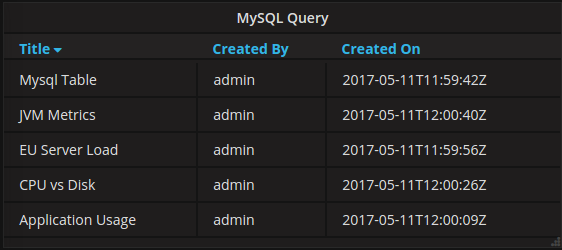
If the Format option is set to Table, you can execute virtually any type of SQL query. The Table panel will automatically display the resulting columns and rows from your query.
You can change or customize the name of a Table panel column by using the SQL keyword AS syntax.
SELECT
  title as 'Title',
  user.login as 'Created By' ,
  dashboard.created as 'Created On'
 FROM dashboard
INNER JOIN user on user.id = dashboard.created_by
WHERE $__timeFilter(dashboard.created)
Table panel results:
Time series queries
Set the Format option to Time series to create and run time series queries.
Note
To run a time series query you must include a column named
timethat returns either a SQL datetime value or a numeric datatype representing the UNIX epoch time in seconds. Additionally, the query results must be sorted by thetimecolumn for proper visualization in panels.
The examples in this section refer to the data in the following table:
+---------------------+--------------+---------------------+----------+
| time_date_time      | value_double | CreatedAt           | hostname |
+---------------------+--------------+---------------------+----------+
| 2025-01-02 03:05:00 | 3.0          | 2025-01-02 03:05:00 | 10.0.1.1 |
| 2025-01-02 03:06:00 | 4.0          | 2025-01-02 03:06:00 | 10.0.1.2 |
| 2025-01-02 03:10:00 | 6.0          | 2025-01-02 03:10:00 | 10.0.1.1 |
| 2025-01-02 03:11:00 | 7.0          | 2025-01-02 03:11:00 | 10.0.1.2 |
| 2025-01-02 03:20:00 | 5.0          | 2025-01-02 03:20:00 | 10.0.1.2 |
+---------------------+--------------+---------------------+----------+
Note
For backward compatibility, an exception to the aforementioned rule applies to queries returning three columns, including a string column named
metric. Instead of converting the metric column into field labels, it is used as the field name, and the series name is set to the value of the metric column. Refer to the following example with a metric column.
Example with $__time(dateColumn) Macro:
SELECT
  $__time(time_date_time),
  value_double
FROM my_data
ORDER BY time_date_time
Table panel result:

In the following example, the result includes two columns, Time and value_double, which represent the data associated with fixed timestamps. This query does not apply a time range filter and returns all rows from the table.
Example with $__timeFilter(dateColumn) Macro:
SELECT
  $__time(time_date_time),
  value_double
FROM my_data
WHERE $__timeFilter(time_date_time)
ORDER BY time_date_time
Table panel result:
This example returns the same result as the previous one, but adds support for filtering data using the Grafana time picker.
Example with $__timeGroup(dateColumn,'5m') Macro:
SELECT
  $__timeGroup(time_date_time, '5m') AS time,
  sum(value_double) AS sum_value
FROM my_data
WHERE $__timeFilter(time_date_time)
GROUP BY time
ORDER BY time
Table panel result:

Given the result in the following example, the data is grouped and aggregated within buckets with timestamps of fixed interval i.e. 5 mins. To customize the default series name formatting (optional), refer to Standard options definitions.
Example with $__timeGroupAlias(dateColumn,'5m') Macro:
SELECT
  $__timeGroupAlias(time_date_time,'5m'),
  min(value_double),
  'min' as metric
FROM my_data
WHERE $__timeFilter(time_date_time)
GROUP BY time
ORDER BY time
Table panel result:

The following result is similar to the result of the $__timeGroup(dateColumn,'5m') macro, except it uses a built-in alias for the time column.
To customize the default series name formatting (optional), refer to Standard options definitions.
Example with $__timeGroupAlias Macro to convert null values to zero instead:
SELECT
  $__timeGroupAlias(createdAt,'5m',0),
  sum(value_double) as value,
  hostname
FROM my_data
WHERE
  $__timeFilter(createdAt)
GROUP BY time, hostname
ORDER BY time
Table panel result:

Given the result in the following example, null values within bucket timestamps are replaced by zero and also add the Time column alias by default. To customize the default series name formatting (optional), refer to Standard options definitions to display the value of ${__field.labels.hostname}.
Example with multiple columns for $__timeGroupAlias(dateColumn,'5m') Macro:
SELECT
  $__timeGroupAlias(time_date_time,'5m'),
  min(value_double) as min_value,
  max(value_double) as max_value
FROM my_data
WHERE $__timeFilter(time_date_time)
GROUP BY time
ORDER BY time
Table panel result:

The query returns multiple columns representing minimum and maximum values within the defined range.
Template variables
Instead of hard-coding values like server, application, or sensor names in your metric queries, you can use variables. Variables appear as drop-down select boxes at the top of the dashboard, making it easy to change the data displayed in your dashboard.
For detailed information on using template variables with MySQL, refer to MySQL template variables.
Annotations
Annotations allow you to overlay event information on your graphs, helping you correlate events with metrics. You can write SQL queries that return event data to display as annotations on your dashboards.
For detailed information on creating annotations with MySQL, refer to MySQL annotations.
Alerting
You can use time series queries to create Grafana-managed alert rules. Table formatted queries are not supported in alert rule conditions.
For detailed information on creating alerts with MySQL, refer to MySQL alerting.




