

Form elements
The Business Forms plugin provides a wide variety of element types to meet almost any web application requirement.
Note
All form elements (starting from version 4.9.0, including sections) can be created dynamically. For more info, please refer to the Dynamic Forms page of the Business Forms panel documentation.
Layout
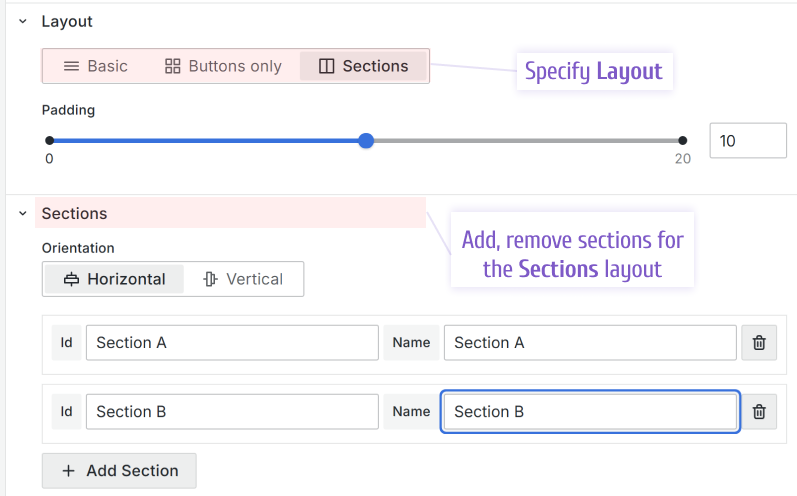
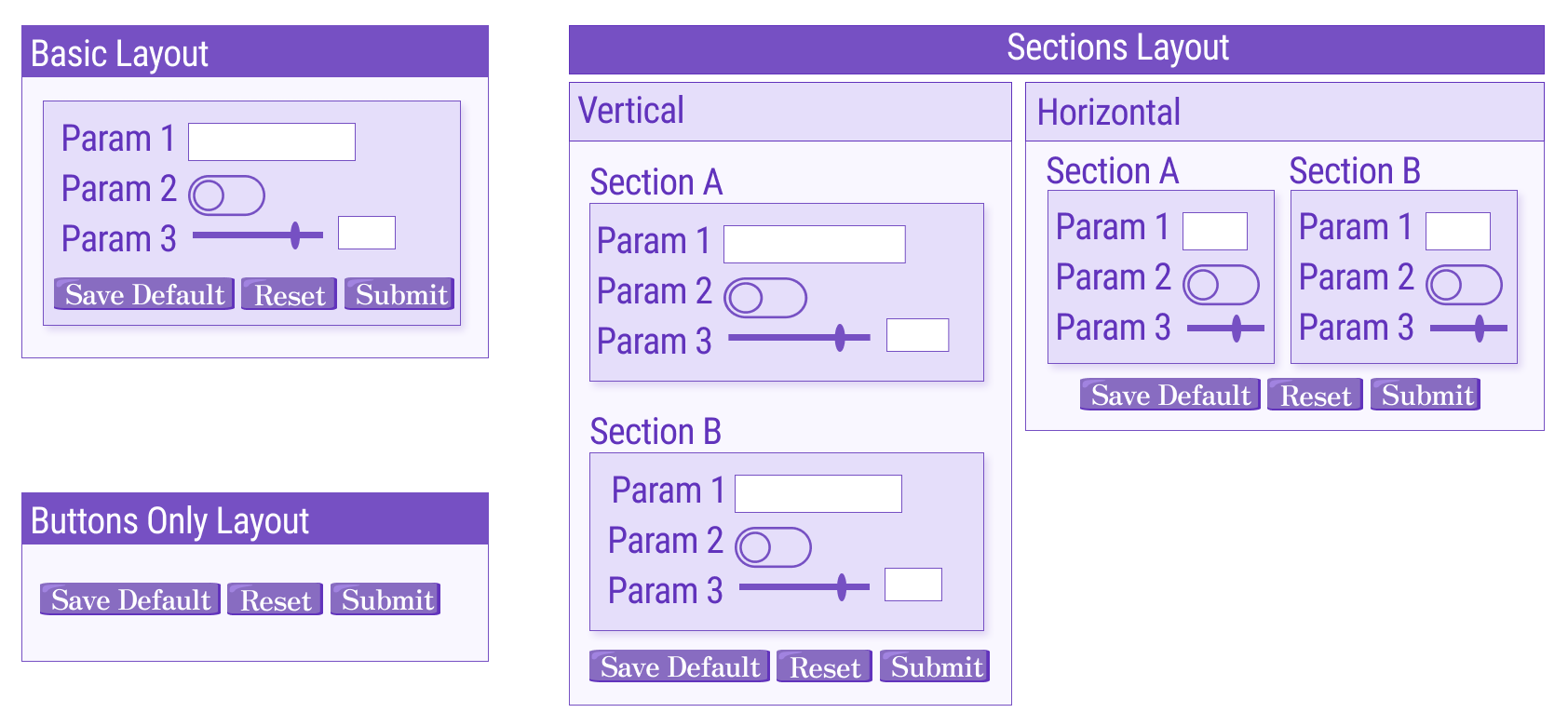
You can choose from three layouts: Basic, Buttons Only, and Sections. To switch between them, open the Layout category.
Basic
In the Basic layout, all form elements are positioned vertically, one following another.
Sections
With the Sections layout, you can create as many sections as needed and place sections either vertically or horizontally using the Orientation option.
When you select the Sections layout, controls for creating sections appear. For each section, you can specify an ID for later reference and a name that displays as the section label.
Note
The Collapsable parameter has been supported starting from version 4.0.0.
Sections can be collapsible. This functionality is available only for sections in the Vertical orientation. You can set any section to Expanded when the form opens or refreshes.
You can also control the Expanded and Collapsed states in Custom code by using the following commands:
context.panel.expandSection(id);
context.panel.collapseSection(id);
Note
The full list of the Business Form panel parameters can be found in the Custom Code section of the panel’s documentation.
Buttons Only
The Buttons Only layout displays only standard buttons on your form. The standard buttons include Submit, Reset, and Save default. This layout hides all panel options related to other form elements, which provides a cleaner edit mode.
Add a form element
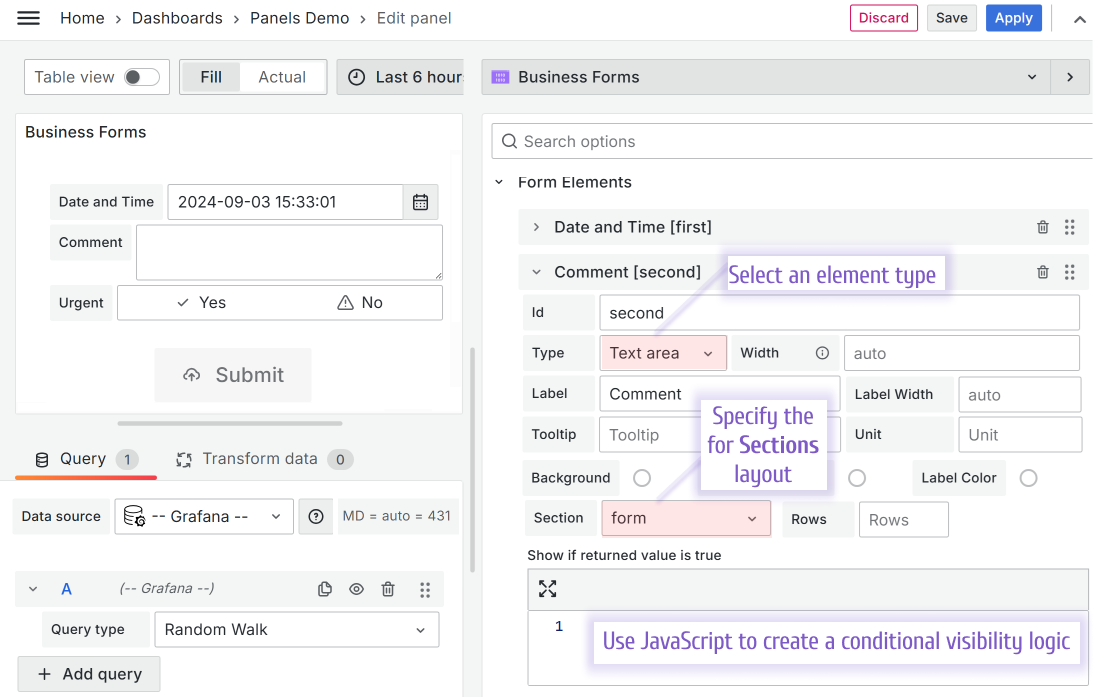
To add a form element, go to the Form Elements category. Specify the element ID, label, and type. After you click Add Element, you can configure additional element options.
Element types have specific options. For example, the Text area type includes a Rows option that controls the element size on the dashboard.
Move a form element
Note
Supported starting from the version 3.0.0.
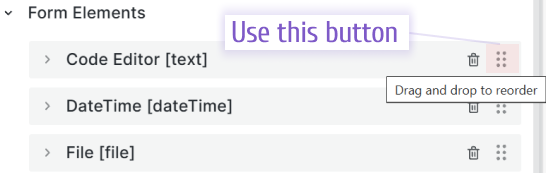
You can drag-and-drop form elements in the edit mode to change their order on the form.
Form element types
The following image shows all available element types before version 4.4.0:
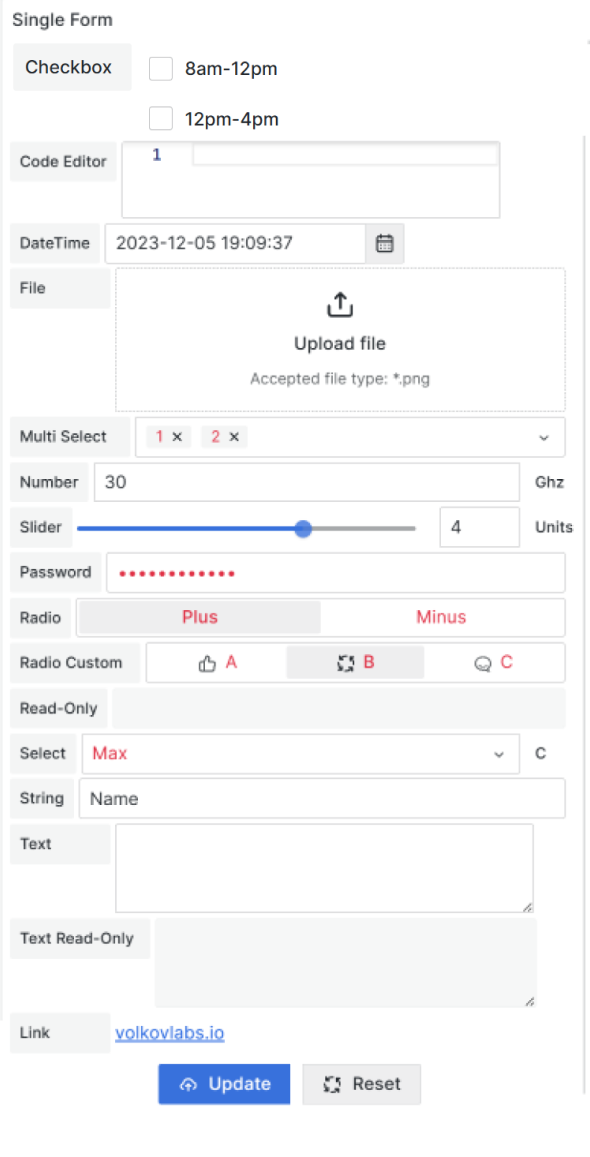
Custom buttonCheckbox List with custom optionsCode EditorColor PickerDateDate and TimeFileLinkMulti-select with custom optionsNumber InputNumber SliderPassword InputRadio Group with boolean optionsRadio Group with custom optionsRead-onlyRead-only Text AreaString InputSelect with Custom optionsText AreaTime
Common configuration
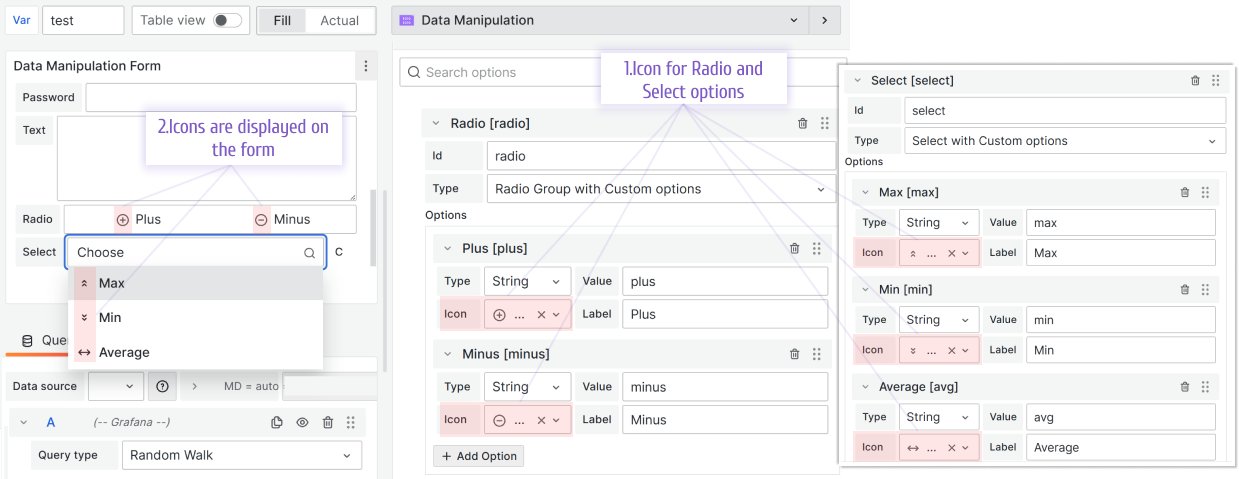
There are three form elements with select options.
- Multi Select with Custom Options
- Select with Custom Options
- Radio Group with Custom Options
All three have some options in common.
Icon
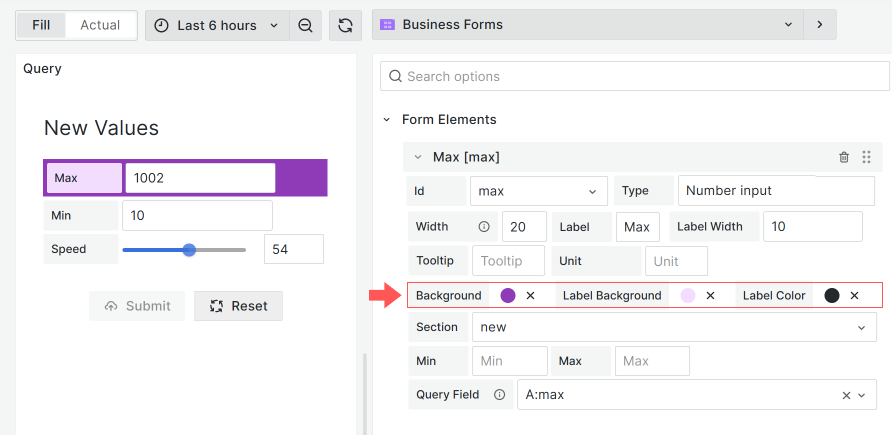
Custom color and background color for elements
Note
Element colors are supported starting from version 4.0.0.
You can customize the following Form Elements colors:
- Background color
- Label background
- Label color
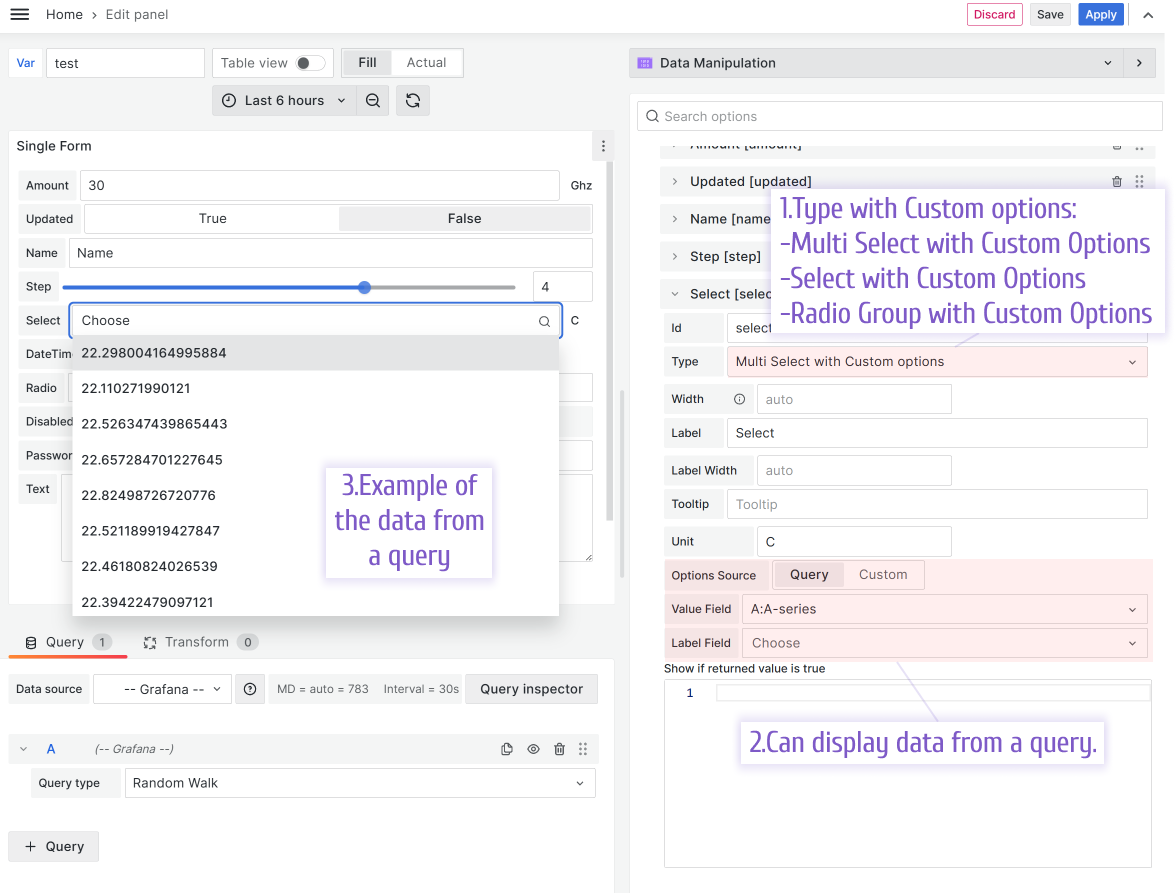
Select options from a query
Note
This feature is supported starting from version 3.2.1.
You can reference a query from any configured data source to populate form elements dynamically. Specify the Label and Value fields.
Select options from GET Options code
Note
This feature is supported starting from version 3.5.0.
Get Options Code lets you hard code options using the code editor. The code must:
- Return an array with
{label,value}objects. - Be synchronous.
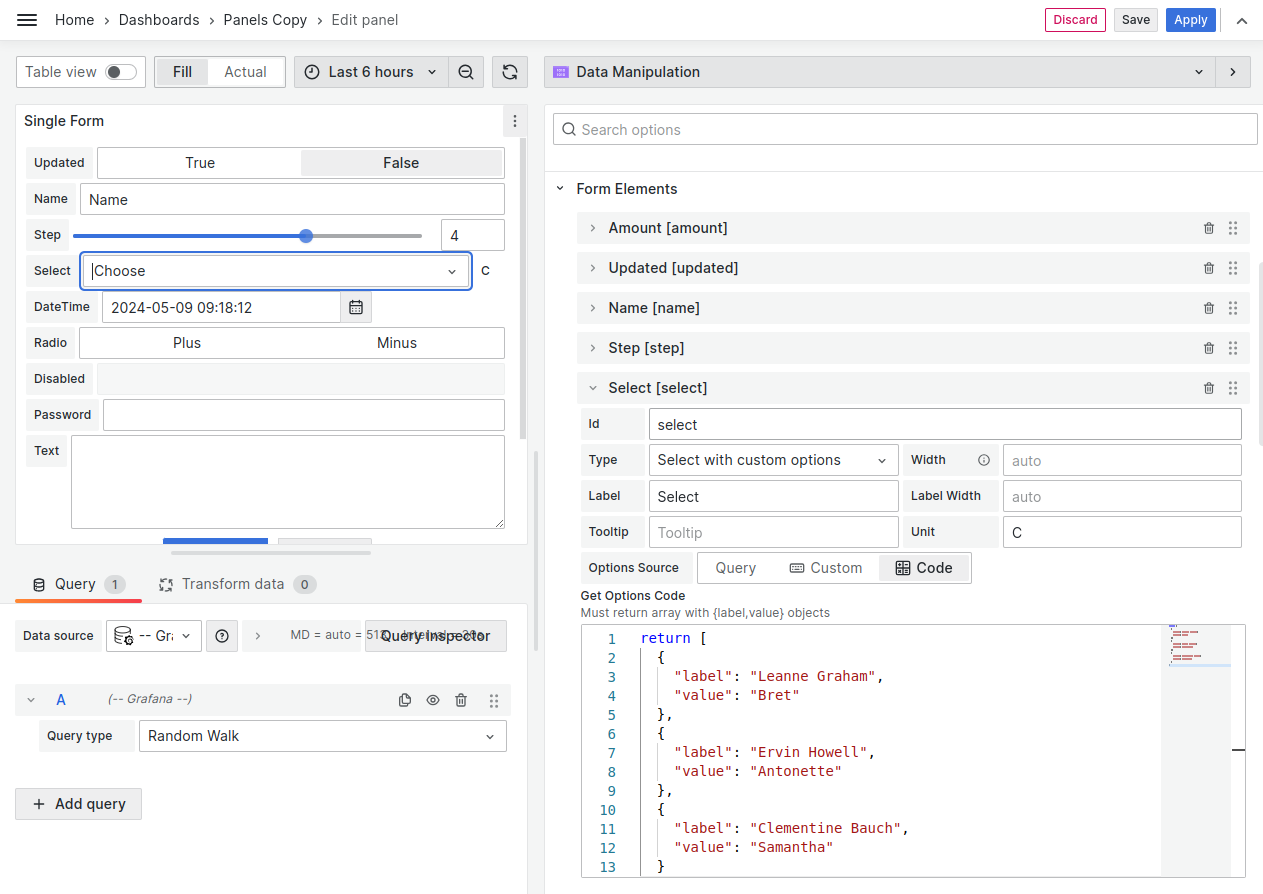
Set options received asynchronously
Get Options Code doesn’t support asynchronous code. However, you can still work with options received asynchronously.
Complete the following steps:
Step 1: Initial request
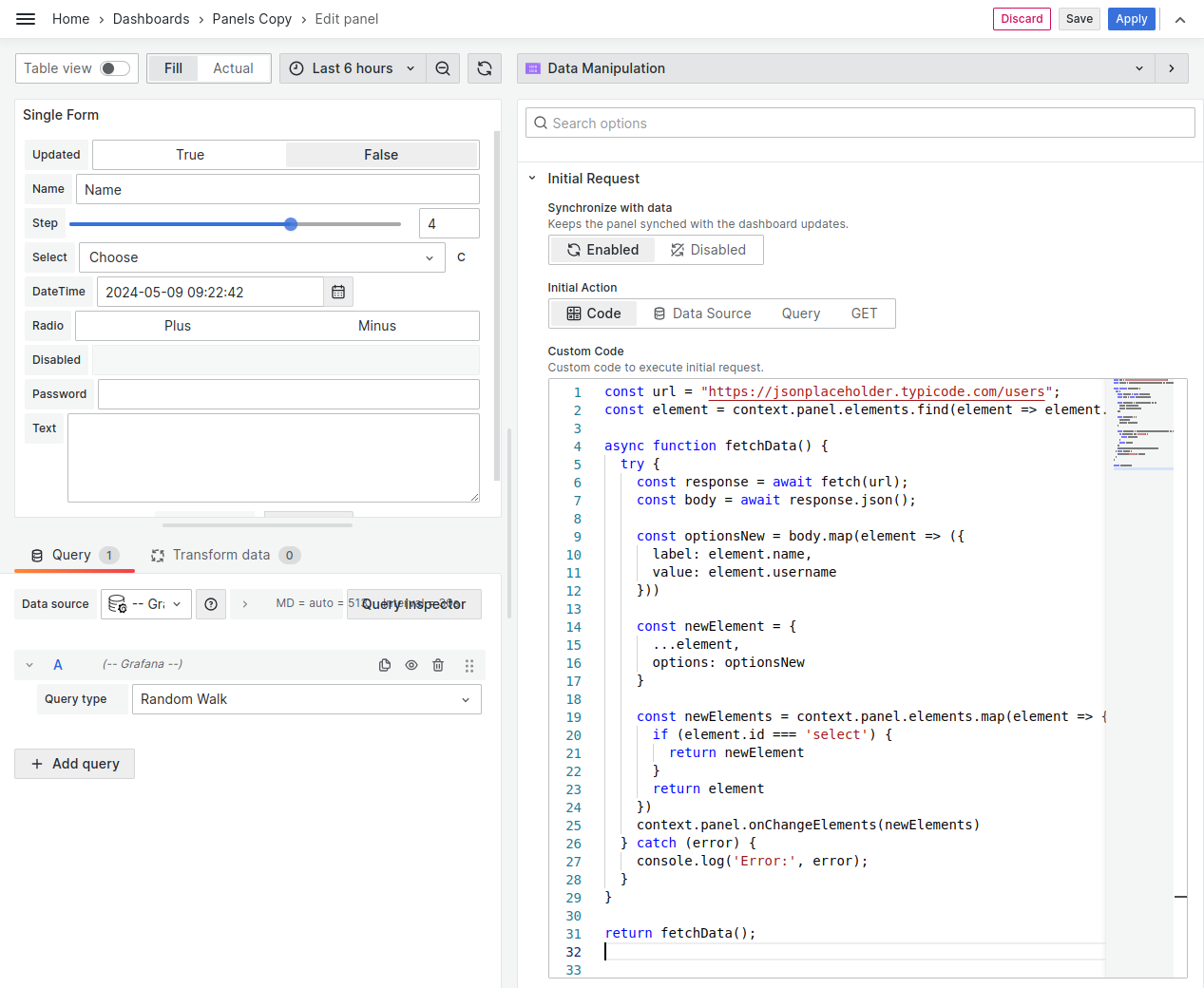
In the following example, the code finds the required element and updates its options. After the data is received, the element is updated using context.panel.onChangeElements().
const url = "https://jsonplaceholder.typicode.com/users";
const element = context.panel.elements.find(
  (element) => element.id === "select"
);

async function fetchData() {
  try {
    const response = await fetch(url);
    const body = await response.json();

    const optionsNew = body.map((element) => ({
      label: element.name,
      value: element.username,
    }));

    const newElement = {
      ...element,
      options: optionsNew,
    };
    const newElements = context.panel.elements.map((element) => {
      if (element.id === "select") {
        return newElement;
      }
      return element;
    });
    context.panel.onChangeElements(newElements);
  } catch (error) {
    console.log("Error:", error);
  }
}

return fetchData();
Step 2. Create the GET Options code
Set options for your element from context.panel.elements.
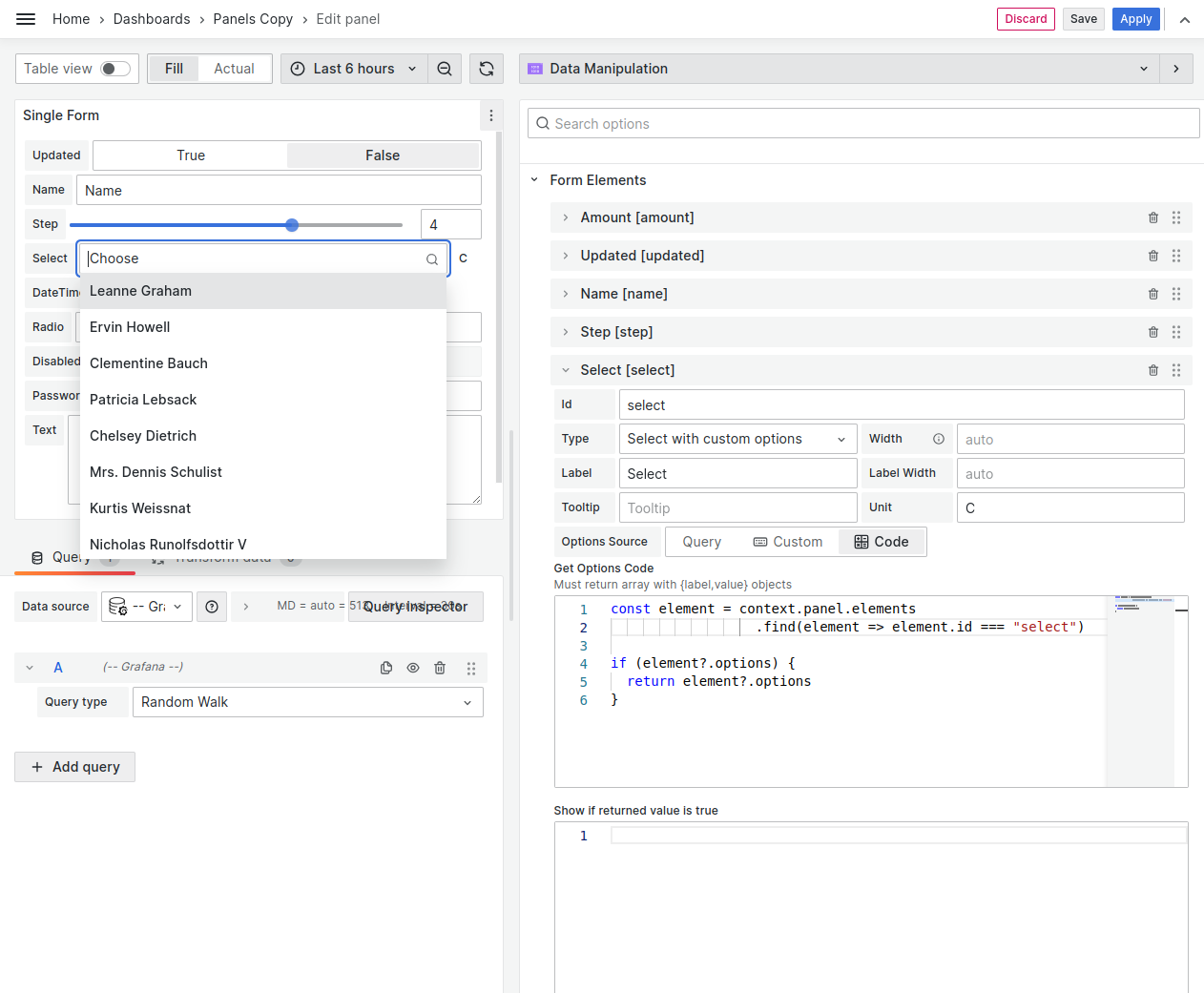
const element = context.panel.elements.find(
  (element) => element.id === "select"
);

if (element?.options) {
  return element?.options;
}
Custom Values
Note
Available starting from version 4.9.0.
If enabled, users can enter custom values in the Select and Multi select form element types.
Conditional visibility
Every form element has a Show If returned value is true parameter where you can enter JavaScript code.
- If this code returns
true, the element is shown on the panel. - If this code returns
false, the element is hidden from the panel.
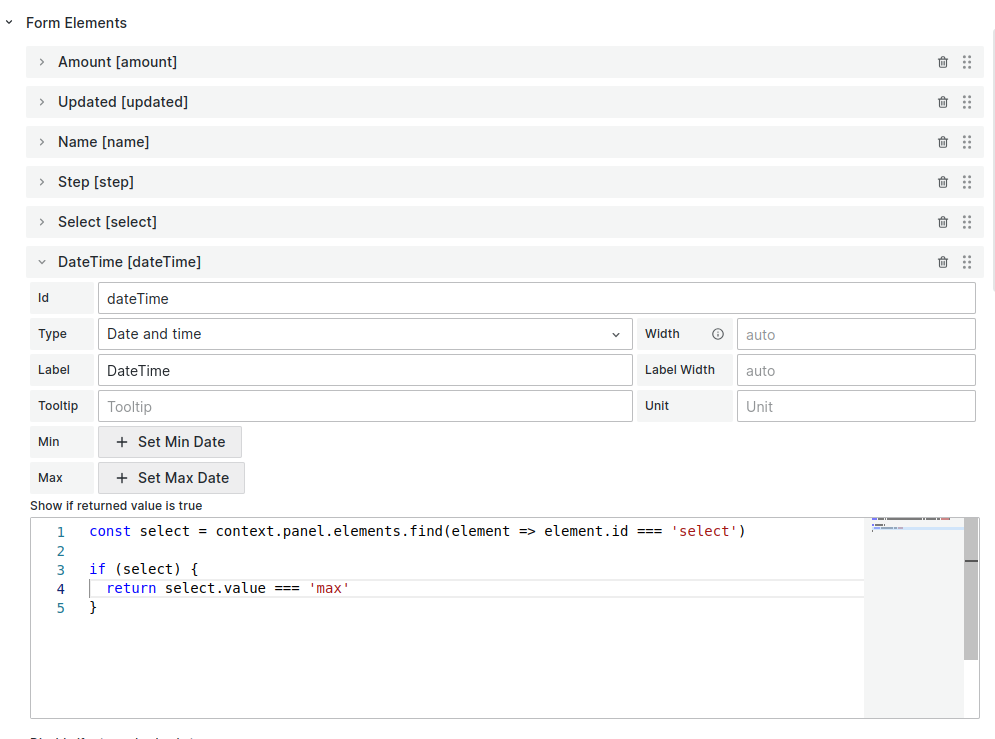
Example code to check the current value of the select element and show the dateTime element if the value equal to max:
const select = context.panel.elements.find(
  (element) => element.id === "select"
);

if (select) {
  return select.value === "max";
}
Note
Below is supported starting from the version 3.2.1.
You can use dashboard and global variables in your JavaScript code.
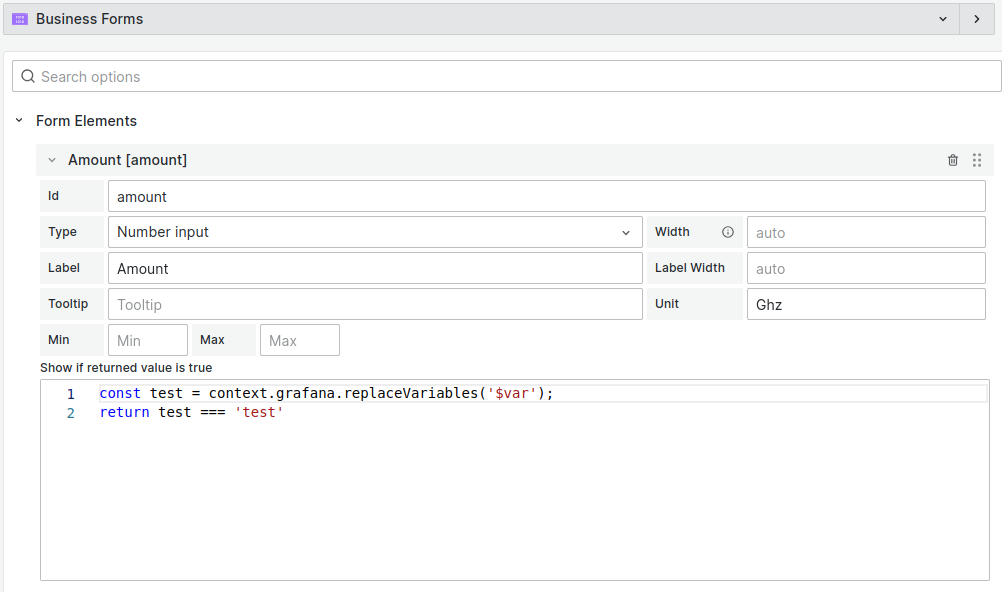
Example code to check the value of the dashboard variable var:
const test = context.grafana.replaceVariables("$var");
return test === "test";
Field mapping
Note
This feature is supported starting from version 4.4.0.
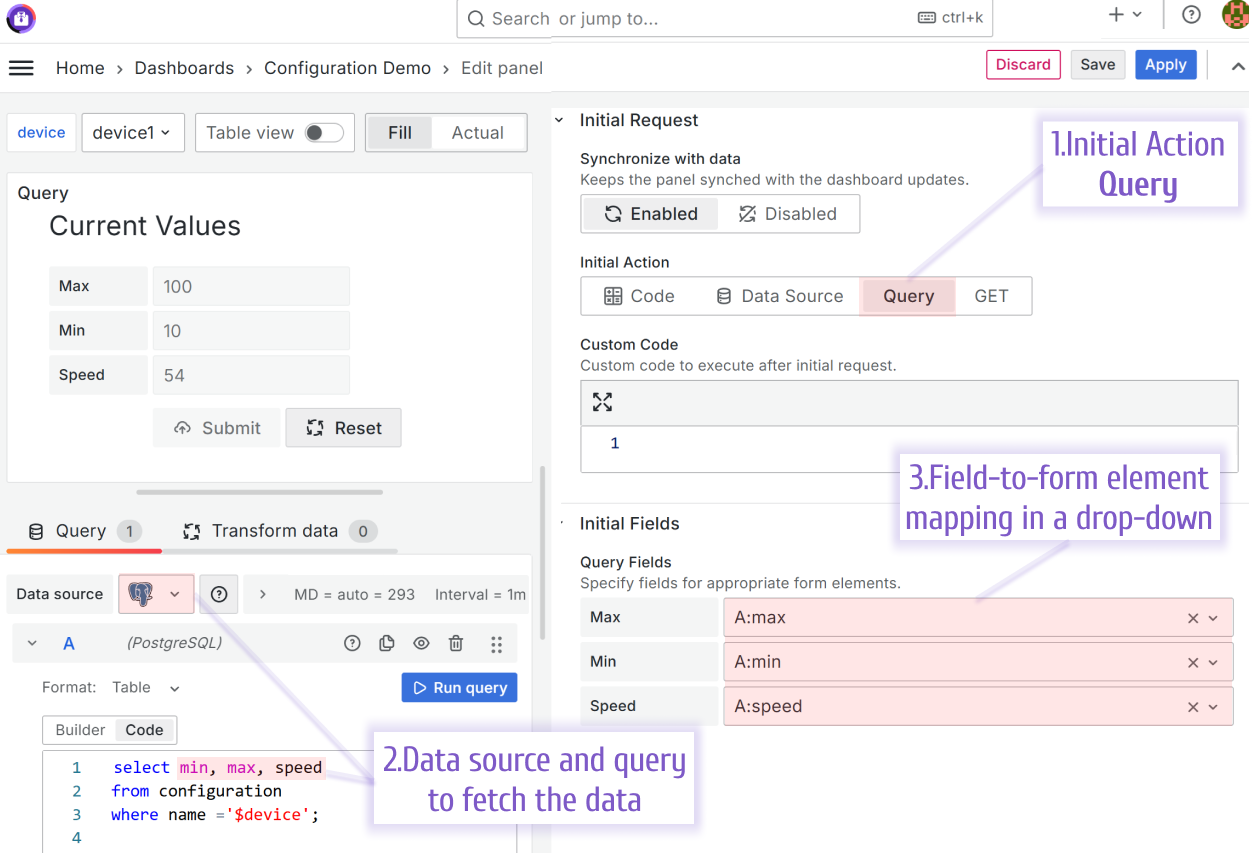
To map initial form element values, use the Initial Fields options category.
Data source 4.4.0
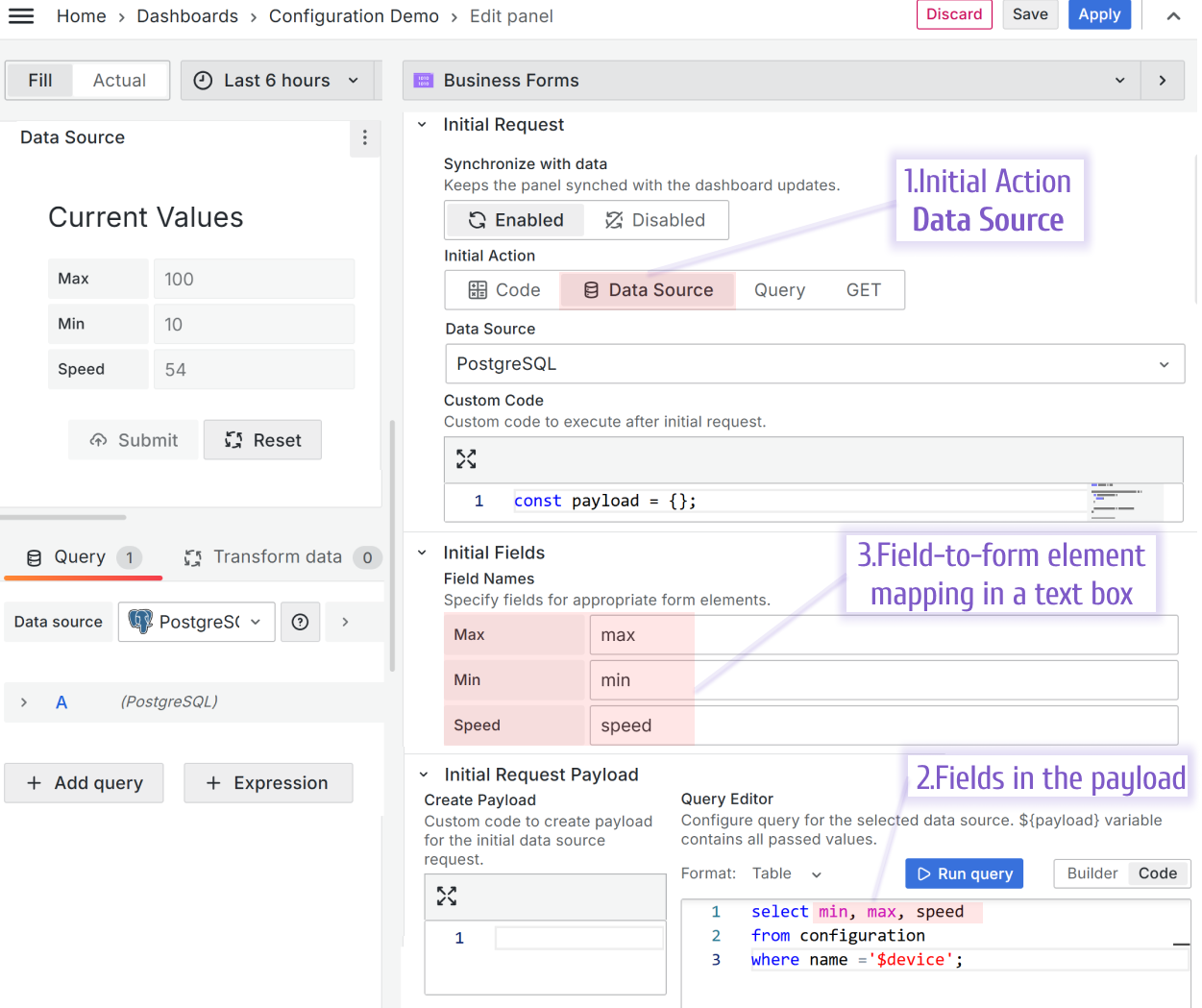
Query 4.4.0
Note
This feature is supported in versions 3.2.1 through 4.0.0.
You can specify field-to-form mapping using the Field name parameter for Data Source or the Query Field parameter for Query.
Data Source
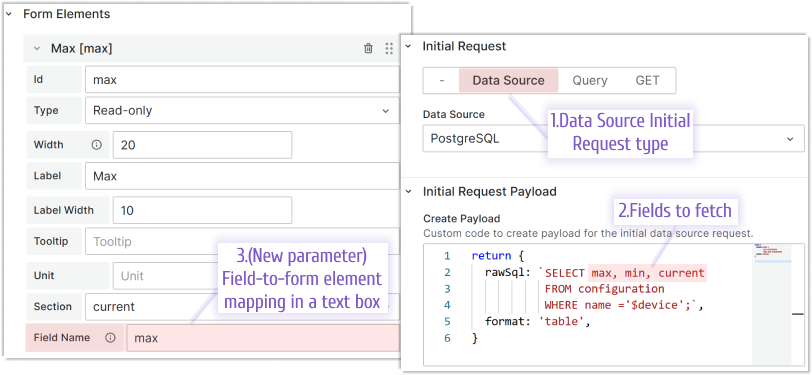
The Field Name option for each Form Element is located under the code editor when the data source option is enabled. Specify a field name for appropriate form element from the data source response.
Query
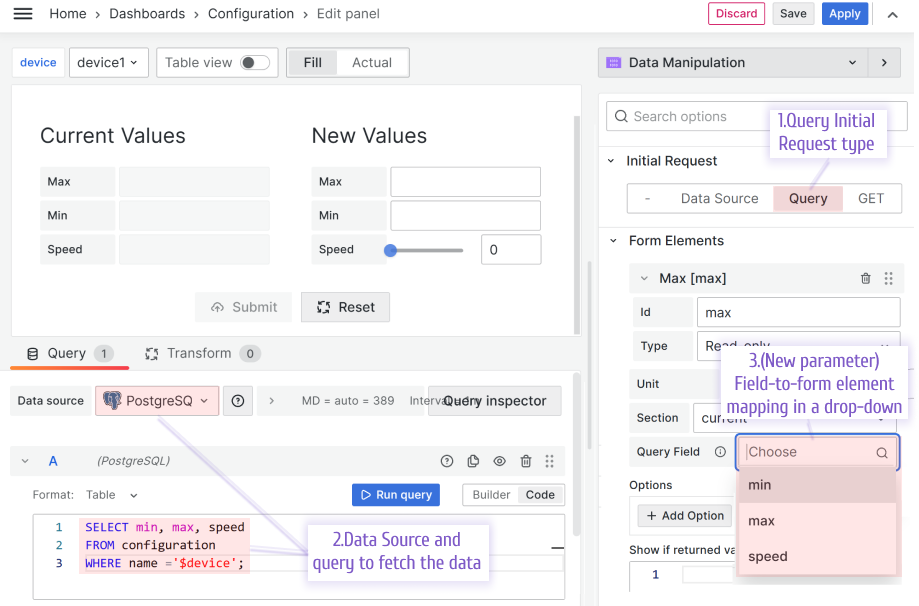
The Query Field option for each Form Element is located under the code editor when the Query option is enabled. Specify a field name for appropriate form element from the Query response.


