

Dynamic forms
You can use custom code to update form elements, values, and options from any data source.
Select options
The following example defines options for the icon element from the icons series using the icon_id and title columns:
const icons = context.panel.data.series.find(
  (serie) => serie.refId === "icons"
);
const iconSelect = context.panel.elements.find(
  (element) => element.id === "icon"
);

if (icons?.fields.length) {
  const ids =
    icons.fields.find((f) => f.name === "icon_id").values.buffer ||
    icons.fields.find((f) => f.name === "icon_id").values;
  const titles =
    icons.fields.find((f) => f.name === "title").values.buffer ||
    icons.fields.find((f) => f.name === "title").values;

  iconSelect.options = titles.map((value, index) => {
    return { label: value, value: ids[index] };
  });
}

context.panel.onOptionsChange(options);
Update elements from data sources
Note
The
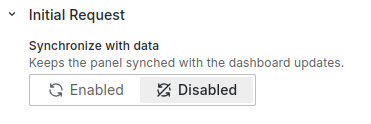
context.panel.onOptionsChange()handler refreshes the panel. If you use this handler in the initial request, disable the Synchronize with data option. Using both the Synchronize with data option andcontext.panel.onOptionsChange()in the initial request causes the panel to reload continuously.
const feedback = context.panel.data.series.find(
  (serie) => serie.refId === "Feedback"
);
const typeOptions = context.panel.data.series.find(
  (serie) => serie.refId === "Types"
);

if (feedback?.fields.length) {
  const ids =
    feedback.fields.find((f) => f.name === "id").values.buffer ||
    feedback.fields.find((f) => f.name === "id").values;
  const titles =
    feedback.fields.find((f) => f.name === "title").values.buffer ||
    feedback.fields.find((f) => f.name === "title").values;
  const types =
    feedback.fields.find((f) => f.name === "type").values.buffer ||
    feedback.fields.find((f) => f.name === "type").values;

  /**
   * Set Elements
   */
  const elements = ids.map((id, index) => {
    return { id, title: titles[index], type: types[index] };
  });

  /**
   * Find Type element
   */
  const typeSelect = elements.find((element) => element.id === "type");
  if (typeSelect && typeOptions?.fields.length) {
    const labels =
      typeOptions.fields.find((f) => f.name === "label").values.buffer ||
      typeOptions.fields.find((f) => f.name === "label").values;
    const values =
      typeOptions.fields.find((f) => f.name === "value").values.buffer ||
      typeOptions.fields.find((f) => f.name === "value").values;

    /**
     * Update Types
     */
    typeSelect.options = labels.map((label, index) => {
      return { label, value: values[index] };
    });
  }

  /**
   * Update Panel Options
   */
  context.panel.onOptionsChange({ ...context.panel.options, elements });
}
Dynamic Business Forms
You can create Business Forms dynamically by using code-specified configuration.
Sections
Note
Starting from version 4.9.0, you can create Sections dynamically.
In addition to simple forms, you can create sections dynamically.
In the following example, the data about required sections comes from the data source. The example uses the Business Input data source to create a basic data frame that contains section information, such as ID and name.
The Sections and Form Elements categories display as not configured.
In the Initial Request category, the Initial Action is set to Code.
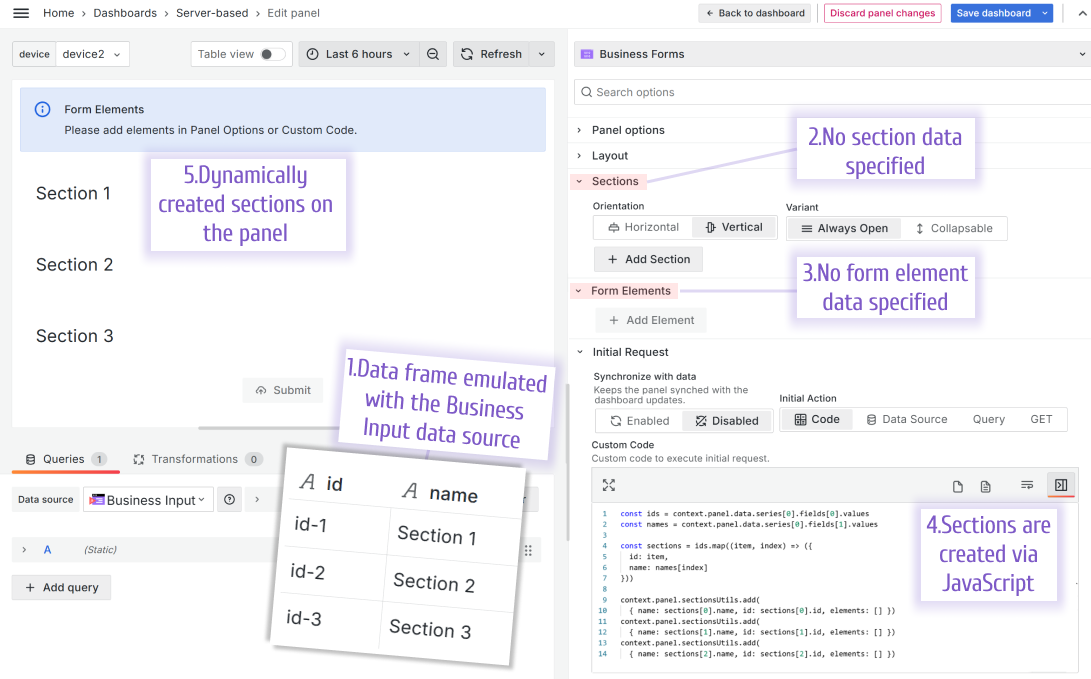
The JavaScript from the example above:
const ids = context.panel.data.series[0].fields[0].values
const names = context.panel.data.series[0].fields[1].values

const sections = ids.map((item, index) => ({
  id: item,
  name: names[index]
}))

context.panel.sectionsUtils.add({ name: sections[0].name, id: sections[0].id, elements: [] })
context.panel.sectionsUtils.add({ name: sections[1].name, id: sections[1].id, elements: [] })
context.panel.sectionsUtils.add({ name: sections[2].name, id: sections[2].id, elements: [] })
For more available commands and code snippets, refer to the Context parameters section.


