































JavaScript Code
The Business Text panel supports the integration of JavaScript code snippets that can add Handlebars helpers and event handlers.
Parameters
Note
The Business Text panel supports
contextstarting from version 4.3.0.
Starting from version 4.3.0, you can access the panel data (panelData) and selected data frame (data) through a new context object.
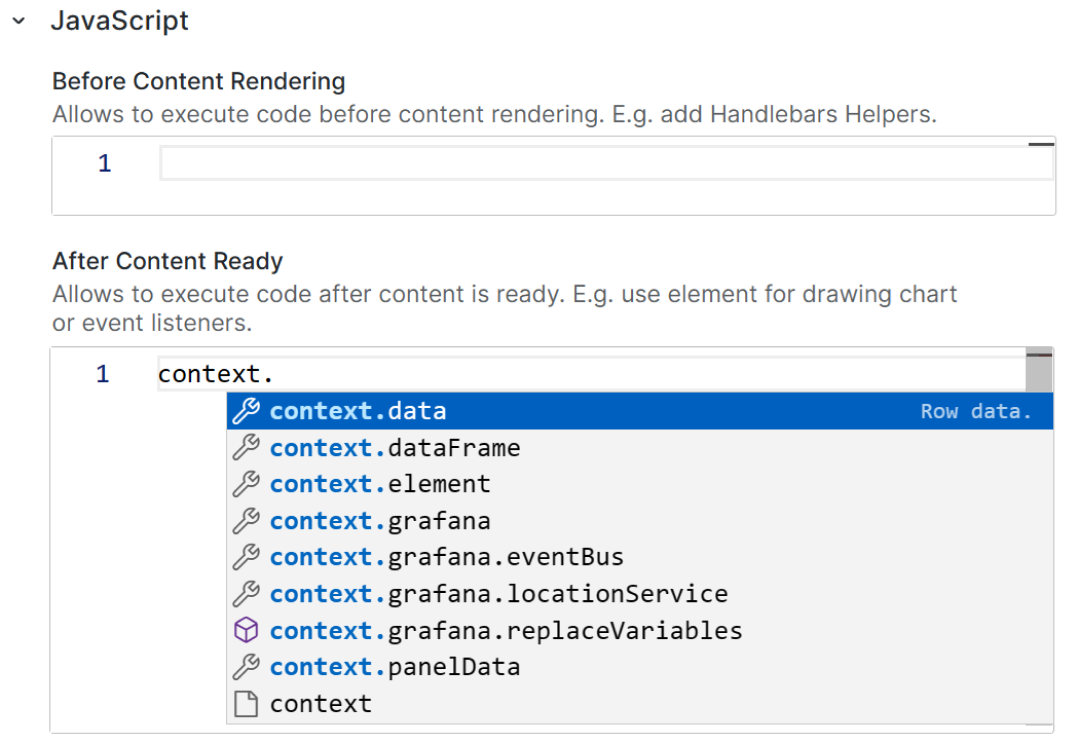
Start typing context in the Before Content Rendering or After Content Ready boxes to see the latest list of all available features.
Custom Handlebars helper
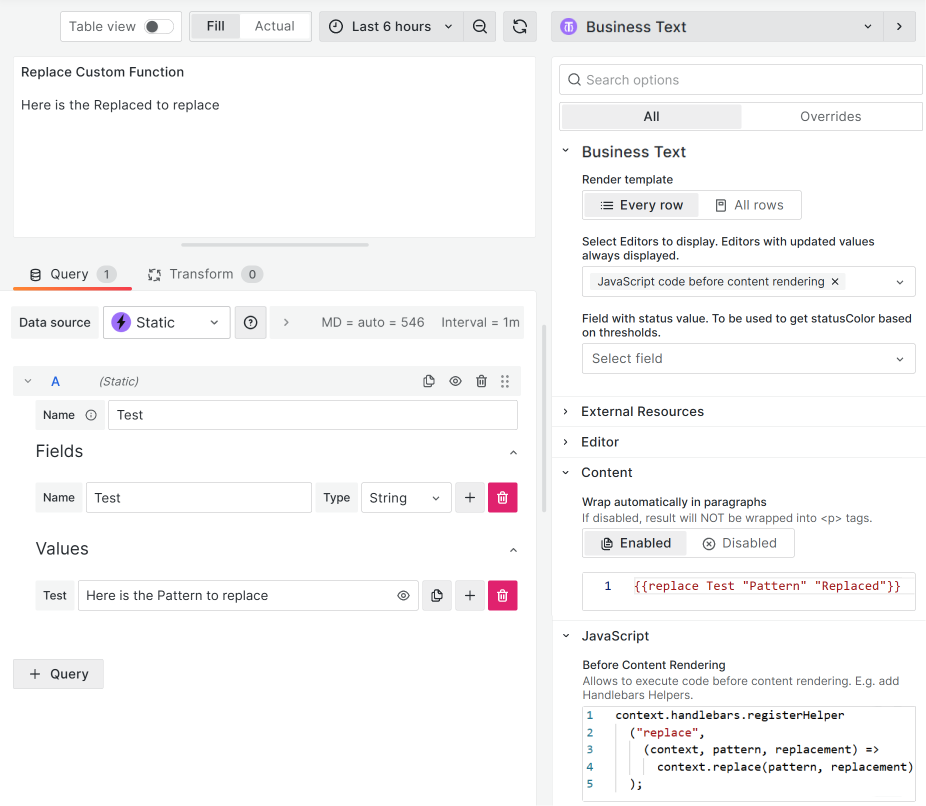
You can add a custom Handlebars helper to replace the field’s value according to some pattern.
{{replace Test "Pattern" "Replaced"}}Note
Handlebars are not available in After Content Render.
Create handlebars in Before content Render because they are used during the rendering process to convert Handlebars > Markdown > HTML.
The After Content Render works with already-created HTML elements, and handlebars are not available at this point.
JavaScript code
This code snippet registers a function with the replace helper that accepts three arguments:
context: An object that contains the data for the template.pattern: The text to search for.replacement: The text to use to replace the pattern.
This code calls the function and passes the pattern and replacement arguments to it.
context.handlebars.registerHelper("replace", (context, pattern, replacement) =>
  context.replace(pattern, replacement)
);
Event handler
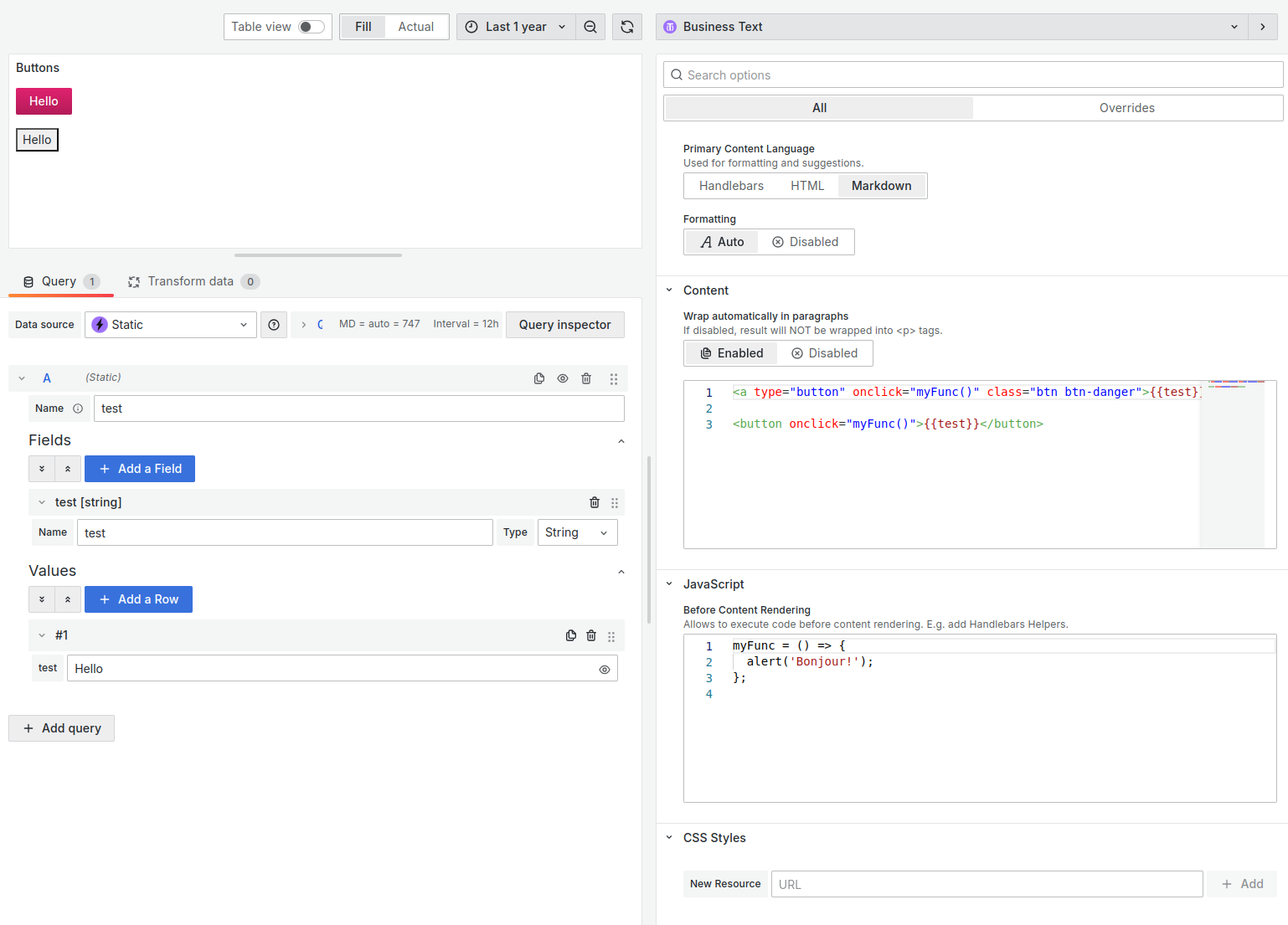
To respond to a button click, you can add a custom event handler.
<button onclick="myFunc()">{{test}}</button>JavaScript code
This code snippet defines a function called myFunc. The function accepts no arguments and returns no value. The function body calls the alert() function to display “Bonjour!” in a dialog box.
myFunc = () => {
  alert("Bonjour!");
};
Internationalization
Grafana 9 and later versions offer internationalization, but most plugins do not yet have full access to this feature.
You can use the getLocale() method to get a value for the chosen locale and display terms from a defined dictionary.
Content
This code snippet uses the translate helper to translate the text “Hello” to the current language. Text translation occurs if the translate helper is defined. Otherwise, the text “Hello” displays.
{{translate "Hello"}}Default content
This code snippet uses the translate helper to show the translation of a default message if the query does not return any results.
{{translate "Default"}}JavaScript code
const messages = {
  Hello: {
    en: "Hello",
    fr: "Salut",
    es: "Hola",
  },
  Default: {
    en: "The query didn't return any results.",
    fr: "La requête n'a renvoyé aucun résultat.",
    es: "La consulta no arrojó ningún resultado.",
  },
};

const locale = getLocale();

context.handlebars.registerHelper(
  "translate",
  (message) => messages[message][locale] ?? messages[message]["en"]
);
Time zone and range
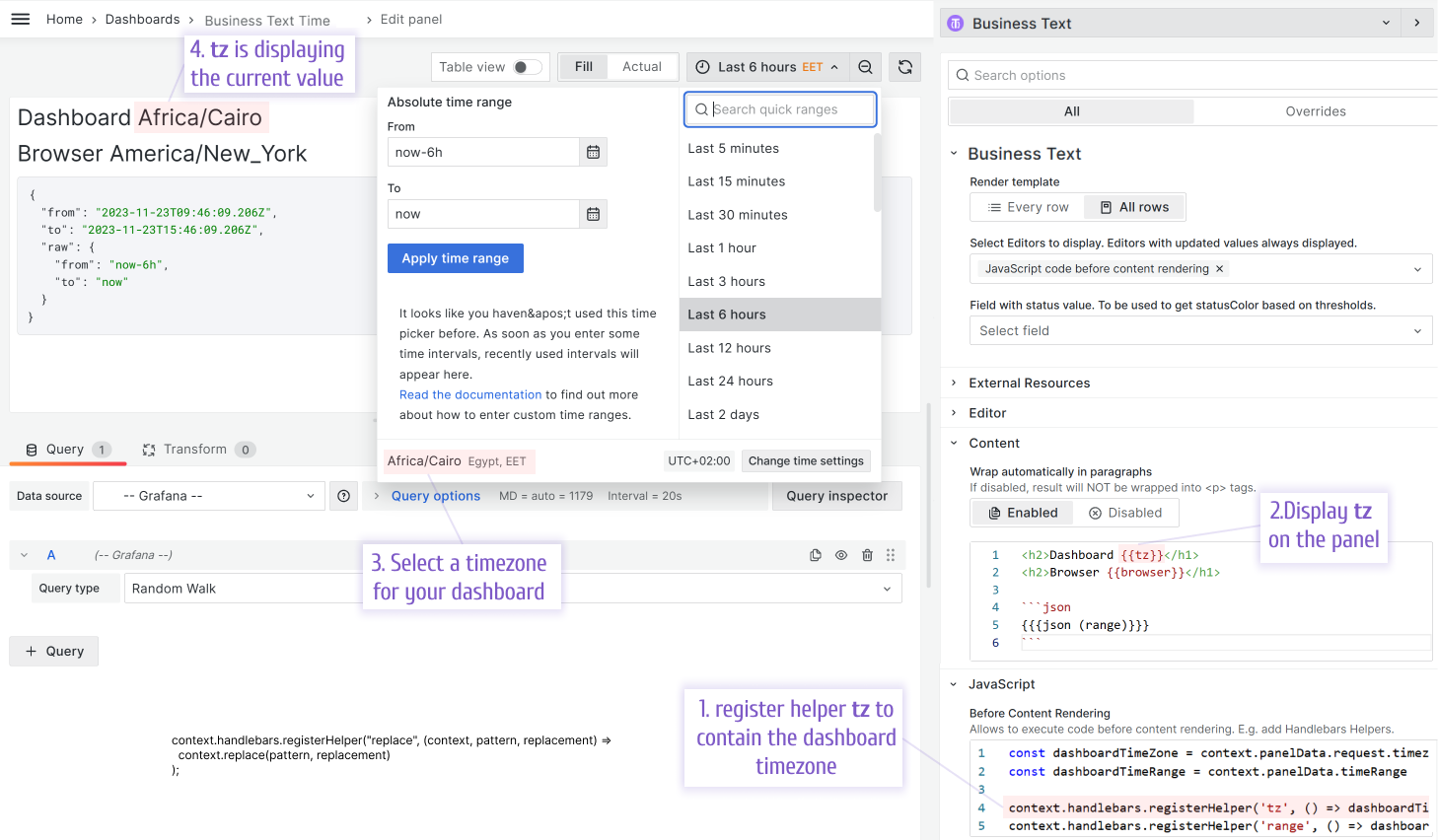
You can display the selected dashboard time zone, browser’s time zone, and time ranges in Grafana.
Content
Use the following for the Content
<h1>Dashboard {{tz}}</h1>
<h2>Browser {{browser}}</h2>

```json
{{{json (range)}}}
```
JavaScript code
Use the following for the JavaScript > Before Content Rendering
const dashboardTimeZone = context.panelData.timeZone
const dashboardTimeRange = context.panelData.timeRange

context.handlebars.registerHelper('tz', () => dashboardTimeZone);
context.handlebars.registerHelper('range', () => dashboardTimeRange);
context.handlebars.registerHelper('browser', () => Intl.DateTimeFormat().resolvedOptions().timeZone);
Automatic scrolling
If the table does not fit in the allocated panel area, you can add automatic scrolling using JavaScript with an adjustable interval.
Content
Use the following for the Content:
<table id="dataTable">
  <tr>
    <th>Title</th>
    <th>Date</th>
    <th>Category</th>
  </tr>
  {{#each data}}
  <tr>
    <td>{{title}}</td>
    <td>{{date pubDate 'MMM, DD YYYY'}}</td>
    <td>{{category}}</td>
  </tr>
  {{/each}}
</table>
JavaScript code
Use the following for the JavaScript > Before Content Rendering:
const scrollWindow = () => {
  parentWindow =
    document.getElementById("dataTable").parentElement.parentElement;
  bottomOfWindow = parentWindow.scrollHeight - parentWindow.offsetHeight;

  /**
   * Scroll
   */
  if (parentWindow.scrollTop < bottomOfWindow) {
    parentWindow.scrollBy(0, 1);
    setTimeout(scrollWindow, 50);
    return;
  }

  /**
   * Scroll to the Top
   */
  setTimeout(function () {
    parentWindow.scrollTo({ top: 0, behavior: "smooth" });
  }, 1000);

  /**
   * Start scrolling again
   */
  setTimeout(scrollWindow, 1000);
};

$(() => {
  dataTable = document.getElementById("dataTable");

  /**
   * Avoid scrolling for short tables
   */
  if (
    dataTable.parentElement.scrollHeight <
    dataTable.parentElement.parentElement.offsetHeight
  ) {
    return;
  }

  /**
   * Already set to scroll
   */
  if (dataTable.parentElement.parentElement.getAttribute("listener")) {
    return;
  }

  dataTable.parentElement.parentElement.setAttribute("listener", true);
  scrollWindow();
});
Unique values
You can sort out unique values from the data object using the unique helper that was implemented by the community member goncalobsantos.
Content
Use the following for the Content:
<div>{{#each (unique data "hostname.keyword")}}{{this}}; {{/each}}</div>JavaScript code
Use the following for the JavaScript > Before Content Rendering:
context.handlebars.registerHelper("unique", (context, key) => {
  return [...new Set(context.map((item) => item[key]))];
});
Dashboard variables
You can use the context.grafana.replaceVariables function to replace dashboard variables in the JavaScript code.
const bonjour = context.grafana.replaceVariables("${variable}");
console.log(bonjour.toUpperCase())
REST API
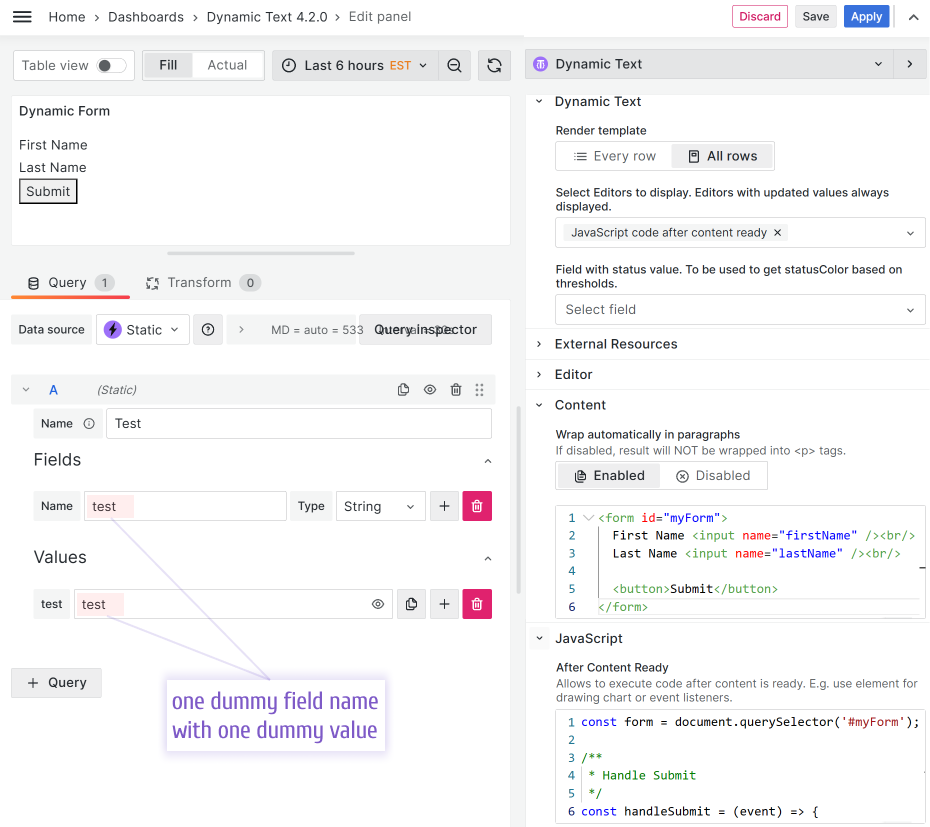
The Business Text plugin submits REST API requests.
Content
Into the Content:
<form id="myForm">
  <input name="firstName" />
  <input name="lastName" />

  <button>submit</button>
</form>
JavaScript code
Into the JavaScript > After Content Ready
/**
 * Form Element
 */
const form = document.querySelector("#myForm");

/**
 * Handle Submit
 */
const handleSubmit = (event) => {
  /**
   * Prevent Default submition
   */
  event.preventDefault();

  const formData = new FormData(event.target);
  const data = Object.fromEntries(formData);

  console.log(data);
  /**
   * Result: { firstName: '', lastName: '' }
   */

  /**
   * Your request to send form
   */
  fetch("url", {
    method: "POST",
    body: JSON.stringify(data),
  });
};

form.addEventListener("submit", handleSubmit);

return () => {
  form.removeEventListener("submit", handleSubmit);
};
JSON parsing
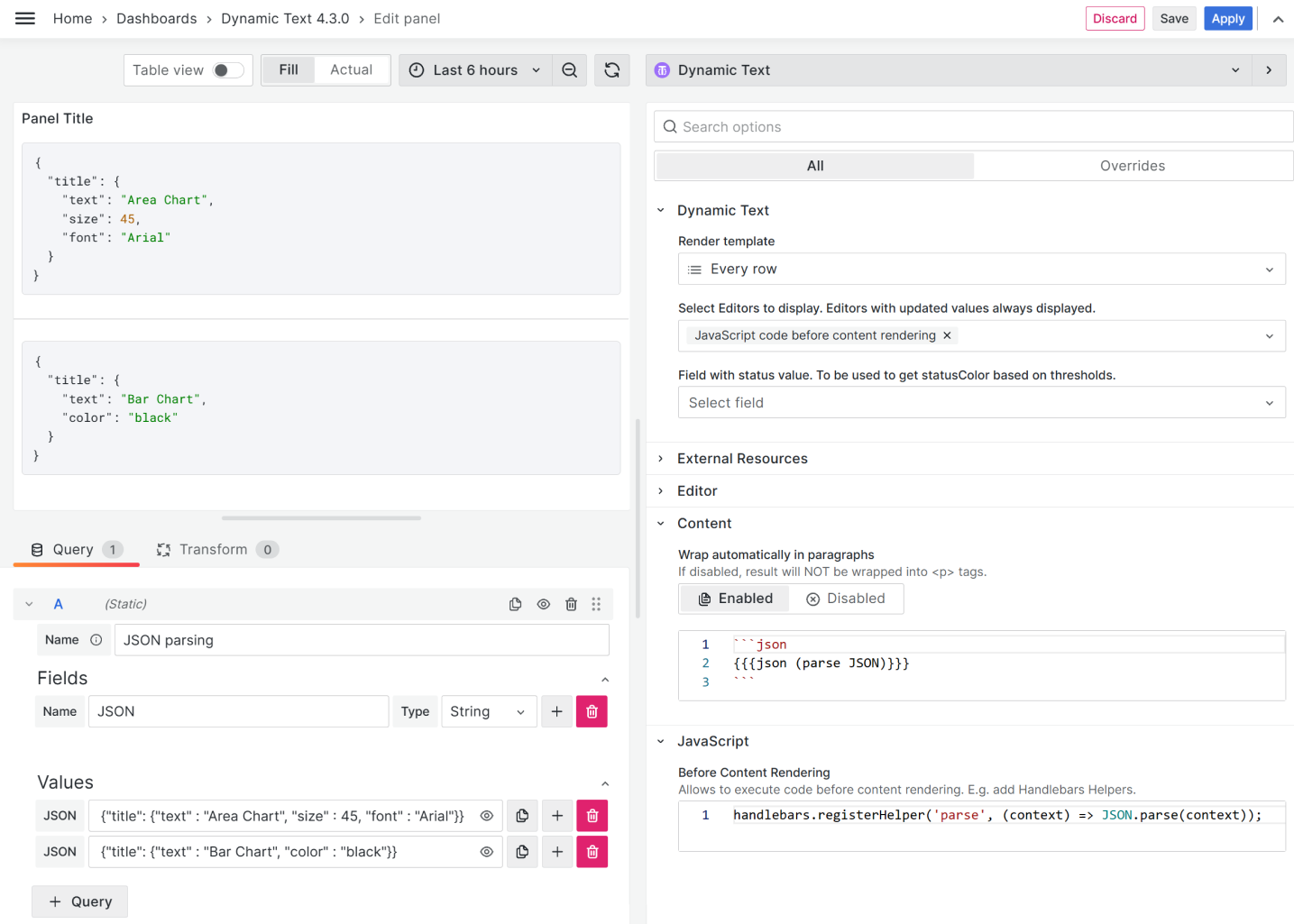
The community member havedill asked how to parse a JSON data format in the case when the transformation Convert field type is not available.
JSON example
{ "title": { "text": "Area Chart", "size": 45, "font": "Arial" } }{ "title": { "text": "Bar Chart", "color": "black" } }Content
{{{json (parse JSON)}}}JavaScript
context.handlebars.registerHelper("parse", (context) => JSON.parse(context));Anonymizer
Anonymizer converts real production data into dummy values in order to have your dashboards demo-ready. Anonymizer is another great example of how embedded JavaScript can simplify tedious and repetitive tasks.
You can find all you need in this blog post.
If you are a visual style learner, you can watch the video. It covers the same ground.


