Layout
The Layout category includes the following parameters:
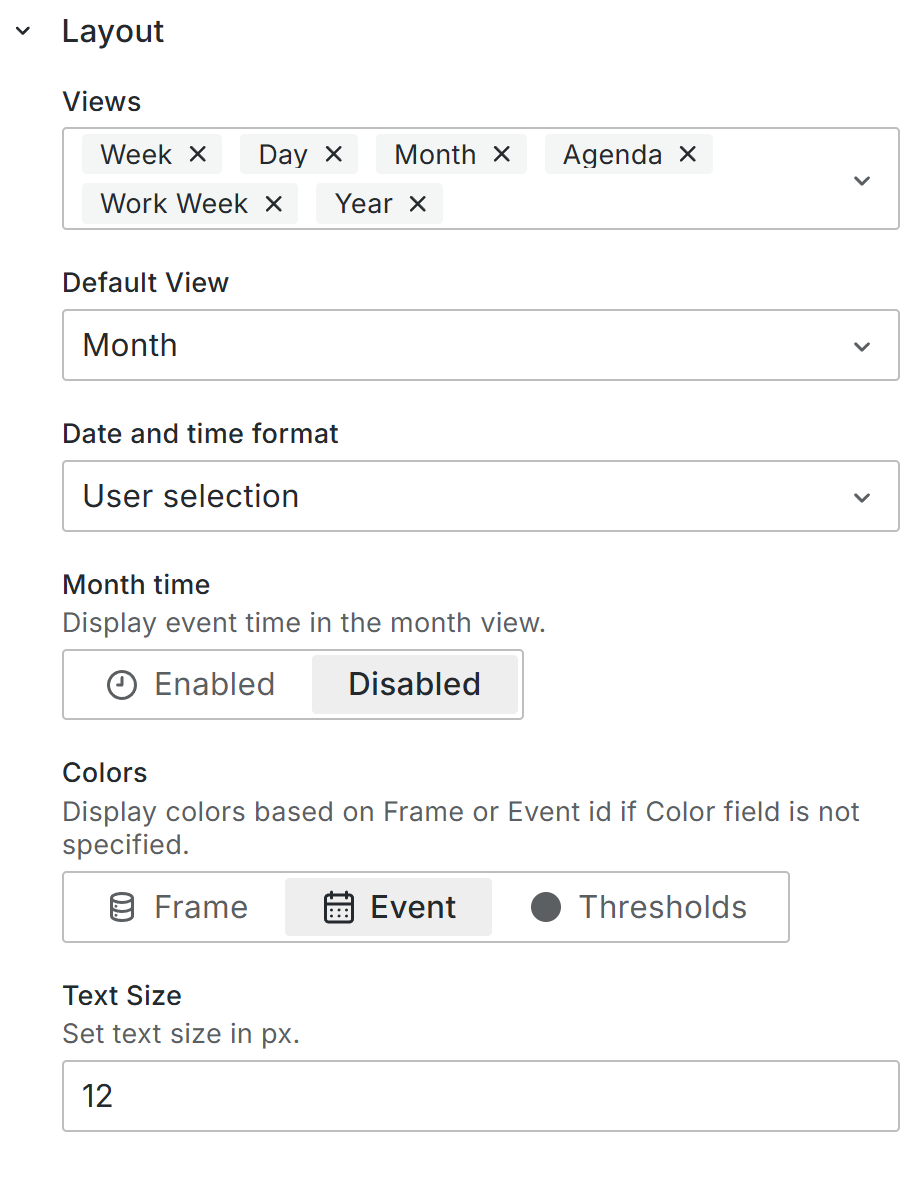
Views
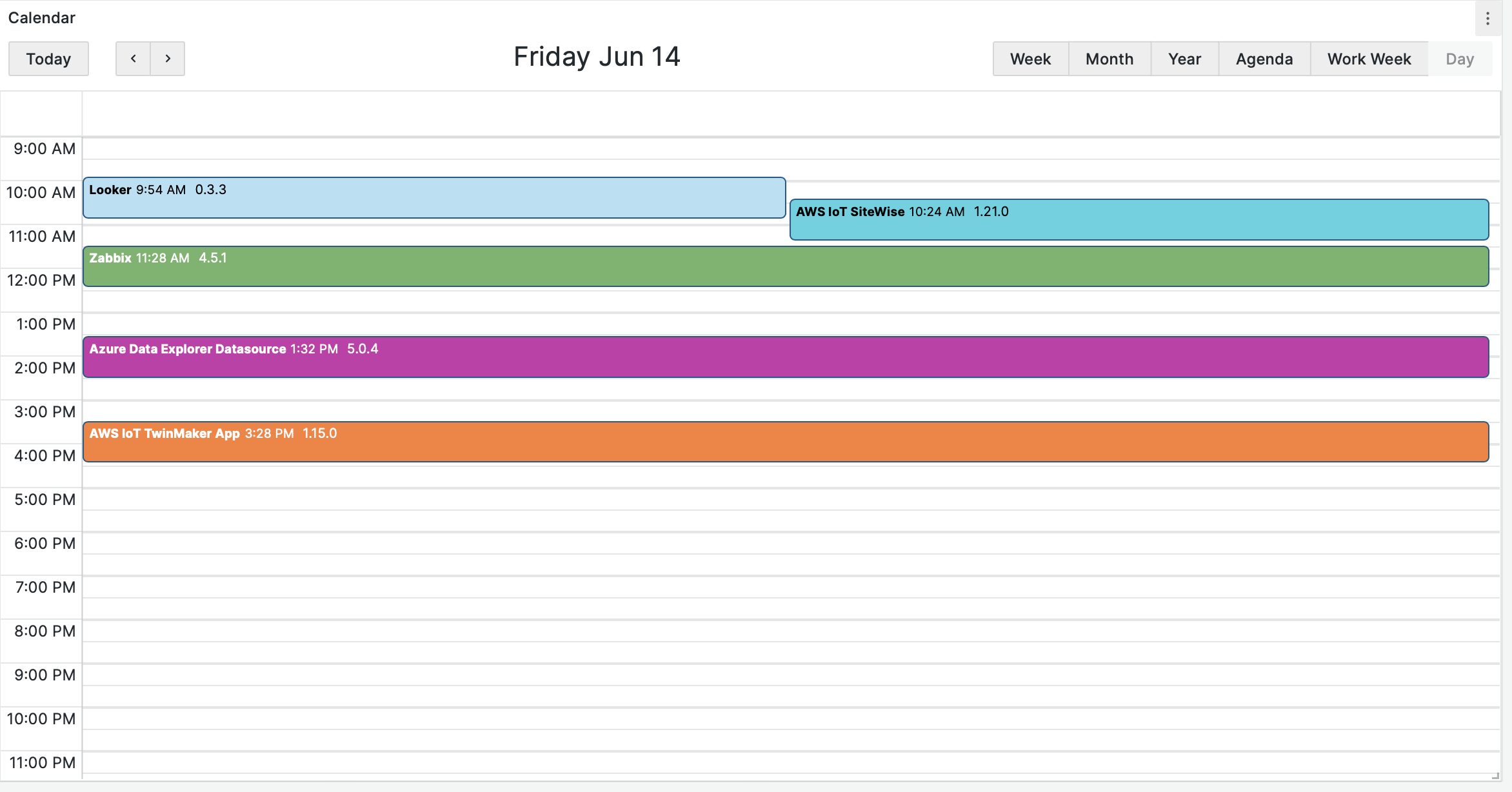
Day
Displays a day.
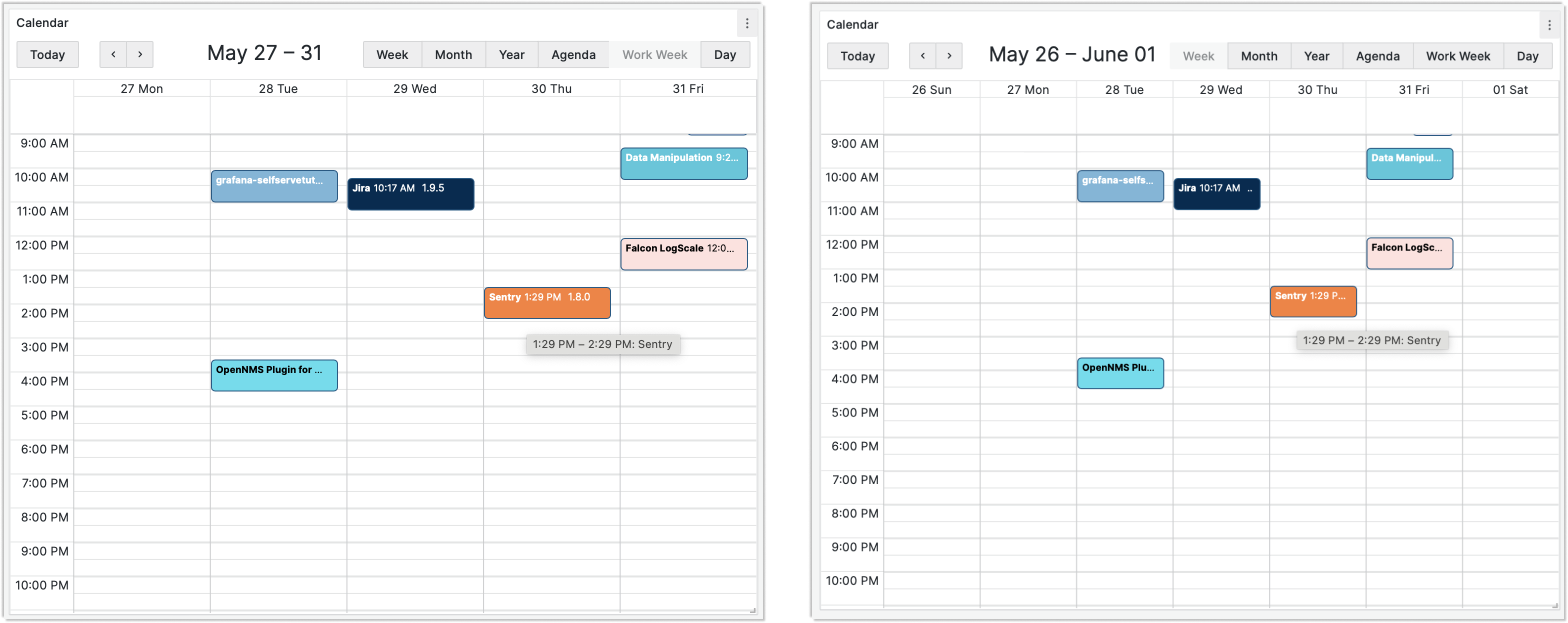
Week and Work week
Displays a week with 7 or 5 days respectively.
First day of the week
The plugin uses the Grafana system settings to determine the first day of the week: Saturday, Sunday, or Monday. If no setting is specified, the plugin uses the default day from Grafana settings.
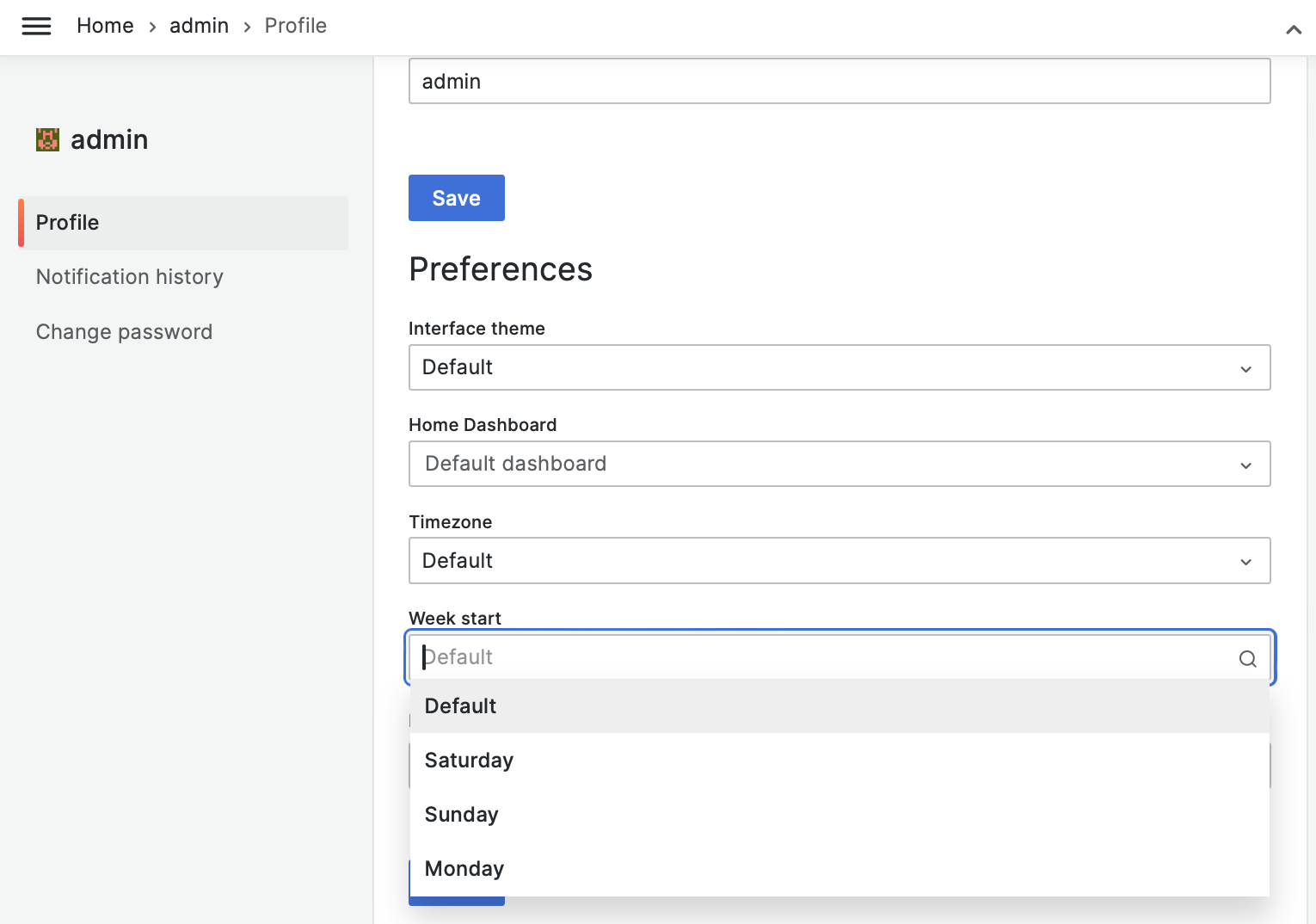
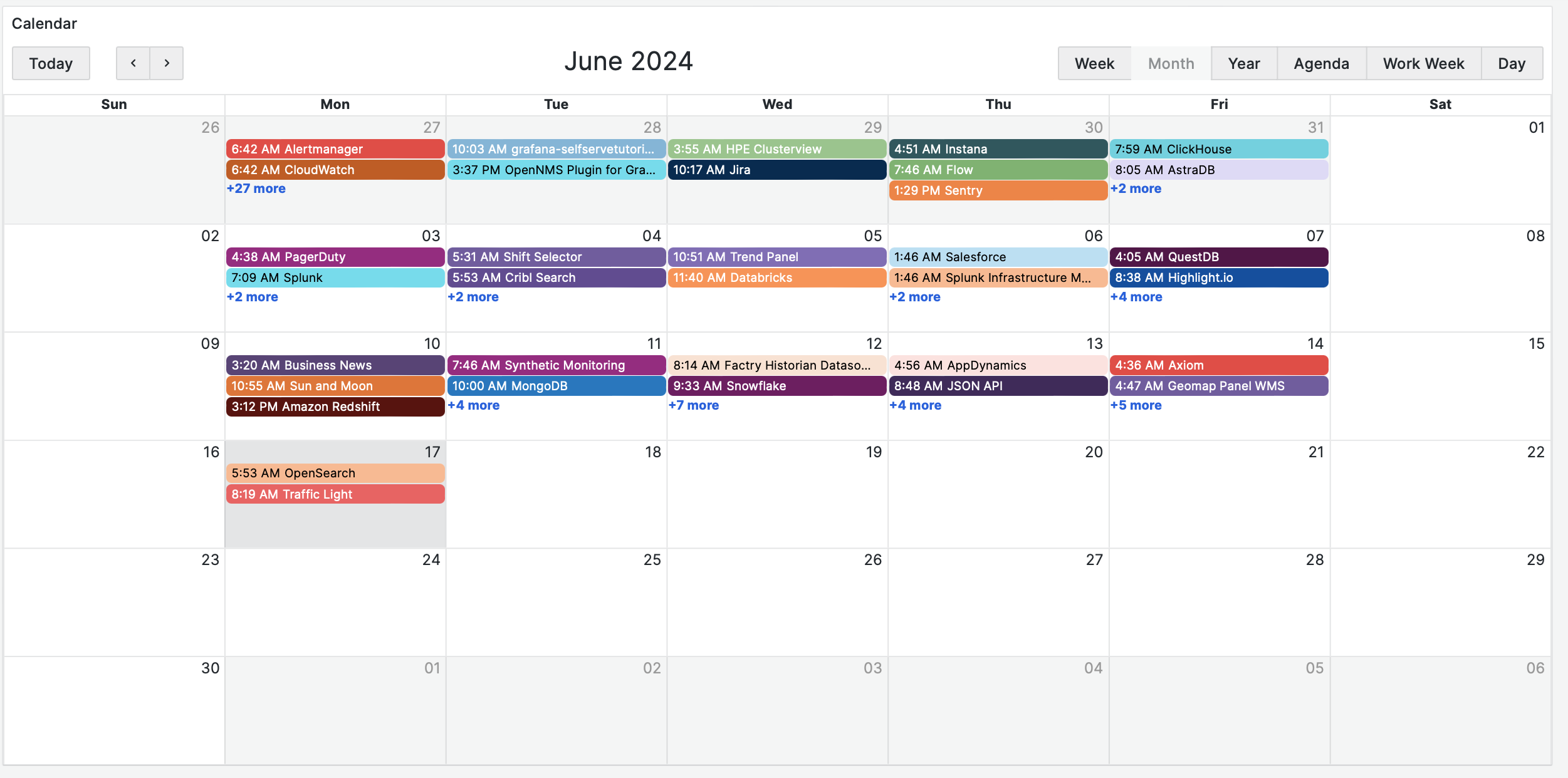
Month
Displays a month.
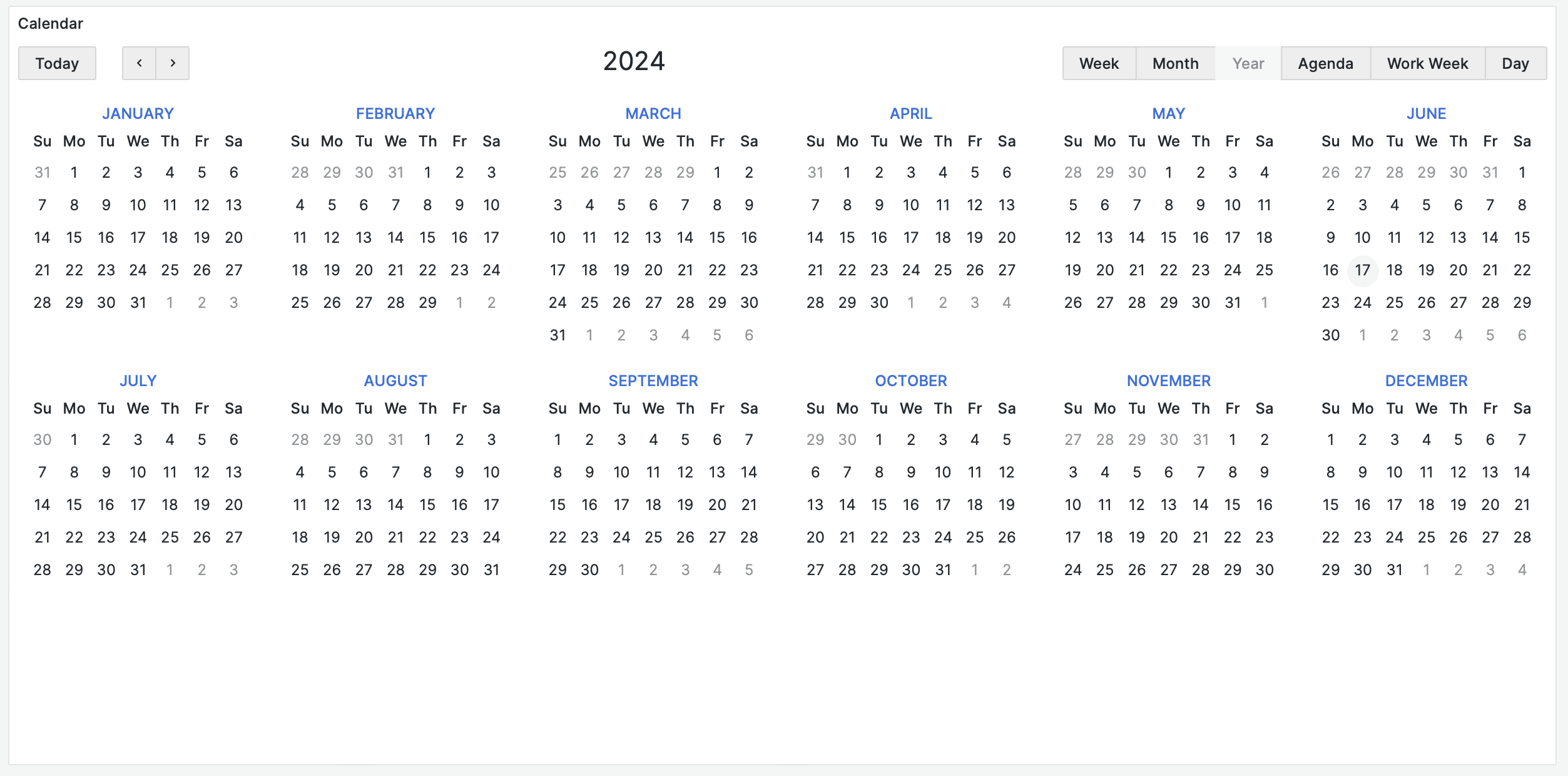
Year
Displays 12 months at the same time. The purpose of this view is to help navigate throughout the calendar since it makes it easier to jump into any day and month of the year.
Events
Note
Starting from version 3.8.0, the Business Calendar panel displays dots representing events for each day.
In the Year view, the Business Calendar panel displays dots representing events for each day. If there are more than three events, a plus symbol appears.
Multi-day events display as one dot per day. For instance, if an event lasts from September 16 to September 17 (a two-day event), two dots appear on the panel: one dot for September 16 and another dot for September 17.
Agenda
Displays only the busy time slots and shows multiple days for the selected period.
Available views
You can configure which views are available for users.
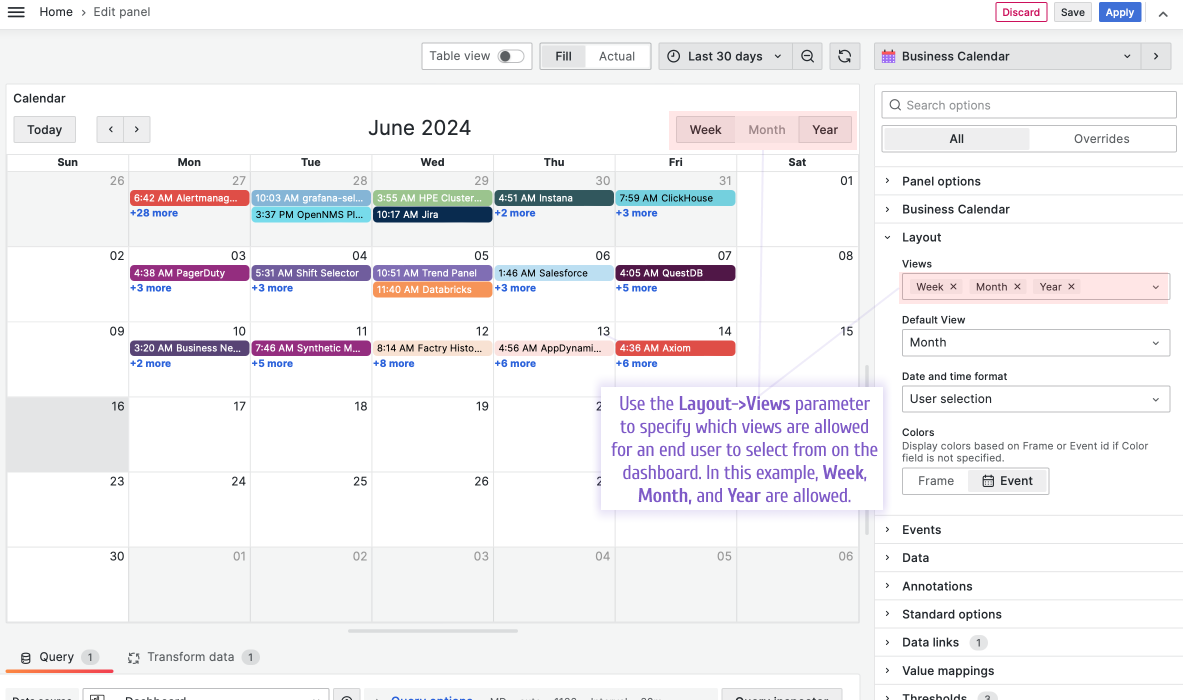
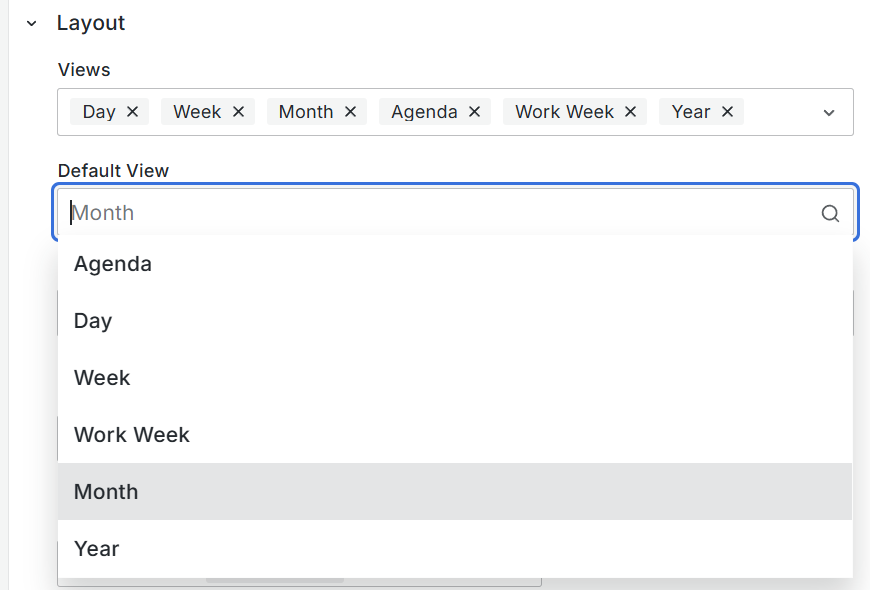
Default view
Use this setting to control what your calendar displays after a page refresh. You can select any of the calendar views as the default view.
Date and time format
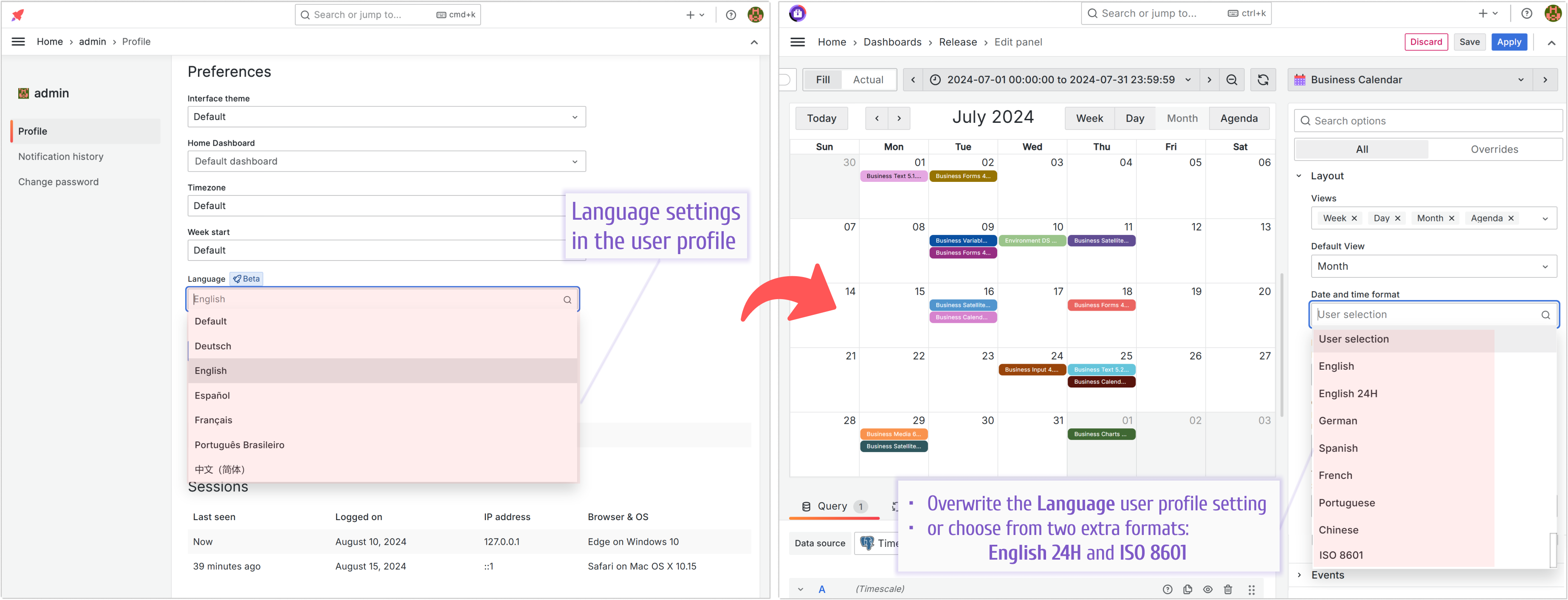
The Language setting in the user profile preference affects both the language and the displayed date formats.
Note
Extended date formats are available starting from version 3.0.0.
The existing choices weren’t sufficient for all use cases, so the English 24 and ISO 8601 formats were added.
If you set Date and time format to User selection, the language preference is taken from User profile > Preferences > Language.
All other options override the user profile settings.
Note
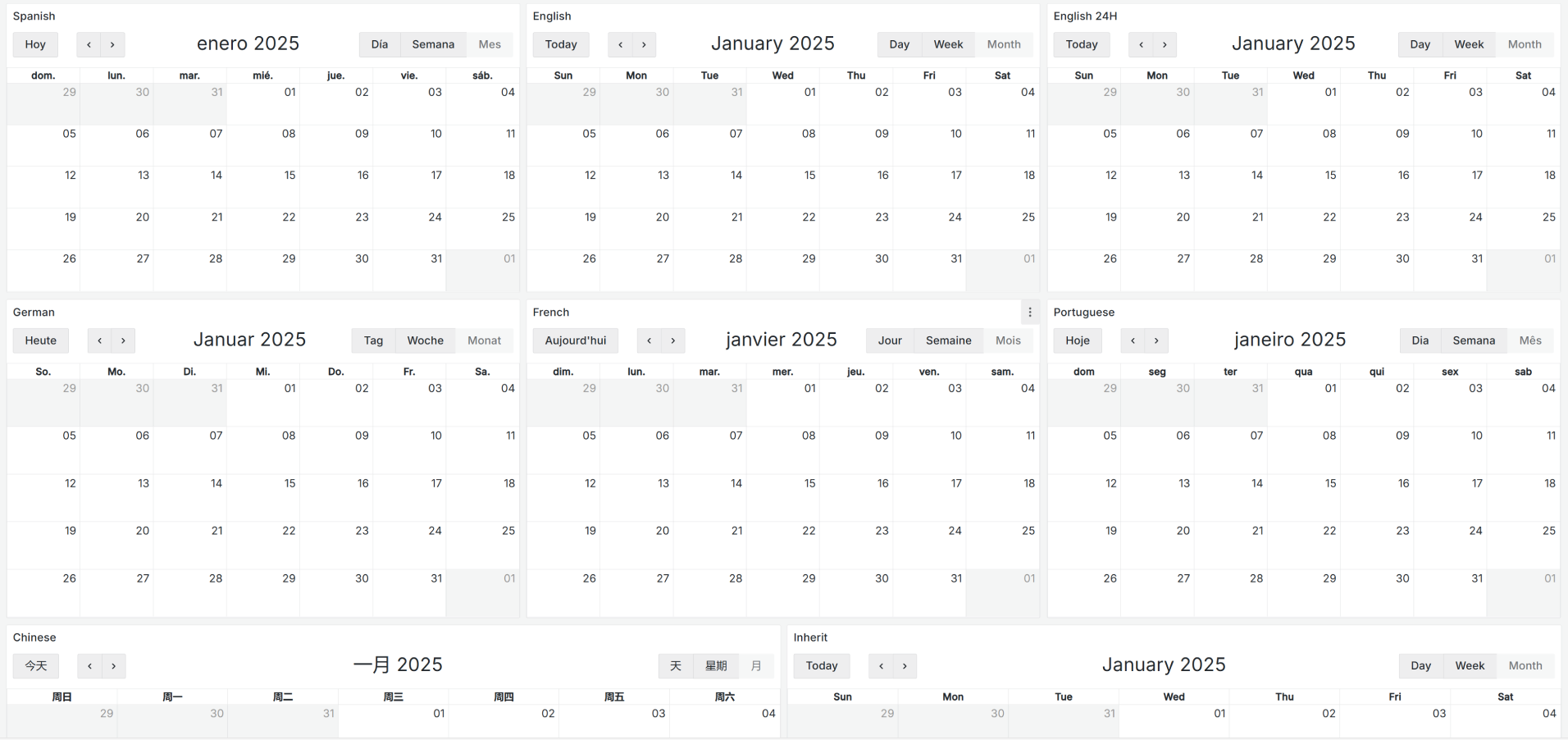
Panel-specific language (datetime) format is available starting from version 3.8.0.
The Date and time format parameter is specific to the particular Business Calendar panel.
Month time
Note
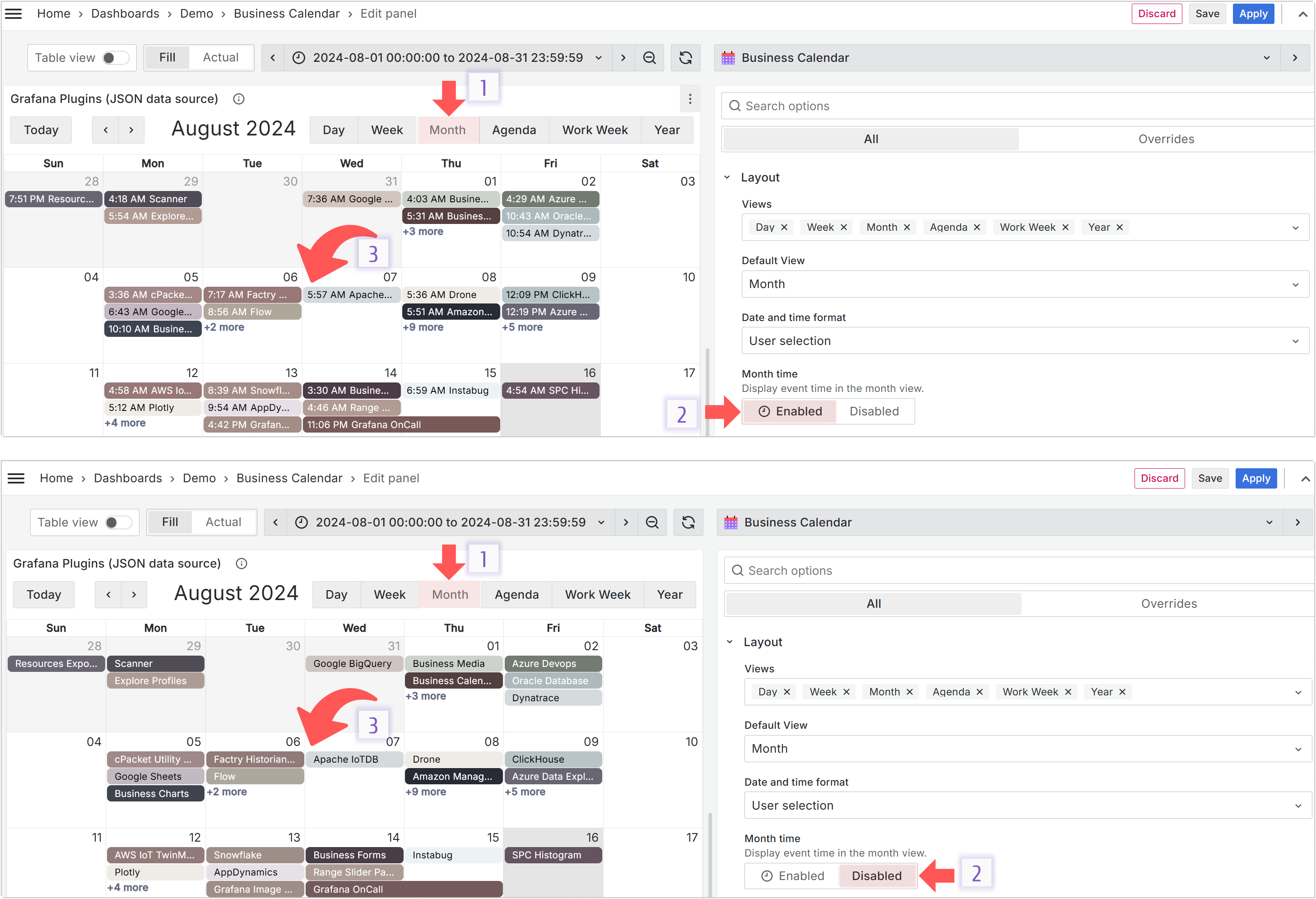
Disabling event time is available starting from version 3.5.0.
For the Month layout, you can turn off the display of event times.
Colors
Read about the Colors option in the Coloring events section.
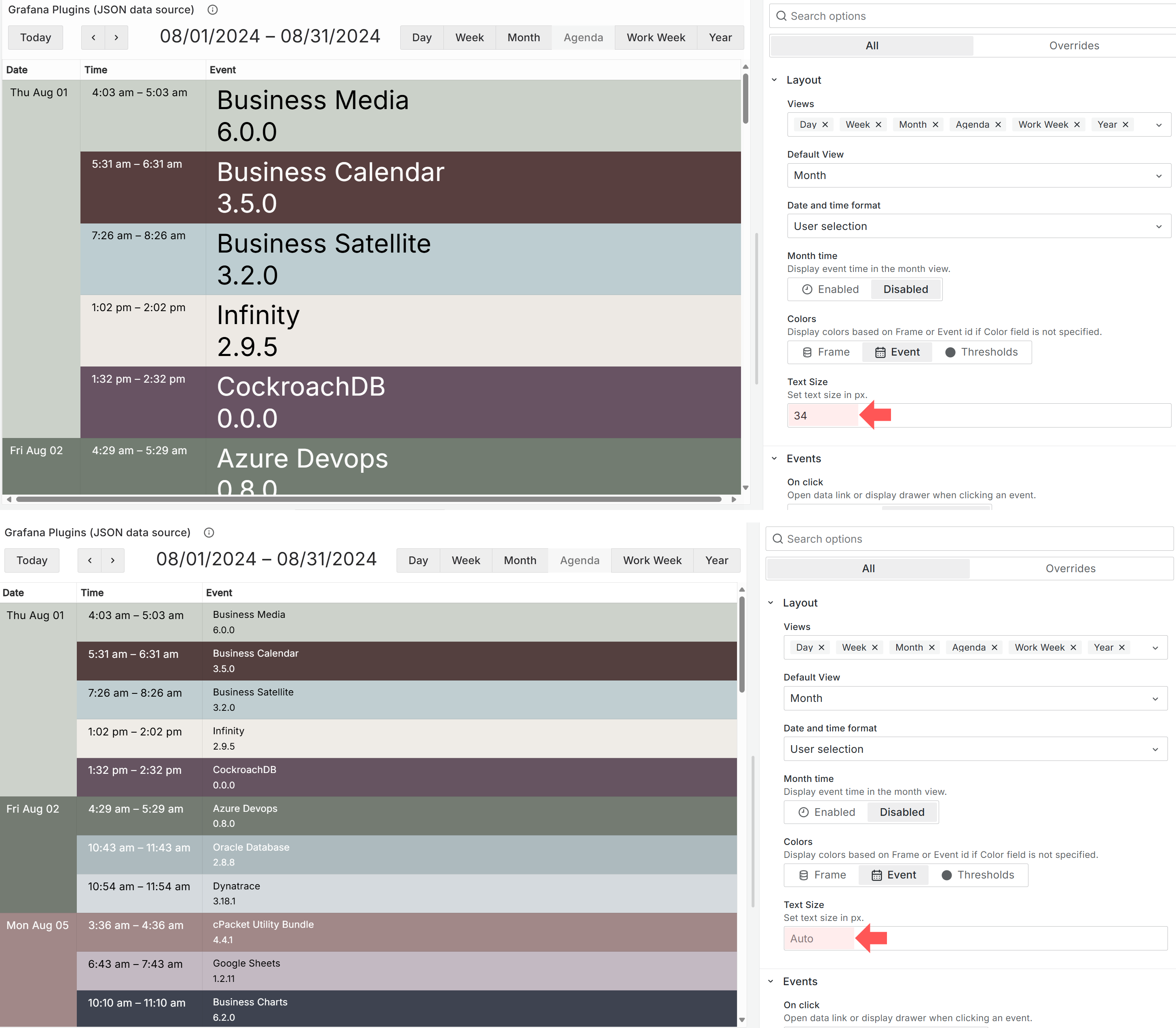
Text Size
You can control the font size in your Calendar panel. By default, the size is 12px.