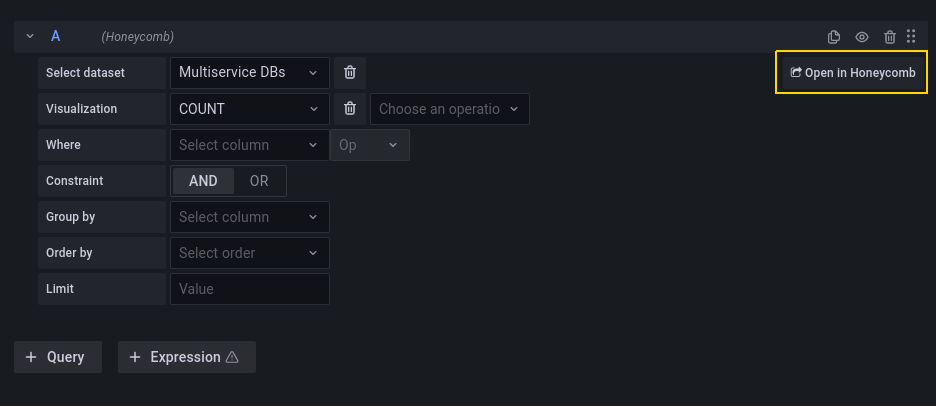
Query editor
The query editor allows you to query Honeycomb data and link to traces. You can choose from three query types: Metrics, SLO, and Raw Query.
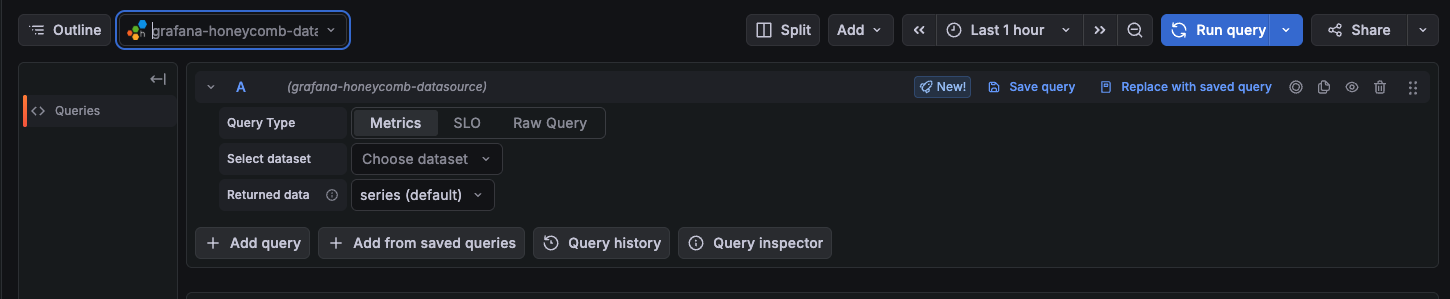
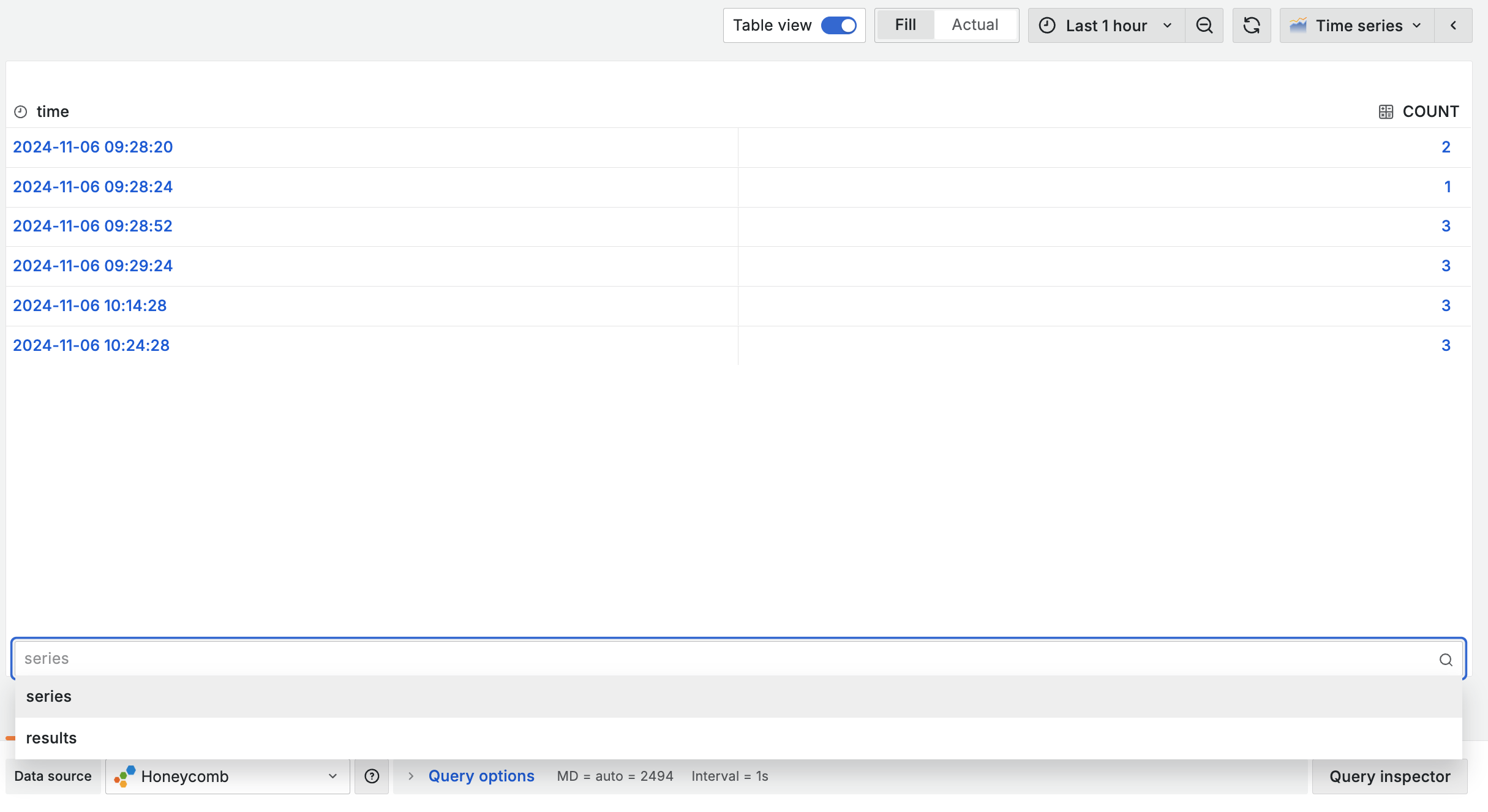
Use the Returned data drop-down to select your query output. The default is Time series.
- Time series – Data for graph visualizations.
- Results – Tabular data equivalent to the Overview in the Honeycomb UI.
- Both – Time series and results together.
Metrics query
Query metrics by entering values into the editor fields:
- Select a dataset.
- The default query is a
COUNTover the selected dataset. - To refine the query, select values for any of the remaining fields: Visualization, Where, Constraint, Group by, Order by, or Limit.
- Enable Usage Mode to return aggregates without correcting for sample rates.
SLO query
Query Honeycomb SLOs by choosing SLO as the query type. There are two types of SLO queries you can perform:
- SLO List: Returns a list of SLO definitions.
- SLO detail: Returns details for an individual SLO.
- This query requires a single SLO ID.
- To retrieve the Budget Remaining and Compliance details, a Honeycomb Enterprise plan is required.
Note
To view SLO details of multiple SLO items, use multiple queries and then use the merge transform to get them into a single panel view.
Raw query
The Honeycomb data source supports raw queries through a JSON-based interface. This feature provides access to advanced querying capabilities that may not be available through the standard query builder interface.
To use the raw query functionality:
- Select Raw Query from the query type drop-down in the Honeycomb query builder.
- Enter your query in the JSON text area using the same format accepted by the Honeycomb API.
The feature supports all operations available in the Honeycomb API, including filters, columns, aggregations, transformations, breakdowns, calculations, granularity settings, ordering, and result set filtering with AND/OR logic combinations.
By default, queries use the time range specified in the Grafana panel. You can override this by including explicit start_time and end_time parameters in your JSON query. Similarly, specifying a granularity value in the query overrides Grafana’s automatic granularity calculation based on the selected time range.
Raw query example
The following example counts requests and calculates the average duration, filtered by service name and grouped by HTTP status code:
{
  "calculations": [
    { "op": "COUNT" },
    { "op": "AVG", "column": "duration_ms" }
  ],
  "filters": [
    { "column": "service.name", "op": "=", "value": "api-server" }
  ],
  "breakdowns": ["http.status_code"],
  "granularity": 60
}
For a complete list of supported operations and syntax, refer to the Honeycomb Query Specification.
Use variables in raw queries
Raw queries support Grafana template variable substitution. Use the standard $variable or ${variable} syntax within your JSON query values.
For example, to filter by a dashboard variable called service:
{
  "calculations": [{ "op": "COUNT" }],
  "filters": [
    { "column": "service.name", "op": "=", "value": "$service" }
  ]
}
Multi-value variables
Raw queries automatically handle multi-value variables when used with in and not-in operators. This makes it easy to filter by multiple selected values from a dashboard variable.
For example, if you have a multi-value variable called status_codes with values 200, 201, and 204 selected:
{
  "calculations": [{ "op": "COUNT" }],
  "filters": [
    { "column": "http.status_code", "op": "in", "value": "$status_codes" }
  ]
}
The data source automatically expands the variable into an array for the Honeycomb API.
View queries in the Honeycomb UI
You can open your Grafana queries directly in the Honeycomb UI for further exploration.
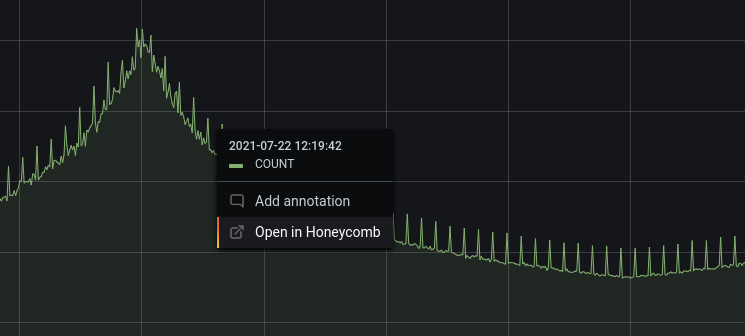
From the dashboard panel
To view a query in Honeycomb from a dashboard panel:
- Click on any point in the graph.
- Click Open in Honeycomb.
From the query editor
To view a query in Honeycomb from the query editor, click the Open in Honeycomb button.