































Configure the Honeycomb data source
This page explains how to configure the Honeycomb data source for Grafana.
Before you begin
To configure this data source, you need:
- An active Honeycomb Enterprise team
- A Grafana Cloud Free, Advanced, or Trial account, or an activated Grafana Enterprise license
- A Honeycomb API key with the required permissions
Get an API key from Honeycomb
Before configuring the data source, you need an API key from Honeycomb:
- Go to https://ui.honeycomb.io/account.
- Create a new API key or use an existing one.
- Copy your API key.
Required API key permissions
Your Honeycomb API key must have the following permissions enabled:
Without these permissions, the data source connection test will fail with a permissions error.
Add the Honeycomb data source
For general information on adding a data source, refer to Add a data source.
Complete the following steps to add a new Honeycomb data source:
- Click Connections in the left-side menu.
- Click Add new connection.
- Type
Honeycombin the search bar. - Select the Honeycomb data source.
- Click Add new data source in the upper right.
Grafana takes you to the Settings tab, where you will set up your Honeycomb configuration.
Honeycomb settings
Configure the following settings for your Honeycomb data source:
Advanced settings
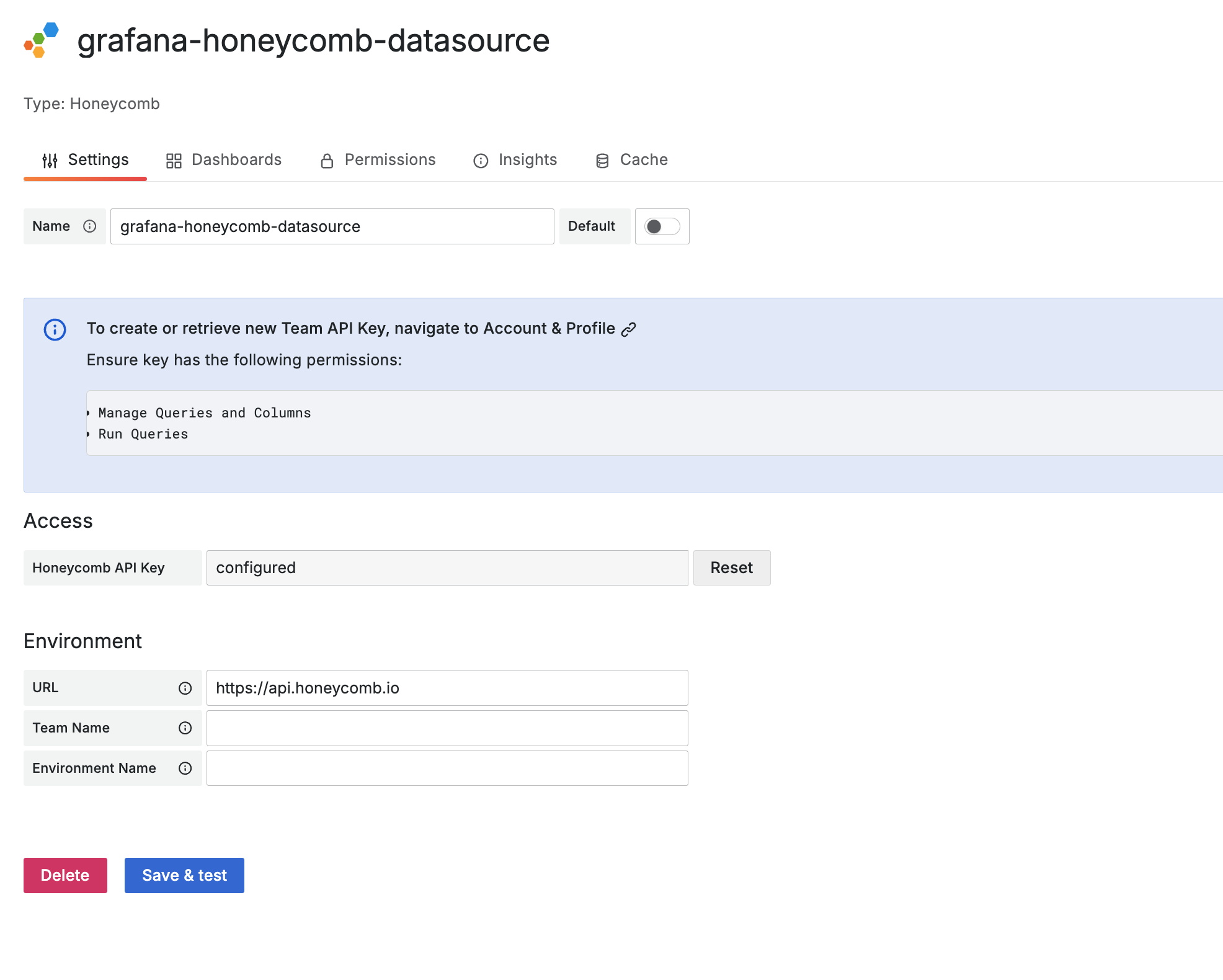
Configure with provisioning
You can configure the Honeycomb data source using configuration files with Grafana’s provisioning system. To learn more about how the provisioning system works, including all of the data source settings, refer to Provisioning Grafana.
Example:
apiVersion: 1
datasources:
  - name: Honeycomb
    type: grafana-honeycomb-datasource
    jsonData:
      hostname: https://api.honeycomb.io
      team: Team
      environment: test
    secureJsonData:
      apiKey: API Key
Configure with Terraform
You can configure the Honeycomb data source using the Grafana Terraform provider.
Example:
resource "grafana_data_source" "honeycomb" {
  type = "grafana-honeycomb-datasource"
  name = "Honeycomb"

  json_data_encoded = jsonencode({
    hostname    = "https://api.honeycomb.io"
    team        = "my-team"
    environment = "production"
  })

  secure_json_data_encoded = jsonencode({
    apiKey = var.honeycomb_api_key
  })
}
For more information about the Grafana Terraform provider, refer to the Grafana Terraform provider documentation.


