































Create a billing alert
Setting up proactive billing alerts helps prevent unexpected charges by notifying you when usage exceeds defined thresholds. These alerts act as an early warning system, giving you time to investigate and address high usage before it significantly impacts your bill.
Billing alerts can be created for overall usage or for specific telemetry data like metrics, logs, or traces. Setting up alerts for product-level usage helps you quickly identify which service is driving increased costs.
In the Billing/Usage dashboard, identify a panel for which you want to create an alert.
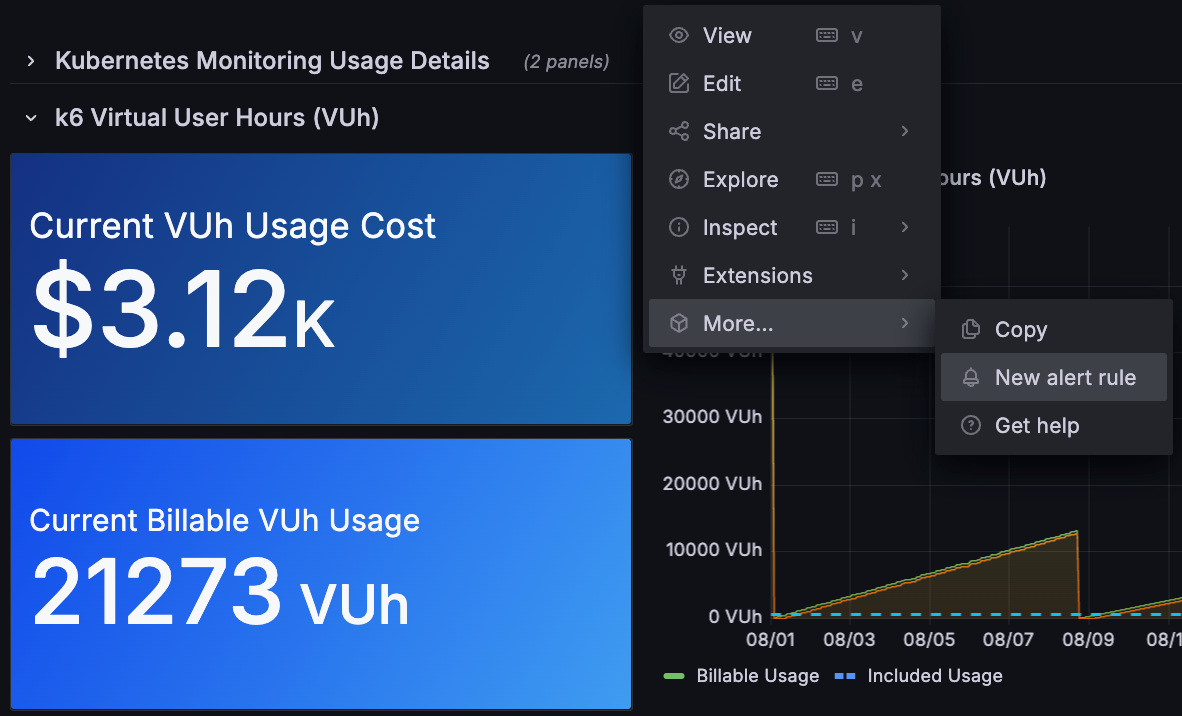
Click the panel menu (⋮) on the chosen panel, then select More… > New alert rule.
The following image shows how to navigate to the New alert rule menu option from a panel.
Enter a descriptive name for your alert rule, such as
Monthly Billing Alert.The Define query and alert condition fields are prepopulated with the alert query expression from the dashboard panel.
In the Threshold field of the Define query and alert condition section, set a threshold value. For example, enter
1000to alert when month-to-date billable usage exceeds $1,000.Click Preview to test that the alert fires based on your threshold value.
Click Add labels to categorize your alert for searching, silencing, or routing to a notification policy.
Select a folder to store your alert rule.
Configure the evaluation group and interval to set how frequently the alert condition is checked.
Set the Pending period — the duration the condition must be met before the alert fires. Selecting “None” triggers the alert immediately.
Complete the following steps to configure notification routing:
Choose or create a contact point for receiving alert notifications.
Notification policies are configured separately from alert rules. If you need to route alerts to different teams based on labels, navigate to Notification policies in the sidebar. Refer to the notification policies documentation for details.
Click Save rule to create the alert rule.
To verify your alert works correctly:
- Navigate to Alerts & IRM > Alerting > Alert rules in the left navigation.
- Find your alert rule and click Edit.
- Use the Test rule feature to verify the alert triggers correctly.
Best practices for billing alerts
When setting up billing alerts, consider these recommendations:
- Set multiple thresholds: Create alerts for different spending levels (for example, 50%, 75%, and 90% of your budget)
- Alert on trends: Set up alerts for rapid usage increases, not just absolute values
- Product-specific alerts: Create separate alerts for metrics, logs, and traces to quickly identify cost drivers
- Team notifications: Route alerts to the teams responsible for the services generating costs
- Documentation: Include runbooks or links in alert notifications to help responders take action
In the next milestone, you’ll complete your journey and learn about additional cost management resources.
More to explore (optional)
At this point in your journey, you can explore the following paths: