

PostgreSQL template variables
Instead of hard-coding details such as server, application, and sensor names in metric queries, you can use variables. Grafana displays these variables in drop-down select boxes at the top of the dashboard to help you change the data displayed in your dashboard. Grafana refers to such variables as template variables.
For an introduction to templating and template variables, refer to Templating and Add and manage variables.
Query variable
A query variable in Grafana dynamically retrieves values from your data source using a query. With a query variable, you can write a PostgreSQL query that returns values such as measurement names, key names, or key values that are shown in a drop-down select box.
For example, the following query returns all values from the hostname column:
SELECT hostname FROM hostA query can return multiple columns, and Grafana automatically generates a list using the values from those columns. For example, the following query returns values from both the hostname and hostname2 columns, which are included in the variable’s drop-down list.
SELECT host.hostname, other_host.hostname2 FROM host JOIN other_host ON host.city = other_host.cityTo use time range dependent macros like $__timeFilter(column) in your query, you must set the template variable’s refresh mode to On Time Range Change.
SELECT event_name FROM event_log WHERE $__timeFilter(time_column)Key/value variables
You can create a key/value variable so the drop-down shows a user-friendly label (for example, hostname) while panel queries use a different value (for example, ID). Use the variable editor’s Value field and Text field at the bottom of the query section to specify which query columns supply the value and the label. Your query can use any column names; you do not need __value or __text in the SQL.
Example: run a query that returns hostname and id, then set Text field to hostname and Value field to id.
SELECT hostname, id FROM hostNote that the values in the text column should be unique. If there are duplicates, Grafana uses only the first matching entry.
Alternatively, you can use the legacy approach: return columns named __text and __value in your query (for example, SELECT hostname AS __text, id AS __value FROM host).
Nested variables
You can create nested variables, where one variable depends on the value of another. For example, if you have a variable named region, you can configure a hosts variable to only show hosts from the selected region. If region is a multi-value variable, use the IN operator instead of = to match against multiple selected values.
SELECT hostname FROM host WHERE region IN($region)Filter results with __searchFilter
Using __searchFilter in the query field allows the query results to be filtered based on the user’s input in the drop-down selection box. If you don’t enter anything, the default value for __searchFilter is %.
Note that you must enclose the __searchFilter expression in quotes as Grafana doesn’t add them automatically.
The following example demonstrates how to use __searchFilter in the query field to enable real-time searching for hostname as the user types in the drop-down selection box.
SELECT hostname FROM host WHERE hostname LIKE '$__searchFilter'Multi-property variables
The PostgreSQL data source supports multi-property variables. Use them when the same logical concept has different identifiers in different contexts (for example, an environment called dev in one system and development in another). Instead of maintaining several variables in sync, you can map all of those values to one variable and reference the property you need in each panel or query.
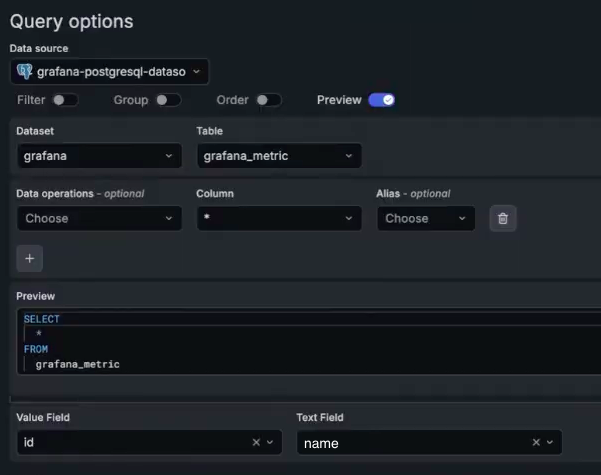
You can create a multi-property variable with either Type: Custom or Type: Query:
Type: Custom – In Custom options > JSON, paste your own JSON array with the mapping. Each object in the array can have any number of properties; use
textandvaluefor the label and value shown in the drop-down, and add additional properties as needed. For the JSON format and examples, refer to Multi-property custom variables in Add and manage variables.Type: Query – Write a SQL query that returns multiple columns. In the variable editor, set Value field and Text field to the columns that supply the value and the label for the drop-down. Add one column per property you want to reference; each column name becomes a property name. In panels and queries, reference a property with
${varName.columnName}.
Example (Type: Query): A variable named env that lists environments with different identifiers per cloud. In the variable editor, set Text field to name and Value field to id.
SELECT
  name,
  id,
  aws_identifier AS env_aws,
  azure_identifier AS env_azure
FROM environments
In a panel query you might use $env.env_aws for an AWS-related query and $env.env_azure for an Azure-related query. For more on the concept, refer to
Configure multi-property variables in
Add and manage variables.
Use variables in queries
Grafana automatically quotes template variable values only when the template variable is a multi-value.
When using a multi-value variable, use the IN comparison operator instead of = to match against multiple values.
Grafana supports two syntaxes for using variables in queries:
$<varname>syntax
Example with a template variable named hostname:
SELECT
  atimestamp AS time,
  aint AS value
FROM table
WHERE $__timeFilter(atimestamp) AND hostname IN($hostname)
ORDER BY atimestamp ASC[[varname]]syntax
Example with a template variable named hostname:
SELECT
  atimestamp AS time,
  aint AS value
FROM table
WHERE $__timeFilter(atimestamp) AND hostname IN([[hostname]])
ORDER BY atimestamp ASC
Disable quoting for multi-value variables
By default, Grafana formats multi-value variables as a quoted, comma-separated string. For example, if server01 and server02 are selected, the result will be 'server01', 'server02'. To disable quoting, use the csv formatting option for variables:
${servers:csv}This outputs the values as an unquoted comma-separated list.
Refer to Advanced variable format options for additional information.




