
 Grafana Cloud
Monitor infrastructure
Kubernetes Monitoring
Optimize resource usage and efficiency
Pod count insights
Grafana Cloud
Monitor infrastructure
Kubernetes Monitoring
Optimize resource usage and efficiency
Pod count insightsGain insight with Pod count
The Pod count panel on any workload detail page provides early visibility into workload pressure by linking replica changes to CPU and memory spikes. This helps you see scaling behavior before failures occur.
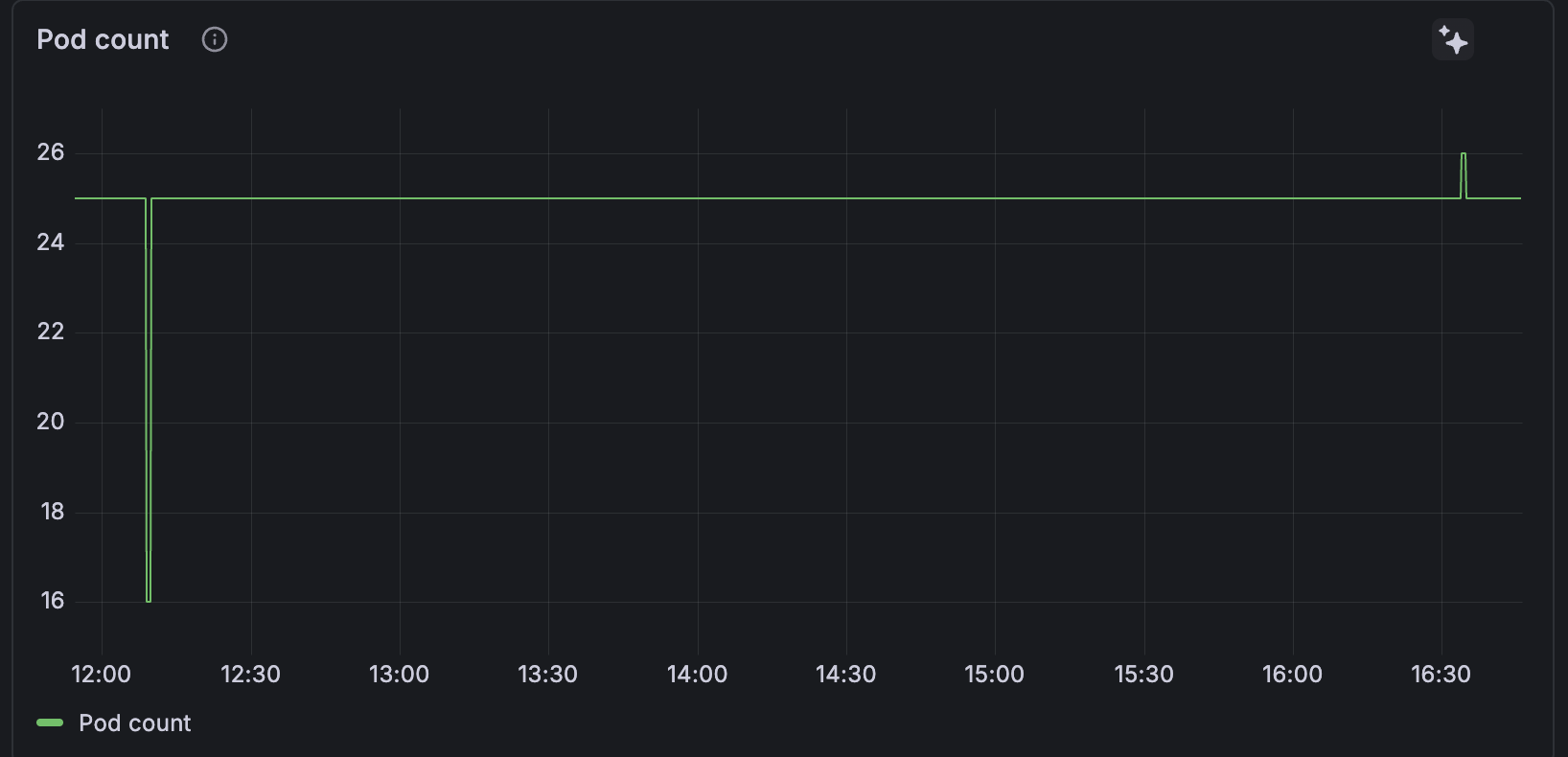
Pod count can help you:
Confirm scaling behavior
You can immediately see whether a workload is scaling up or down as expected, either manually or through an HPA.Correlate cause and effect. When latency spikes, errors increase, or CPU and memory usage changes, Pod count helps answer key questions:
- Did the workload scale before or after the issue started?
- Did scaling resolve the problem or make it worse?
Detect failed or delayed scaling. If traffic increases but Pod count stays flat, autoscaling may not be working correctly. If Pod count oscillates, it can indicate overly aggressive or misconfigured HPA thresholds.
Understand workload resource pressure. Changes in Pod count explain sudden shifts in workload-level CPU and memory usage, helping users see how scaling activity contributes to resource pressure before performance degrades.
Debug rollout and deployment behavior. During deployments, Pod count reveals rolling update progress, stalled replicas, or unexpected Pod churn that may not be obvious from logs or metrics alone.
Make informed operational decisions. Historical Pod count trends help users decide whether to adjust:
- Min/max replicas
- Autoscaling policies
- Resource requests and limits
Analysis and troubleshooting
Navigate to any Workload detail page and view the Pod count panel. Use the time range selector to increase the time range and view the Pod count.
Pod count is most useful over hours for troubleshooting, days for behavior validation, and weeks for capacity planning. The following are recommended time ranges depending on the type of issue you’re investigating.




