































Cost overview
Click Cost on the main menu to view the Overview tab. The top panels provide a way to quickly see the past 60 days and potential savings for the future. You can filter these costs and savings by Cluster.

With Grafana Play, you can explore and see how it works, learning from practical examples to accelerate your development. This feature can be seen on the Overview tab of the Cost page.
60-day historic costs

The top set of cards show a 60-day view of the total cost for CPU, memory, storage and network:
- Prior 30-day total cost: Costs for the 30-day period before the current period. You can use this as a baseline for comparison to see if costs are trending up or down.
- Current 30-day total cost: Costs for the past 30-days from the current date. The percentage indicates whether your current 30-day cost is greater or lower than the previous 30-day period.
- Two additional cards showing the current 30-day breakdown of Pod average cost and count. The percentages show a comparison of the current with the previous 30-day period.
Potential savings
The Future 30-day Potential savings card shows savings that you could achieve by optimizing resources.
It includes:
- Abandoned clusters with no workloads
- Orphaned persistent volumes unattached to pods
- Nodes sitting completely idle
- Resources clearly not being used
However, this calculation doesn’t capture hidden waste because it’s harder to measure without deeper utilization analysis. It excludes:
- Underutilized Nodes at 30% CPU (70% waste, but harder to quantify safely)
- Overprovisioned Pod requests (Pod asks for 4GB, but uses 500MB)
- Wrong instance types or missing spot/reserved instances
To explore savings details, click See all to switch to the Savings tab.
Cost by Cluster
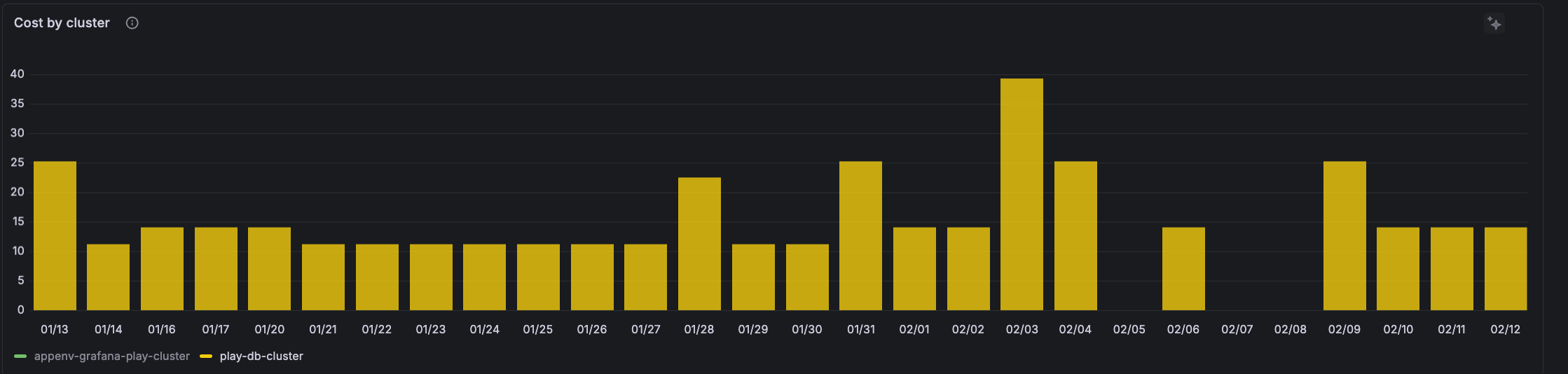
Use the Cost by cluster panel to view costs over whatever time period you choose from the time range selector. You can:
- View which Clusters consume the most resources within the time period
- View whether costs are increasing, stable, or decreasing over the time period
- Identify sudden spikes or drops in specific Clusters
Top spending
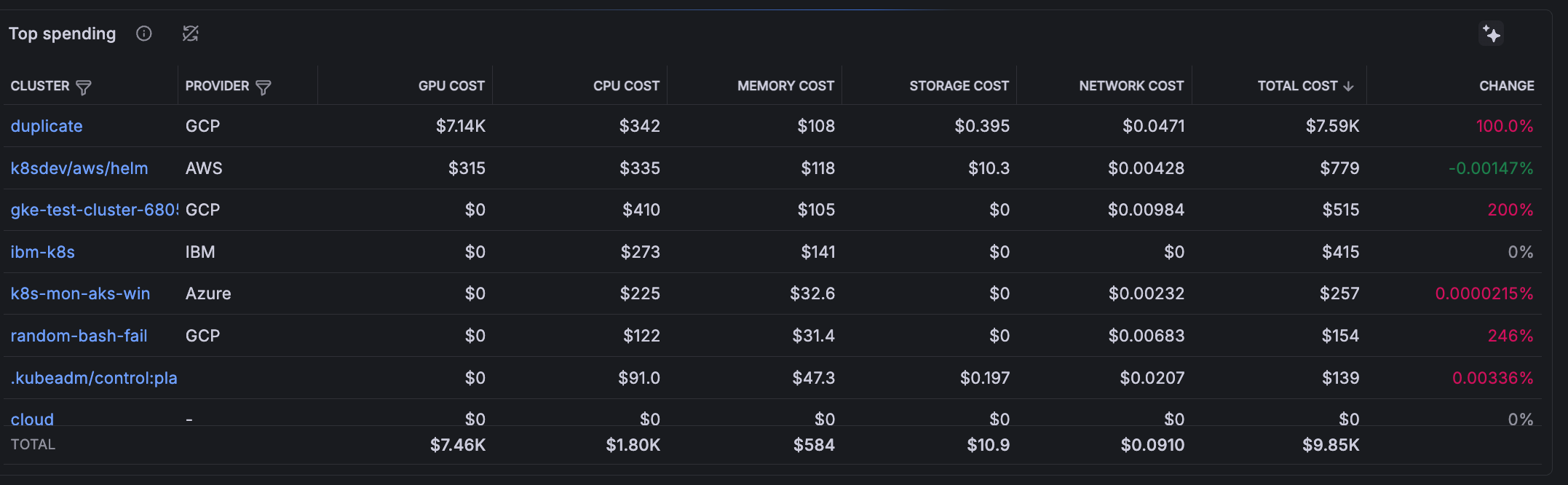
Use the Top spending list to:
- Determine which Clusters and resource types cost the most
- Target clusters with large CPU/memory/storage costs for rightsizing
- Identify Clusters with the highest change. The change column shows the percentage difference between the current time range value and the previous equivalent period.
Click any Cluster name to jump to the Cluster detail page.




