































Configure the Elasticsearch data source
Grafana ships with built-in support for Elasticsearch. You can create a variety of queries to visualize logs or metrics stored in Elasticsearch, and annotate graphs with log events stored in Elasticsearch.
For instructions on how to add a data source to Grafana, refer to the administration documentation. Administrators can also configure the data source via YAML with Grafana’s provisioning system.
Before you begin
To configure the Elasticsearch data source, you need:
- Grafana administrator permissions: Only users with the organization
administratorrole can add data sources. - A supported Elasticsearch version: v7.17 or later, v8.x, v9.x or Elastic Cloud Serverless.
- Elasticsearch server URL: The HTTP or HTTPS endpoint for your Elasticsearch instance, including the port (default:
9200). - Authentication credentials: Depending on your Elasticsearch security configuration, you need one of the following:
- Username and password for basic authentication
- API key
- No credentials (if Elasticsearch security is disabled)
- Network access: Grafana must be able to reach your Elasticsearch server. For Grafana Cloud, consider using Private data source connect (PDC) if your Elasticsearch instance is in a private network.
Elasticsearch permissions
When Elasticsearch security features are enabled, you must configure the following cluster privileges for the user or API key that Grafana uses to connect:
- monitor - Necessary to retrieve the version information of the connected Elasticsearch instance.
- view_index_metadata - Required for accessing mapping definitions of indices.
- read - Grants the ability to perform search and retrieval operations on indices. This is essential for querying and extracting data from the cluster.
Add the data source
To add the Elasticsearch data source, complete the following steps:
- Click Connections in the left-side menu.
- Under Connections, click Add new connection.
- Enter
Elasticsearchin the search bar. - Click Elasticsearch under the Data source section.
- Click Add new data source in the upper right.
You will be taken to the Settings tab where you will set up your Elasticsearch configuration.
Configuration options
Configure the following basic settings for the Elasticsearch data source:
Name - The data source name. This is how you refer to the data source in panels and queries. Examples:
elastic-1,elasticsearch_metrics.Default - Toggle on to make this the default data source. New panels and Explore queries use the default data source.
Connection
- URL - The URL of your Elasticsearch server, including the port. Examples:
http://localhost:9200,http://elasticsearch.example.com:9200.
Authentication
Select an authentication method from the drop-down menu:
Basic authentication - Enter the username and password for your Elasticsearch user.
Forward OAuth identity - Forward the OAuth access token (and the OIDC ID token if available) of the user querying the data source.
No authentication - Connect without credentials. Only use this option if your Elasticsearch instance doesn’t require authentication.
Serverless API Key - Enter your API key to connect to an Elastic serverless instance. For instructions on locating or generating your API key, refer to Elastic Cloud API keys.
API key authentication
To authenticate using an Elasticsearch API key, select No authentication and configure the API key using HTTP headers:
- In the HTTP headers section, click + Add header.
- Set Header to
Authorization. - Set Value to
ApiKey <your-api-key>, replacing<your-api-key>with your base64-encoded Elasticsearch API key.
For information about creating API keys, refer to the Elasticsearch API keys documentation.
Amazon Elasticsearch Service
If you use Amazon Elasticsearch Service, you can use Grafana’s Elasticsearch data source to visualize data from it.
If you use an AWS Identity and Access Management (IAM) policy to control access to your Amazon Elasticsearch Service domain, you must use AWS Signature Version 4 (AWS SigV4) to sign all requests to that domain.
For details on AWS SigV4, refer to the AWS documentation.
To sign requests to your Amazon Elasticsearch Service domain, you can enable SigV4 in Grafana’s configuration.
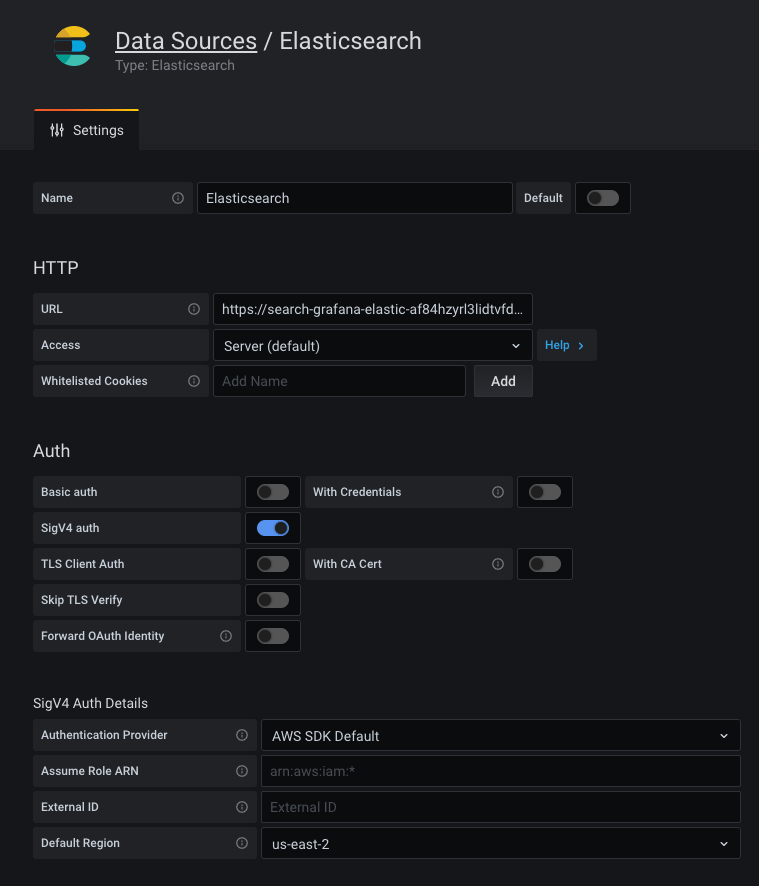
Once AWS SigV4 is enabled, you can configure it on the Elasticsearch data source configuration page. For more information about AWS authentication options, refer to AWS authentication.
TLS settings
Note
Use TLS (Transport Layer Security) for an additional layer of security when working with Elasticsearch. For information on setting up TLS encryption with Elasticsearch, refer to Configure TLS. You must add TLS settings to your Elasticsearch configuration file prior to setting these options in Grafana.
Add self-signed certificate - Check the box to authenticate with a CA certificate. Follow the instructions of the CA (Certificate Authority) to download the certificate file. Required for verifying self-signed TLS certificates.
TLS client authentication - Check the box to authenticate with the TLS client, where the server authenticates the client. Add the
Server name,Client certificateandClient key. The ServerName is used to verify the hostname on the returned certificate. The Client certificate can be generated from a Certificate Authority (CA) or be self-signed. The Client key can also be generated from a Certificate Authority (CA) or be self-signed. The client key encrypts the data between client and server.Skip TLS certificate validation - Check the box to bypass TLS certificate validation. Skipping TLS certificate validation is not recommended unless absolutely necessary or for testing purposes.
HTTP headers
Click + Add header to add one or more HTTP headers. HTTP headers pass additional context and metadata about the request/response.
Header - Add a custom header. This allows custom headers to be passed based on the needs of your Elasticsearch instance.
Value - The value of the header.
Additional settings
Additional settings are optional settings that can be configured for more control over your data source.
Advanced HTTP settings
Allowed cookies - Specify cookies by name that should be forwarded to the data source. The Grafana proxy deletes all forwarded cookies by default.
Timeout - The HTTP request timeout. This must be in seconds. There is no default, so this setting is up to you.
Elasticsearch details
The following settings are specific to the Elasticsearch data source.
Index name - The name of your Elasticsearch index. You can use the following formats:
- Wildcard patterns - Use
*to match multiple indices. Examples:logs-*,metrics-*,filebeat-*. - Time patterns - Use date placeholders for time-based indices. Wrap the fixed portion in square brackets. Examples:
[logstash-]YYYY.MM.DD,[metrics-]YYYY.MM. - Specific index - Enter the exact index name. Example:
application-logs.
- Wildcard patterns - Use
Pattern - Select the matching pattern if you use a time pattern in your index name. Options include:
- no pattern
- hourly
- daily
- weekly
- monthly
- yearly
Only select a pattern option if you have specified a time pattern in the Index name field.
Time field name - Name of the time field. The default value is
@timestamp. You can enter a different name.Max concurrent shard requests - Sets the number of shards being queried at the same time. The default is
5. For more information on shards, refer to the Elasticsearch documentation.Min time interval - Defines a lower limit for the auto group-by time interval. This value must be formatted as a number followed by a valid time identifier:
We recommend setting this value to match your Elasticsearch write frequency.
For example, set this to 1m if Elasticsearch writes data every minute.
You can also override this setting in a dashboard panel under its data source options. The default is 10s.
X-Pack enabled - Toggle to enable
X-Pack-specific features and options, which provide the query editor with additional aggregations, such asRateandTop Metrics.Include frozen indices - Toggle on when the
X-Pack enabledsetting is active. Includes frozen indices in searches. You can configure Grafana to include frozen indices when performing search requests.
Note
Frozen indices are deprecated in Elasticsearch since v7.14.
Logs
Configure which fields the data source uses for log messages and log levels.
Message field name - The field that contains the log message content.
Level field name - The field that contains log level or severity information. When specified, Grafana uses this field to determine the log level and color-code each log line. If the log doesn’t have a level field, Grafana tries to match the content against supported expressions. If Grafana can’t determine the log level, it displays as unknown.
Data links
Data links create a link from a specified field that can be accessed in Explore’s logs view. You can add multiple data links by clicking + Add.
Each data link configuration consists of:
Field - Sets the name of the field used by the data link.
URL/query - Sets the full link URL if the link is external. If the link is internal, this input serves as a query for the target data source.
In both cases, you can interpolate the value from the field with the${__value.raw }macro.URL Label (Optional) - Sets a custom display label for the link. The link label defaults to the full external URL or name of the linked internal data source and is overridden by this setting.
Internal link - Toggle on to set an internal link. For an internal link, you can select the target data source with a data source selector. This supports only tracing data sources.
Private data source connect (PDC) and Elasticsearch
Use private data source connect (PDC) to connect to and query data within a secure network without opening that network to inbound traffic from Grafana Cloud. Refer to Private data source connect for more information on how PDC works and Configure Grafana private data source connect (PDC) for steps on setting up a PDC connection.
If you use PDC with SigV4 (AWS Signature Version 4 Authentication), the PDC agent must allow internet egress to sts.<region>.amazonaws.com:443.
- Private data source connect - Click in the box to set the default PDC connection from the drop-down menu or create a new connection.
Once you have configured your Elasticsearch data source options, click Save & test to test the connection. A successful connection displays the following message:
Elasticsearch data source is healthy.
Provision the data source
You can define and configure the data source in YAML files as part of Grafana’s provisioning system. For more information about provisioning, and for available configuration options, refer to Provisioning Grafana.
Note
The previously used
databasefield has now been deprecated. Use theindexfield injsonDatato store the index name. Refer to the examples below.
Basic provisioning
apiVersion: 1

datasources:
  - name: Elastic
    type: elasticsearch
    access: proxy
    url: http://localhost:9200
    jsonData:
      index: '[metrics-]YYYY.MM.DD'
      interval: Daily
      timeField: '@timestamp'
Provision for logs
apiVersion: 1

datasources:
  - name: elasticsearch-v7-filebeat
    type: elasticsearch
    access: proxy
    url: http://localhost:9200
    jsonData:
      index: '[filebeat-]YYYY.MM.DD'
      interval: Daily
      timeField: '@timestamp'
      logMessageField: message
      logLevelField: fields.level
      dataLinks:
        - datasourceUid: my_jaeger_uid # Target UID needs to be known
          field: traceID
          url: '$${__value.raw}' # Careful about the double "$$" because of env var expansion
Provision the data source using Terraform
You can provision the Elasticsearch data source using Terraform with the Grafana Terraform provider.
For more information about provisioning resources with Terraform, refer to the Grafana as code using Terraform documentation.
Basic Terraform example
The following example creates a basic Elasticsearch data source for metrics:
resource "grafana_data_source" "elasticsearch" {
  name = "Elasticsearch"
  type = "elasticsearch"
  url  = "http://localhost:9200"

  json_data_encoded = jsonencode({
    index     = "[metrics-]YYYY.MM.DD"
    interval  = "Daily"
    timeField = "@timestamp"
  })
}
Terraform example for logs
The following example creates an Elasticsearch data source configured for logs with a data link to Jaeger:
resource "grafana_data_source" "elasticsearch_logs" {
  name = "Elasticsearch Logs"
  type = "elasticsearch"
  url  = "http://localhost:9200"

  json_data_encoded = jsonencode({
    index           = "[filebeat-]YYYY.MM.DD"
    interval        = "Daily"
    timeField       = "@timestamp"
    logMessageField = "message"
    logLevelField   = "fields.level"
    dataLinks = [
      {
        datasourceUid = grafana_data_source.jaeger.uid
        field         = "traceID"
        url           = "$${__value.raw}"
      }
    ]
  })
}
Terraform example with basic authentication
The following example includes basic authentication:
resource "grafana_data_source" "elasticsearch_auth" {
  name = "Elasticsearch"
  type = "elasticsearch"
  url  = "http://localhost:9200"

  basic_auth_enabled  = true
  basic_auth_username = "elastic_user"

  secure_json_data_encoded = jsonencode({
    basicAuthPassword = var.elasticsearch_password
  })

  json_data_encoded = jsonencode({
    index     = "[metrics-]YYYY.MM.DD"
    interval  = "Daily"
    timeField = "@timestamp"
  })
}
For all available configuration options, refer to the Grafana provider data source resource documentation.




