
 Group and delete multiple panels from the dashboard

Group and delete multiple panels from the dashboard
Reorganize big dashboards without leaving the canvas. Until now, grouping or deleting multiple panels at once meant going to the sidebar. Now, the actions tooltip on the dashboard supports multi-selection.
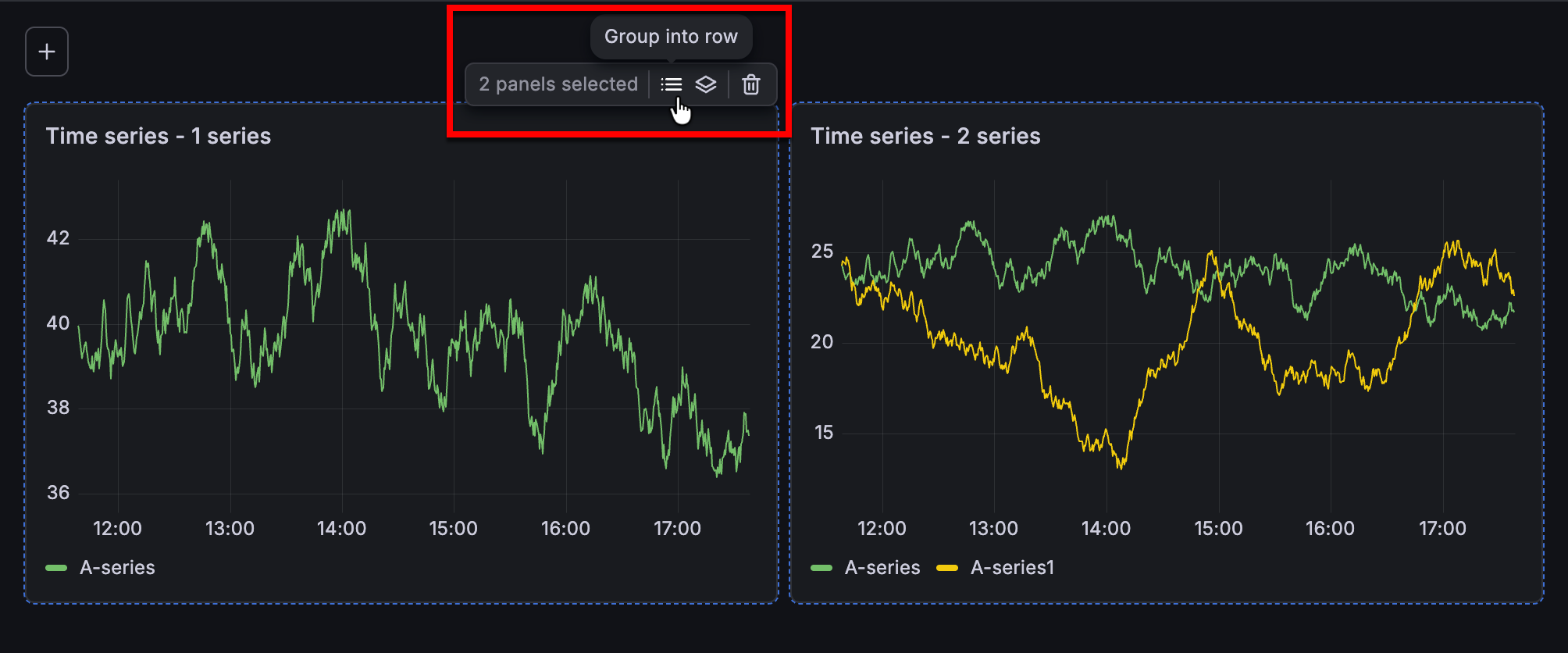
In edit mode, press Shift and click the panels you want group or delete, and then hover your cursor over any of them. The actions tooltip shows how many panels you’ve selected and lets you Group into row, Group into tab, or Delete them all in one step.
If a grouping option isn’t available for your selection, for example because the panels are in different rows, you can hover your cursor over one of the panels to display a tooltip explaining why.
When you hover your cursor over a single panel, the tooltip still displays the single-panel actions.
