
 Custom headers and footers for report PDFs
Custom headers and footers for report PDFs
Different readers need different things from a report. An executive may want clean pages that put the panels first, while a client expects your branding and page numbers throughout.
Custom PDF headers and footers let you shape your reports around the people who read them. Decide what the header shows, build a footer from the pieces you need, and style the text to suit your audience.
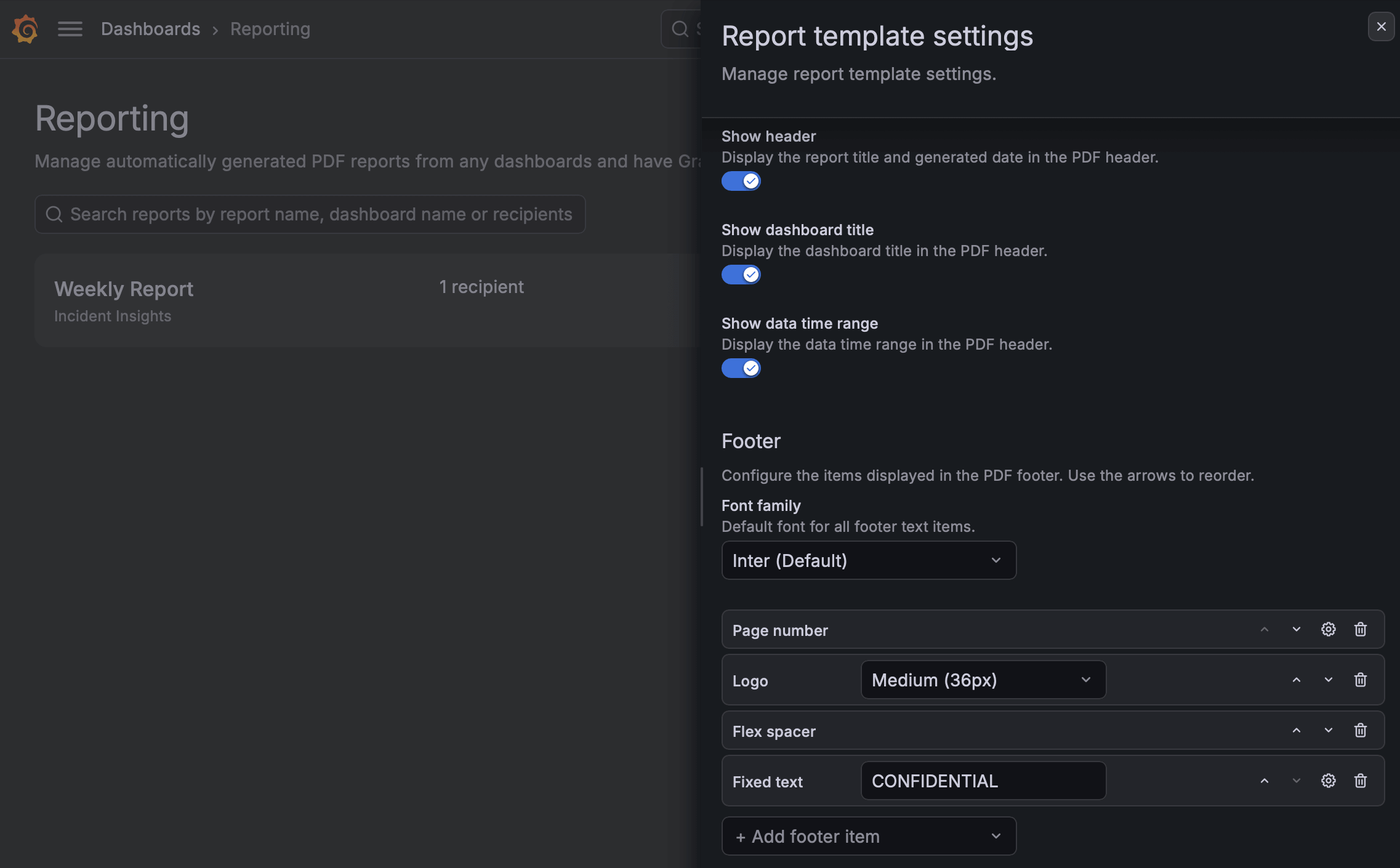
The header tells readers what they’re looking at: the report title and date, the dashboard title, and the data time range. A team reviewing an incident may want all three, while a leadership summary may need none of them. Switch off what your readers don’t need, and the panels get the space instead.
The footer is where you make the report yours. Combine page numbers, the date, your company logo, and short lines of your own text, such as a copyright notice or a confidentiality label. With spacers between items, you can put the date on the left, a label in the center, and the page number on the right.
You control how that text looks, too. Pick one of eight font families for the whole footer, and give each text item its own size, weight, style, and color. A bold red label marks sensitive material, and a small gray page number doesn’t pull attention from your panels.
Set it up once from Report settings in Dashboards > Reporting, and every report your organization sends carries the same look. You’ll see the same header and footer in Preview PDF while you create a report, and in Export as PDF on a dashboard. To learn about each option, refer to the PDF header and PDF footer documentation.
Custom PDF headers and footers are generally available in Grafana Cloud. To try them out in self-managed Grafana Enterprise, enable the reportingHeaderSettings and reportingFooterSettings feature toggles.
