
 Panel time settings and time comparison are now generally available
Panel time settings and time comparison are now generally available
Panel time settings and time comparison are now generally available.
The Panel time settings drawer brings a panel’s time options together in one place. Open the panel menu and select Time settings to override the dashboard time range for a single panel, shift that panel’s window, or compare its data against an earlier period, all without entering dashboard edit mode. When you configure these settings, they appear in the panel header.
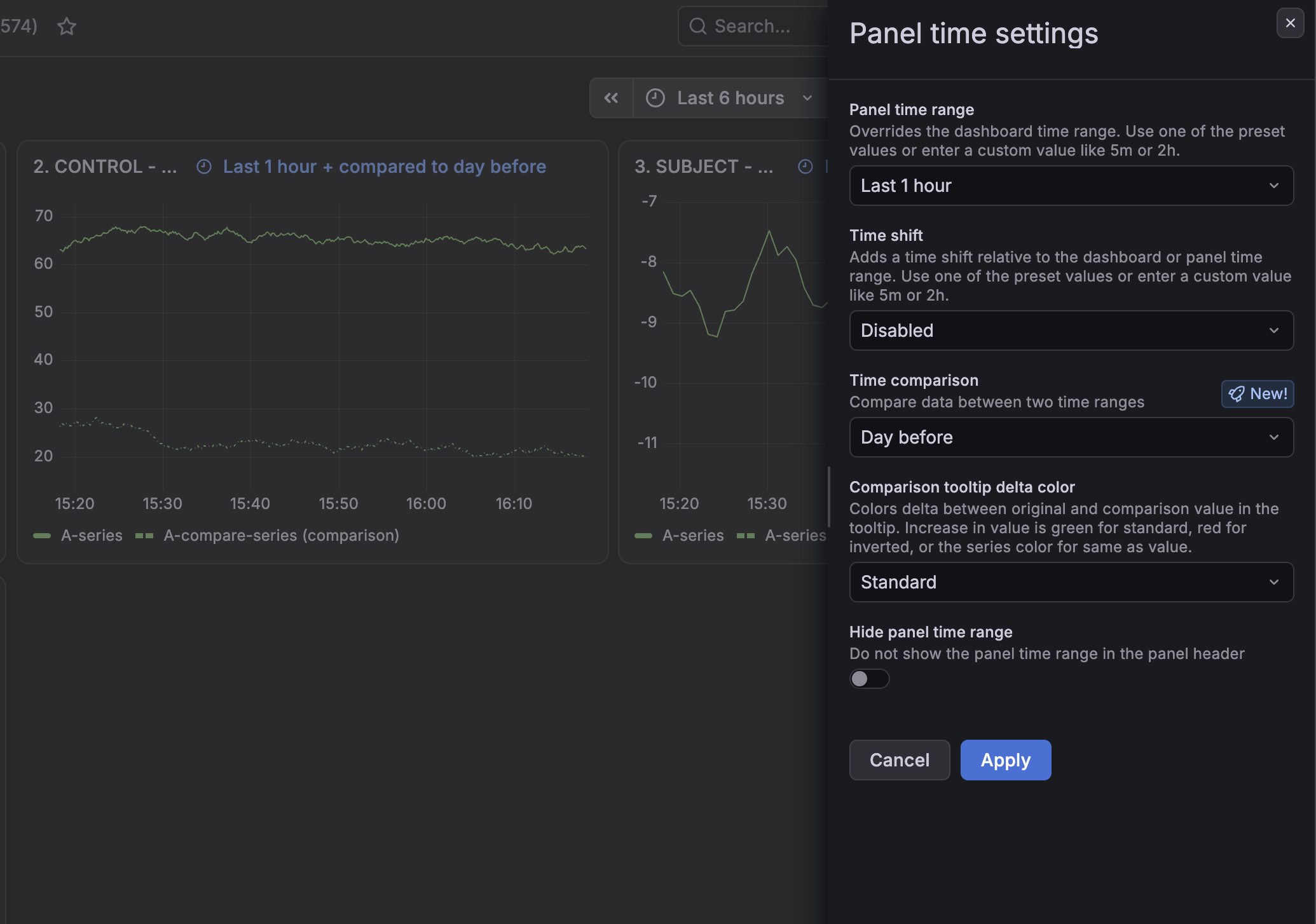
The drawer includes the following settings:
- Panel time range: Override the dashboard time range for this panel. Use a preset value or enter a custom value like
5mor2h. - Time shift: Move the panel’s window relative to the dashboard or panel time range, so you can show a past period next to the rest of your dashboard.
- Time comparison: Compare time series data from two time ranges in a single panel, making it easier to track trends and benchmark performance without duplicating panels or dashboards. Compare against the Day before, Week before, Month before, or a custom offset.
This release also adds the Comparison tooltip delta color setting for time series visualizations, which controls how the change between the original and comparison values appears in the tooltip:
- Standard: An increase is shown in green.
- Inverted: An increase is shown in red.
- Same as value: The change uses the series color.
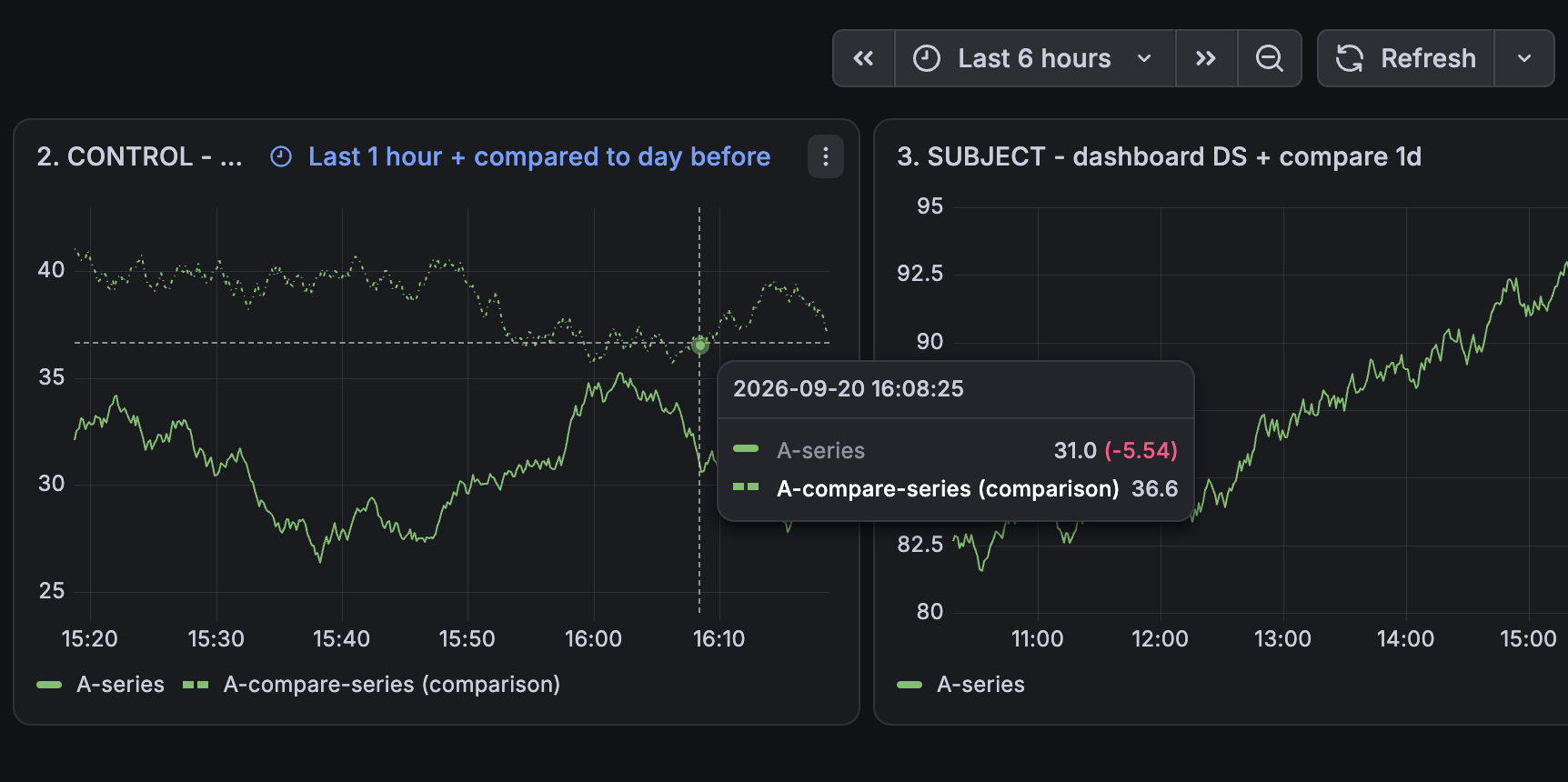
These features are rolling out to Grafana Cloud over the next few weeks.
To learn more, refer to Panel time settings. For the original announcement, refer to Consolidated panel time settings and time comparison.
