
 Simplify organization and access with Team folders
Simplify organization and access with Team folders
Keep your team’s content all in one place, making it easier to find, organize, and manage access.
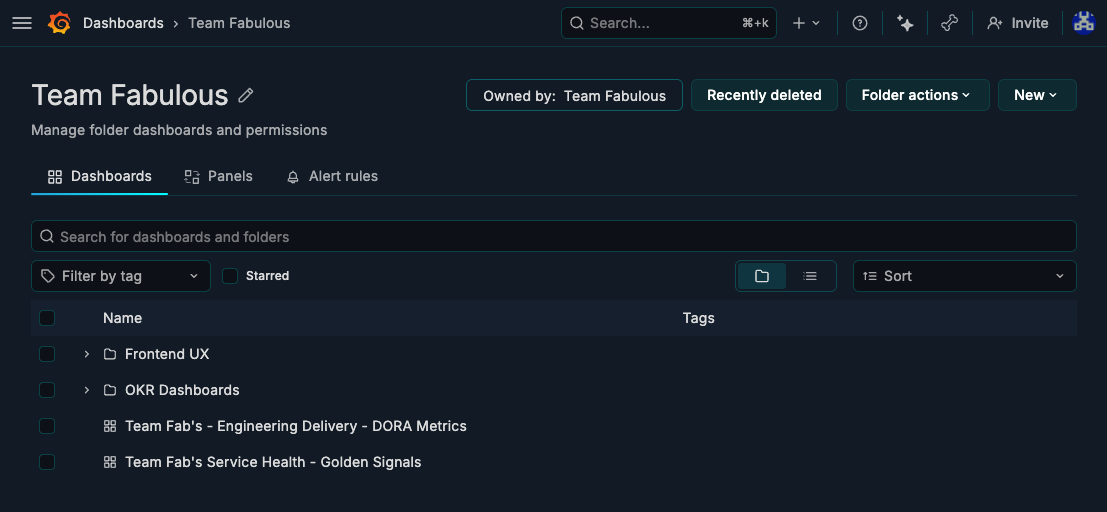
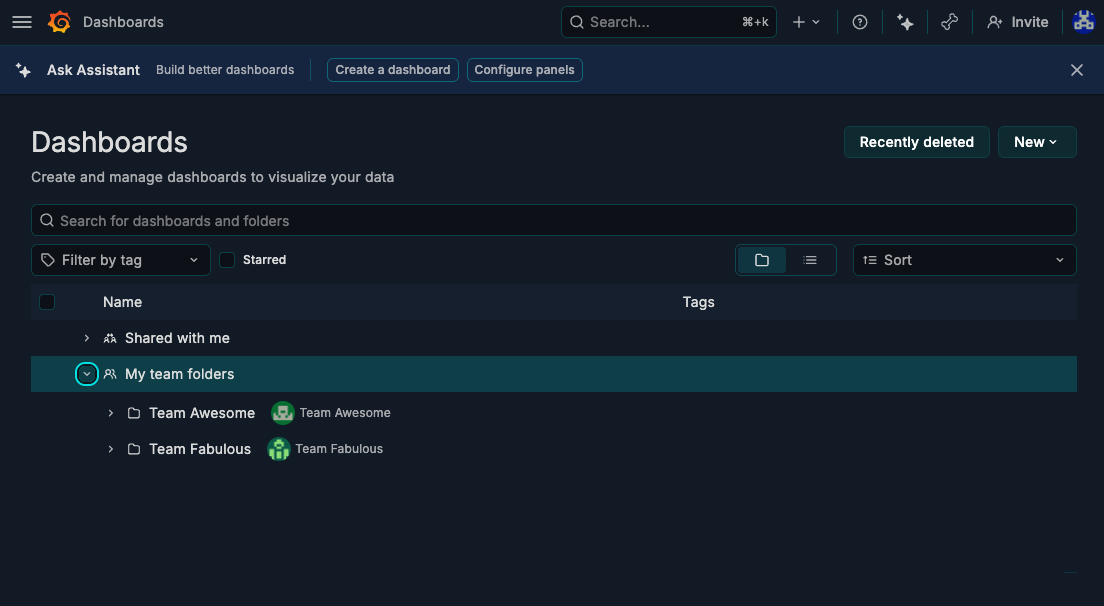
Team folders help you associate folders with teams so admins and team members can find the right dashboards, library panels, and alert rules faster. When you belong to a team that owns a folder, Grafana surfaces those folders at the top of the Dashboards page and in your team details, giving your team a clear home from day one.
You can create a team folder automatically when creating a team, or assign a team owner to an existing folder from the Dashboards UI. A team folder is still a regular folder, the team association adds ownership metadata and team-aware navigation, but it doesn’t change the underlying permission permissions.
Create a team folder when you create a team
When team folders are enabled, the New team page includes an option to create a folder automatically.
- Open Administration and go to Users and access > Teams.
- Click New team.
- Enter the team details.
- Under Team folder, select Auto-create a team folder.
- Click Create.

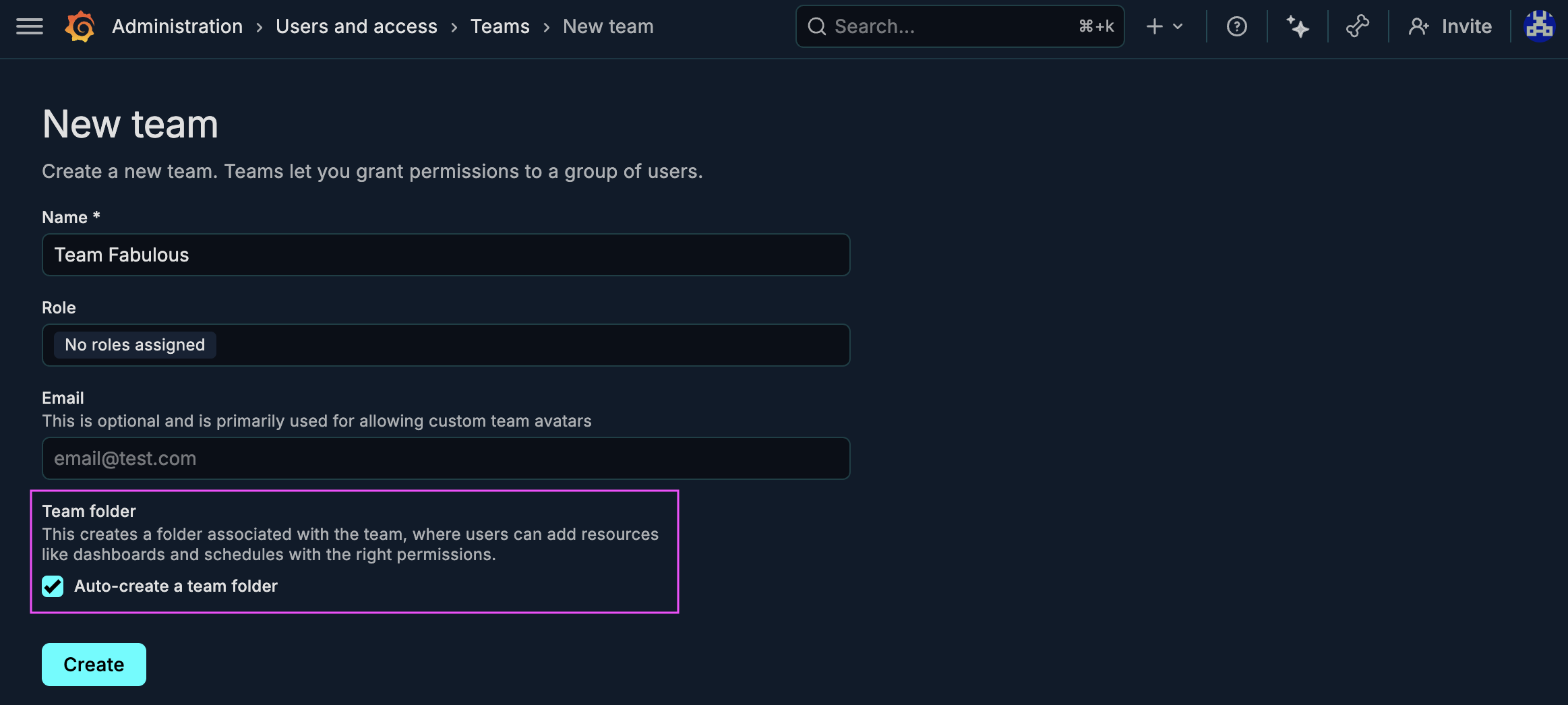
Grafana creates a folder with the same name as the team and assigns that team as the folder owner. After the folder is created, review the folder permissions and update them if needed.
Create or assign a team folder from Dashboards
You can create a new folder for a team or assign ownership to an existing folder.
Create a new team folder
- Click Dashboards in the primary menu.
- Click New and select New folder.
- Enter a unique folder name.
- Select Assign an owner to the folder.
- Under Team, select the team that should own the folder.
- Click Create.

Assign or change the owner of an existing folder
- Click Dashboards in the primary menu.
- Open the folder you want to update.
- Click Folder actions and select Manage folder owner.
- Select a team, or clear the current value to remove the owner.
- Click Save owner.
Folders with a team owner display an Owned by label in the folder header.
Find your team folders
When team folders are enabled, the Dashboards page displays a My team folders section near the top when you belong to teams that own folders. Expand that section to open the folders owned by your teams.
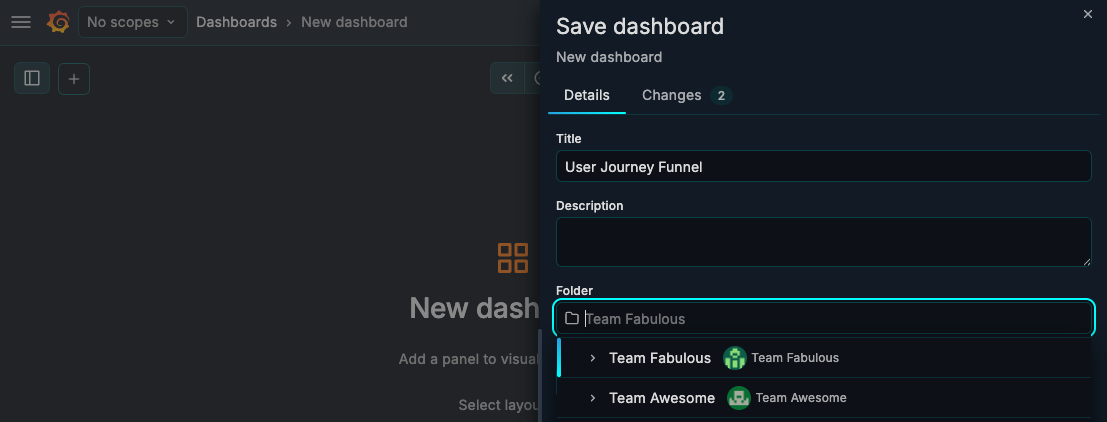
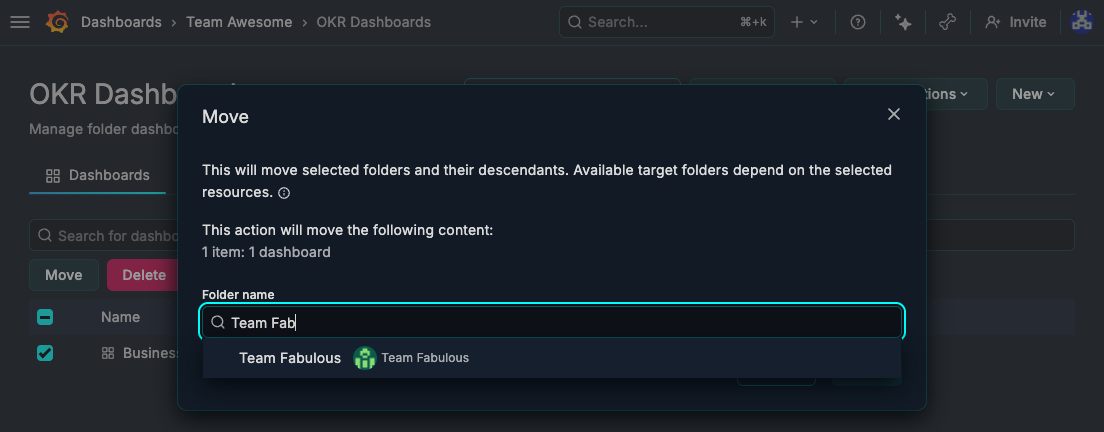
When saving or moving a dashboard, the folder picker shows a Team folders section at the top of the folder tree. Your first team folder is preselected by default.
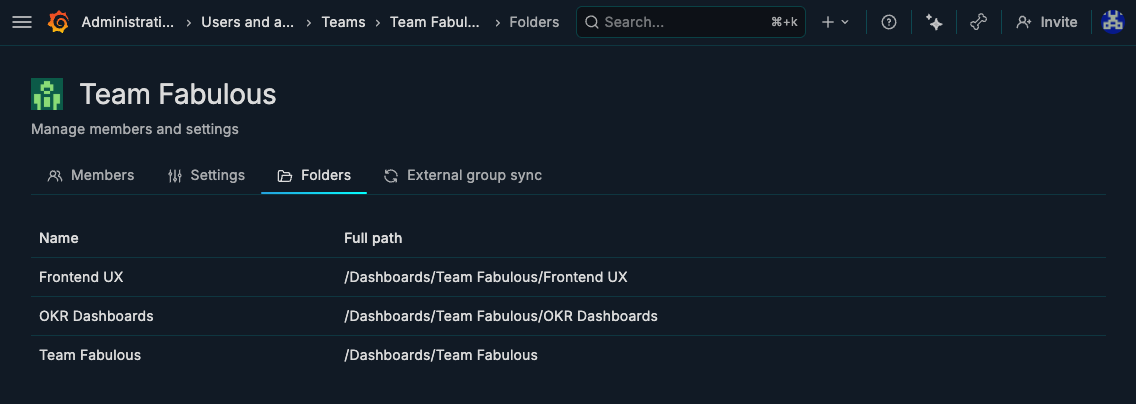
To see all folders owned by a specific team, open the team’s page and select the Folders tab.
Availability and limitations
Team folders are available in public preview for Grafana Cloud, Grafana OSS, and Grafana Enterprise. To try them, enable the teamFolders and foldersAppPlatformAPI feature toggles. Check out our docs for additional support.
You also need permission to create root-level folders or subfolders in the parent folder you want to use. To assign or change a folder owner in the UI, you must have permission to manage folder permissions and read teams.
For full configuration steps, refer to our docs.
Current limitations:
- You can assign only one team owner per folder.
- Folder ownership does not replace folder permissions. If team members need access, configure folder permissions separately, refer to our docs.
We would love your feedback, you can share it here.
