

Administrator reference
Interactive learning, also called Pathfinder, provides contextual documentation and interactive guides inside Grafana. Use its settings to control availability and the learning experience for your Grafana organization.
Open the configuration page
You need the Admin role in the Grafana organization to change these settings.
- Open Administration > Plugins and data > Plugins.
- Search for
Interactive learningand select the plugin. - Select Configuration.
You can also open the sidebar’s More options menu and select Settings. In Grafana Cloud, Classic Help menu settings opens the same page.
The direct path on your Grafana instance is /plugins/grafana-pathfinder-app?page=configuration. This page remains accessible when interactive learning is disabled.
Disable Interactive learning in Grafana Cloud
To restore Grafana’s classic Help menu for everyone in the current Grafana organization:
- Open the plugin’s Configuration tab.
- In the Interactive learning section, turn off Enable interactive learning.
- Select Save configuration. The page reloads after a successful save.
- Ask users who already have Grafana open to reload their pages.
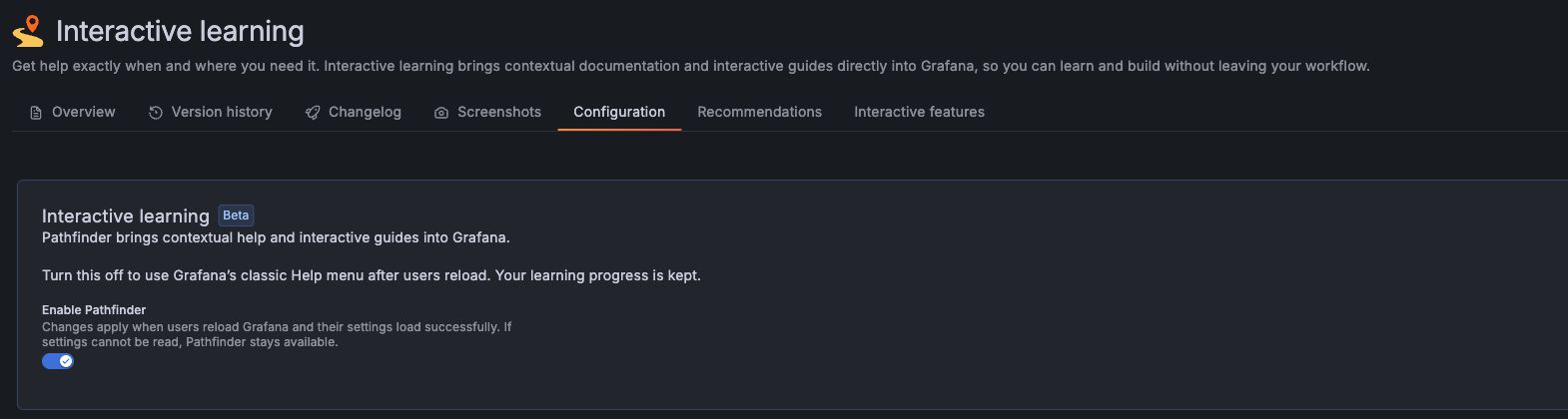
After users reload and the saved setting loads, Pathfinder’s sidebar, guide launch links, kiosk, and interactive actions are unavailable. The classic Help menu returns. Existing learning progress is kept, and disabling Pathfinder does not delete saved custom guides.
This setting applies to the current Grafana organization, not every stack in your Grafana Cloud account. Repeat the procedure in each organization where you want to disable Pathfinder. Closing the sidebar only closes your panel; it does not disable Pathfinder for other users.
Note
If the saved setting cannot be read when Grafana loads, Pathfinder can remain available. If the sidebar still appears, check that the setting saved successfully, reload, and contact your Grafana administrator or Grafana Cloud support if the problem continues.
Re-enable Interactive learning
Return to the same Configuration page, turn on Enable interactive learning, and select Save configuration. Users must reload Grafana to apply the change.
Grafana Cloud also controls availability during the public preview. If the page displays Interactive learning is disabled remotely, turning on the local setting cannot override that restriction. Your saved preference applies when Grafana Cloud makes Pathfinder available again.
Disable recommendations only
To keep guides available while stopping context-aware recommendation requests:
- Select the Recommendations tab on the plugin page.
- Turn off Enable context-aware recommendations.
- Select Save settings.
This is separate from Enable interactive learning. Bundled guides remain available, and online browsers can fetch the public guide catalog and content. For details about data usage, refer to Terms and conditions.
Configure recommendations
Context-aware recommendations use the current Grafana page and other contextual information to suggest relevant documentation and guides.
The service is enabled by default in Grafana Cloud. On self-managed Grafana, an administrator must review the data usage notice and enable Enable context-aware recommendations on the Recommendations tab, then select Save settings.
For an overview of content sources and data handling, refer to Interactive learning architecture.
Choose how guides open
The following settings are on the Configuration tab. Select Save configuration after changing them.
Auto-launch a guide
Set Auto-launch tutorial URL to the URL of a guide or documentation page to open when the sidebar opens. For example, use https://grafana.com/tutorials/grafana-fundamentals/ for introductory material. Clear the field to stop automatically selecting that content.
Open documentation links in the sidebar
Turn on Intercept documentation links globally to open supported Grafana documentation links in Interactive learning. This feature is experimental.
On Grafana Cloud, Grafana Labs can turn this feature on for your stack with a feature flag. When it does, the toggle shows as on and you can’t change it. Your own setting is kept and applies again when the flag is turned off.
To open a link in a separate browser tab instead, hold Ctrl on Windows or Linux, hold Cmd on macOS, or middle-click the link. Links also open in a separate tab when Grafana’s own kiosk mode (?kiosk in the URL) is on, and when they point to a filtered or searched page, such as What’s new filtered by product.
Open the sidebar when Grafana loads
Turn on Automatically open Interactive learning panel when Grafana loads to open the sidebar on the initial page load. This feature is experimental. It does not reopen the sidebar on every navigation within Grafana.
If a user starts in Grafana’s onboarding flow, opening is deferred until they leave that flow.
Configure interactive guide behavior
Use the Interactive features tab to adjust how steps behave. Select Save configuration to apply changes. To restore the defaults on this tab, select Reset to defaults, then Save configuration.
Turning off automatic step completion does not prevent a reader from using Do it or the guide’s Mark complete control. Accepted AI repair suggestions affect the guide in the current session; they do not publish changes to the saved guide. Turning off AI repair leaves built-in recovery available.
Use a separate interactive window
The two-tab controller is experimental. When enabled, Open in interactive window opens the guide in another browser tab. Pairing requires a one-time code and explicit acceptance in the original Grafana tab. Once paired, guide actions run in that original tab with the signed-in user’s permissions. Enable this feature only for trusted guide content and instances.
Manage custom guides
Users with the Editor or Admin role can open More options > Create guide in the sidebar. Dev mode is not required.
Saving and publishing guides requires the Pathfinder storage service to be available on the instance and the user to have permission to write guides. If storage is unavailable, authors can still work locally and export guide JSON. Published guides are available to users in the same Grafana organization; they are not automatically shared to other stacks.
For draft, publishing, sharing, and import instructions, refer to the Block editor guide.
Kiosk mode
Kiosk mode displays a full-screen catalog of guides for demonstrations or onboarding.
- Open the Interactive features tab.
- Turn on Enable kiosk mode.
- Optionally set Rules JSON URL to a custom catalog.
- Select Save configuration.
- Open More options > Kiosk mode in the sidebar.
A catalog opened from the sidebar can launch guides in a new browser tab. Select Exit kiosk or press Escape to return to Grafana.
Open a kiosk from a link
Add pathfinderKiosk=1 to a Grafana URL to open a kiosk. This works even when the Enable kiosk mode setting is off, but Pathfinder itself must be available. The link does not change the saved setting.
https://your-stack.grafana.net/?pathfinderKiosk=1To choose a different catalog, add kioskRulesUrl with the URL-encoded address of the catalog JSON:
https://your-stack.grafana.net/?pathfinderKiosk=1&kioskRulesUrl=https%3A%2F%2Finteractive-learning.grafana.net%2Fmy-kiosk.jsonReplace the example catalog address with your published catalog. If your Grafana URL already has a query string, append parameters with &.
Guides selected from a URL-launched kiosk open in the same browser tab and Grafana instance. Product tiles labeled Open product open the product directly and close the learning panel while keeping saved guides and panel preferences. Browser Back returns to the kiosk after either launch.
While the kiosk is open, its launch parameters stay in the address bar, so you can share the URL or refresh to reopen the same catalog. Browser Back or Forward restores the kiosk from its URL. Selecting the exit button or pressing Escape removes the launch parameters, so refresh does not reopen it.
Custom catalogs
Custom catalog selections must use HTTPS and come from Grafana’s guide CDN (https://interactive-learning.grafana.net), the current Grafana origin, or the origin of the configured default catalog. Endpoints must serve JSON directly without redirects, work without cookies or embedded credentials, and allow browser access through CORS when hosted on another origin.
A catalog can be a rules array or an object containing rules and an optional HTML banner. For example, this entry opens a bundled guide from Explore:
[
  {
    "title": "Explore your metrics",
    "url": "bundled:prometheus-advanced-queries",
    "description": "Practice queries with your own metrics.",
    "type": "interactive",
    "page": "/explore"
  }
]
Set interactiveLearning: false on a rule to open a product directly. This requires a safe internal page; the guide url is retained but ignored. These rules show no guide completion progress and cannot be used by launch forms. Omit the field or set it to true to launch a guide. Deploy a Pathfinder version supporting this field before publishing the catalog: earlier strict catalog readers reject it.
The optional page for a guide must be a safe internal Grafana path. URL-launched kiosks ignore targetUrl destinations, keeping learners on the current instance. Guide URLs must be accepted content sources. Custom HTML banners are sanitized before display.
Without a custom catalog, the kiosk shows the bundled Grafana learning catalog. If a selected catalog fails, Pathfinder tries the configured default, then the generic online catalog, and finally a bundled fallback. Loading guide content can still require a network connection.
Optional sandbox terminals and live sessions
These features depend on additional services and might not be available on your instance.
- Sandbox terminals: Require the separate Coda app plugin, configured and registered by an administrator. If available, Enable Coda terminal on the Configuration tab exposes sandbox steps. Grafana Cloud can also enable terminals remotely; in that case the setting is read-only. Sandbox availability and permitted roles depend on the Coda configuration.
- Live sessions: Allow a presenter to share guide actions with attendees. They are experimental and require a configured signalling service. The Configuration tab exposes the available settings when the feature is supported.
For changes affecting existing sandbox installations, refer to Upgrade notes.
Was this page helpful?
Related resources from Grafana Labs


