

MongoDB templates and variables
Instead of hard-coding details such as server, application, and sensor names in metric queries, you can use variables. Grafana lists these variables in drop-down select boxes at the top of the dashboard to help you change the data displayed in your dashboard. A template is any query that contains a variable.
Before you begin
For an introduction to templates and variables, refer to the following documents:
To add a new MongoDB query variable, refer to Add a query variable. Use MongoDB as your data source.
The following sample query retrieves all movie titles after 1980:
sample_mflix.movies.aggregate([
    {"$match": {year: {"$gt": 1980}}},
    {"$project": {"_id": 0, "movie_title": "$title"}}
])
Compound variables
MongoDB supports compound variables, where a single variable combines multiple values into one selection. The plugin splits the selected value by a hyphen separator (-) and maps each part to a sub-variable based on the underscores in the variable name.
Guidelines for working with compound variables:
- Naming: Start the variable name with an underscore and concatenate component names with underscores. Avoid spaces. Example:
_var1_var2creates two sub-variables$_var1and$_var2. - Query output: Return values where components are separated by
-(space-hyphen-space). Example:value1 - value2. - Referencing: Use standard variable syntax to reference each component. Examples:
$_var1or$_var2.
Example: Filtering results on both movie name and year:
Create a variable and name it
_movie_year. This defines two components:_movieand_year.Select MongoDB as the data source.
Write a query that returns combined values separated by
-:sample_mflix.movies.aggregate([ {"$match": {year: {"$gt": 1980}}}, {"$project": {"_id": 0, "movie_year": {"$concat": ["$title", " - ", {"$toString":"$year"}]}}} ]) // Returns: [{"movie_year": "Ted - 2016"}, {"movie_year": "The Terminator - 1985"}]When a user selects “The Terminator - 1985”, the plugin splits it into
$_movie=The Terminatorand$_year=1985. Reference these in your query:sample_mflix.movies.find({"title": "$_movie", year: $_year})Use the variable in your MongoDB queries with the appropriate variable syntax.
Use ad hoc filters
In addition to a standard ad hoc filter variable (with any name), you must create a second helper variable. This helper variable should:
- Be of
constanttype - Be named
mongo_adhoc_query - Have a value compatible with the query editor
The query result populates the selectable filters in the dashboard UI. Since this variable has no further purpose, you may choose to hide it from view.
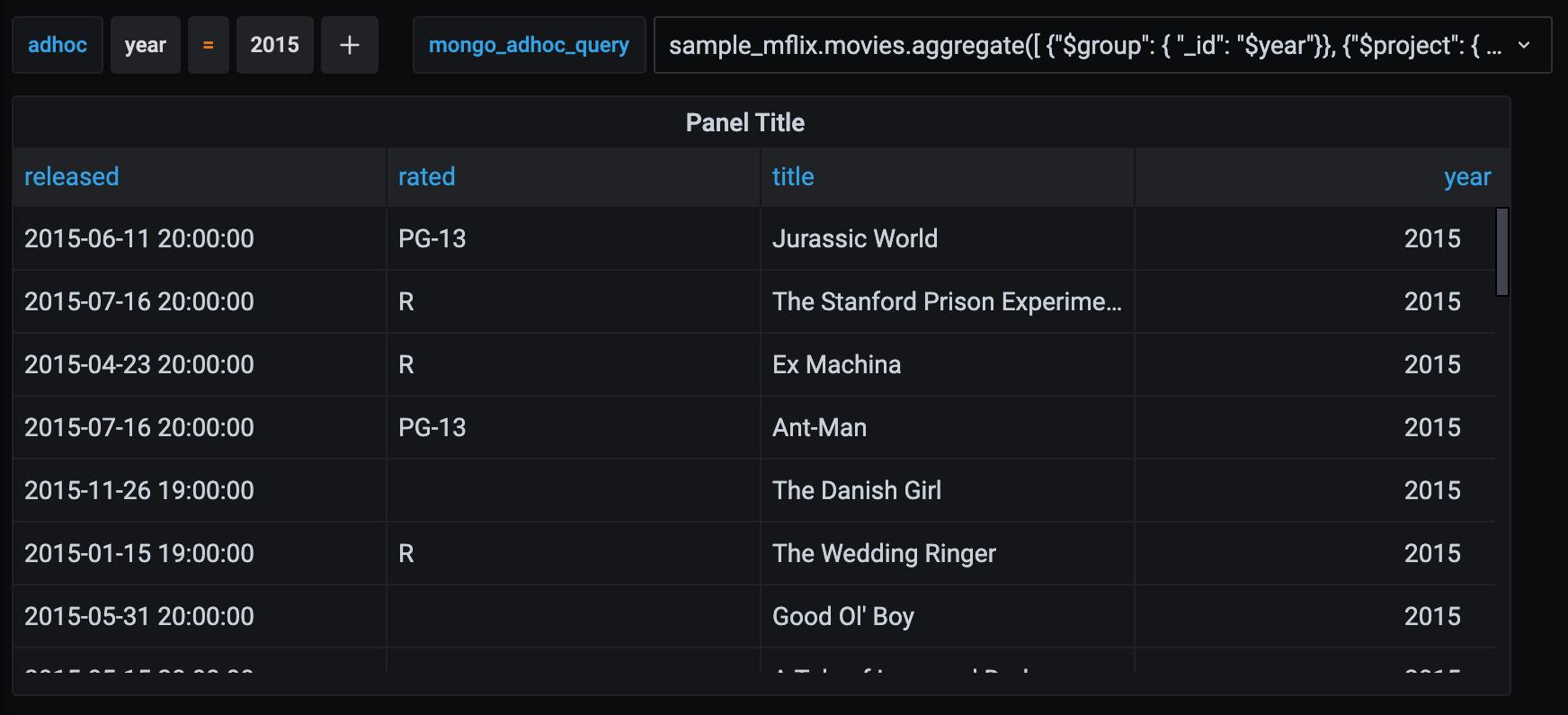
Consider the following query:
sample_mflix.movies.aggregate([ {"$group": { "_id": "$year"}}, {"$project": { "year": "$_id", "_id": 0 }} ] )After adding a selected value, the output appears as follows:
Supported query syntax
The following query syntax features are supported in both variable queries and panel queries.
ObjectId type support
sample_mflix.movies.find({"_id": ObjectId("573a1390f29313caabcd4803")})

sample_mflix.movies.find({"_id": {$in : [ObjectId("573a1391f29313caabcd6f98"), ObjectId("573a1392f29313caabcd9dee"), ObjectId("573a1392f29313caabcd9ca6")] }})
Regex search support
With double quotes:
sample_mflix.movies.find({"title": {$regex: "ace", $options: "i"} })With single quotes:
sample_mflix.movies.find({"title": {$regex: 'ace', $options: "i"} })With pattern:
sample_mflix.movies.find({"title": /ace/i })$__timeFrom / $__timeTo macros support
sample_mflix.movies.find({"tomatoes.dvd": { $gt: $__timeFrom}}).limit(10)

sample_mflix.movies.find({ $and: [{ "tomatoes.dvd": { $gte: $__timeFrom }}, { "tomatoes.dvd": { $lt: $__timeTo }}]})
ISODate type support
sample_mflix.movies.find({"tomatoes.dvd": { $gte: ISODate("2013-03-01") }})
sample_mflix.movies.find({"tomatoes.dvd": { $gte: ISODate(1719600176123) }})
sample_mflix.movies.find({"tomatoes.dvd": { $gte: ISODate("2024-07-04T13:06:55Z") }})
sample_mflix.movies.find({"tomatoes.dvd": { $gte: ISODate() }})
new Date type support
sample_mflix.movies.find({"tomatoes.dvd": { $gte: new Date("2013-03-01") }})
sample_mflix.movies.find({"tomatoes.dvd": { $gte: new Date(1719600176123) }})
sample_mflix.movies.find({"tomatoes.dvd": { $gte: new Date("2024-07-04T13:06:55Z") }})
sample_mflix.movies.find({"tomatoes.dvd": { $gte: new Date() }})
Date type support
sample_mflix.movies.find({"tomatoes.dvd": { $gte: Date("2013-03-01") }})
sample_mflix.movies.find({"tomatoes.dvd": { $gte: Date(1719600176123) }})
sample_mflix.movies.find({"tomatoes.dvd": { $gte: Date("2024-07-04T13:06:55Z") }})
sample_mflix.movies.find({"tomatoes.dvd": { $gte: Date() }})
$$NOW date string type support
sample_mflix.movies.find({"tomatoes.dvd": { $gte: "$$NOW" }})Date.now() timestamp support
Date.now() returns the current Unix timestamp in milliseconds:
sample_mflix.movies.find({"tomatoes.dvd": { $gte: Date.now() }})The plugin supports basic arithmetic after Date.now(). For example, to fetch timestamps from 15 seconds ago:
sample_mflix.movies.find({"tomatoes.dvd": { $gte: Date.now() - 15 * 1000, $lt: Date.now() }})Debug response size
You can enable debug logging to analyze the size of query responses, which helps identify performance issues or truncated data.
Note
The debugging response size feature is not currently supported in Grafana Cloud.
GF_PLUGIN_LOGGER_LEVEL can be configured either as an environment variable or in the grafana.ini configuration file, as shown in the following example:
[plugin.grafana-mongodb-datasource]
# the log level to capture
# either 1 (traces) or 2 (debug) will work
logger_level = 2
After each query, the MongoDB plugin logs information regarding the response size.
Was this page helpful?
Related resources from Grafana Labs


