---
title: "Push notifications from the mobile app | Grafana OnCall documentation"
description: "Learn how to receive push notifications from the Grafana OnCall mobile app."
---
# Push notifications from the mobile app
> Warning
>
> **Cloud Connection for Grafana OnCall OSS ended on March 24, 2026.** Push notifications, phone calls, and SMS that relied on Cloud Connection in Grafana OnCall OSS are no longer supported through Grafana Cloud. For third-party push options, refer to
>
> ```
> Configure push notifications; for phone and SMS, refer to
phone and SMS.
> ```
>
> For timelines, repository status, and migration guidance, refer to the [Grafana OnCall OSS archival notice](/docs/oncall/latest/set-up/open-source/).
There are four types of push notifications for the mobile app:
- **Mobile push** - Sends a typical push notification to your mobile device. Intended for all types of alerts.
- **Mobile push important** - Sends a push notification for important alerts. We recommend (and default) to louder notifications.
- **On-call shift notifications** - Sends announcements for upcoming shifts (optional).
- **Shift swap notifications** - Sends announcements for [Shift swap requests](/docs/oncall/latest/manage/on-call-schedules/#shift-swap-requests) (optional).
## Add mobile app to notification policies
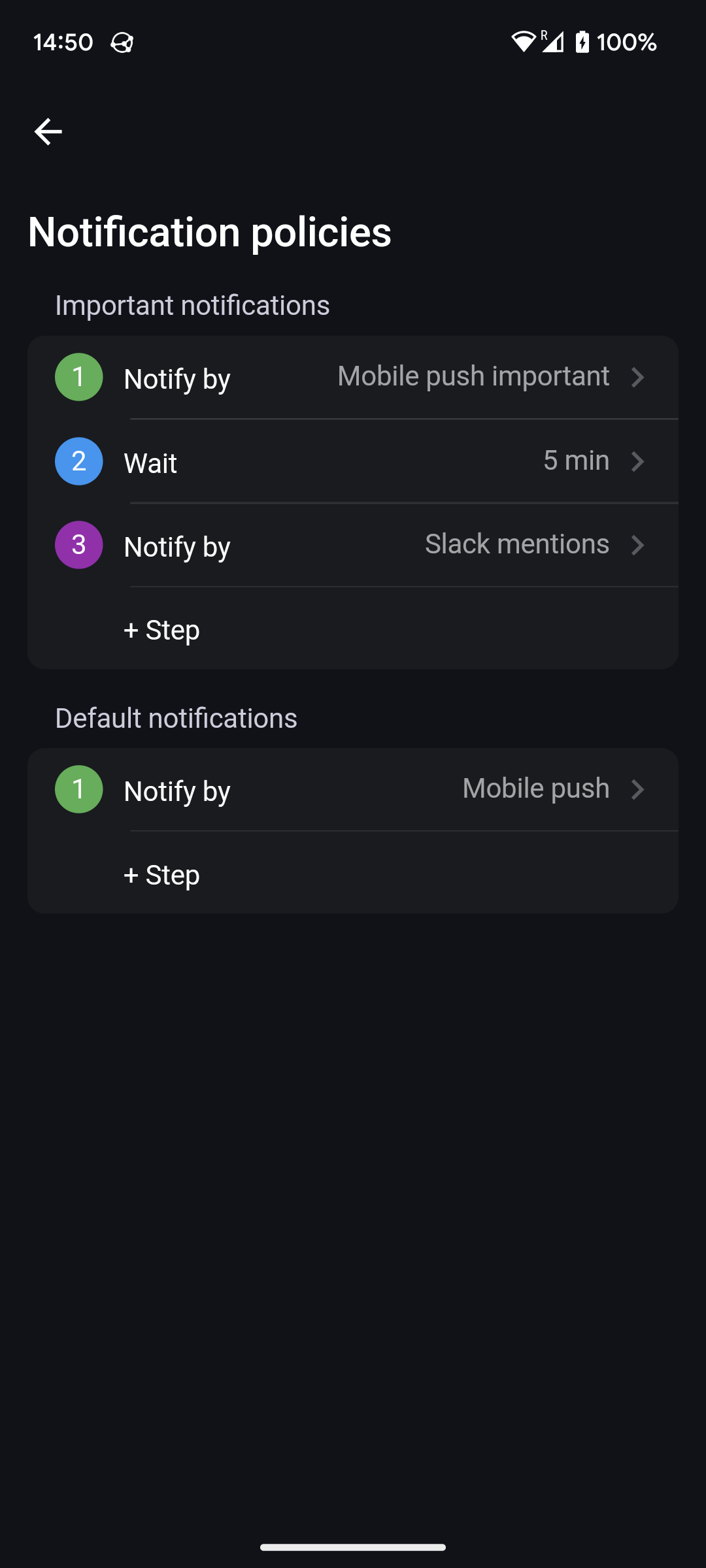
To receive push notifications from the Grafana OnCall mobile app, you must add them to your notification policy steps. **Important notifications** should include **Mobile push important** and **Default notifications** should include **Mobile push**.
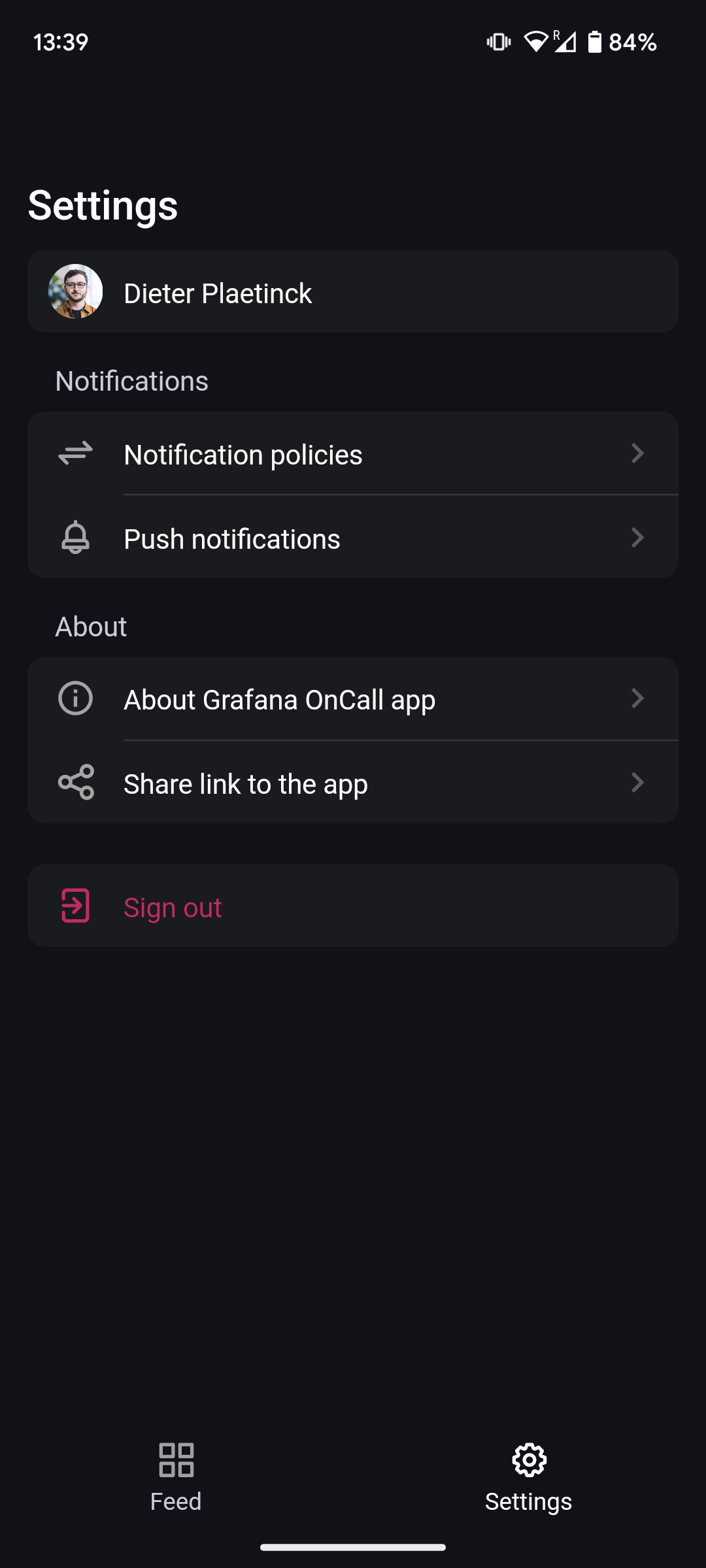
In the **Settings** tab of the mobile app, tap on **Notification policies** to review, reorder, remove, add or change steps.
Alternatively, you can do the same on desktop. From Grafana OnCall, navigate to the **Users** page, click **View my profile** and navigate to the **User Info** tab.
## Configuration
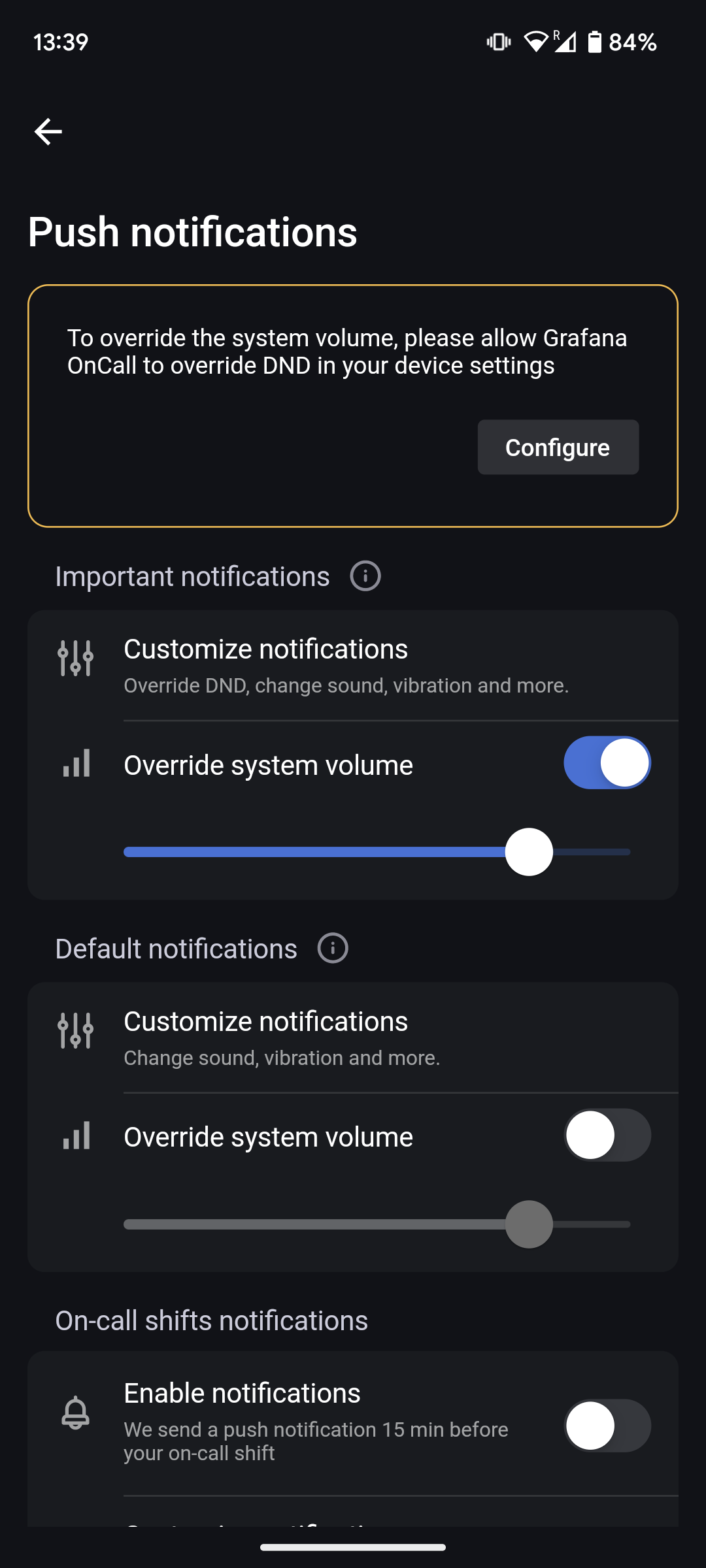
Use the **Push notifications** section in the **Settings** tab to configure push notifications.
You can always confirm how a notification is presented by going to Grafana OnCall on your desktop, navigate to the **Users** page, click **View my profile** and navigate to the **Mobile App connection** tab. Here you can send a test notification of default or important priority. We recommend doing this to try out correct configuration of **Do Not Disturb** and **Volume** overrides.
### Android
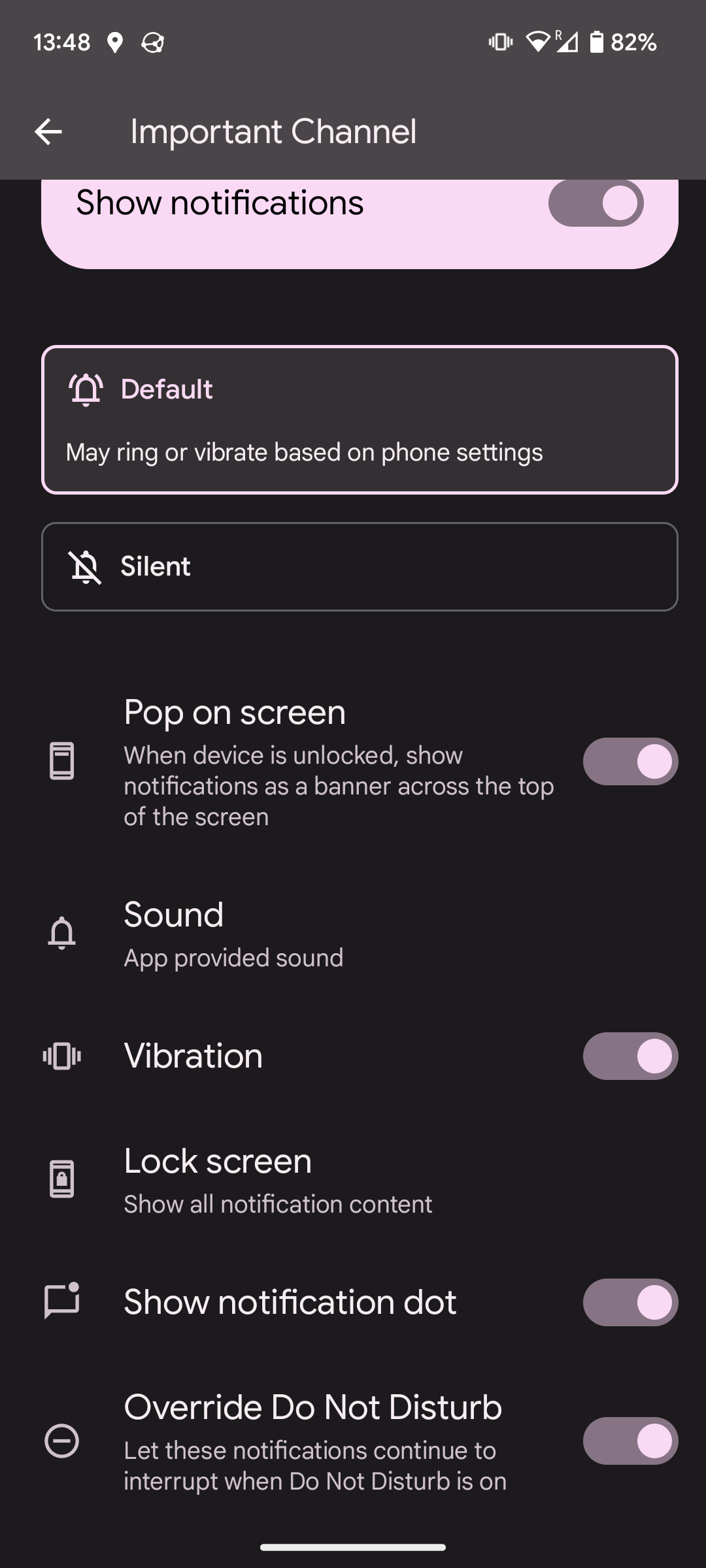
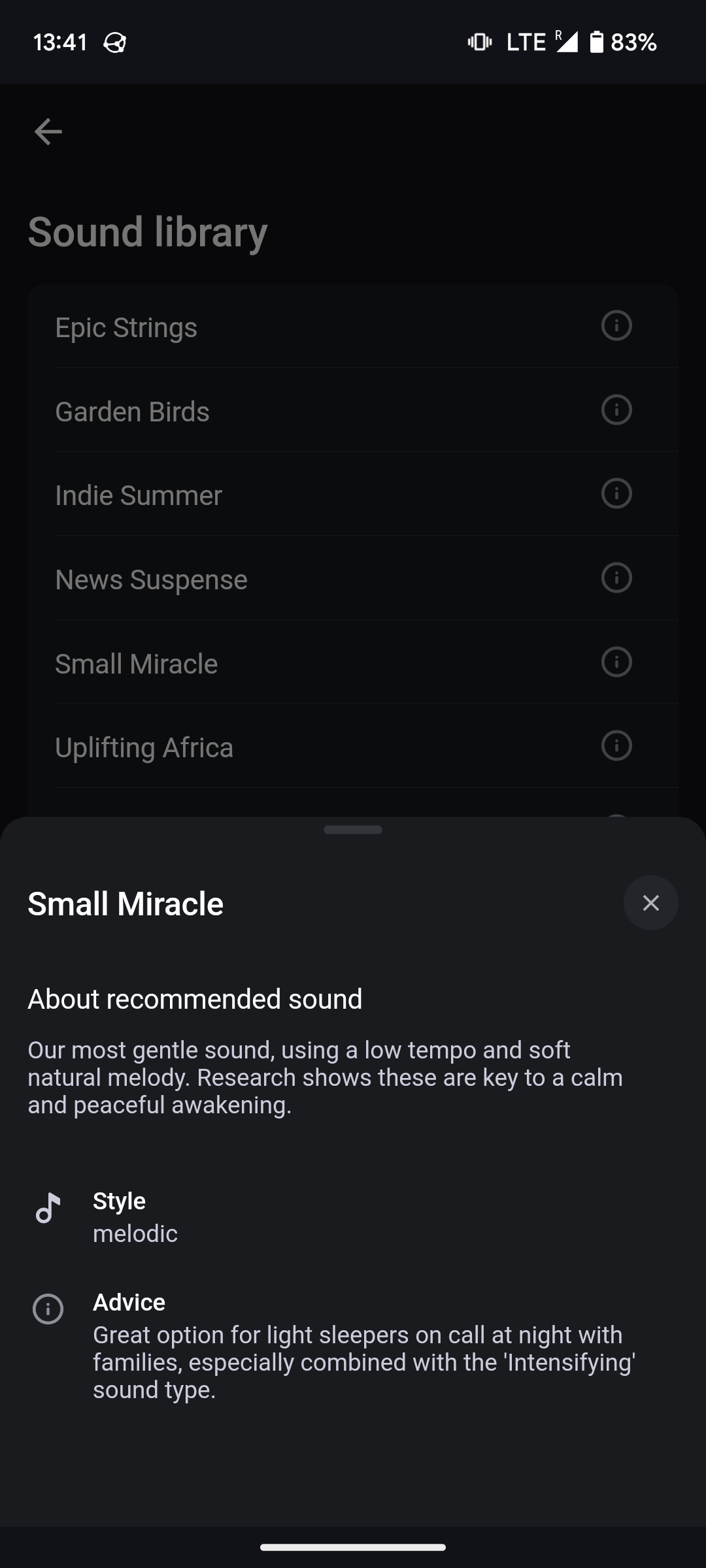
On Android, we leverage the “Notification channels” system feature. Each type of notification (**important**, **default**, and **info**) registers a channel. In this channel, you may configure the sound style, vibration, and so on. **Customize notifications** takes you to this system menu, while hitting the **back** button or swiping left (if enabled) takes you back to the application.
> **Note**: You can explore included sounds and recommendations via the **Sound Library** button, but to change the sound, go to **Customize notifications**.
#### Override Do Not Disturb
- On most Android versions, the **Override Do Not Disturb** option is available in the channel options described above.
- On some Samsung devices, you can add the Grafana Oncall app under (System) Settings > Notifications > Do not disturb > App notifications.
- If your device does something different, you may need to search for this setting for notifications via the (System) Settings app. Do not confuse this with the **Override Do Not Disturb** application permission, needed for **Volume Overrides** (see below).
#### Override Volume
**Volume Override** can optionally be configured in the mobile app itself. Confusingly, this requires you to provide the **Override Do Not Disturb** permission to the application, in the system configuration. The app will prompt for this if applicable. Note that this is a different setting than the **Do Not Disturb** override needed for notifications triggered by the application, which is described above.
### iOS
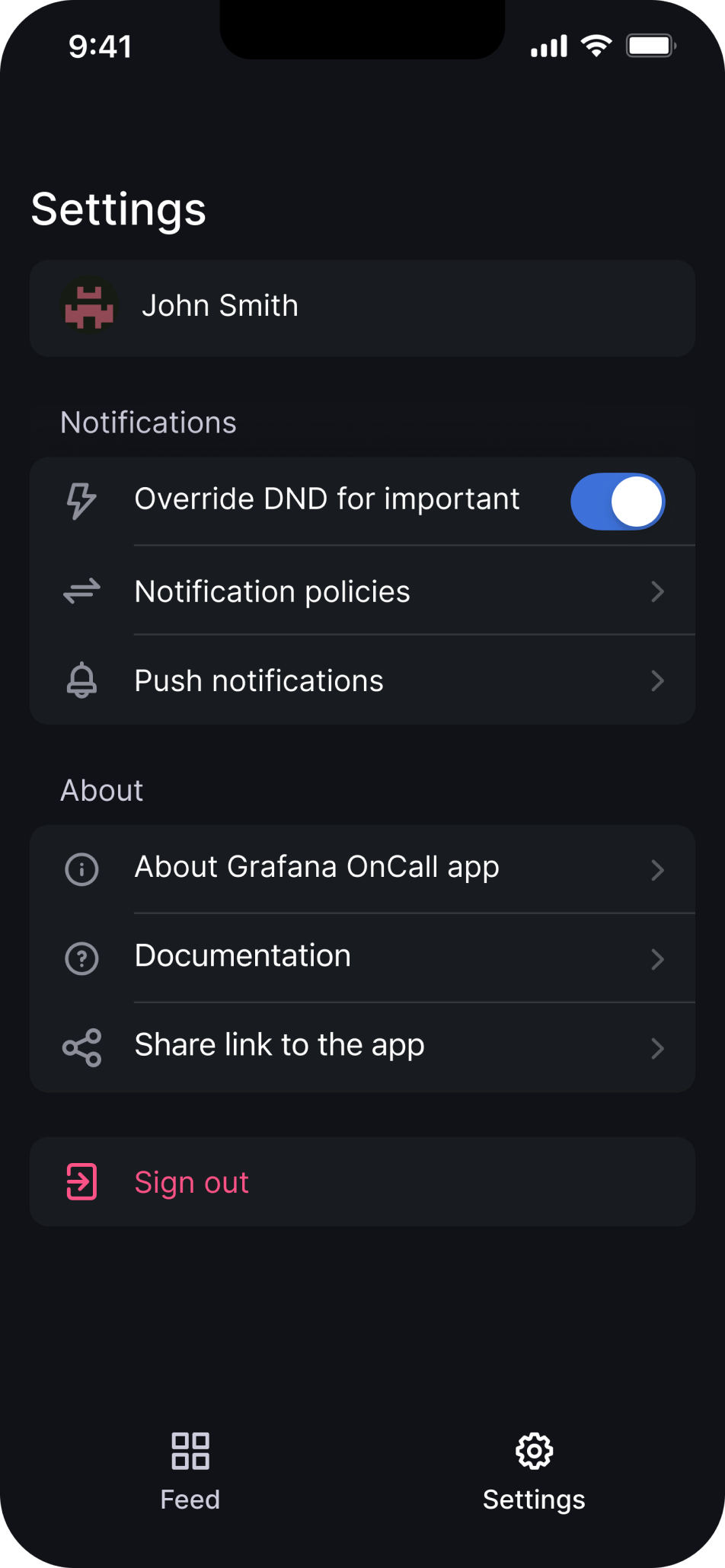
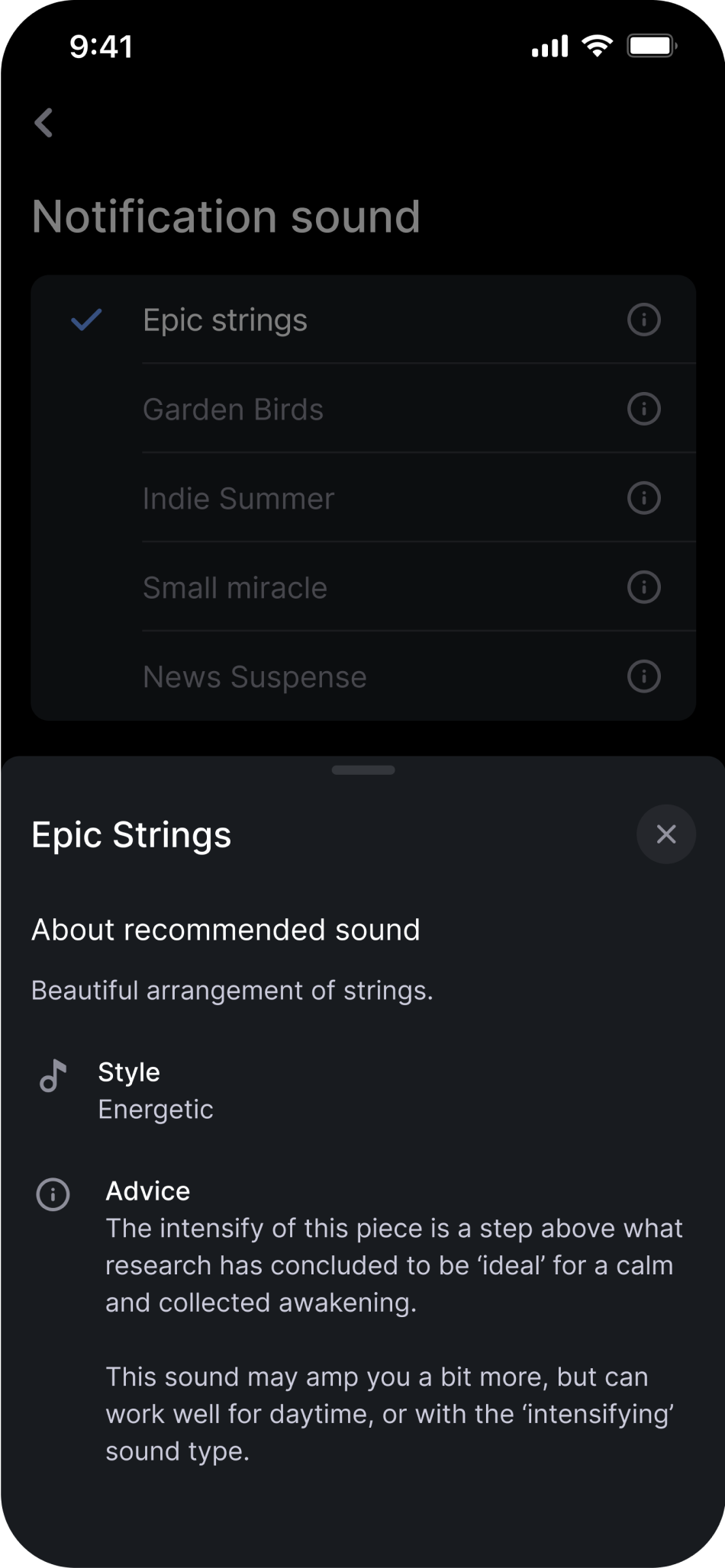
On iOS, all configuration (such as sound selection, Do Not Disturb override, etc) happens inside the app.
For every type of notification (**important**, **default**, and **info**), you can configure the sound and its style (constant vs intensifying).
You can also enable or disable Do Not Disturb override for **important** notifications.
### On-call shift notifications
On-call shift notifications are sent to announce upcoming shifts, you can select multiple timing options in the settings page.

To enable or disable on-call shift notifications, use the **info notifications** section in the **Push notifications** settings.
### Shift swap notifications
Shift swap notifications are generated when a shift swap is requested, informing all users in the on-call schedule (except the initiator) about it.
To enable or disable shift swap notifications and their follow-ups, use the **info notifications** section in the **Push notifications** settings.