Create an Add field from calculation transformation
The add field from calculation transformation allows you to create a new column by performing a custom calculation on one or more existing fields in your data. Use this for when you need to create a new field, such as calculating the total, difference, percentage, or ratio.
To use the add field from calculation transformation, complete the following steps:
Open your dashboard in edit mode.
Click Transformations tab and click + Add transformation button.
Select or search for Add field from calculation.
Under Mode, select how you want your calculation to be applied.
Use the following table as a guideline for when to use the different modes.
For modes with the Operation or Calculation option, select the operation and calculation that you want to perform.
Add a new name to the new field by updating Alias.
The transformation should be applied automatically. If not, click Refresh to verify the visualization looks as intended.
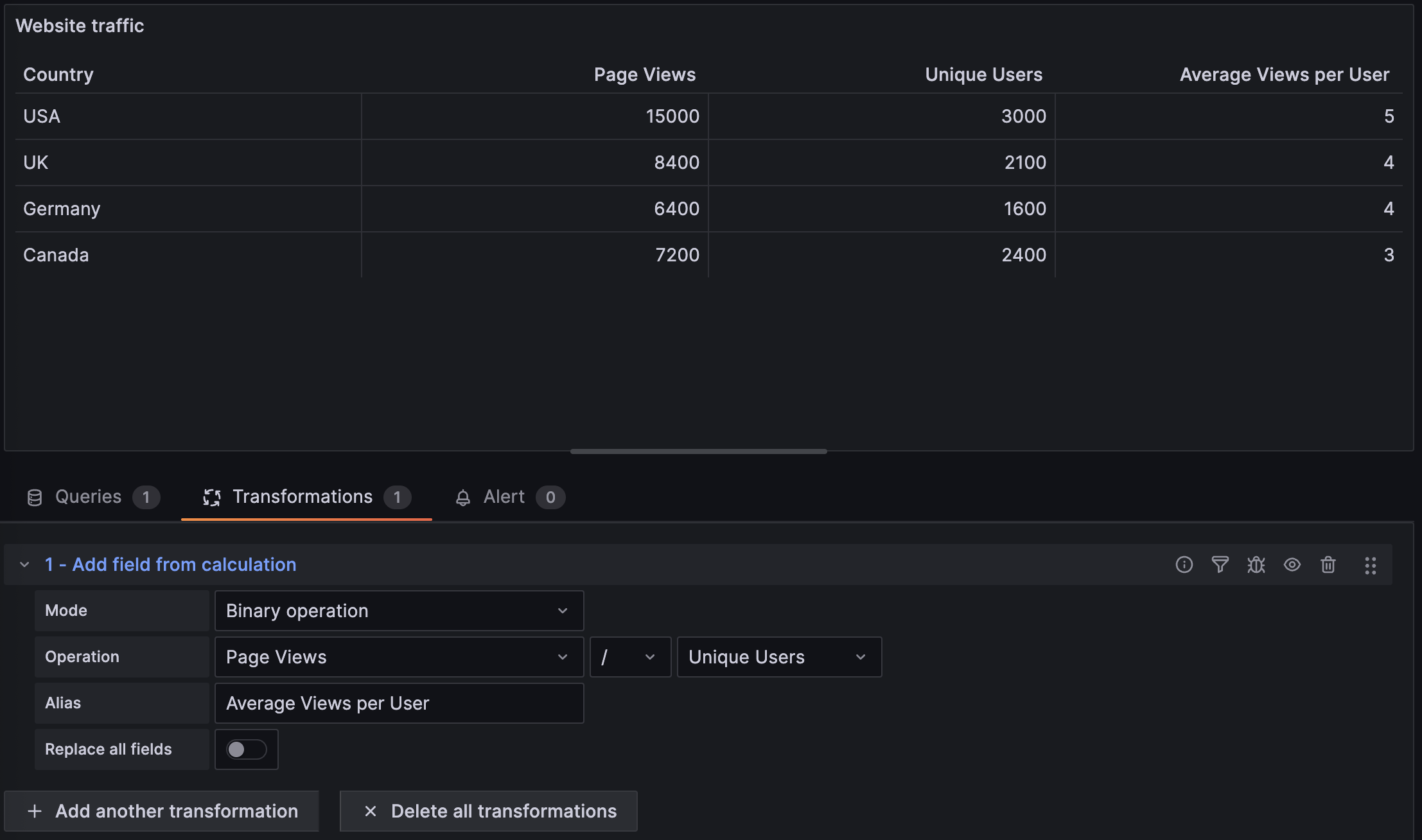
The following image shows an add field from calculation transformation with a binary operation. The transformation calculates the
Average Views per Userby dividing thePage viewswithUnique users.![Website traffic visualization using the Add field from calculation transformation]()
Save your dashboard.