
Create a usage alert
Usage alerts notify you when your spend or consumption approaches a threshold, so you can act before an overage shows up on your invoice. You create them directly in the Usage Alerts tab of the Cost Management and Billing app, without needing full access to Grafana Alerting.
To create alerts, you need the permissions granted by the Usage alerts admin role. Refer to Manage access to the Cost Management and Billing app.
In this section, you’ll open the alert builder and set a budget on your global spend, choose alert levels, and pick where Grafana sends the notification.
Pop this guide out into a floating window so it stays visible when the Create usage alert drawer opens.
Go to the Usage Alerts tab of the Cost Management and Billing app.
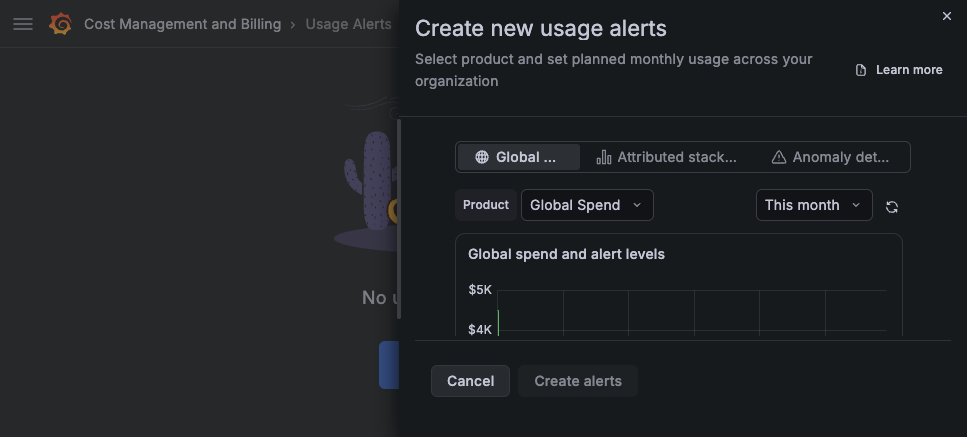
Click Create usage alert to open the alert builder. If you already have alerts, the same control is labeled + Create usage alert.
Keep Global usage selected to alert on your total Grafana Cloud spend. You can also choose attributed stack usage or anomaly detection.
Leave Product set to Global spend for a budget alert, or pick a specific product such as Metrics, Logs, or Traces to alert on that product’s usage.
Enter your monthly budget in US dollars (USD), for example
1000. Grafana alerts you as your spend approaches this amount.Alert levels decide how close to the budget you get notified. Select one or more preset levels, such as 50%, 70%, 85%, and 95% of the threshold, or add a custom level to fine-tune when Grafana warns you.
Choose a Contact point for the notification. If you don’t have one yet, click View or create contact points to set one up.
Review your settings, then click Create alerts to save. The alert becomes active immediately and begins monitoring.
Other alert types
The builder also supports two more options at the top of the drawer:
- Attributed usage: Alert on a specific team or service using your cost attribution labels. This option appears only when cost attribution is configured.
- Anomaly Detection: Alert when Metrics, Logs, or Traces usage deviates from a historical baseline instead of a fixed threshold. Choose a sensitivity and, optionally, alert on unexpected drops. Refer to Create anomaly alerts.
Best practices
When setting up usage alerts, consider these recommendations:
- Set multiple levels: Use several percentages, such as 50%, 75%, and 90%, so you get early warning before reaching the threshold.
- Alert per product: Create separate alerts for Metrics, Logs, and Traces to quickly identify which product drives a cost increase.
- Use attribution: Route attributed-usage alerts to the team responsible for the spend.
- Watch for drops: Anomaly alerts with drop detection can catch telemetry that silently stops arriving.
To review or change an alert later, return to the Usage Alerts tab and select it. Refer to Manage existing alerts.
In the next milestone, you’ll complete your journey and find additional cost management resources.
More to explore (optional)
At this point in your journey, you can explore the following paths: