
Review cost by team
In this milestone, you open the attribution report to see how cost is distributed across teams and how much cost is unattributed. You need the Cost attribution reader role to view the report.
Attribution reports can take up to 24 hours to appear after you save an attribution label. If the report is empty, come back later to see the results. Find the report again by navigating to the Attributions tab in the Cost Management and Billing application.
Click the Attributions tab.
Read the report
The following image shows an example of an attribution report where metrics, logs, and traces are attributed to teams.
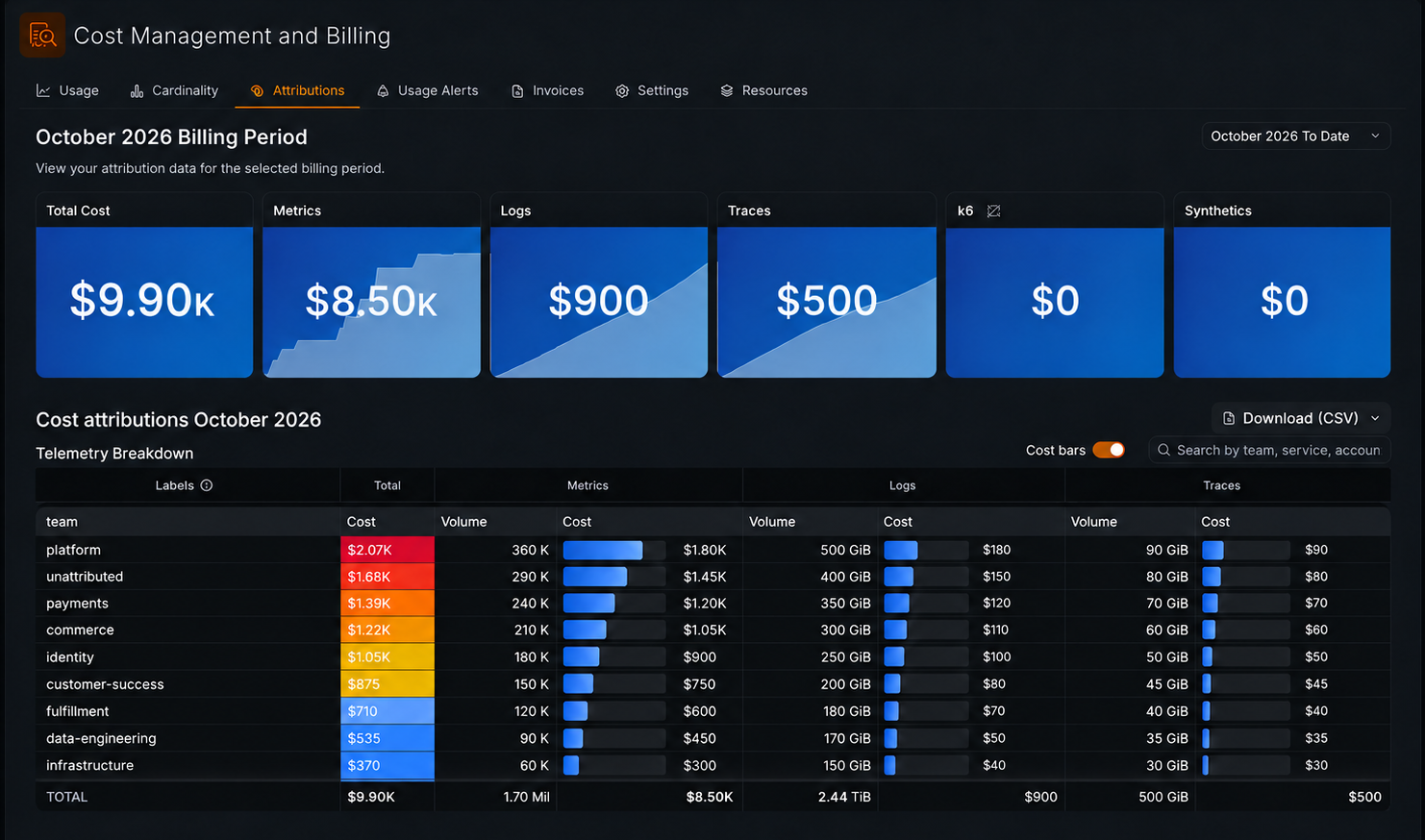
Here’s what the report shows:
Current month default: The report opens with billing data for the current month. You can change the time period using the date dropdown at the top of the report.
Billing period summary: The total cost and the cost for each signal.
Telemetry breakdown: A table with one row for each
teamvalue. Each row shows the total cost, plus volume and cost for metrics, logs, and traces. A total row at the bottom sums each column.Unattributed: A row that shows the cost of telemetry that doesn’t have the
teamlabel.
Reduce unattributed cost
Unattributed cost means that some telemetry doesn’t have the team label. To attribute more cost to teams:
- Assign the
teamattribute to more collectors. Refer to Categorize a collector fleet for details. - Check that the pipeline matches all collectors that send metrics.
- Add the
teamlabel to other telemetry. This learning path labels metrics only, so logs and traces without a matching label key are classified as unattributed. For guidance on choosing labels, refer to Understand attribution labels.
You reviewed cost by team and learned how to find and fix unattributed cost.