Slide 1 of 2

Folders

Folders

The folder you pick for an alert rule serves two purposes:

  1. Organization: Groups the rule in the alert rules list so you and your team can find it later
  2. Permissions: Controls who can view and edit rules inside it. Users with Edit permission on the folder can manage the rules in that folder.
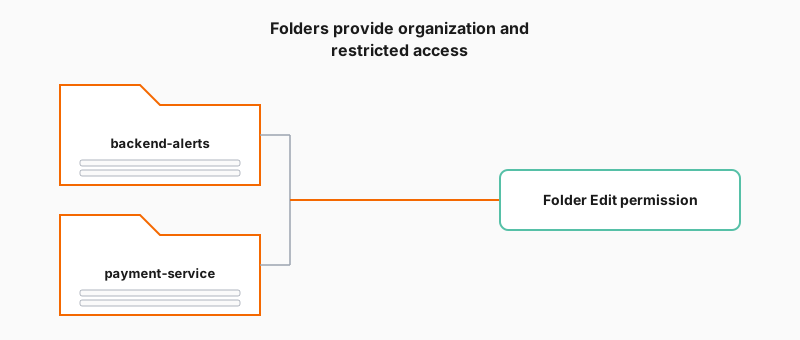
Diagram titled Folders provide organization and restricted access: two example folders, backend-alerts and payment-service, grouped with a line to folder Edit permission

Choose a folder

Pick an existing folder that matches how your team organizes work. If no existing folder fits, you can create one during alert rule setup.

Good to know

If saving fails because of a name conflict, check whether a rule with the same name already exists in that folder.

Script

The folder you select when creating a rule does two things. It organizes the rule in the alert rules list so you can find it later. And it sets the permission boundary — users who have Edit access on that folder can manage the rules inside it.

Think of folders like filing cabinets. You group related rules together so your team knows where to look, and you control who has the keys.

In this section